Workarea Migration Tool
Workarea Migration Tool Overview#
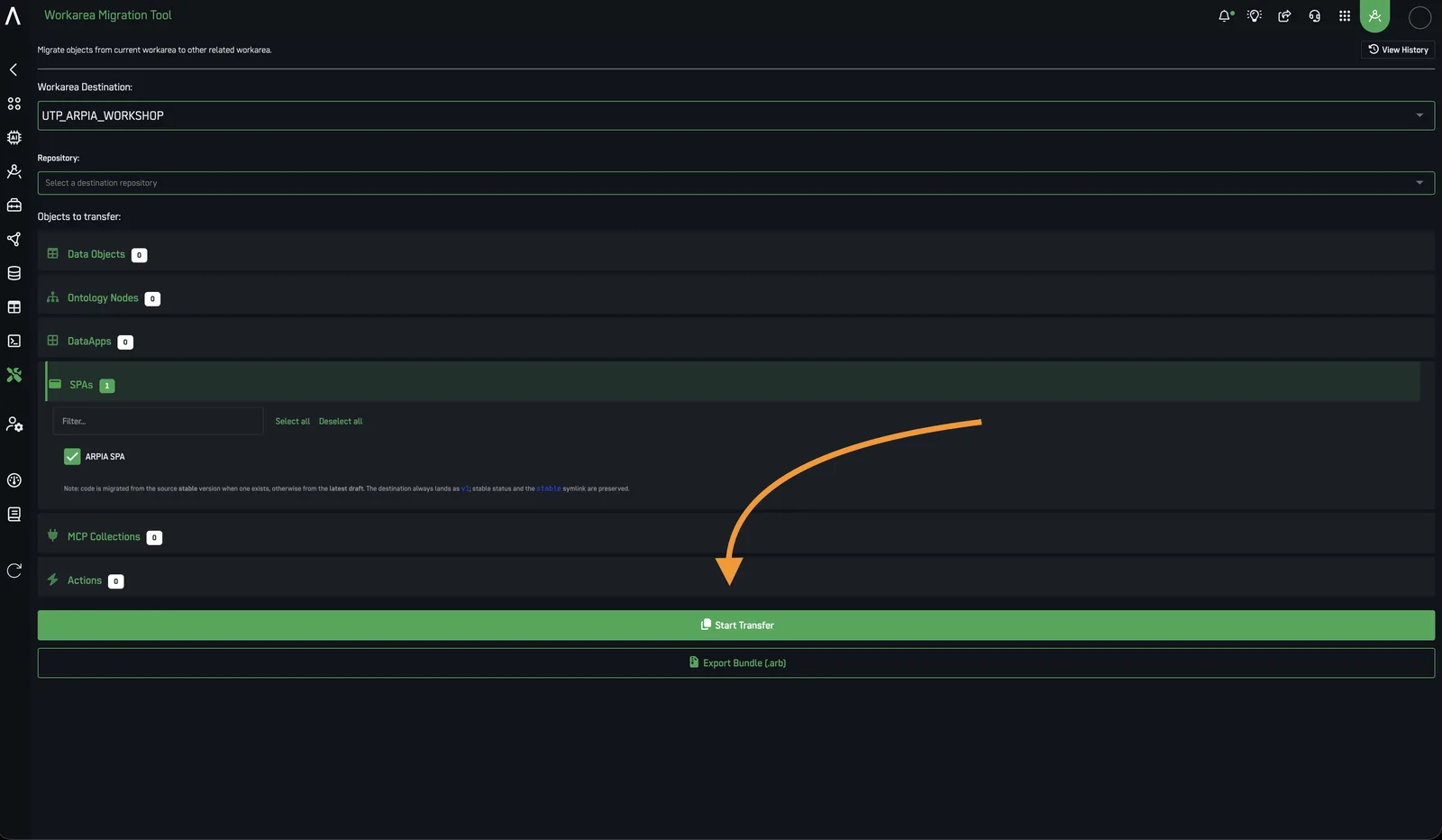
The Workarea Migration Tool moves objects and configurations between workareas — the platform's isolated project environments. It offers two paths:
- In-platform transfer — same server.
- Export Bundle (
.arb) — move a workarea to a different server.
Purpose#
Migrate objects from one workarea to another. This is typically used to promote content across separated environments (dev → test → prod), including across servers.
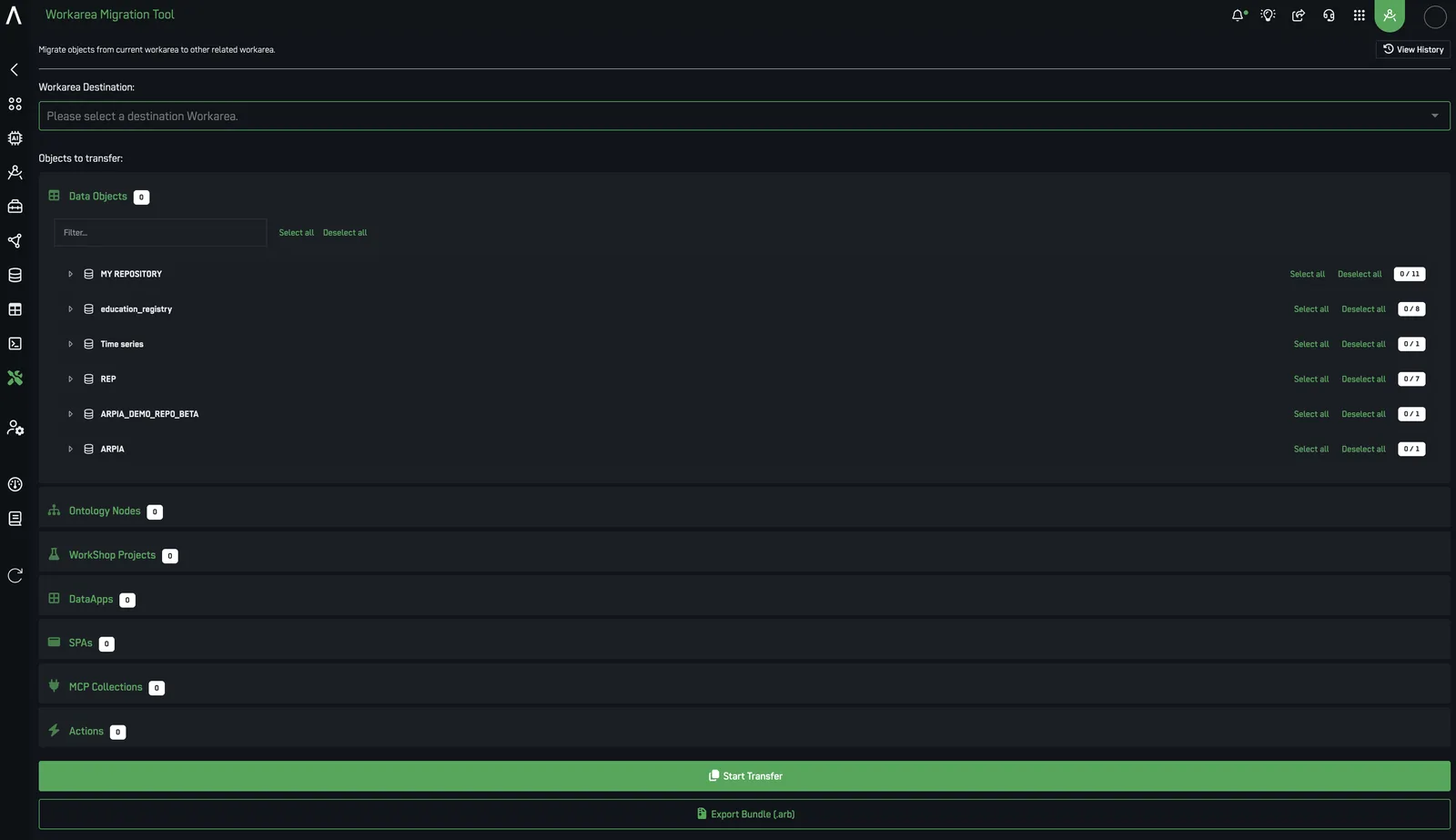
Main Interface Elements#
1. Workarea Destination#
Dropdown ("Please select a destination Workarea") to pick the target workarea for an in-platform transfer.
2. Objects to Transfer#
Lists the transferable categories, each with a counter showing how many objects are available:
- Data Objects
- Ontology Nodes
- WorkShop Projects
- DataApps
- SPAs
- MCP Collections
- Actions
Data Objects and Ontology Nodes expand into a checkbox grid grouped by repository. Each group is collapsible with Select all / Deselect all.
3. Action Button#
Green START TRANSFER button — runs the in-platform migration once selections are made.
Export Bundle (.arb) — Cross-Server Migration#
For a destination on a different server, export the source workarea as an .arb bundle: one portable file (compressed JSON) holding the objects you select.
- Select the objects to include, using the same selection grid above.
- Export to generate the
.arbfile. - Import the bundle on the destination server.
Import is idempotent: it skips objects that already exist and recreates views in dependency order, so a retried import won't duplicate or corrupt content. The tool remaps repository / connection references automatically, and reports the real failure reason if a run is rolled back.
Dry-run, Audit Log & History#
- Dry-run — validate a full migration without applying changes.
- Preflight check — validates SPA files before transfer, with actionable messages.
- Audit log — every run is recorded.
- History viewer — review past runs via View History.
Toolbar#
Top right: notification bell, settings gear, help icon, grid/menu icon, and user profile avatar.
Example: Migrating an SPA#
Promote a single SPA (e.g., a Sales Dashboard app) from one workarea to another.
- Open the tool from the source workarea — the one that holds the SPA.
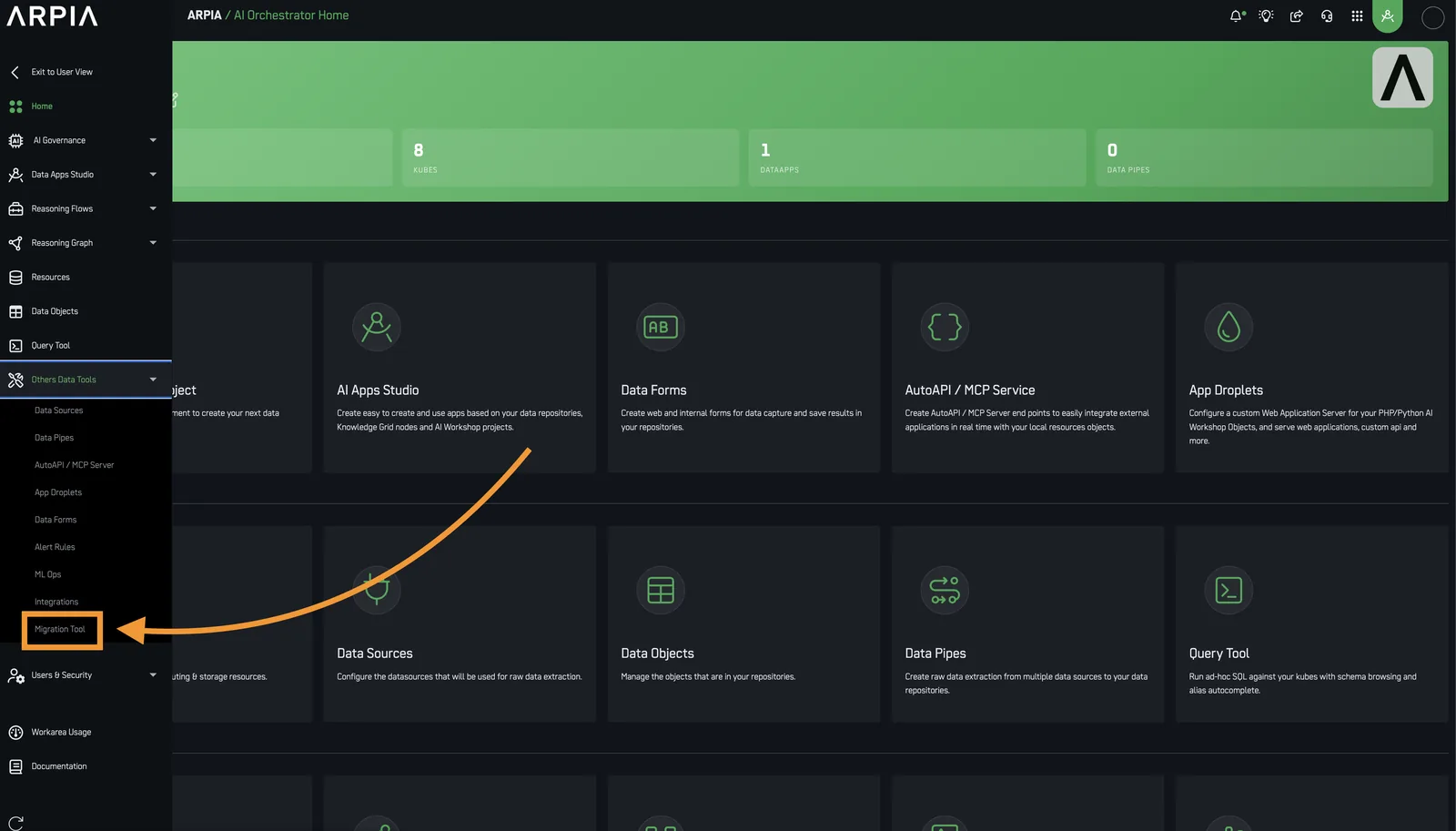
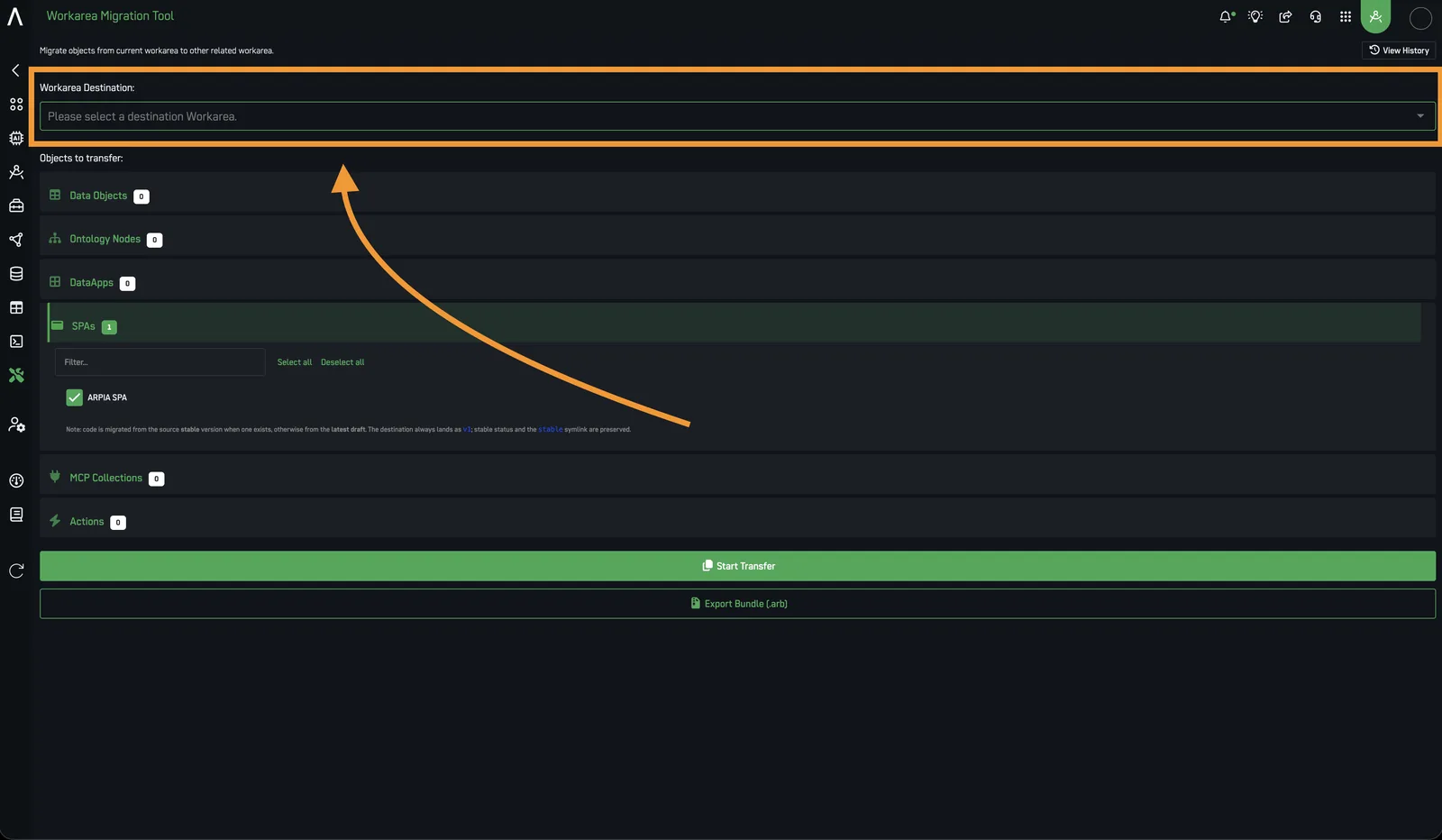
- Select the destination in "Please select a destination Workarea." (For a different server, export an
.arbbundle instead — see step 6.)
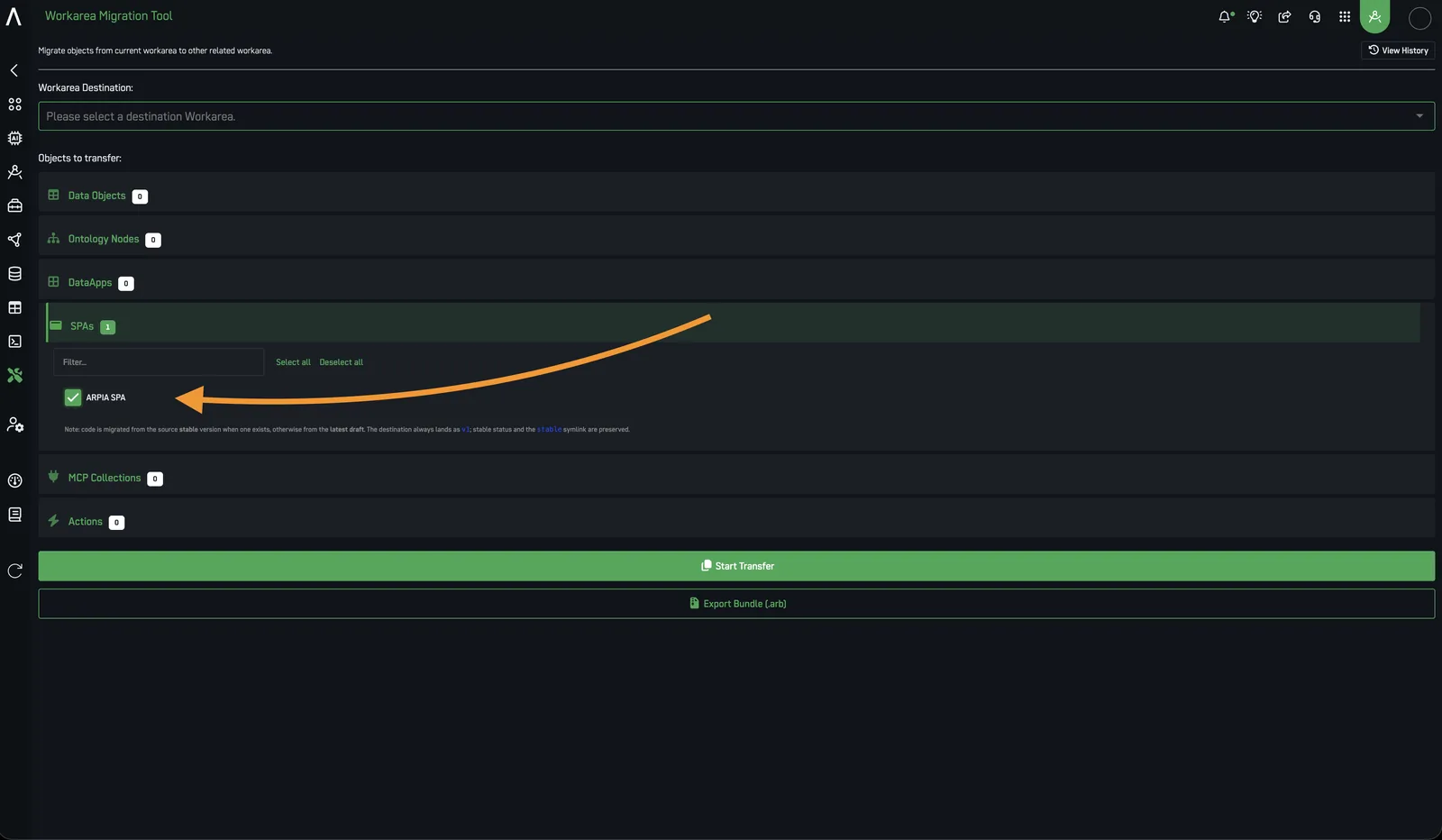
- Select the SPA under Objects to Transfer → SPAs (e.g., Sales Dashboard).
-
Include dependencies. Expand Data Objects / Ontology Nodes and check everything the SPA reads (use Select all per repository), plus any Actions it triggers.
-
Run a dry-run. The preflight check verifies the SPA's files and flags anything missing or broken — fix those before continuing.
-
Execute. * Same server: click START TRANSFER. * Different server: Export the
.arbbundle, then import it on the destination server.

- Verify. Use the History viewer to confirm the run succeeded, then open the SPA in the destination workarea to check that it loads and its data sources resolve.
Use Cases#
- Promote data models or apps from a development to a production workarea.
- Move a complete workarea to a different server via an
.arbbundle. - Consolidate assets between related project environments.
- Support data governance and change-management workflows.