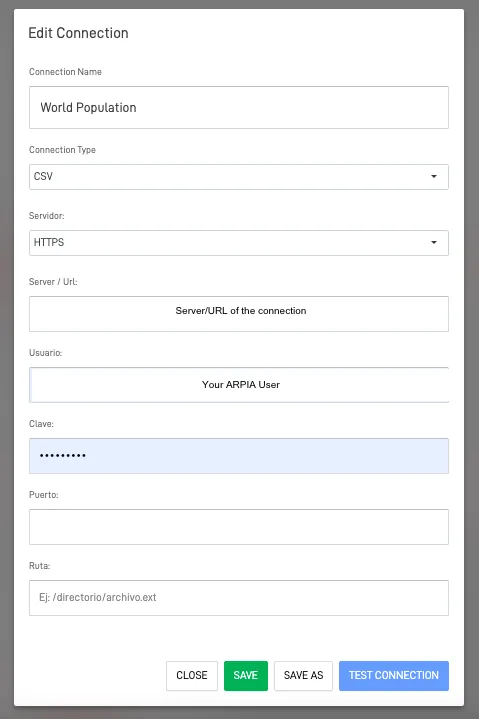
How to connect a Data Source
Step-by-Step Guide#
Step 1: Access the Data Source section#
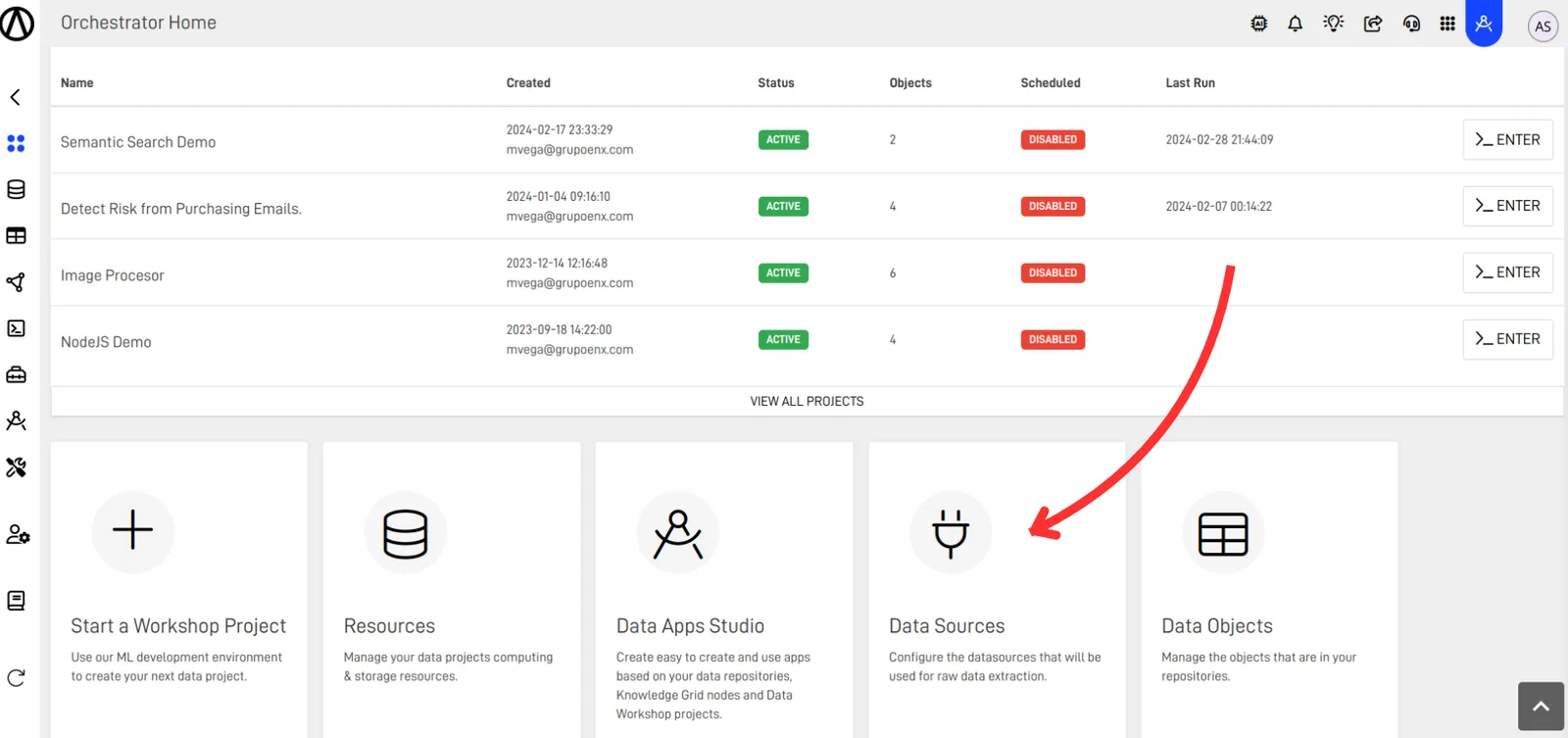
On the main screen of the Orchestrator, select the Data Sources tool.
Step 2: Create a new Data Source#
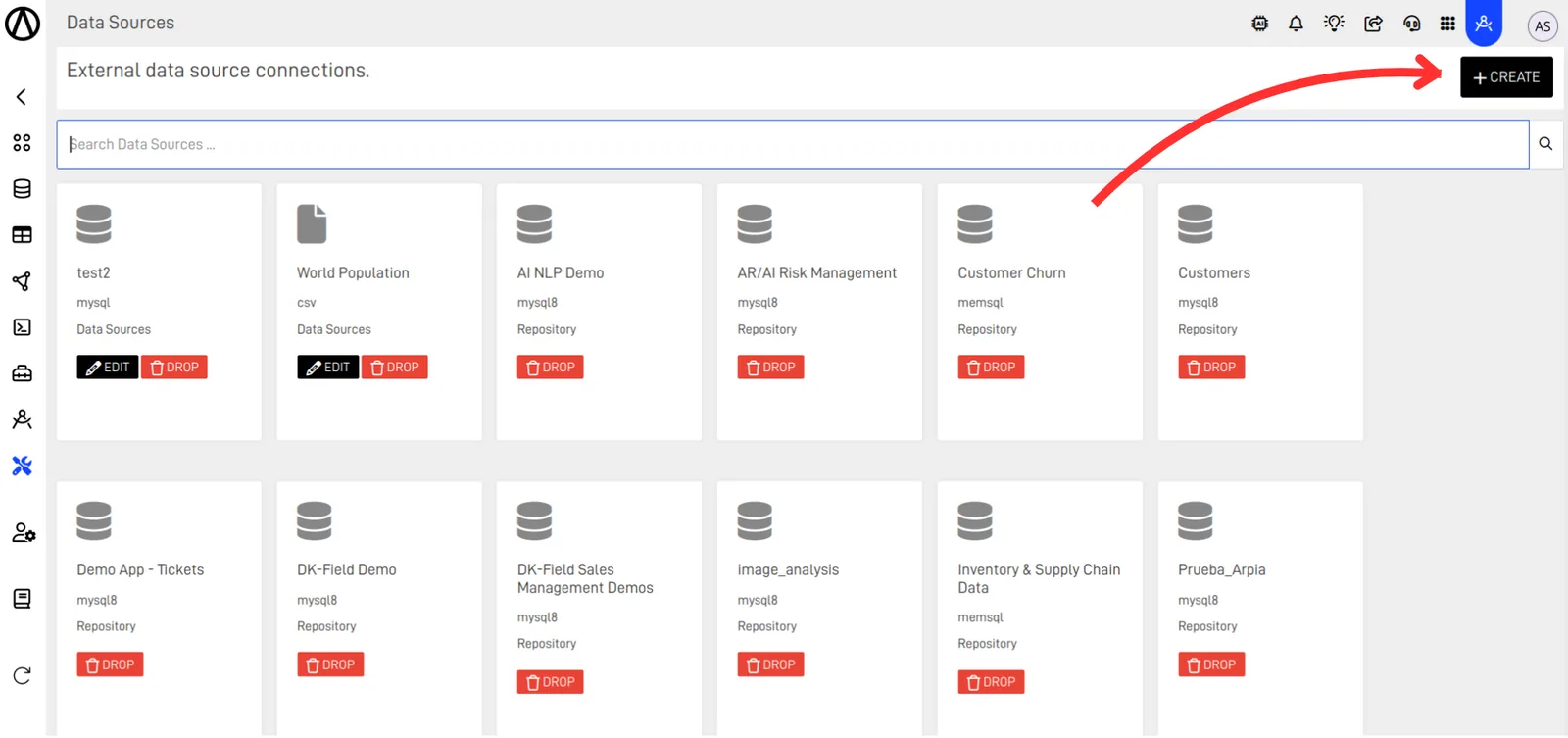
After selecting Data Sources, a new screen will open where you can see existing connections. To create a new connection, click the + CREATE+ button.
Step 3: Fill out the New Source Form#
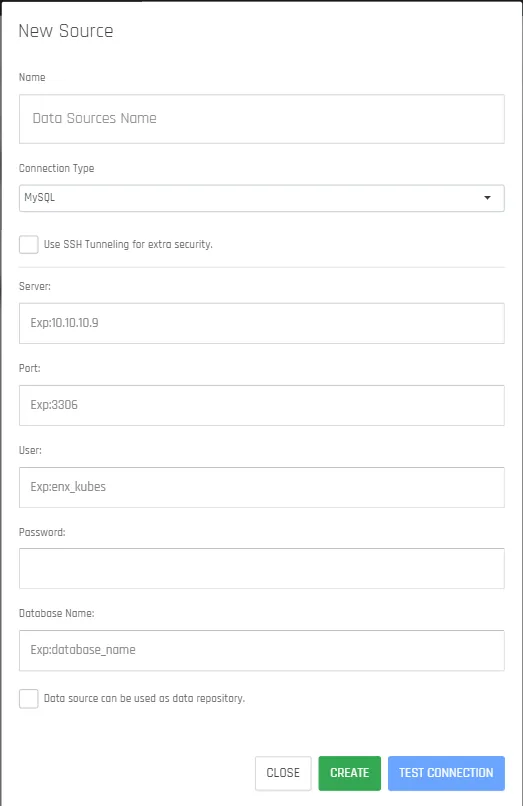
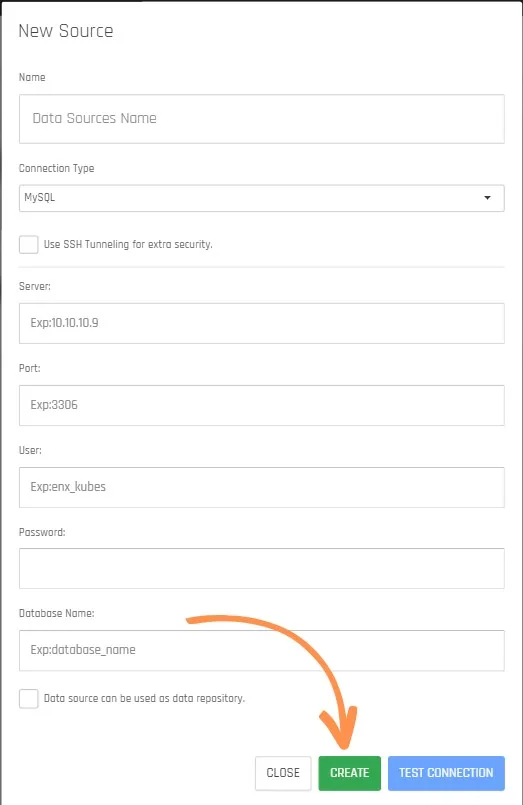
A new screen will open where you need to enter your database details. Define the connection name, connection type, and your database details based on the properties available in your plan.
NOTE
ARPIA allows you to connect external sources for analysis cubes or data extraction. Currently, databases compatible with ARPIA are:
| Database | Live Kube Design | DataPipes Extraction |
|---|---|---|
| MySQL | Yes | Yes |
| PostgreSQL | No | Yes |
| Amazon RDS (MySQL/PostgreSQL/Redshift) | Partial | Yes |
| SingleStore | Yes | Yes |
| MSSQL (Microsoft) | No | Yes |
| CSV, TAB, JSON (Direct URL Pull) | No | Yes |
| ODBC | No | Yes |
If your database is not listed here, you can use integration services like FiveTran, Hevo, or similar, allowing you to create pipelines from any source to ARPIA.
📘 Enterprise Plan
Remember that to use external data pipeline services, you must have the Enterprise plan. External services require external credentials to send data to repositories in your private cloud.
Step 4 (Optional): Check the SSH tunneling option and fill the additional form#
In ARPIA, you can use data encryption via SSH tunnels for a secure connection. Simply check the option Use SSH Tunneling for extra security.
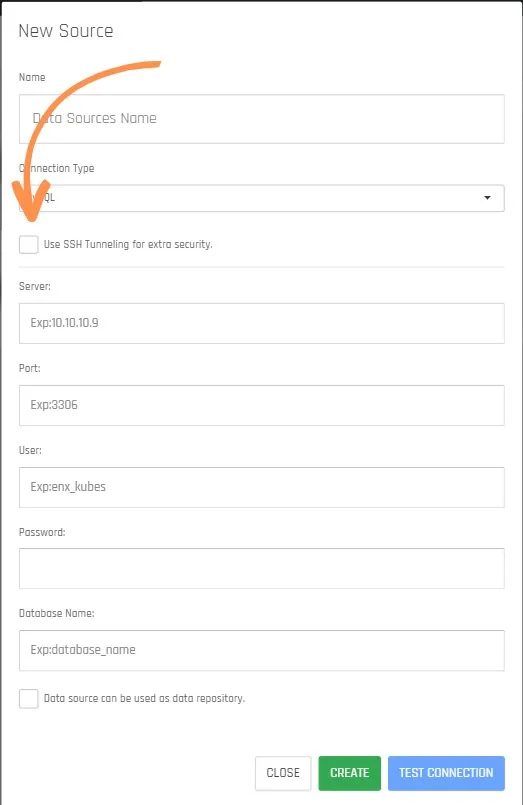
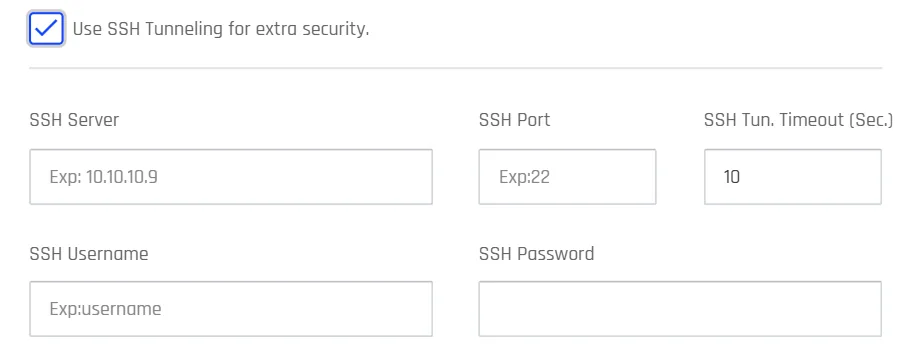
After choosing the option Use SSH Tunneling for extra security, an additional tab will open where you must fill in the corresponding information.
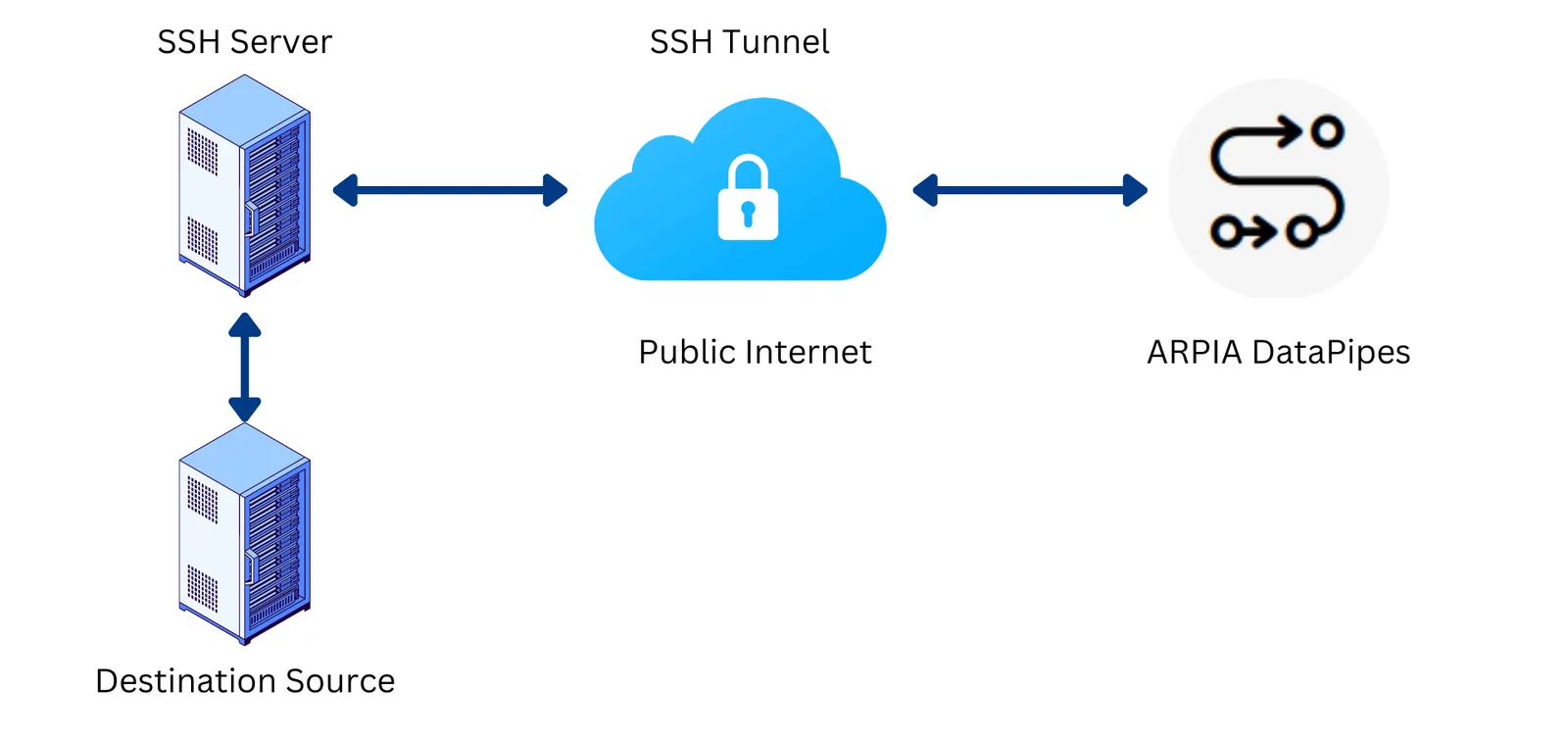
For proper use of SSH power and to protect your data when traveling from the source to ARPIA repositories, it's essential to design the SSH tunnel as per the following image:
Step 5: Test the connection#
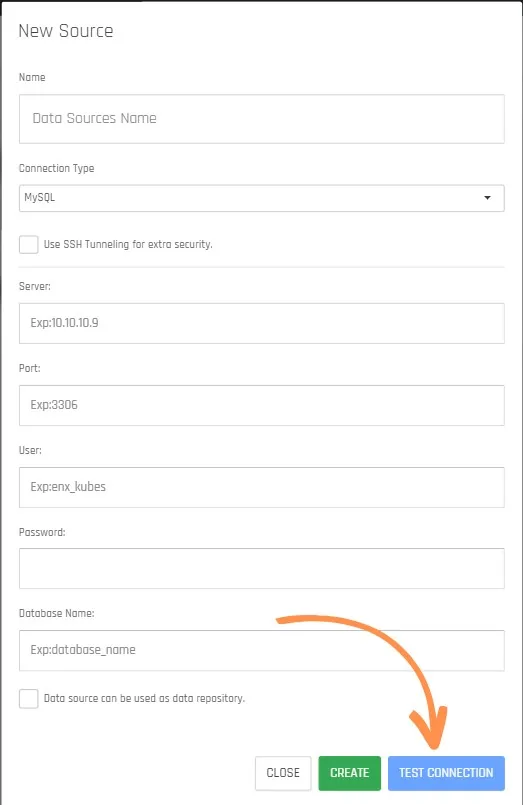
Once you configure your connection, you can test the connection by clicking TEST CONNECTION.
Step 6: Create the New Data Source#
After testing the connection, click the CREATE button.
Step 7: Check the listed Data Source#
Once your connection is created, you can see it listed in the Data Sources section.
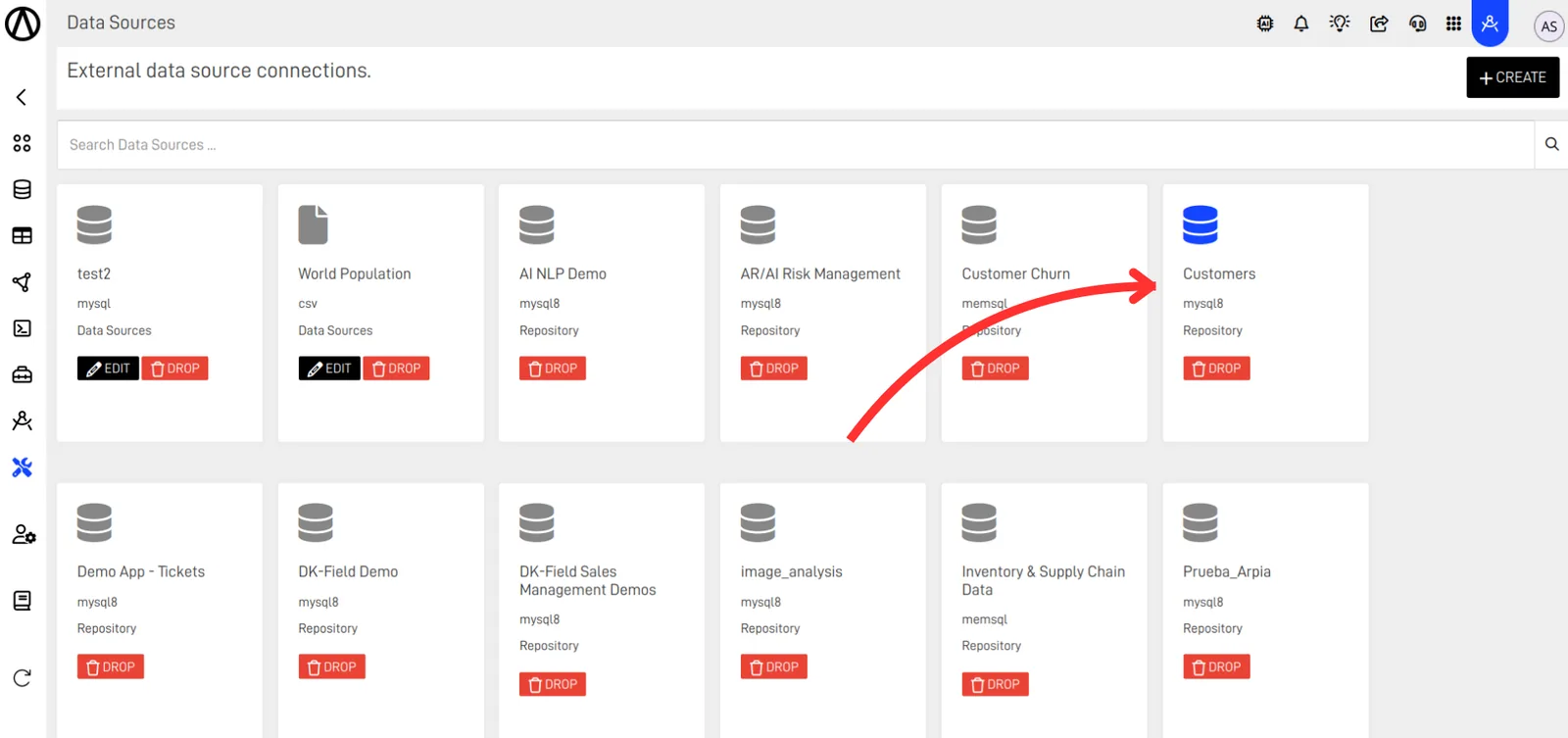
Once the data source is configured, it can be used according to its type, either to create cubes in Kubes Designer or Data Pipes to extract data from this source to the repositories configured in your account. In this View you can also access the Data Sources actions.
- Edit: You can select edit to edit the connection name, type, Server, etc.