How-To: Apply a User Filter in an ARPIA Agent Session
Updated October 26, 2026
Guide: Setting Up a User Filter in an ARPIA Session-Based Agent#
This guide will walk you through how to configure and test a user-specific filter in an ARPIA agent. The goal is to make sure the agent only shows data that belongs to the user currently logged in.
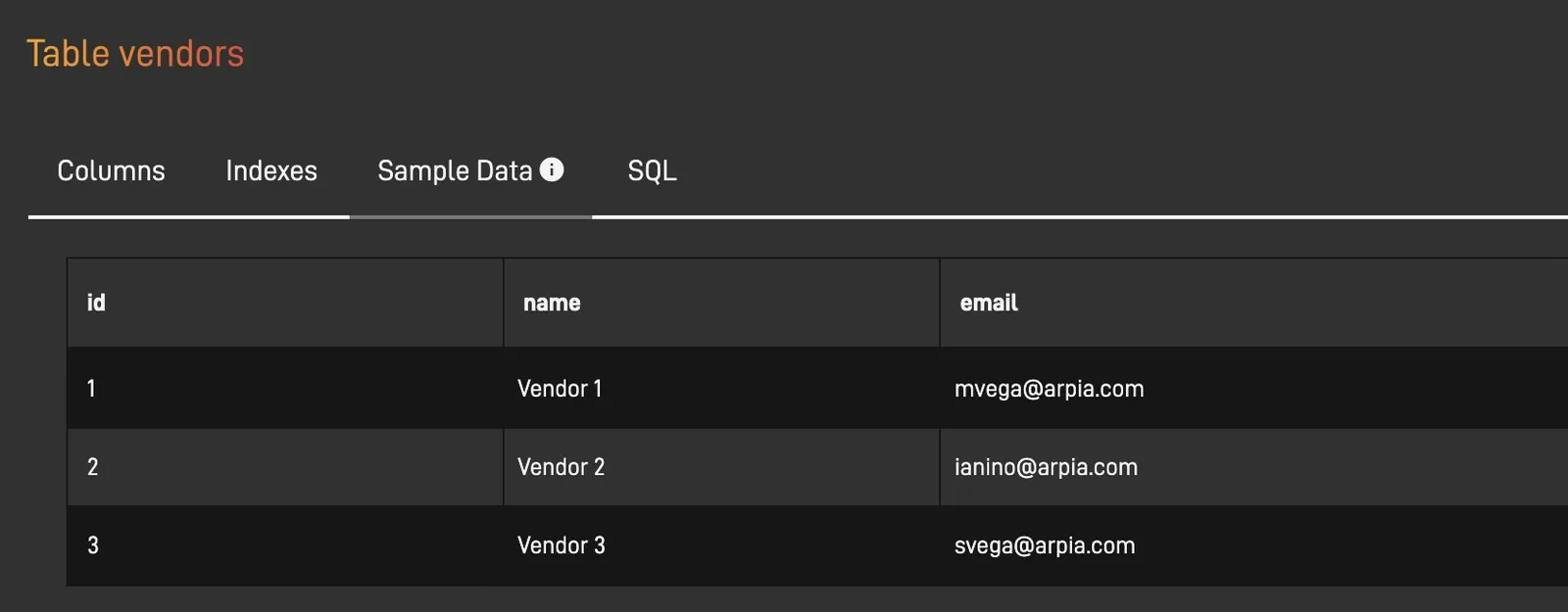
First, make sure your data table (or dataset) includes a column with user email addresses. This is how the system knows which records belong to which user.
Example: Add a column named user_email to store each user’s email.
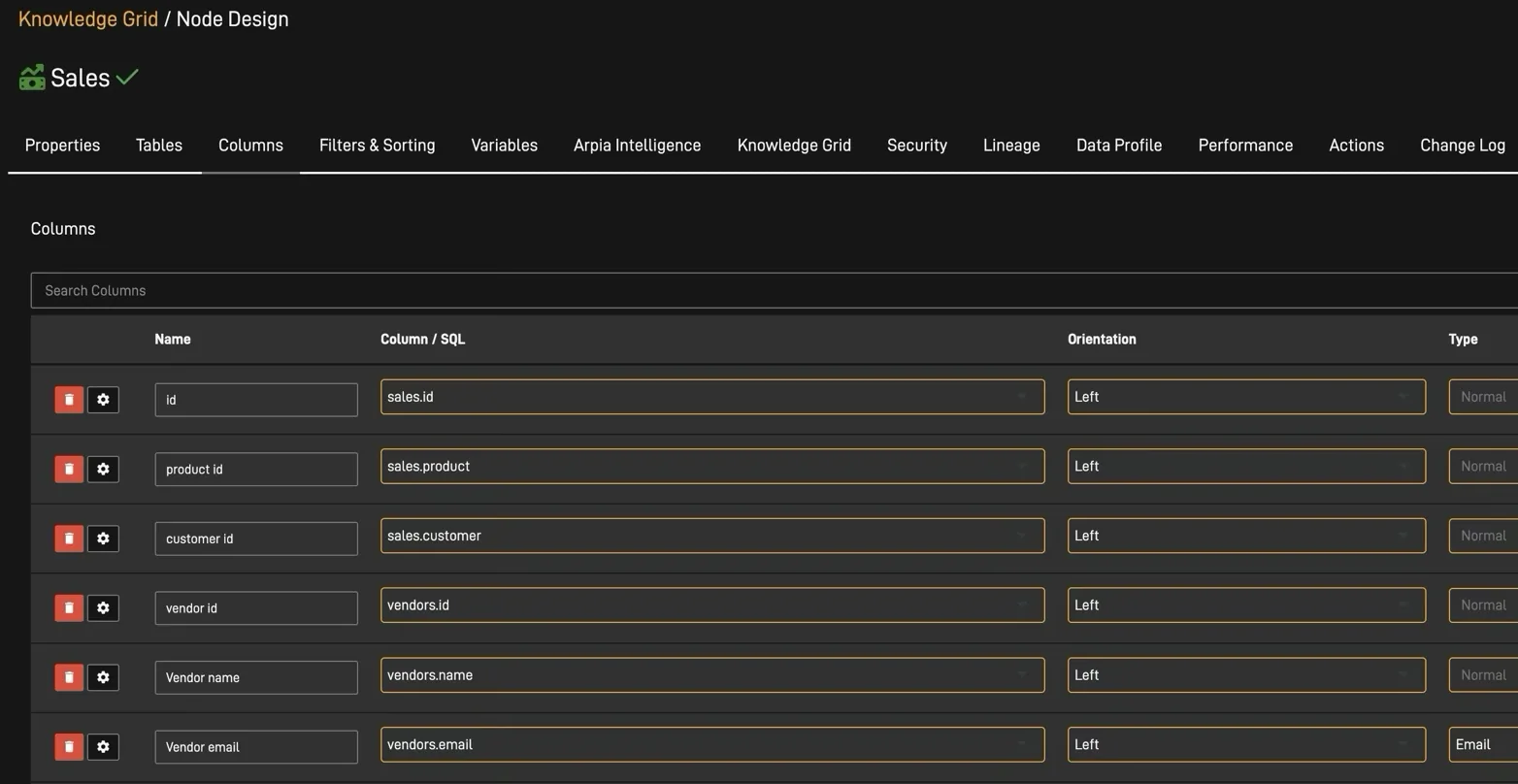
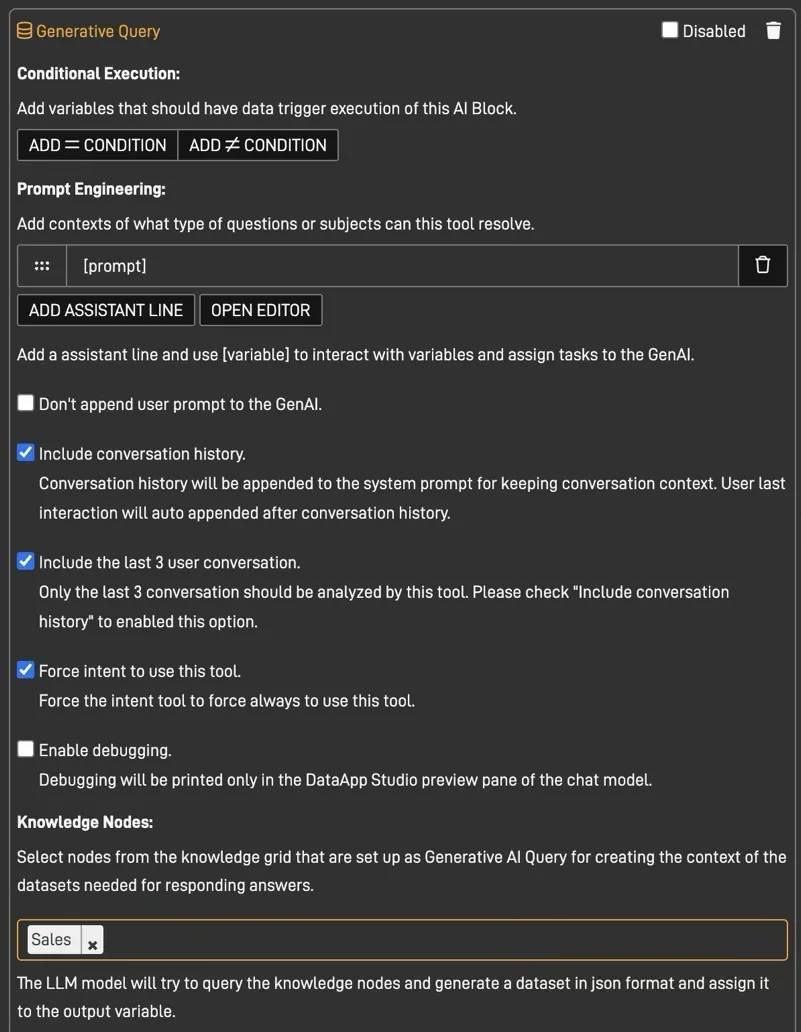
Go to the ARPIA agent and select the node that will query your data. Then, configure it to use the user_email field (or whatever your column is named).
Make sure this node is selected and ready for setup.
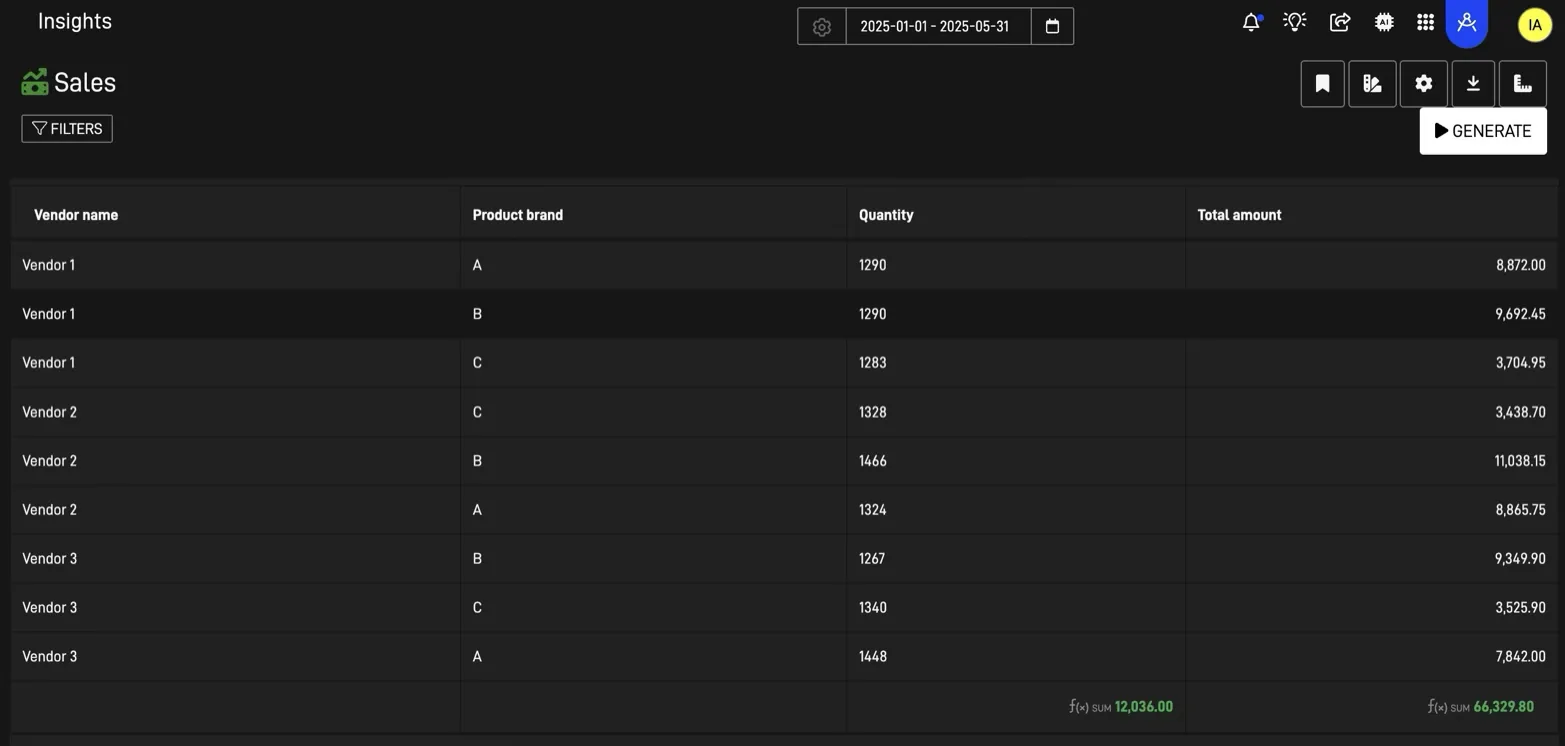
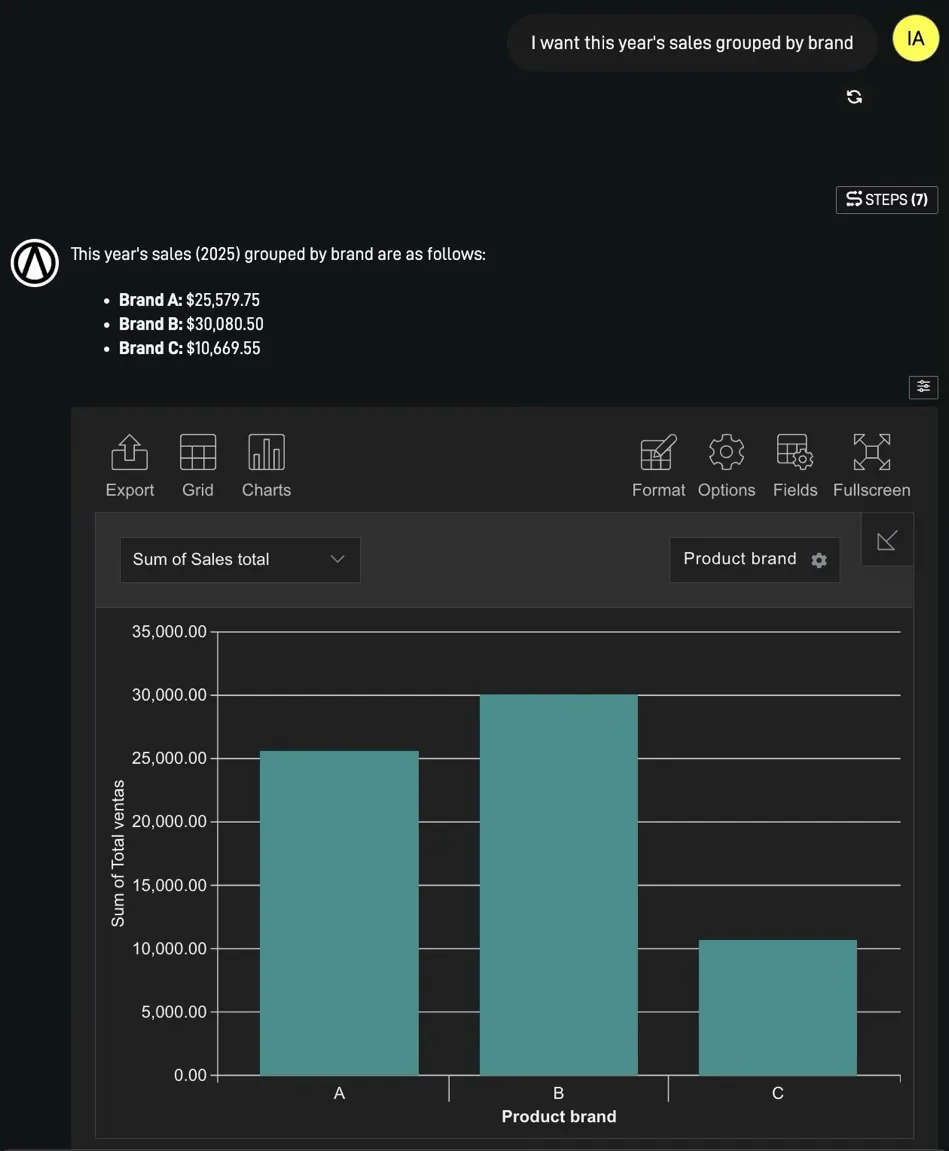
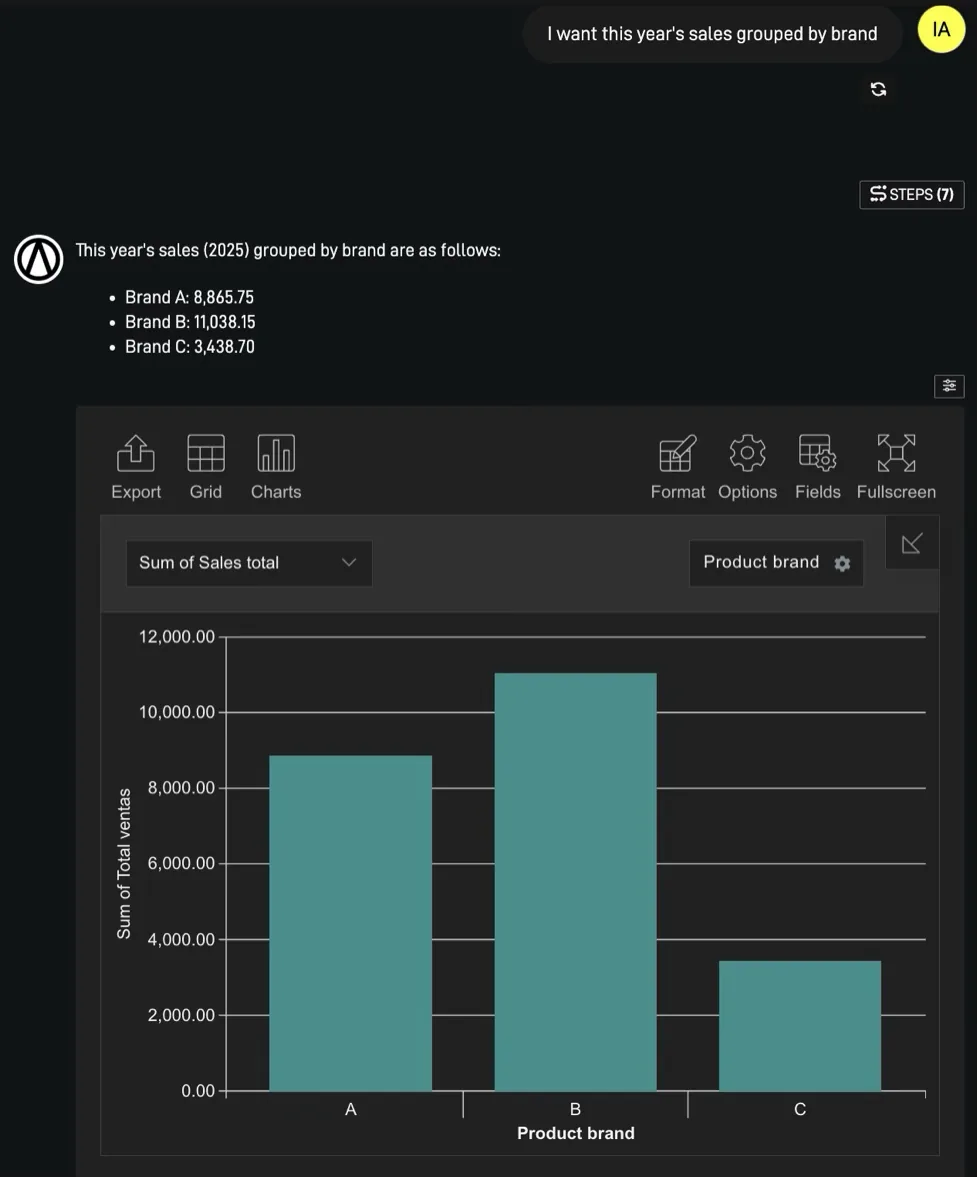
Now apply a filter so the agent only shows results for the logged-in user.
Open the node’s settings.
Click on "Filtros & Ordenamiento" (Filters & Sorting).
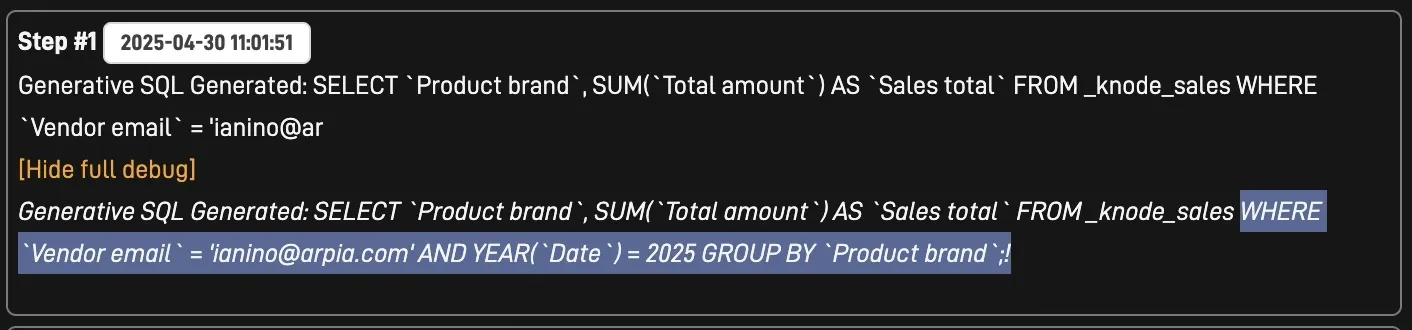
Add a filter where user_email equals the session user’s email.
Tip: Use a session variable like {{user.email}} to match the logged-in user.
Note: This approach can also be used with any session user variable, not just emails. For example, you could filter by user_id, user_department, or other session-specific values.
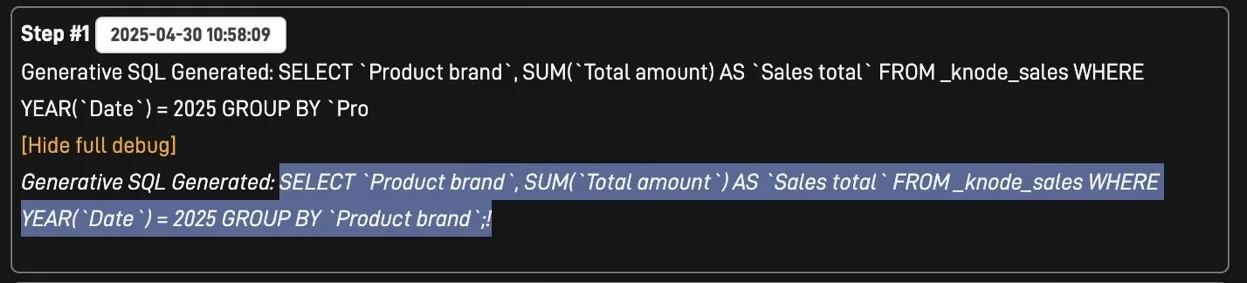
Finally, make sure the SQL logic includes the email filter. This ensures the agent only pulls data for the right user.
We use cookies to enhance your browsing experience, analyze site traffic, and personalize content. By clicking "Accept", you consent to our use of cookies. Learn more