ML Ops
MLOps Overview#
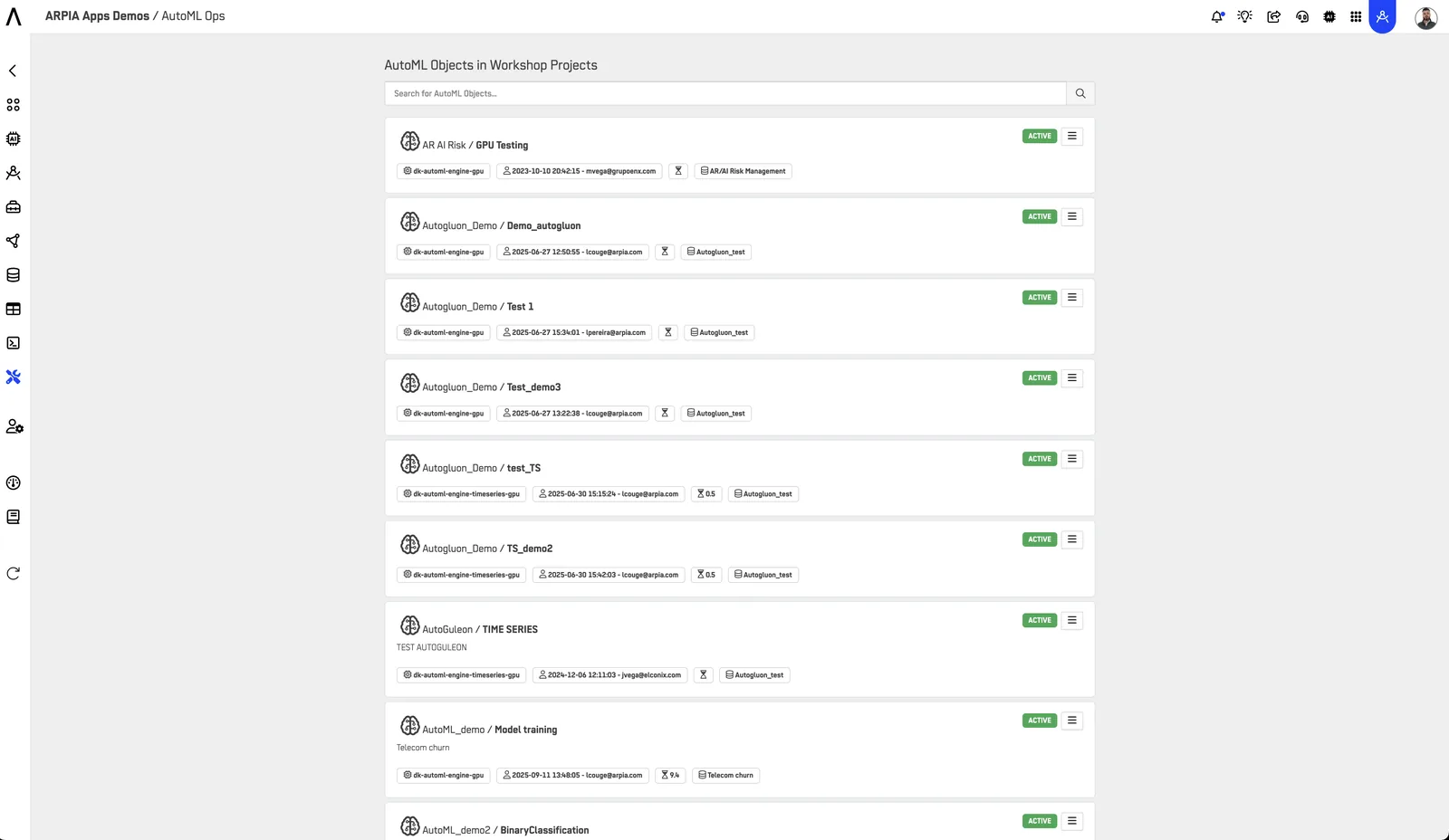
The MLOps section provides a centralized interface where all your AutoML Objects used in Reasoning Flows are listed and managed.
From this dashboard, you can:
- View all AutoML Objects across projects.
- Identify their current status (Active / Inactive).
- See which engine they are running on (e.g.,
dk-automl-engine-gpu). - Check who created or last updated each object.
- Use quick actions to open or manage AutoML Objects directly.
Each listed item gives you a snapshot of key details such as:
- Project name
- Associated dataset
- Creation date
- Owner
- Operational status (e.g., Active)
- Shortcut menu for object-specific actions.
Object Actions#
Each AutoML Object includes a quick-action menu (⋮) with the following options:
- Open Object – Opens the AutoML Object details view, allowing you to review its configuration and metadata.
- Manage Models – Opens the models view, where you can monitor, deploy, or remove models associated with this object.
AutoML Object Details#

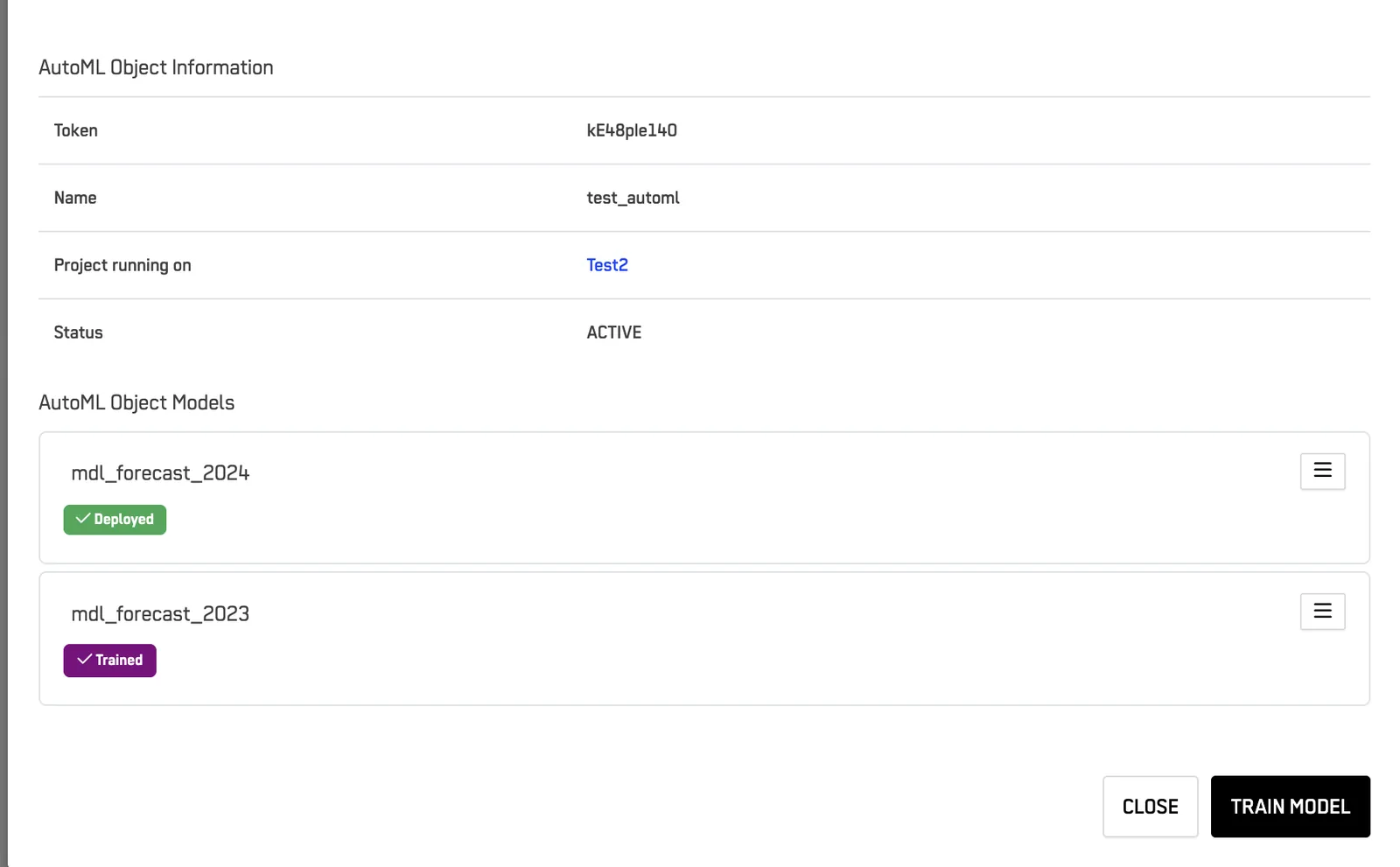
When you open an object, you’ll see the AutoML Object Information panel containing:
| Field | Description |
|---|---|
| Token | Unique identifier of the AutoML Object. |
| Name | Object name, as defined during creation. |
| Project running on | The Reasoning Flow or environment it belongs to. |
| Status | Indicates whether the object is currently active or inactive. |
AutoML Object Models#
Below the object information, you’ll find a list of all models associated with the AutoML Object.
Each model entry displays:
- Model name (e.g.,
mdl_forecast_2024) - Deployment status (e.g., ✅ Deployed or 🟣 Trained)
- A context menu (
⋮) with model-level management options.
Model Actions#
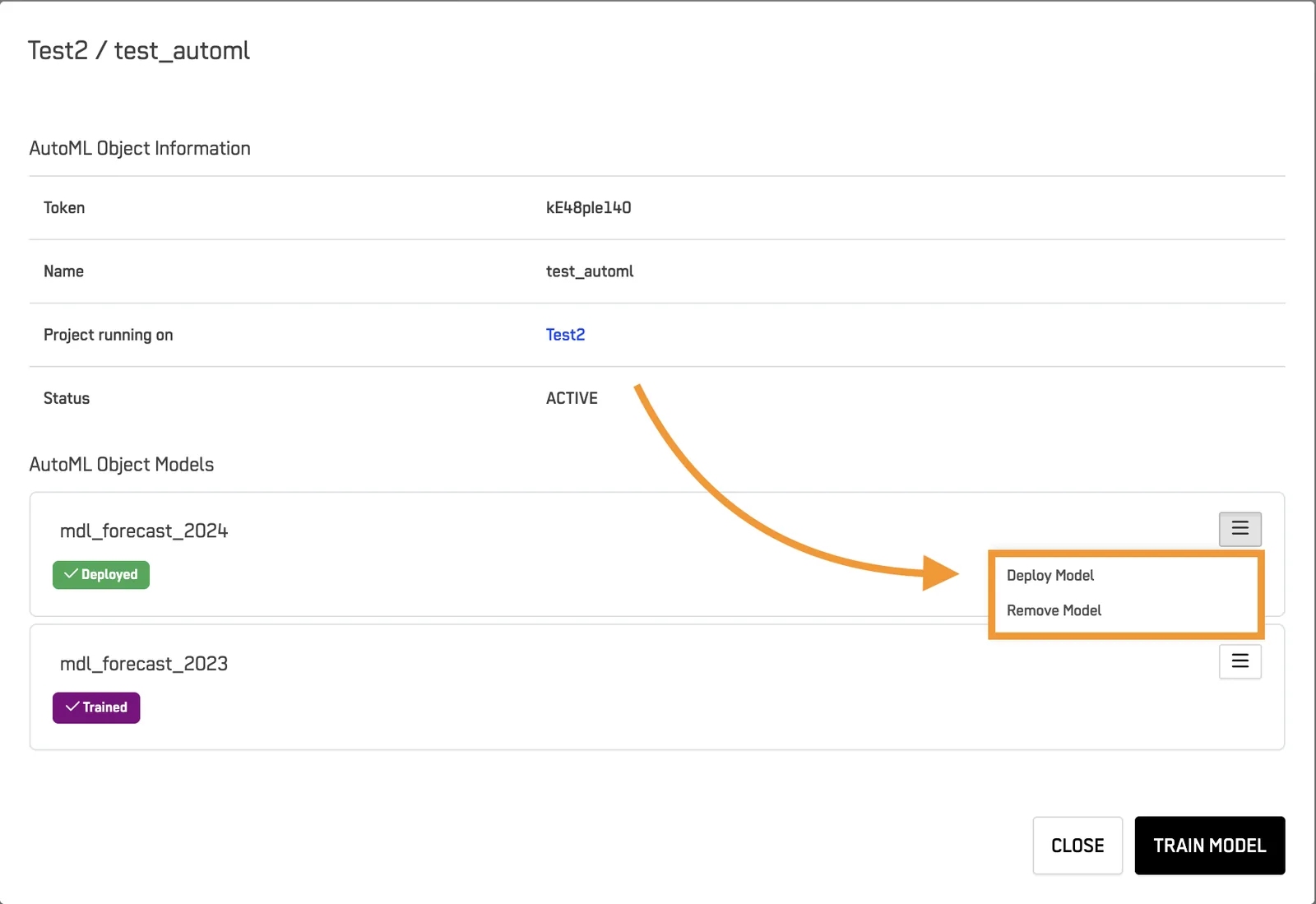
From the model options menu, you can:
- Deploy Model – Makes the selected model active and available for use within its Reasoning Flow.
- Remove Model – Deletes the model from the AutoML Object, freeing resources and keeping your flow organized.
Additionally, you can:
- Train a new model using the Train Model button.
- Close the panel to return to the MLOps main dashboard.
Summary#
The MLOps provides a unified workspace to:
- Track, configure, and manage all AutoML Objects.
- Monitor model lifecycles (training, deployment, removal).
- Streamline Reasoning Flow operations for efficient model governance and maintenance.
All tools are conveniently located in one place for faster, more transparent management of your AI automation flows.