How to use Data Drive?
Step-by-Step Guide#
Step 1: Access the Data Drives Section#
Navigate to the Data Drives section in the ARPIA main menu.
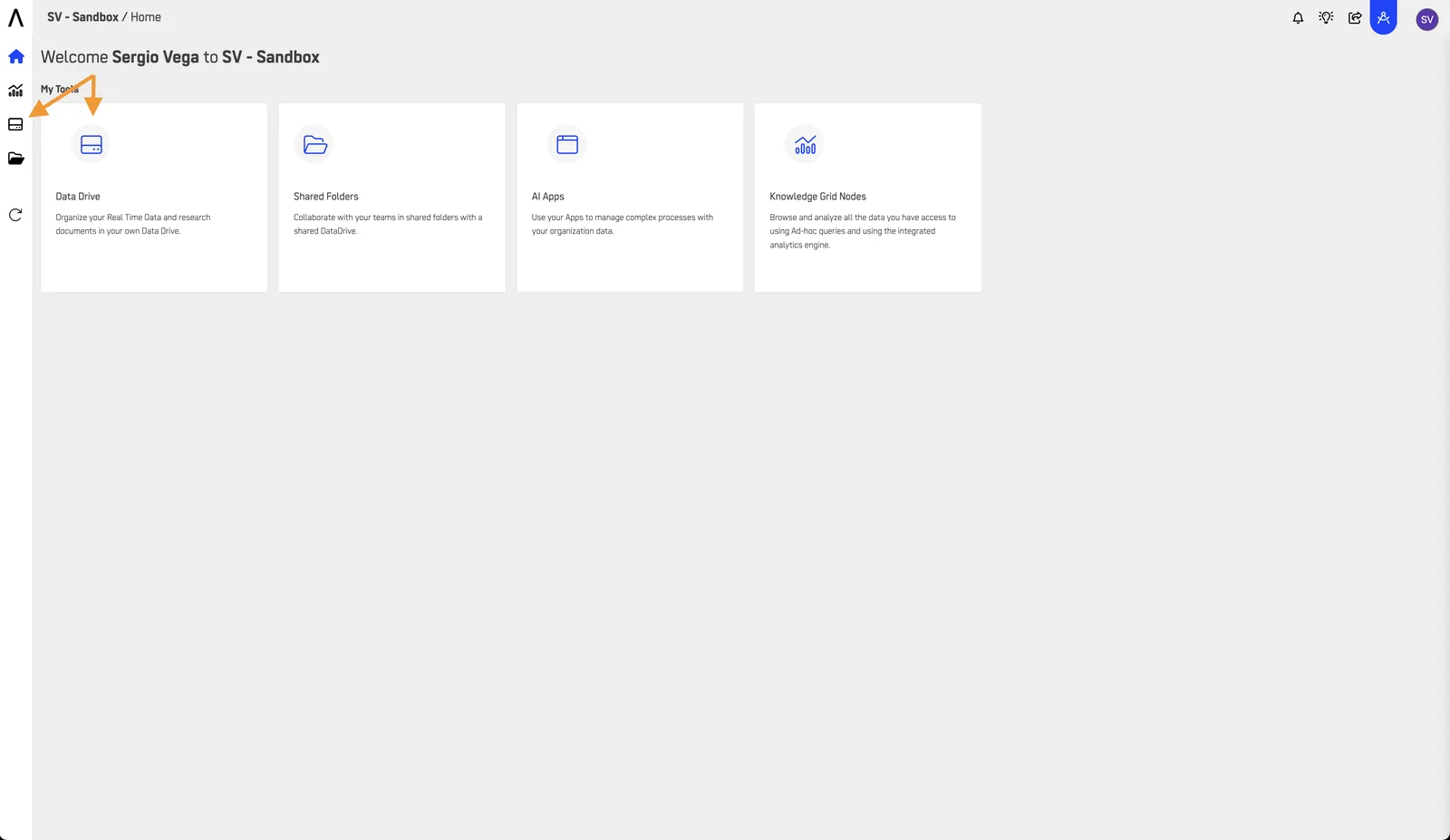
Step 2: Create a New Object#
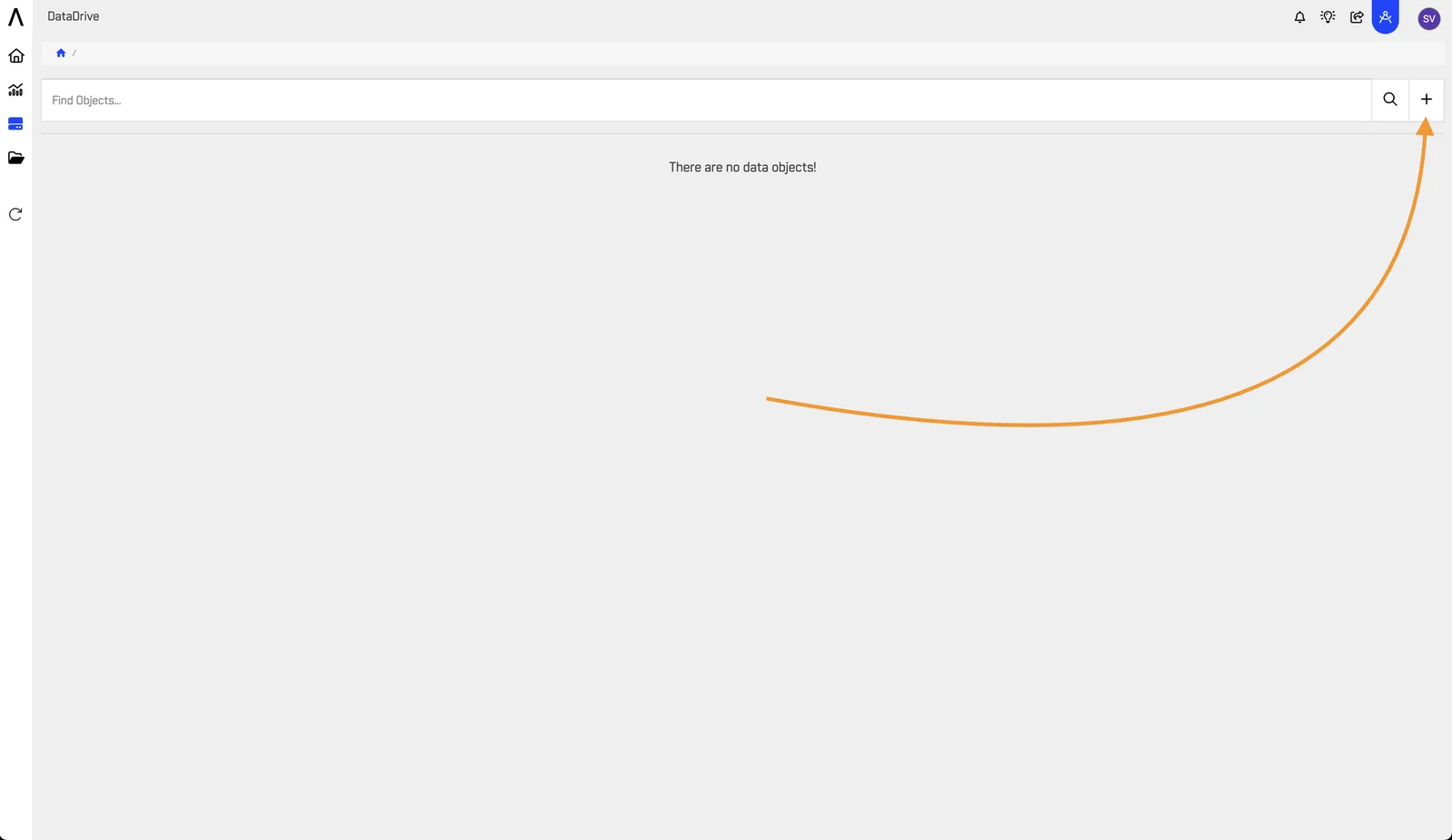
Click the "+" button to create a new object.
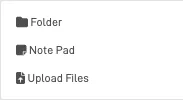
Choose the type of object you want to add to your Data Drive.
Step 3: Fill Out the Form or Upload a File#
Creating a Folder#
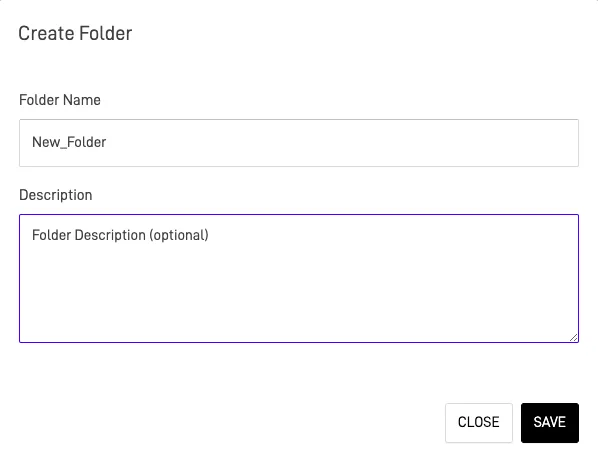
To create a folder, select the Folder option and fill out the form by entering a name and an optional description. Once done, click the SAVE button.
Creating a Notepad#
To create a Notepad, select the Notepad option and fill out the form by entering the name and the information you want to include. You have multiple tools for personalization, including:
- Font styles, bold, underline, highlighting
- Adding links, images, and videos
- Accessing keyboard shortcuts under the Help option
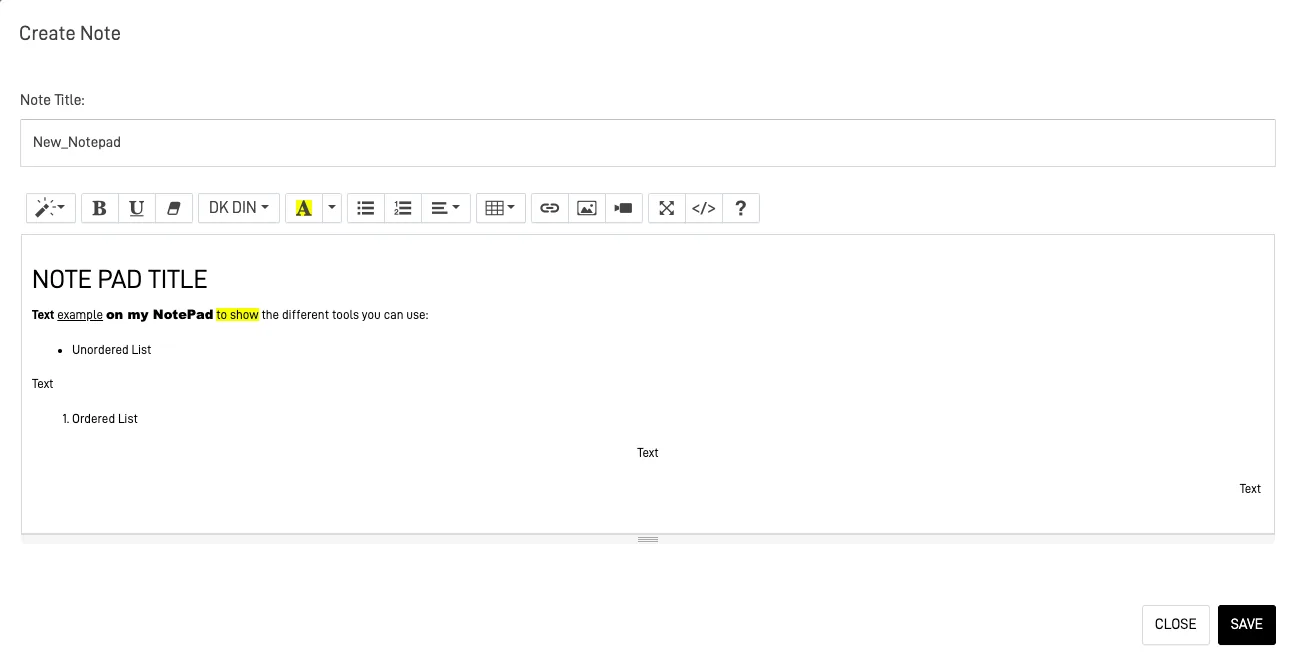
For example, this is the HTML code generated by the Notepad editor:
<h1>NOTEPAD TITLE</h1>
<p><b>Text</b> <u>example</u> <span style="font-family: 'Arial Black';">on my Notepad</span> <span style="background-color: rgb(255, 255, 0);">to show</span> the different tools you can use</p>
<ul>
    <li>Unordered List</li>
</ul>
<p>Text</p>
<ol>
    <li>Ordered List</li>
</ol>
<p style="text-align: center;">Text</p>
<p style="text-align: right;">Text</p>
<p style="text-align: right;"><br></p>
The code is always provided in HTML format.
Uploading a File#
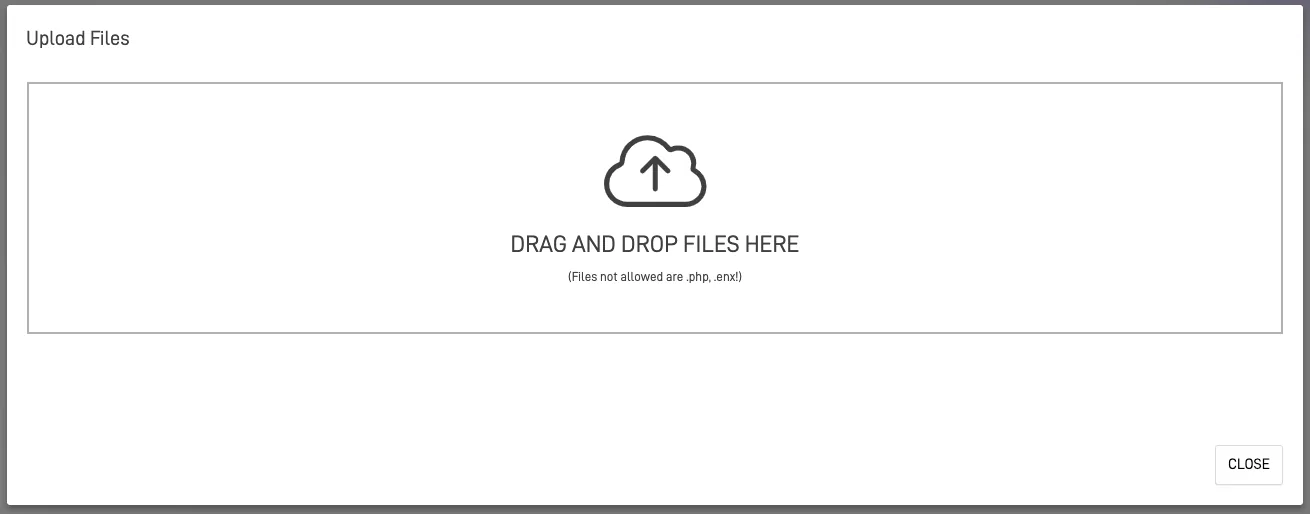
To upload a file, select Upload File, then drag and drop the files you want to upload. Alternatively, click the cloud icon to browse and select the files from your device.
DataDrive Object Actions#
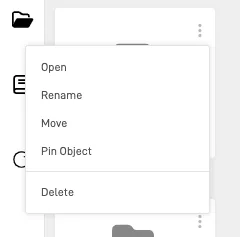
Within every object, the following options are available:
Object Functions#
-
Open\ Opens the selected object. If it is a Kube, it opens in Insights with predefined parameters.
-
Rename\ Allows you to rename the object.
-
Move\ Enables moving the object to another folder.
-
Pin Object\ Pins the object to the top of its folder.
-
Delete\ Deletes the object from the folder. For folders, it allows you to decide if the objects within should also be deleted.
Share Folders
Folders have an additional action called Share Object, which lets you share the folder with other users. Both parties can then save objects within the shared folder.