Deploy SPA's in ARPIA AI APP Studio
Build and deploy custom web apps and dashboards inside ARPIA, powered by the built-in code editor and AI assistant.
Overview#
Single-Page Apps (SPA) let you build and deploy custom web apps inside your ARPIA Workarea — dashboards, tools, and visualizations that run in the browser and can read your ARPIA data.
You can build a SPA two ways:
- Inside ARPIA with the built-in Edit Code editor and the ARPIA Codex AI assistant — no external tools needed. (Recommended.)
- On your own computer, then upload a ZIP. (For people with an existing IDE/toolchain.)
🟢 New here? Jump to the Quickstart below. Everything after it is reference material you can read later.
Quickstart: Build Your First SPA in 5 Steps#
The fastest path to a working app — no setup, no data wiring, no ZIP files.
- Create the app. Go to AI Apps Studio → + CREATE APP. Name it, pick Private, click CREATE.
- Open the editor. On your app's page, click Edit Code. A starter
index.htmlis already built for you. - Ask Codex to build it. Open the ARPIA Codex panel, set mode to Build, and type what you want — e.g. "Make a page with a title and three cards."
- Preview it. Click Preview to see it live. Use Console if something looks off.
- Publish. Click Save a Version, then Actions → Publish Version. Your app is live.
✅ That's a working SPA. To connect data, add AI tools, or develop locally, read on.
Key Terms (read once, then move on)#
| Term | What it means |
|---|---|
| Node | A table in ARPIA's knowledge base. Where your data lives. |
| Action | A tool that saves, updates, or deletes data on a node. |
| Knowledge Ontology Relationship | The screen where you pick which nodes your app can read and which Actions it can run. |
| ARPIA Codex | The built-in AI assistant inside Edit Code that writes/edits your app code. |
| Workarea | Your workspace in ARPIA. "Private" apps are limited to its members. |
How to Create a Single-Page App#
Prerequisites#
Minimum to start (Quickstart / Path A):
- An ARPIA account with access to a Workarea
Also needed for data-connected apps:
- MCP configured in ARPIA with the nodes/workspaces you'll use — required only for private SPAs that expose MCP Collections or a Workshop API
- (Path B only) An external IDE such as Cursor or VS Code
Step 1: Create the SPA in ARPIA#
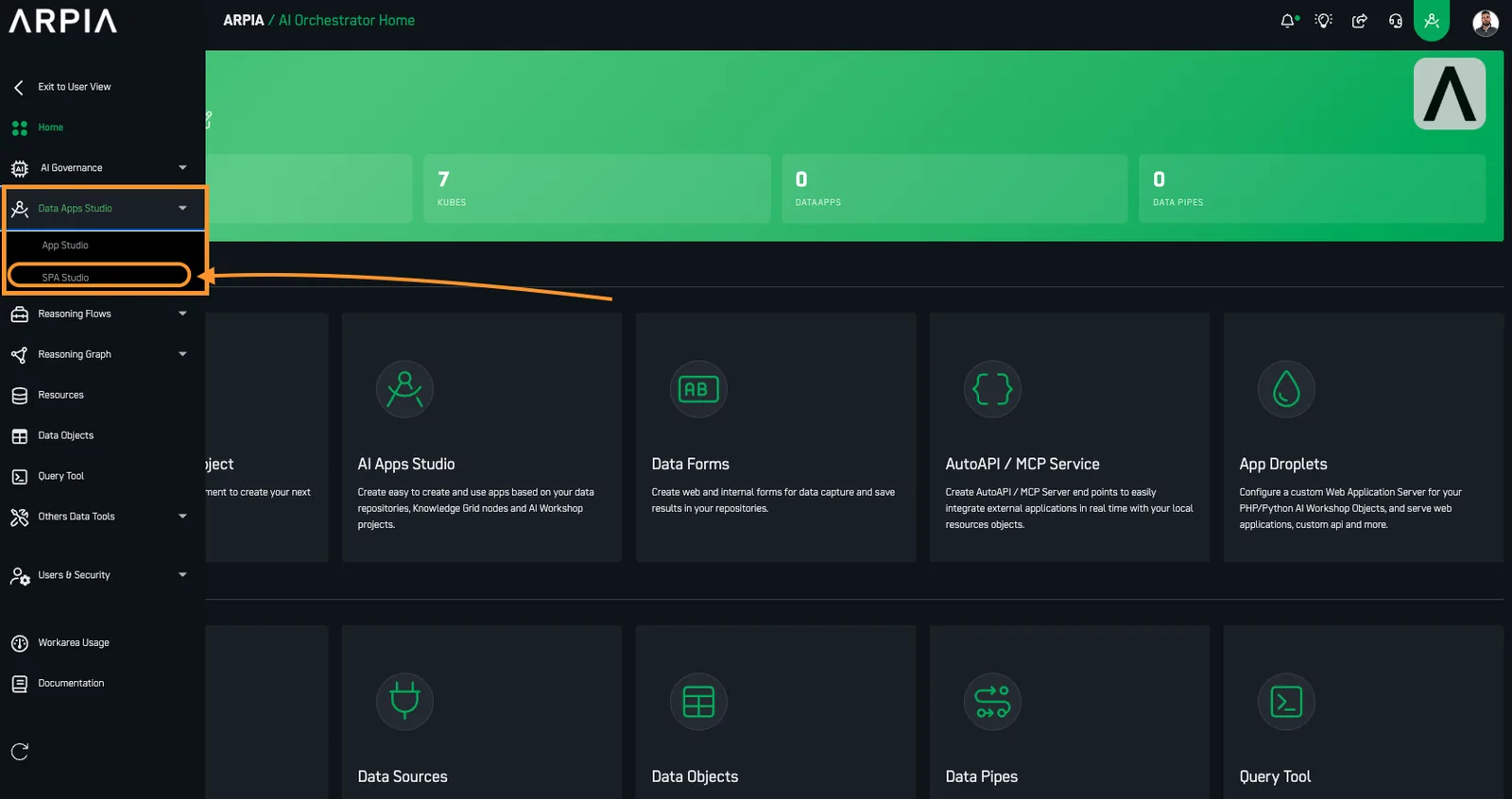
- Navigate to AI Apps Studio in your Workarea
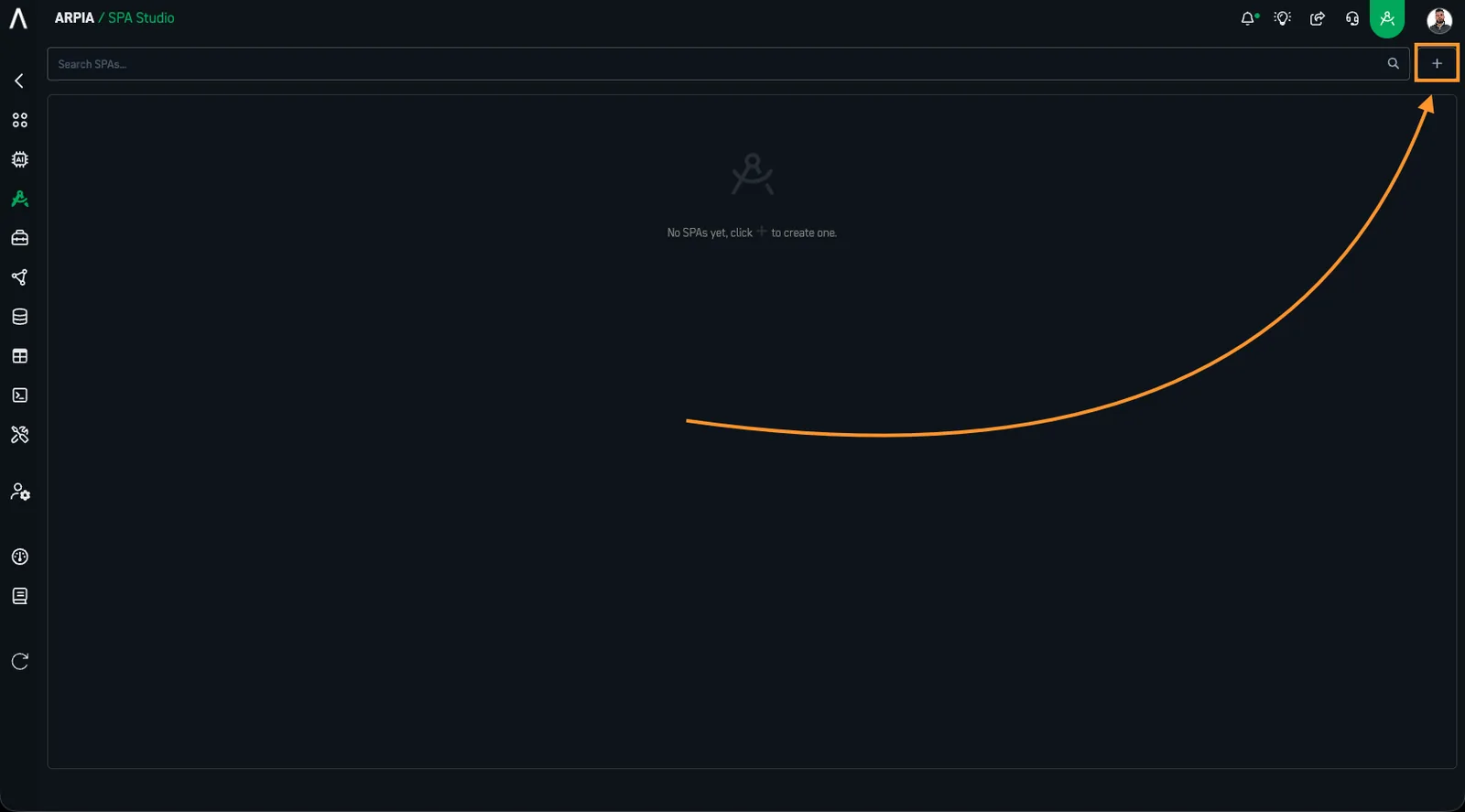
- Click "+ CREATE APP"
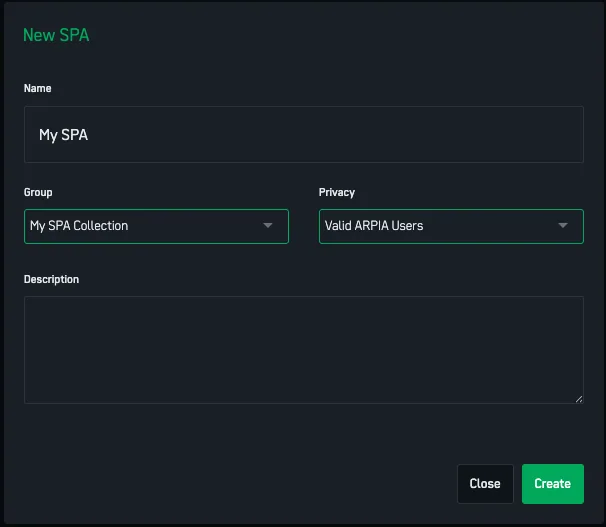
- Enter a name for your application
- (Optional) Add it to a group to stay organized — select an existing group, or type a new name and press Add
- In Privacy, choose Public or Private.Tip
Not sure? Pick Private if you'll use AI tools or Workshop APIs, or want it limited to your Workarea. Pick Public for a read-only widget any ARPIA user can open.
- (Optional) Add a Description of what your SPA does
- Click "CREATE"
You'll land on your SPA's main configuration page.
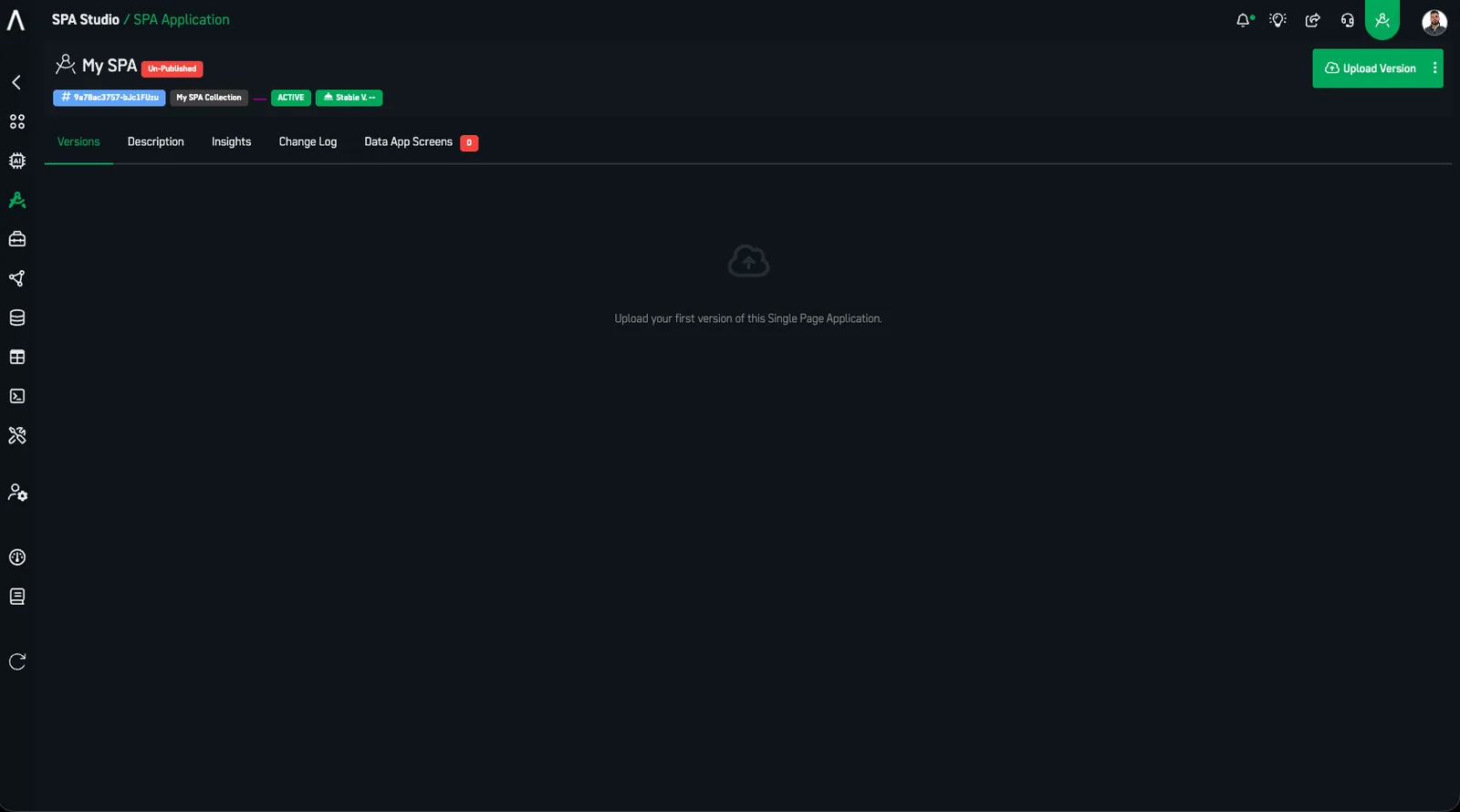
Step 2: Choose Your Path#
🟢 New here? Use Path A. It's the recommended path and needs no external tools. Skip Path B until you specifically need an offline/IDE workflow.
- Path A — In-Platform (Edit Code): Build inside ARPIA with Edit Code, Codex, live preview, and native data wiring. Recommended for most users.
- Path B — External + ZIP Upload: Develop locally in your own IDE, then upload a ZIP. Advanced / optional.
Both paths share the same publishing and access steps (Step 3 and Step 4).
Path A — In-Platform Development with Edit Code#
The fastest way to build. Everything happens inside ARPIA.
A1. Open the Editor#
From your SPA configuration page, click Edit Code.
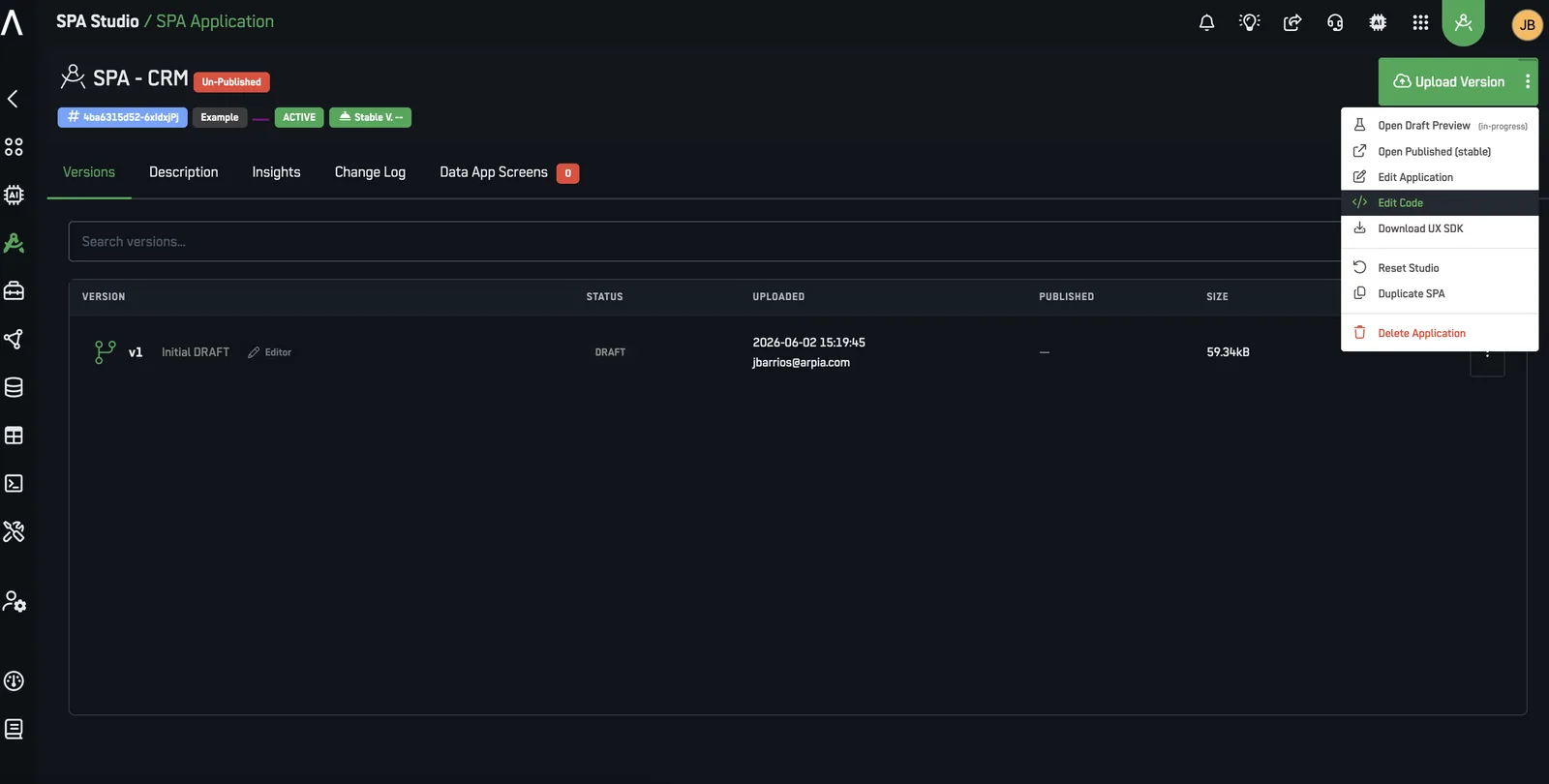
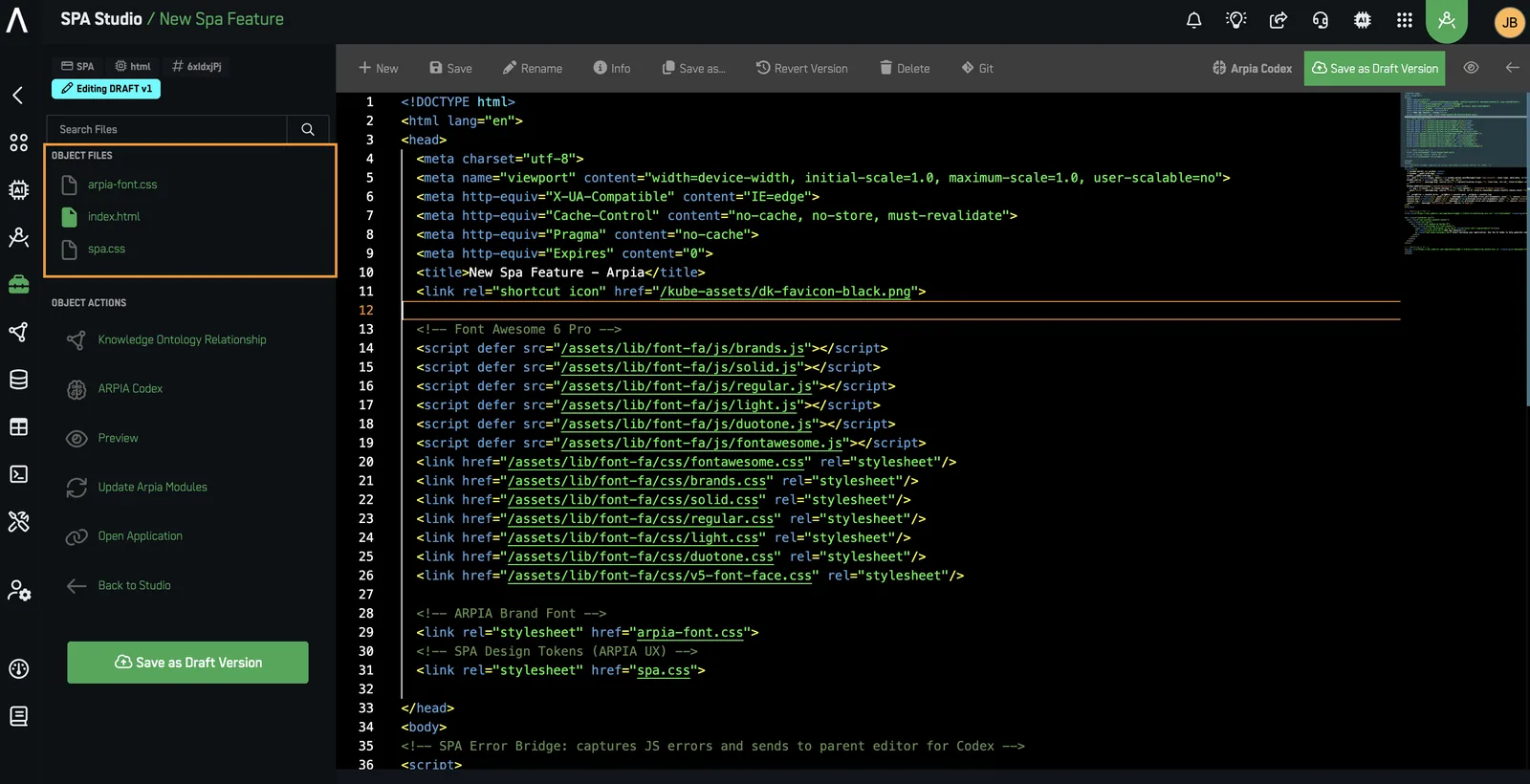
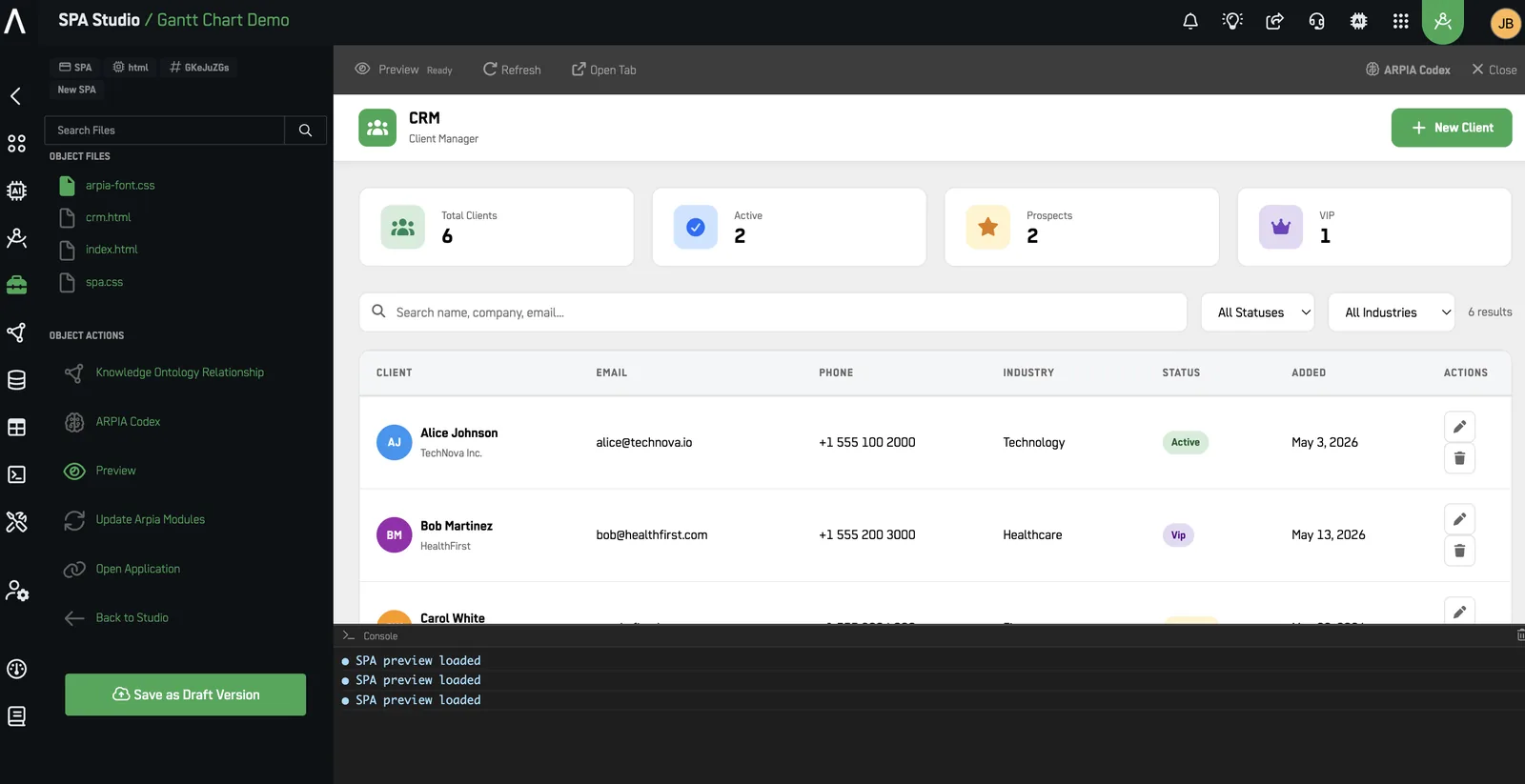
A new SPA opens pre-scaffolded with:
index.html— your entry point (keep it at the root)arpia-font.css— ARPIA fontsspa.css— ARPIA UX SDK styling
A2. Work With Your Files#
Create and organize .html, .css, and .js files, edit them side by side, and keep index.html at the root.
A3. Build With ARPIA Codex#
- Open the Codex panel
- Select the model to use
- Pick a mode: * Explore — reads and explains your code, changes nothing * Planning — drafts a plan and waits for your OK * Build — applies changes to your files
- Review, refine your prompt, re-run
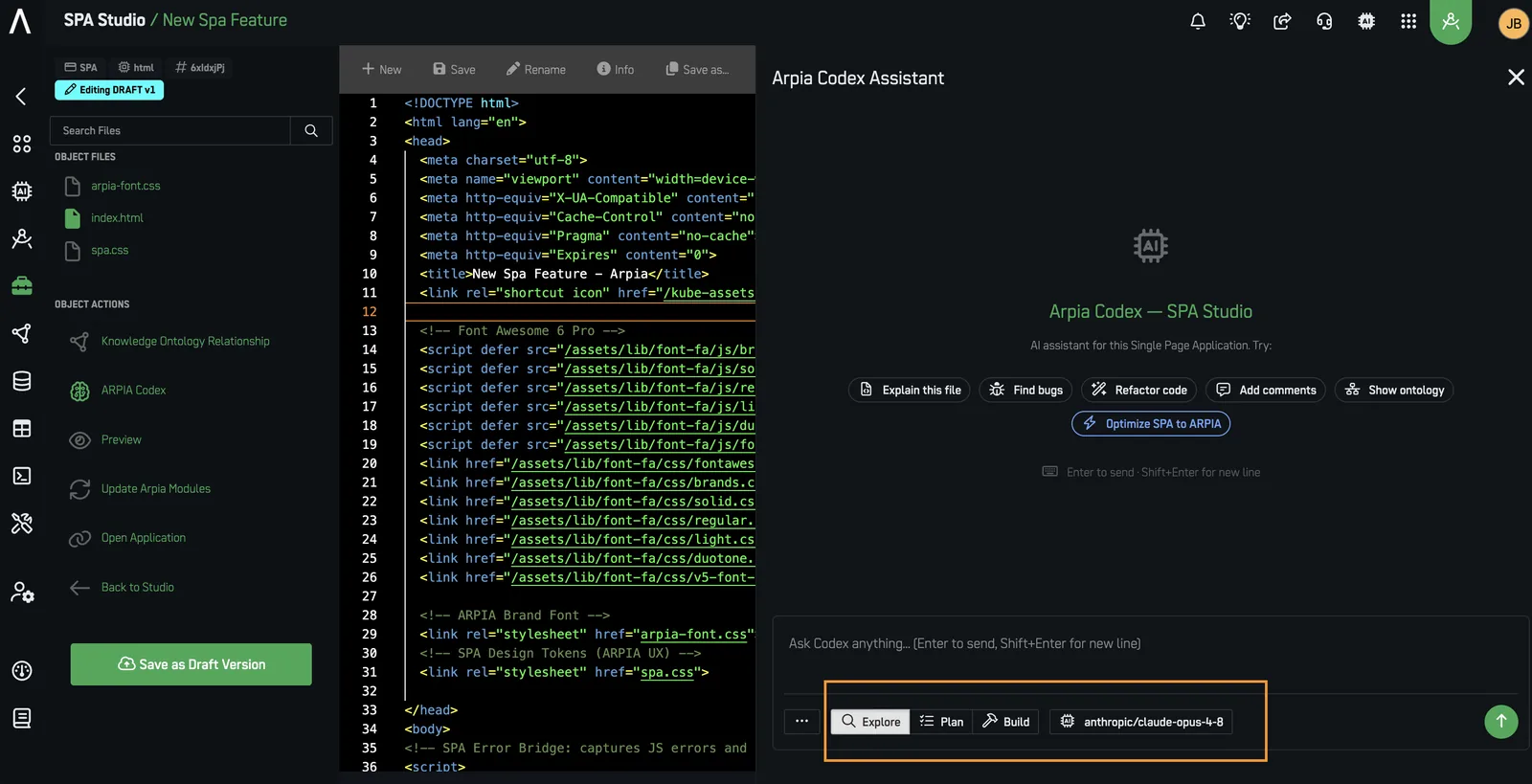
Codex reference: for the standalone hub entry on the SPA Studio assistant, see Arpia Codex in SPA Studio.
A4. Connect Your Data — Knowledge Ontology Relationship#
Advanced — skip this on your first app. Only needed when your SPA reads or writes ARPIA data.
This is where you let your app (and Codex) use your data.
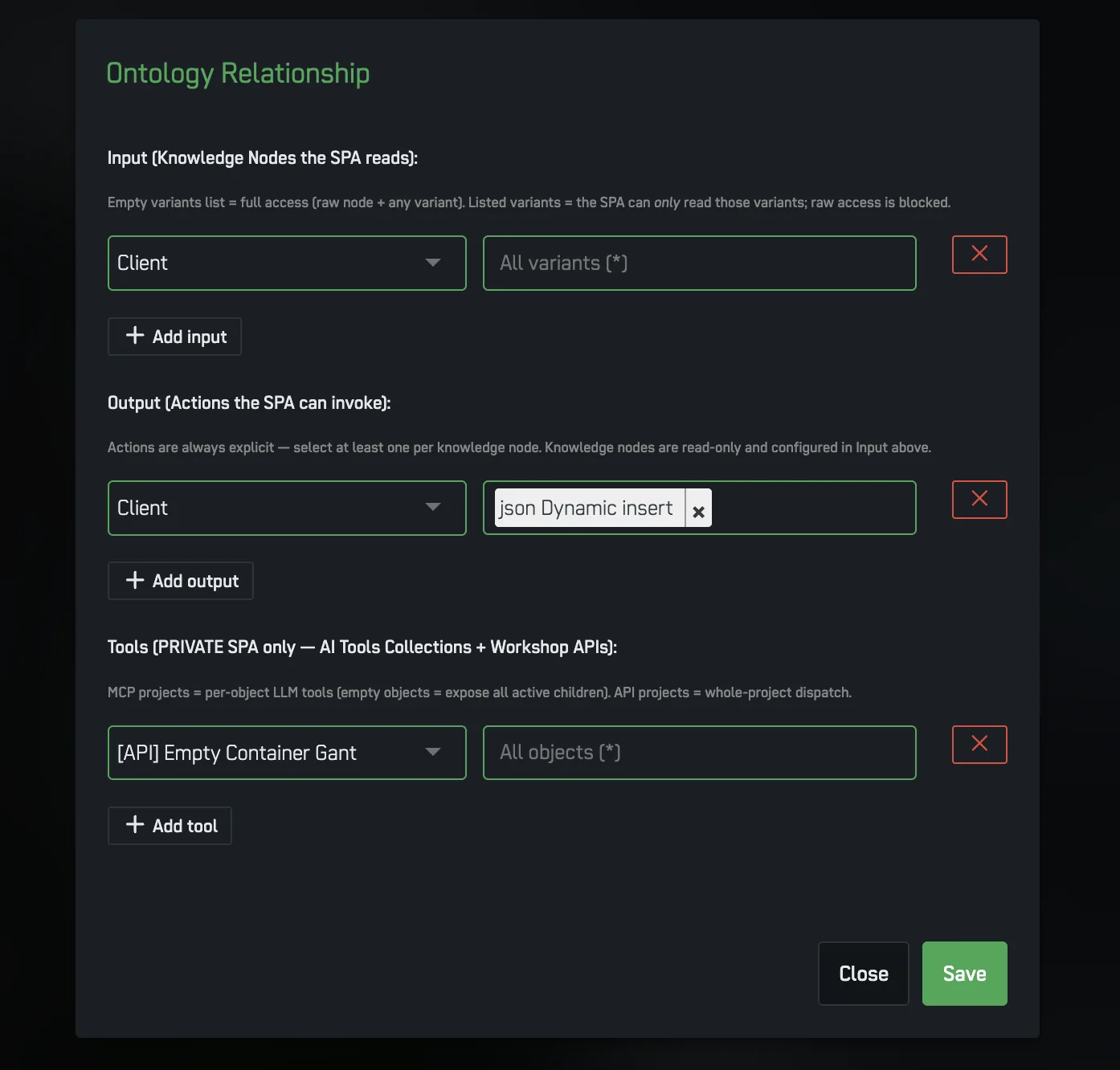
- Open the Knowledge Ontology Relationship button
- Choose which nodes the SPA can read
- Attach the Actions the SPA is allowed to run
- For private SPAs, you can also attach: * MCP Collections — groups of endpoints with context for AI models * Workshop API — a POST endpoint that runs a workflow of code + native ARPIA objects
Once set, Codex automatically knows your node structures and API schemas.
A5. Preview and Debug#
- Preview — see and use your app live
- Console — read logs and debug JavaScript, in-platform
A6. Keep ARPIA Modules Up to Date#
Advanced. When a new SDK ships, click Update ARPIA Modules to regenerate spa.css, arpia-sdk.js, and (public apps only) ARPIA_ONTOLOGY.MD.
A7. Save a Version#
Click Save a Version. Publishing and rollback work as in Step 3 and Step 4.
Path B — External Development & ZIP Upload#
Advanced / optional. Use this only if you prefer your own IDE. Most people should use Path A.
B1: Configure MCP in Your IDE (Cursor example)#
- Cursor settings → Tools & MCP → New MCP Server
- In
mcp.json, add:
{
  "mcpServers": {
    "MCP Arpia": {
      "url": "https://cloud.arpia.ai/mcp/?token=INSERT_TOKEN_HERE"
    }
  }
}
- Replace
INSERT_TOKEN_HEREwith your ARPIA MCP token, then save.
B2: Download the ARPIA UX SDK#
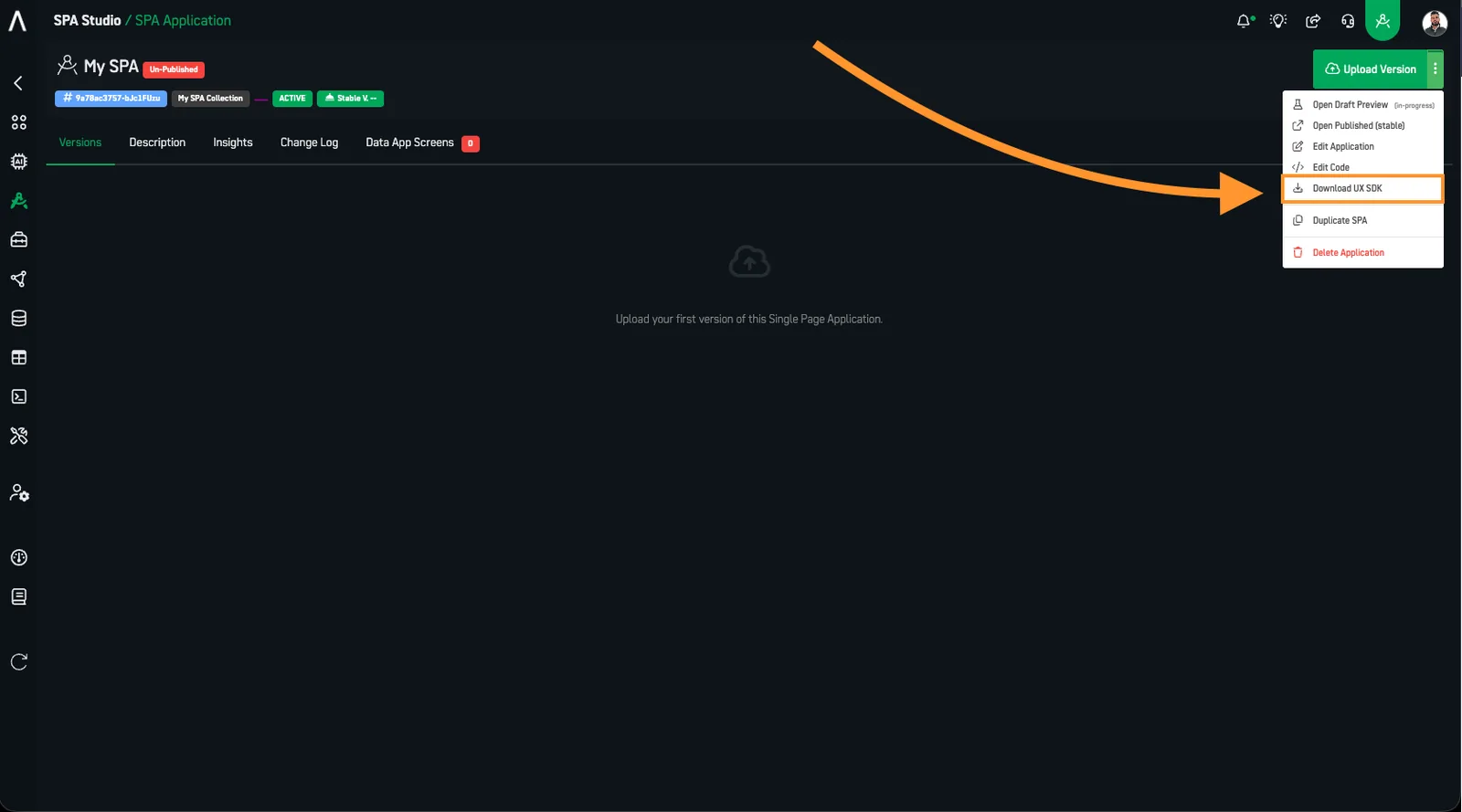
On your SPA page, open the dropdown next to "UPLOAD VERSION" → "Download UX SDK".
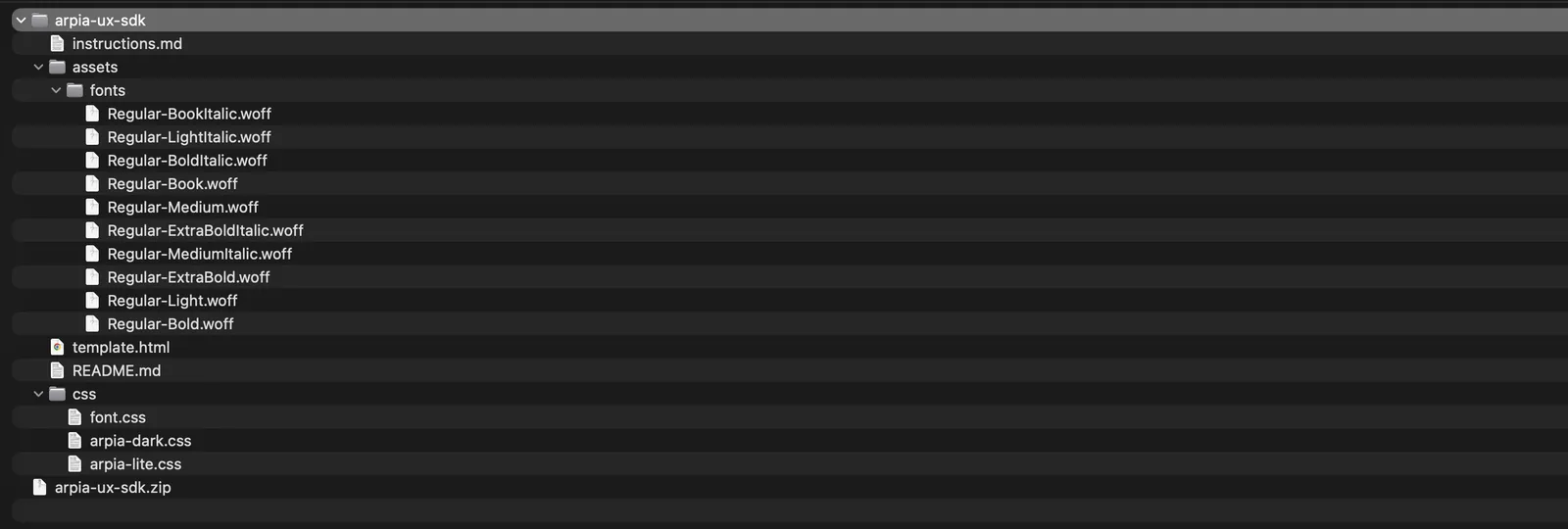
The SDK ZIP contains template.html, instructions.md, README.md, an assets/ folder, and a css/ framework.
B3: Set Up Your Project#
- Create a project folder and open it in your IDE
- Extract the SDK ZIP into it:
my-spa-project/
├── arpia-ux-sdk/
│   ├── assets/
│   ├── css/
│   ├── instructions.md
│   ├── README.md
│   └── template.html
├── (your app files go here)
Use the SDK's
template.htmlas the basis for yourindex.htmlat the project root, and link the SDK's CSS/JS with relative paths.index.htmlmust sit at the root of the ZIP (see B5), not insidearpia-ux-sdk/.
Before coding, read instructions.md (design rules) and README.md (implementation) and check template.html (required DOM).
B4: Develop Your App#
If you use an AI IDE, this prompt keeps it on the rails:
# SPA Development Prompt – ARPIA / Cursor
## Objective
Act as a Frontend Developer using the Arpia UX SDK to develop a **Single Page Application (SPA)** using the **Cursor platform**. Reference `@instructions.md` for class rules and `@template.html` for the DOM structure.
Static assets only (HTML, CSS, JS, images). The server-side request will be managed by the ARPIA platform, so there's no need to create server-side functions or files.
## Context & Resources
- The project includes an **ARPIA-provided UX SDK**.
- Inside the project folder you will find:
  - An **HTML template** that must be used as the base of the application.
  - An `instructions.md` file containing **design guidelines, UX patterns, and conventions**.
⚠️ **You must read and follow both `instructions.md` and `README.md` before making any architectural or implementation decisions.**
## Application Domain
- The application is built on **MCP Arpia**.
- Core entities:
  - **[List your entities, e.g., Leads, Opportunities, Customers]**
- The application must:
  - Display and manage information related to [your entities]
  - Provide tools to **create, update, and manage** [your entities] using MCP Arpia capabilities.
## Development Guidelines
- Follow the **file structure, UX patterns, and conventions** defined by the ARPIA UX SDK.
- Reuse existing templates and components whenever possible.
- Do not introduce new architectural patterns unless clearly justified.
- Keep the codebase **modular, readable, and maintainable**.
- Follow SPA best practices appropriate for the Cursor platform.
- **For the REST API calls, use static Endpoint calls based on these endpoints. Put the `collection_id` in the URL path, and use your ARPIA Personal Token as the Bearer token:**
"resources": "https://cloud.arpia.ai/mcp/api/v1/collections/{collection_id}/resources",
"tools": "https://cloud.arpia.ai/mcp/api/v1/collections/{collection_id}/tools"
## Assumptions & Clarifications
- **The index.html should be in the root of the folder.**
- **The css file should use relative paths.**
- **Do not assume missing requirements or behaviors.**
- If any part of the scope, data model, APIs, or UX flows is unclear, **ask for clarification before proceeding**.
Best practices: keep it lightweight, use relative paths, handle errors, and test in Chrome/Firefox/Safari/Edge.
B5: Package It#
ZIP all your files with index.html at the root.
- ✅
index.htmlat root level - ✅ Static assets only (no server-side code)
- ✅ Under 25 MB compressed
- ✅
.zipformat only
B6: Upload It#
- On your SPA page, click "UPLOAD VERSION"
- Drop the ZIP, add a Version Name and Changelog
- Click "PROCESS VERSION" and wait for extraction
Step 3: Publish & Deploy (both paths)#
For any version, use Actions:
- Publish Version — make it the live version
- Open — preview in browser
- Download — get a ZIP backup
- Delete — remove it (can't delete the live version)
To go live: find your version → Actions → Publish Version → confirm.
Step 4: Access Your App#
- Direct link:
https://cloud.arpia.ai/spax/[your-app-id]/[app_version](on the app details page) - Workarea Apps menu: appears in your applications list
- Share / bookmark the link with authorized users
Managing Your Apps#
Update a Version#
Path A: Edit Code → make changes → Preview → (if needed) Update ARPIA Modules → Save a Version → Publish.
Path B: update local files → new ZIP → UPLOAD VERSION → name + changelog → PROCESS VERSION → publish when ready.
Roll Back#
Version history → pick the version → Actions → Publish Version → confirm. It goes live immediately.
Delete a Version#
Version management → select → Actions → Delete → confirm. (Can't delete the live version.)
Change Access#
App settings → choose Public (any ARPIA user) or Private (Workarea members) → save.
Note: MCP Collections and Workshop API attach to private SPAs only.
ARPIA_ONTOLOGY.MDis generated for public apps only.
Monitor Usage#
See total opens, access timeline, active-version usage, and engagement patterns.
Integration with ARPIA#
Advanced. Read this when you're ready to connect your app to live data.
The Knowledge Model#
Your data lives in nodes (tables). You change it through Actions (save/update/delete tools). The Knowledge Ontology Relationship controls which nodes your app can read and which Actions it can run. Private SPAs can also expose MCP Collections and a Workshop API.
Ways to Access Data#
- ARPIA JavaScript SDK (
arpia-sdk.js) — regenerated via Update ARPIA Modules - MCP API calls — authenticated requests to MCP endpoints
- Knowledge Node queries
- Actions / Workshop API
MCP API Example#
Put the collection_id in the URL path and pass your ARPIA Personal Token as the Bearer token:
const ARPIA_API = {
  resources: "https://cloud.arpia.ai/mcp/api/v1/collections/{collection_id}/resources",
  tools: "https://cloud.arpia.ai/mcp/api/v1/collections/{collection_id}/tools"
};

async function fetchResources(collectionId, bearerToken) {
  try {
    const response = await fetch(
      ARPIA_API.resources.replace('{collection_id}', collectionId),
      {
        headers: {
          'Authorization': `Bearer ${bearerToken}`,
          'Content-Type': 'application/json'
        }
      }
    );
    return await response.json();
  } catch (error) {
    console.error('Error fetching resources:', error);
    throw error;
  }
}
Generate a Personal Token under "My Profile" in the ARPIA Platform. Same-domain calls inherit your ARPIA session.
Supported & Not Supported#
Supported: HTML5, CSS3 (Tailwind, Bootstrap), JavaScript (vanilla + React/Vue/Angular), client-side libraries, static assets, JSON files.
Note: Framework apps (React/Vue/Angular) must be compiled to static files before upload — ARPIA serves static assets only and runs no build step.
Not supported: server-side code (Python, PHP, Node.js, Ruby), backend APIs/databases, server-side rendering or auth, file-system operations, non-.zip archives.
Limits#
- ZIP ≤ 25 MB compressed
index.htmlmust be at the root- No server-side languages
- MCP Collections / Workshop API → private SPAs only
ARPIA_ONTOLOGY.MD→ public apps only
Troubleshooting#
Upload fails — ZIP under 25 MB, index.html at root, .zip only, no server-side files.
App won't load — check the Console, use relative paths, include all dependencies, test in Preview first.
API calls fail — verify the collection_id (URL path) and Personal Token (Bearer), check endpoints, confirm nodes/Actions are attached in the Knowledge Ontology Relationship.
Codex can't see your data/tools — confirm the ontology defines the nodes/Actions; for MCP Collections/Workshop API the SPA must be private; re-run Update ARPIA Modules; use Build mode to apply changes.
Styling looks off — check relative CSS paths, confirm spa.css and arpia-font.css are linked, run Update ARPIA Modules, test other browsers.