How to create a Data Form
Step-by-Step Guide#
Step 1: Open Data Forms#
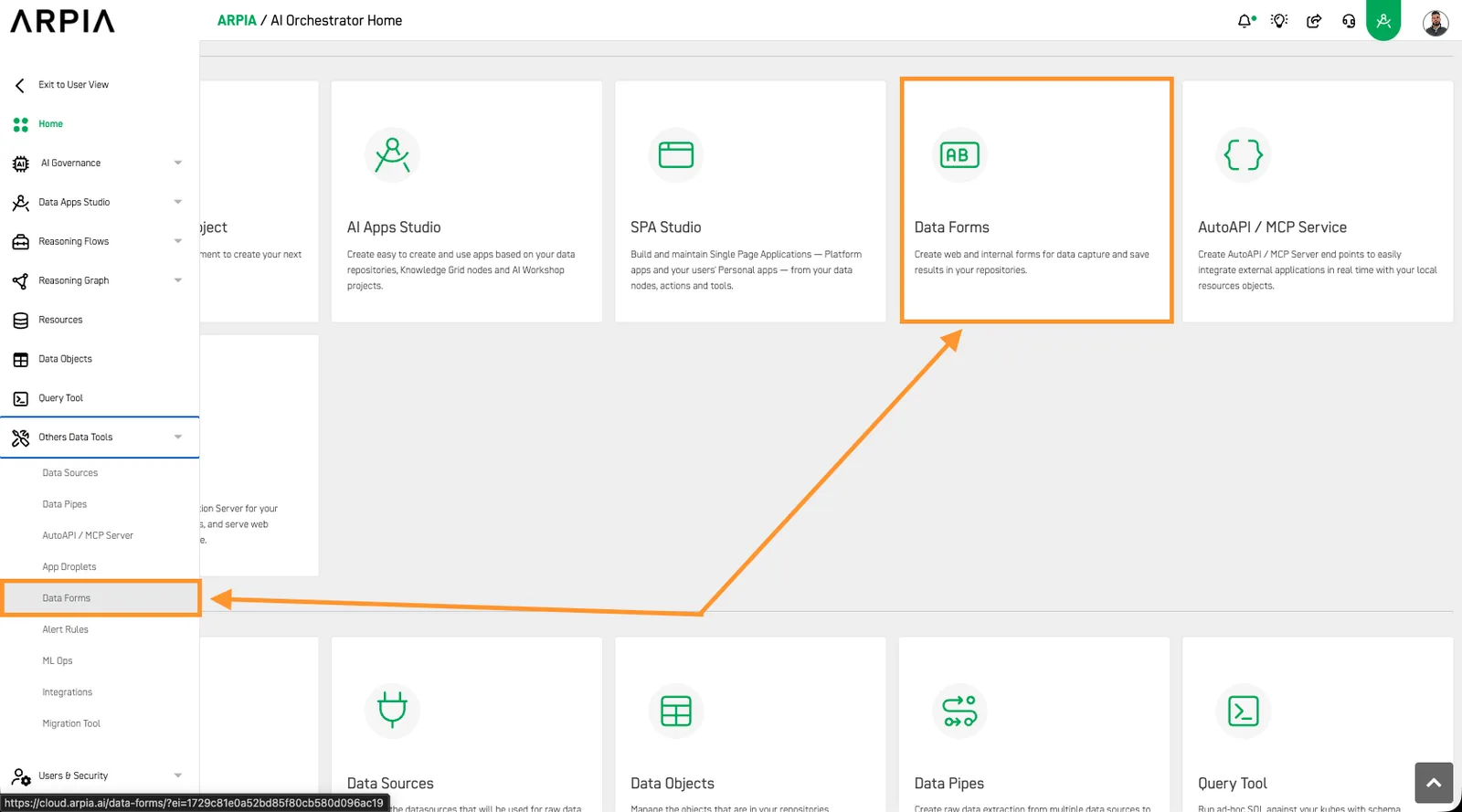
From the AI Orchestrator Home screen, select Data Forms.
Step 2: Create a new form#
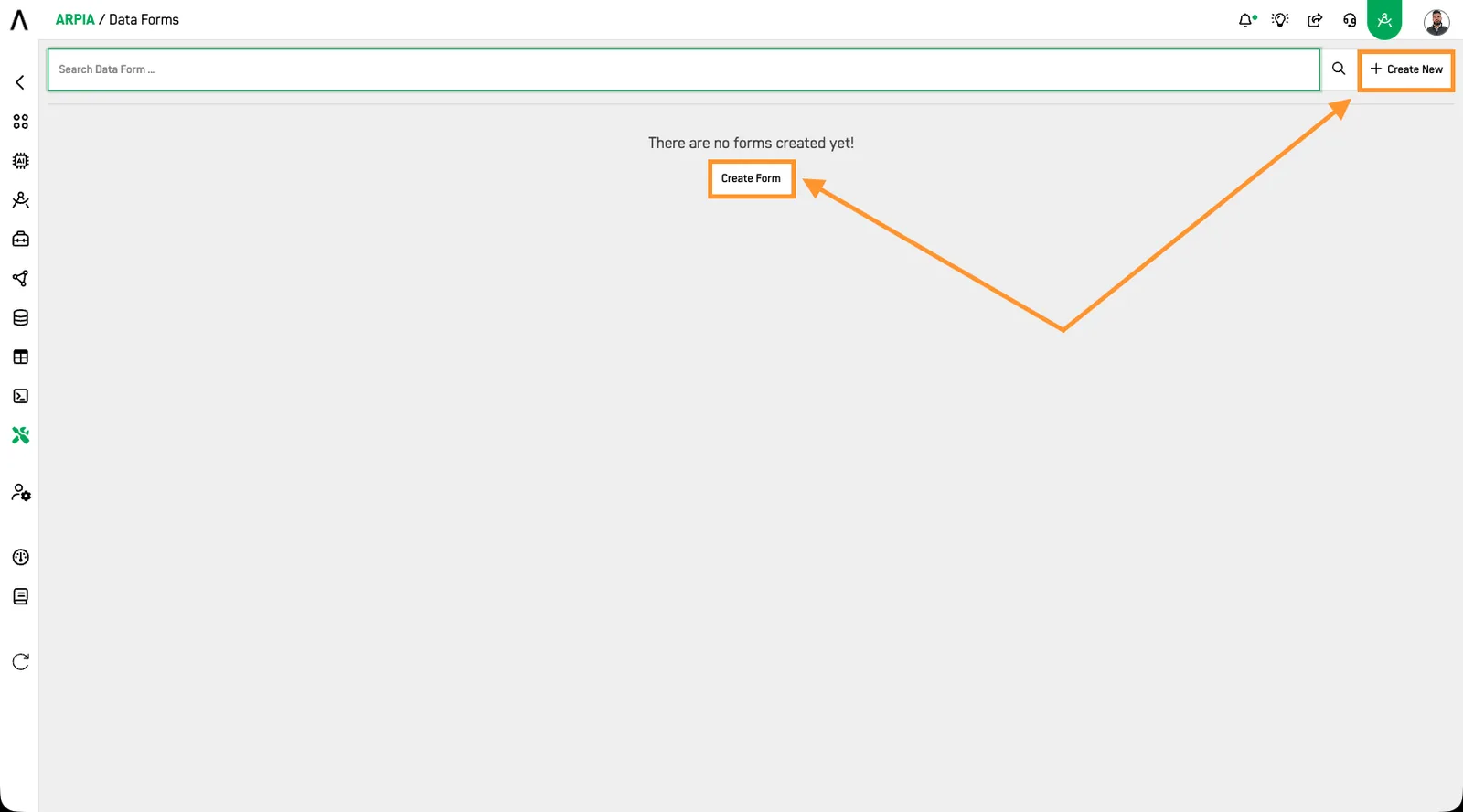
Your saved Data Forms appear here, grouped by category. Click CREATE NEW.
Step 3: Set up the form#
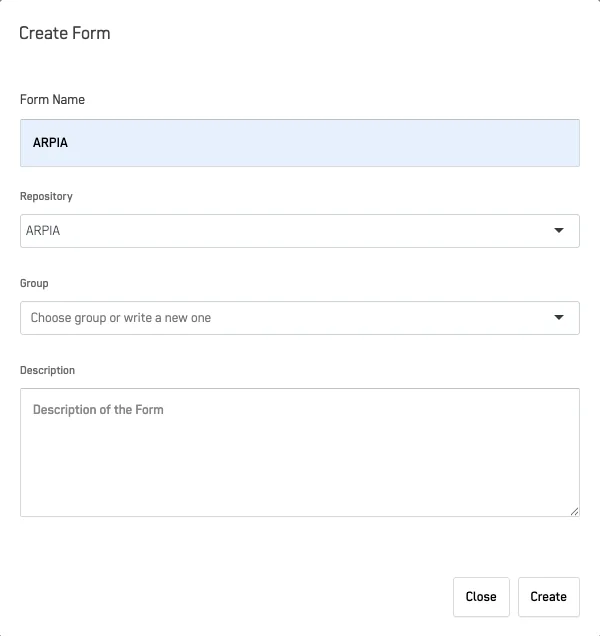
Enter the form name, pick the repository where data is saved, and choose a group. Add an optional description. Click CREATE.
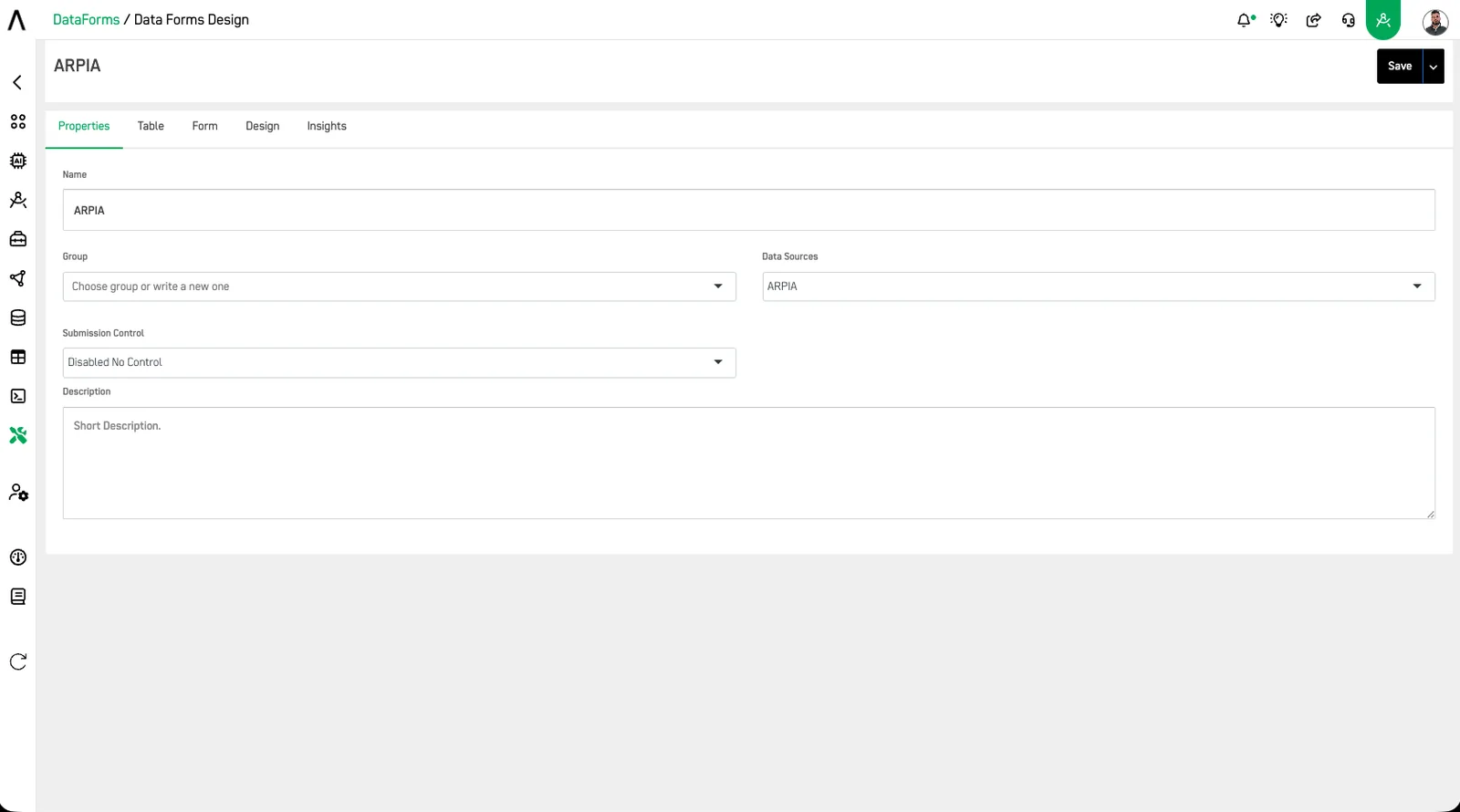
Step 4: Review the form#
The form opens on the Properties screen, showing the setup from the previous step.
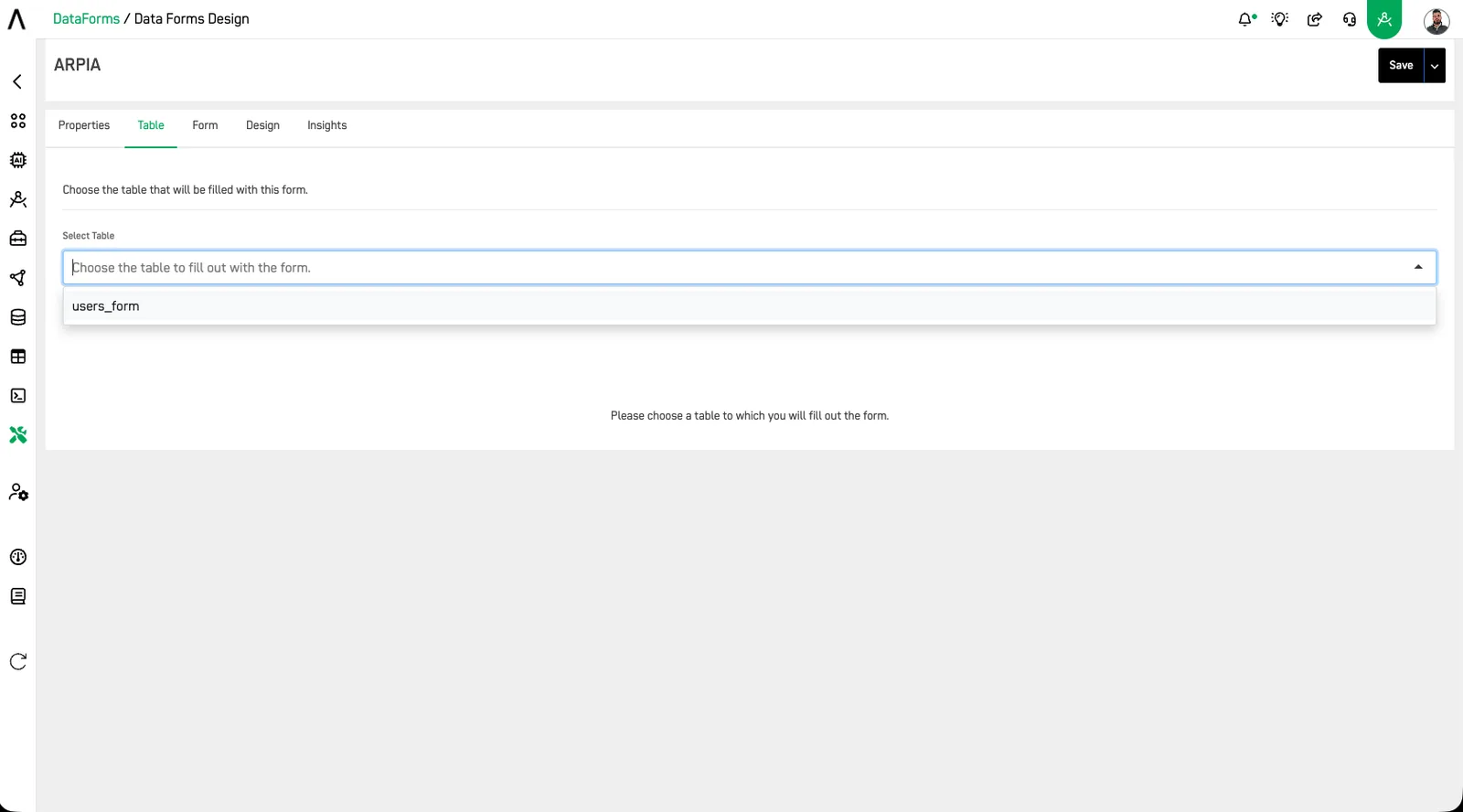
Step 5: Link a table#
Open the Table tab and choose the table where form data will be saved.
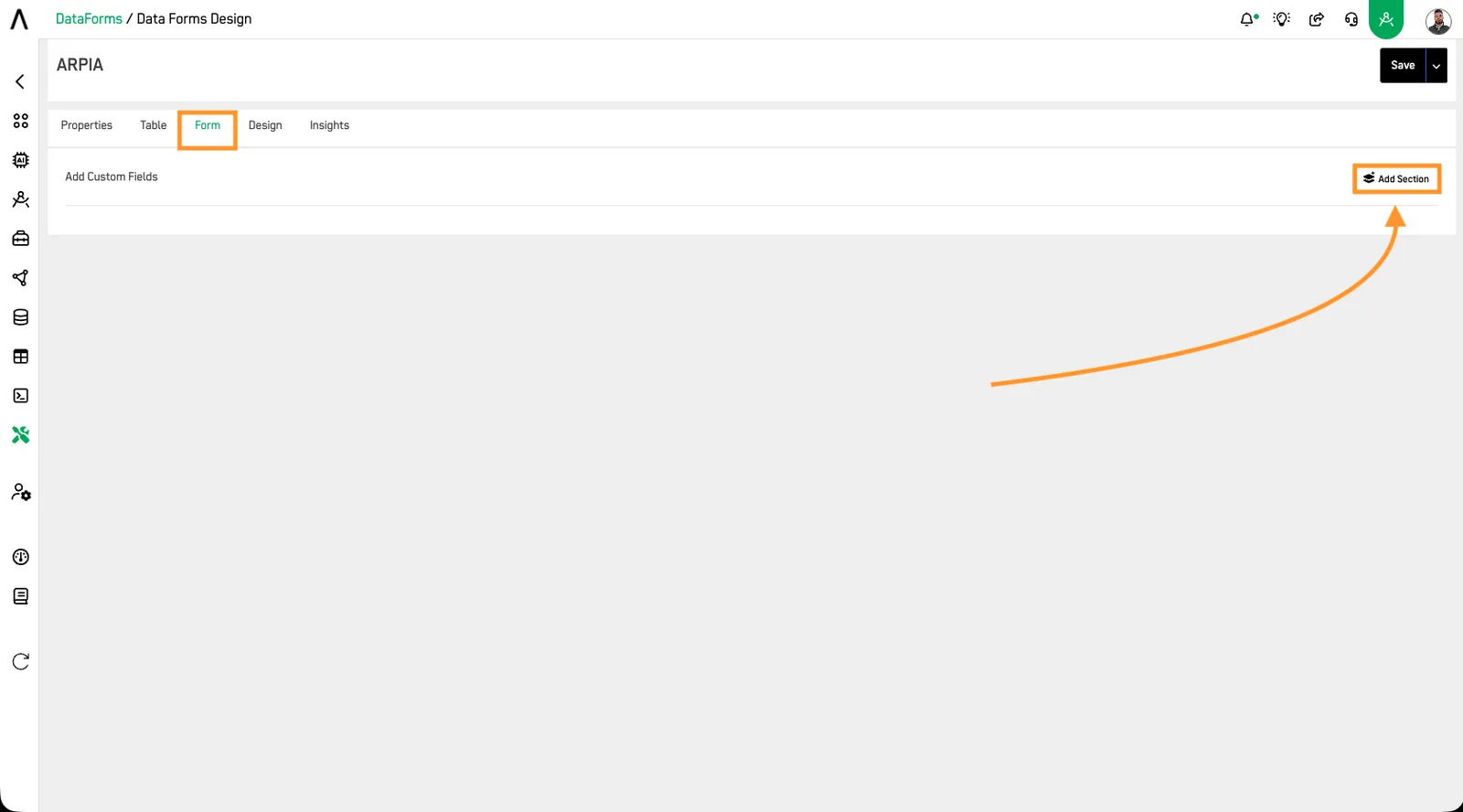
Step 6: Add a section#
Open the Form tab and click ADD SECTION.
Form Sections
You can divide forms into sections to help users understand that each part of the form collects different data.
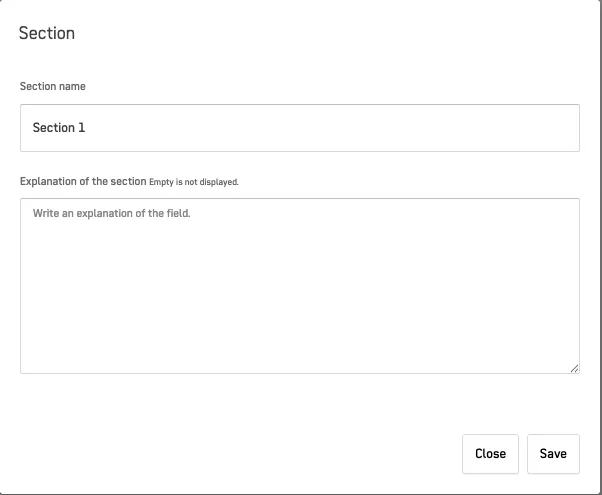
Step 7: Name the section#
Enter a section name and an optional description. Click SAVE.
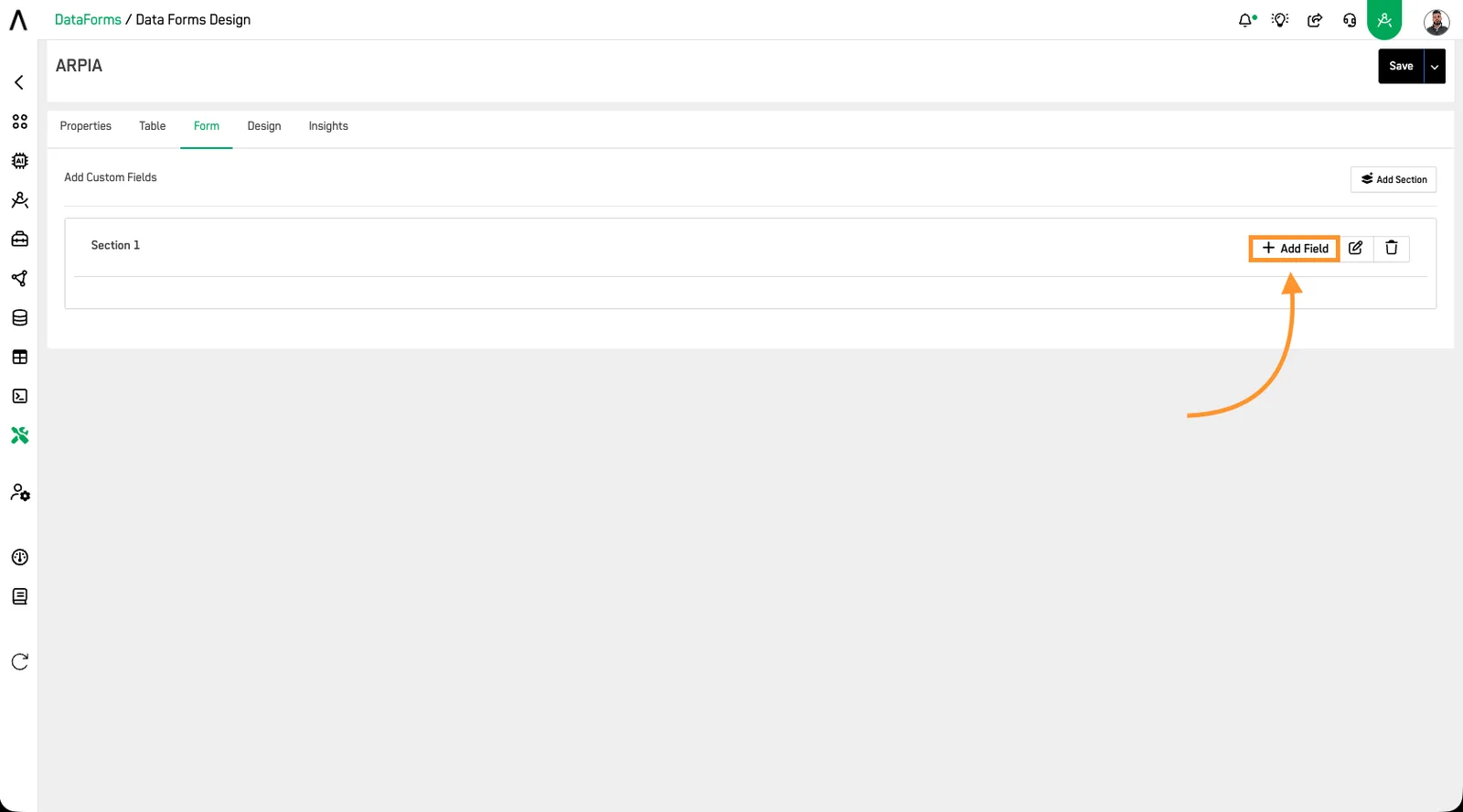
Step 8: Add a field#
In the section, click + ADD FIELD.
Step 9: Configure the field#
Set the table field, field type, name, description, alignment, and whether it is required.
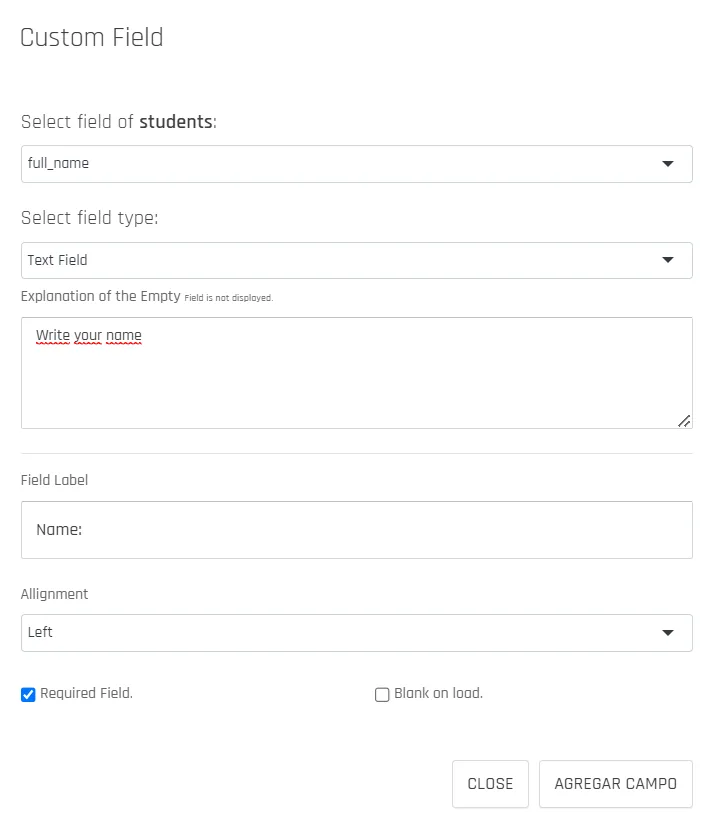
The table below explains each field type:
| Field Type | Description |
|---|---|
| Text Field | A simple text field. |
| Text Area | A multiline text field. |
| Chooser of an Option | A dropdown list of options, allowing the user to select one. |
| Multiple Choice Selector | A list of options, allowing the user to choose one or more. Result will be saved as JSON in the destination table. |
| Create Multiple Options | Allows the user to add multiple options on demand. Result will be saved as JSON in the destination table. |
| Date Field | A field with a date and time picker. |
| Field Selection of an SQL | Generates a list of selectable options based on data retrieved from an SQL query in the repository. Also supports dynamically generating a modal selector linked to the user's session for a more personalized experience. |
| Integer Incremental Field | Simulates an auto-incrementable field in the form. |
| Hash Key | Enables a primary key using a hash string to prevent duplicates and maintain a unique primary key for the record. |
| TimeStamp Field | Enables a timestamp field to capture the date and time of the data record obtained by the form. |
| Email Field | Allows entering email addresses. |
| Password Field | Allows adding passwords without revealing the entered password. |
| Phone Field | Allows entering phone numbers. |
| Image Upload Field | Allows uploading images from the camera or gallery. |
| Video Upload Field | Allows uploading videos. |
| File Upload Field | Allows uploading documents. |
| Map Geo Point Field | Automatically captures the geographic point. |
| Map Select Geo Point Field | Allows selecting a point on a map. |
| Signature Field | Allows entering signatures. |
| Default Value | Allows providing a fixed value whenever the form is filled. |
| ARPIA User Session | Saves the user's email who registered in the application automatically. |
| DataApps Session Variable | Fills it with data already set in the DataApp configuration. |
| DataApp Global Variable | Fills it with data already set in the DataApp configuration. |
Step 10: Save the field#
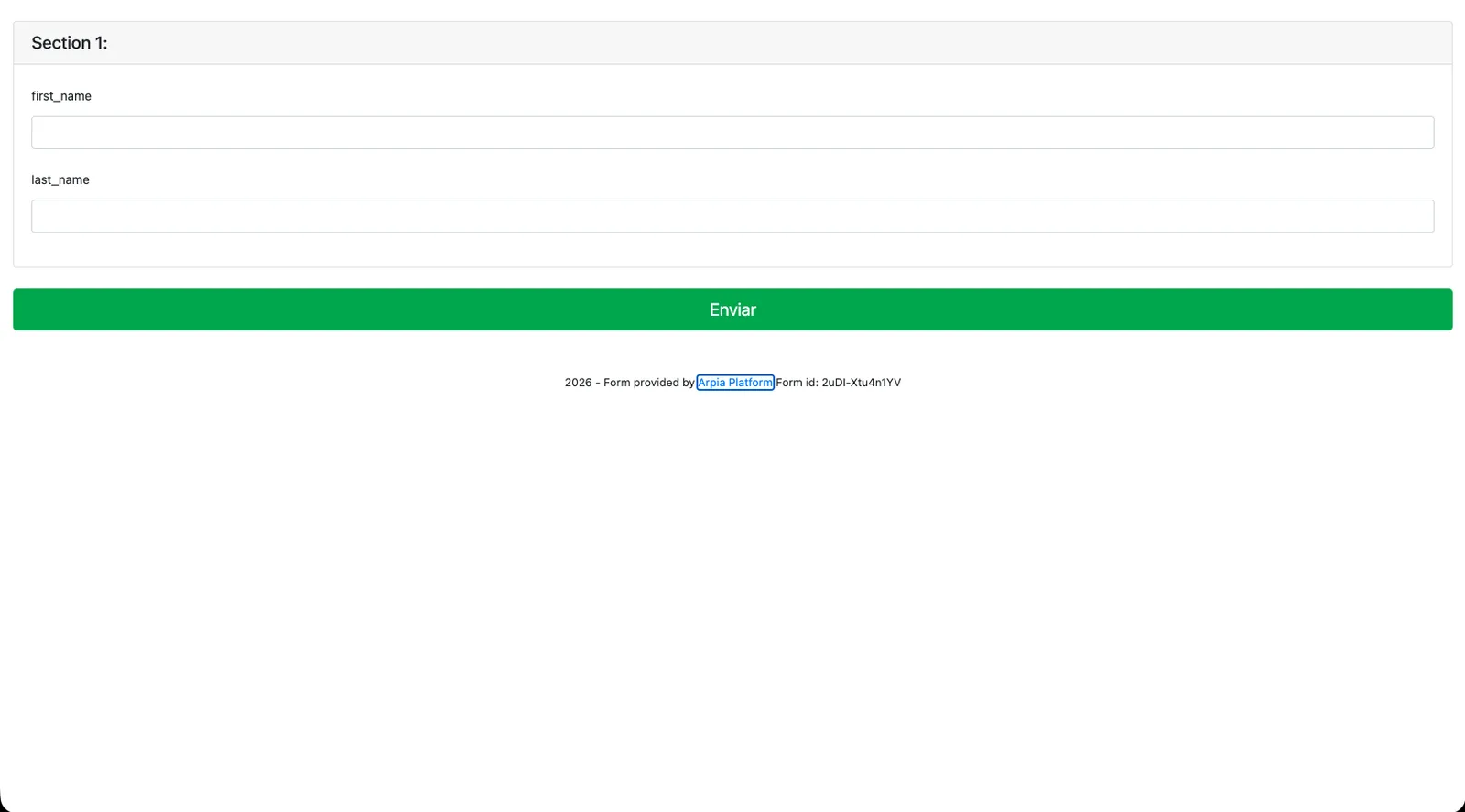
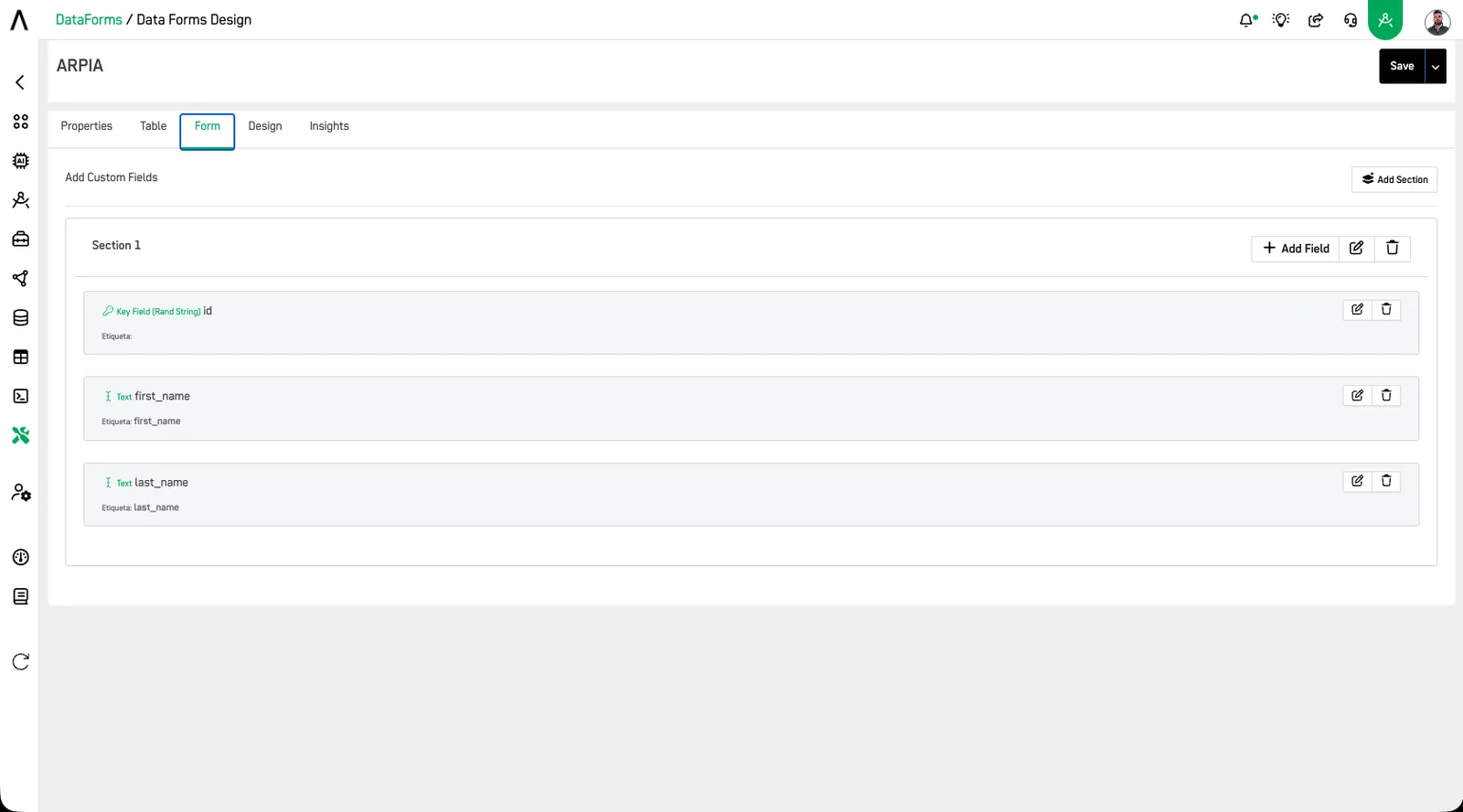
Click Add Field to add it to the section. Repeat for each field you need. The example below shows two fields, first_name and last_name.
Field Duplication
Only one field from the destination table is allowed per form. Duplicate fields are not permitted.
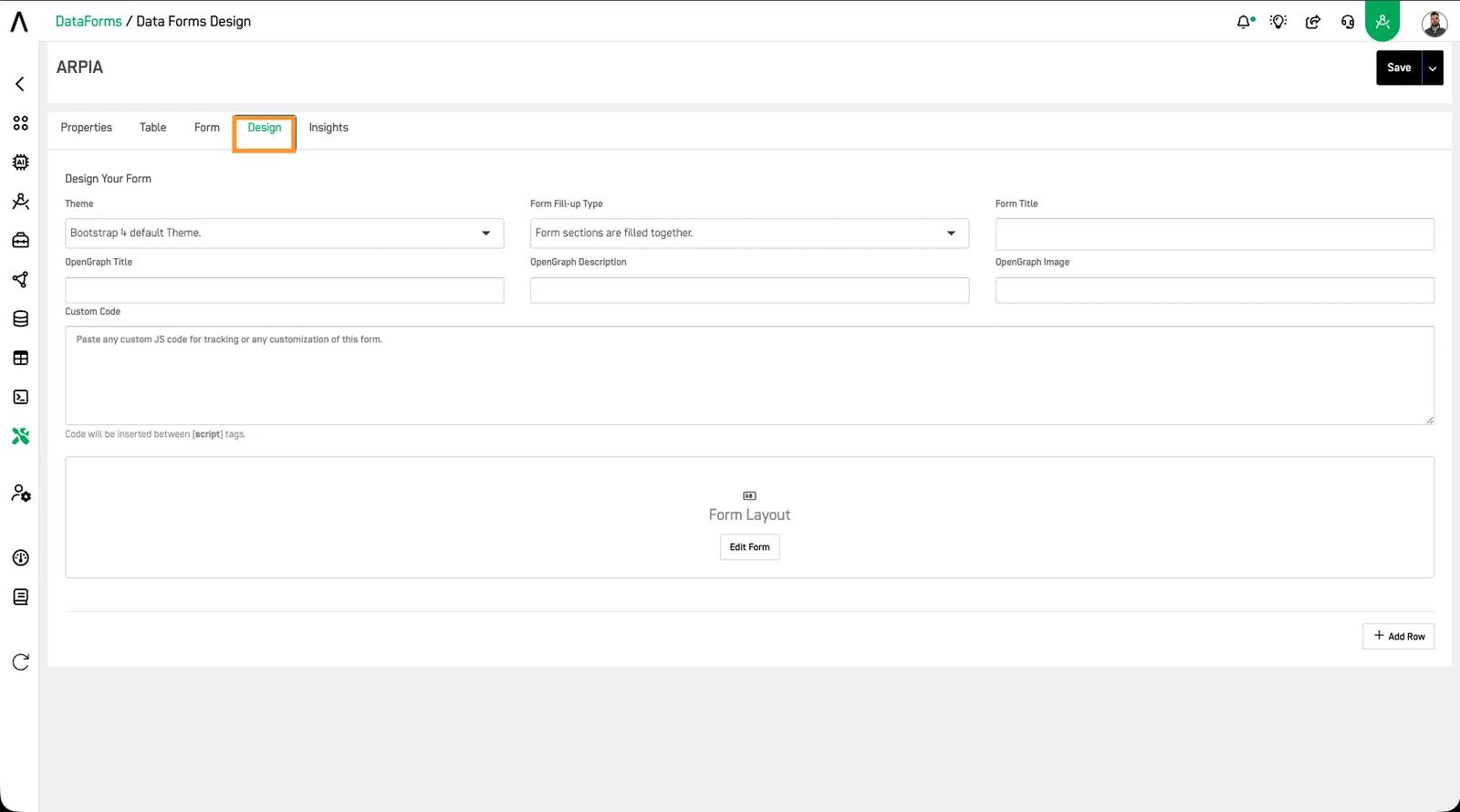
Step 11: Design the form#
Open the Design tab to set the theme, form fill-up type, form title, OpenGraph title, OpenGraph description, OpenGraph image, and any custom code.
Step 12: View results#
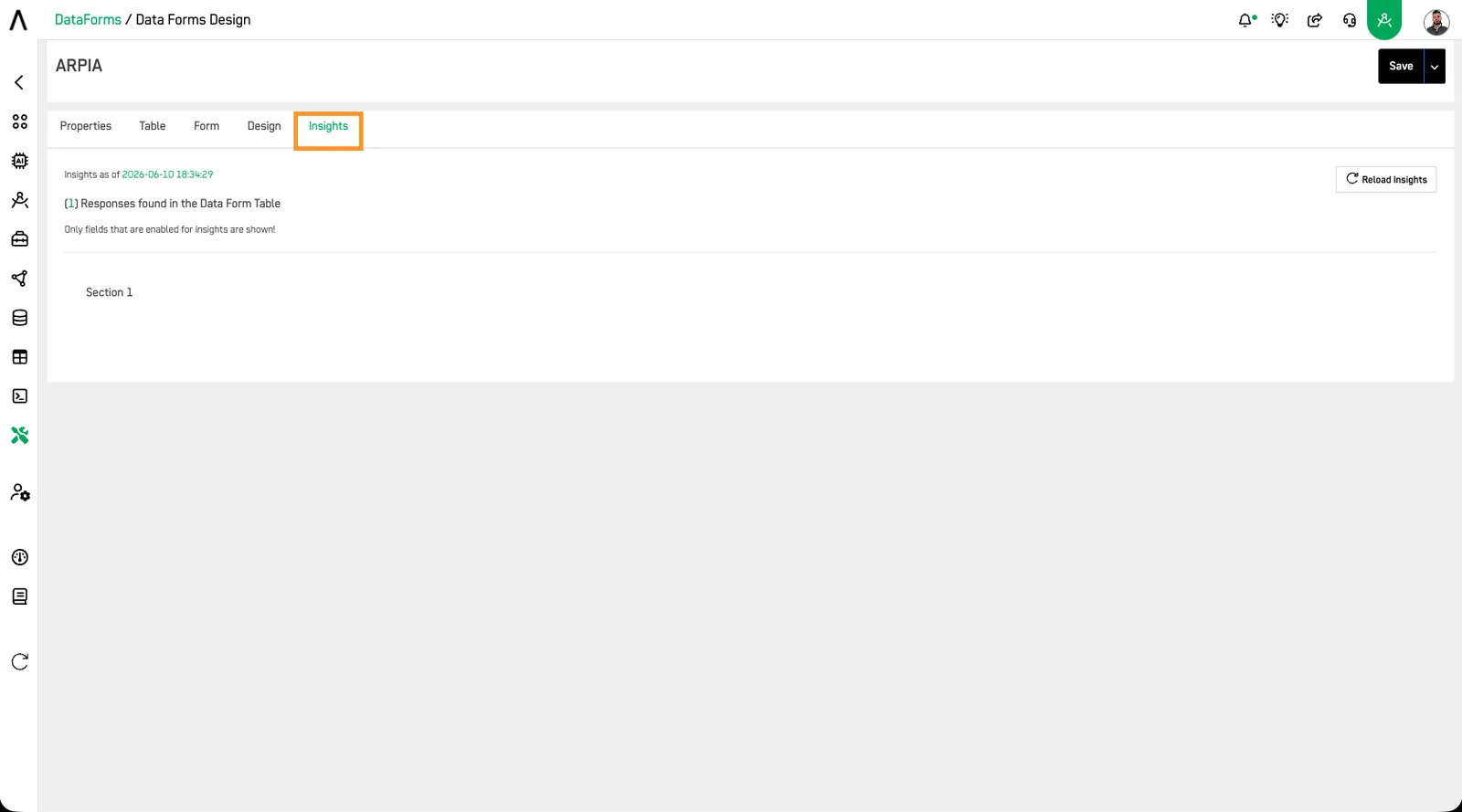
Open the Insights tab to see form responses.
Step 13: Get the form URL#
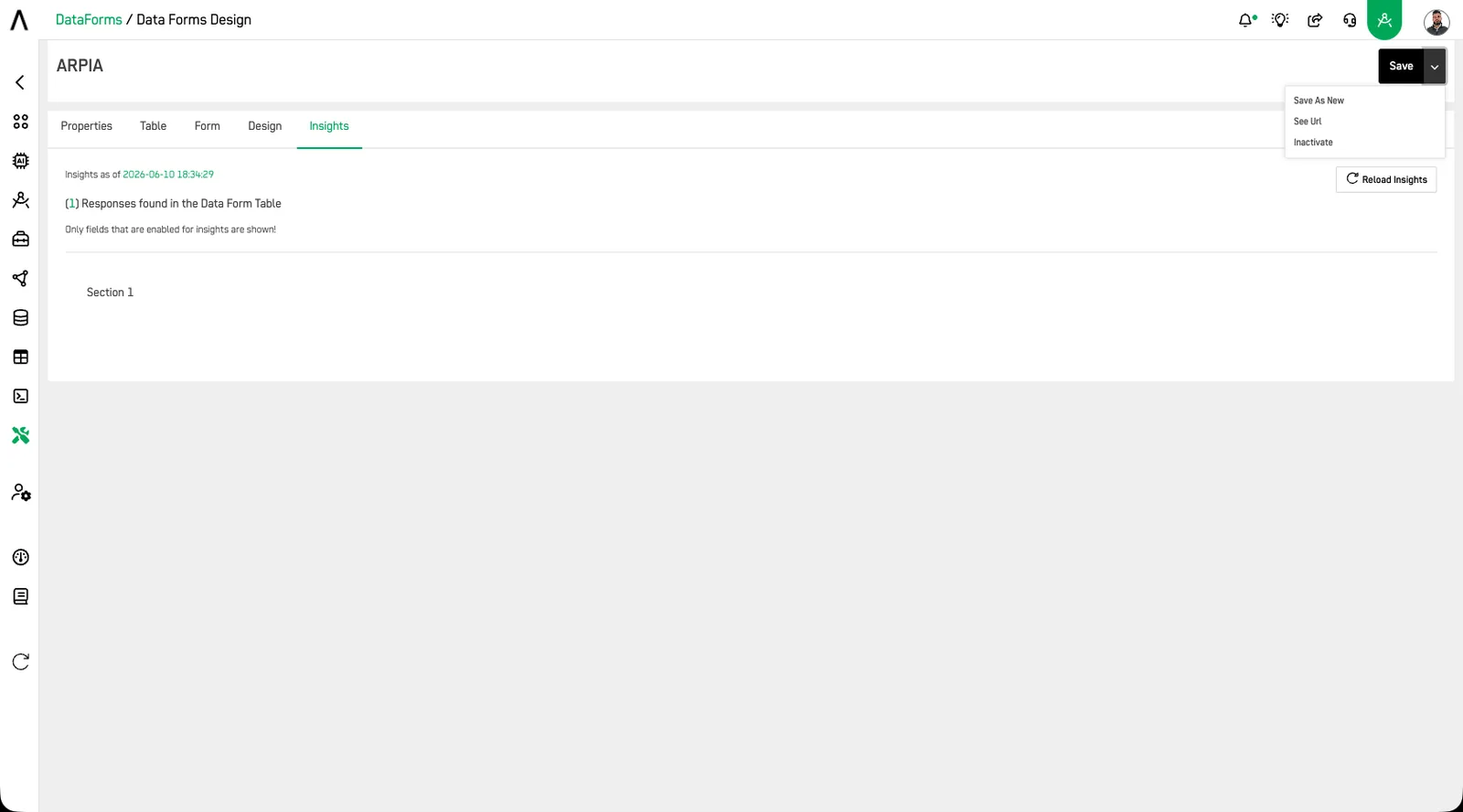
Click SAVE. Then click the arrow next to SAVE and select SEE URL.
Step 14: Open the form#
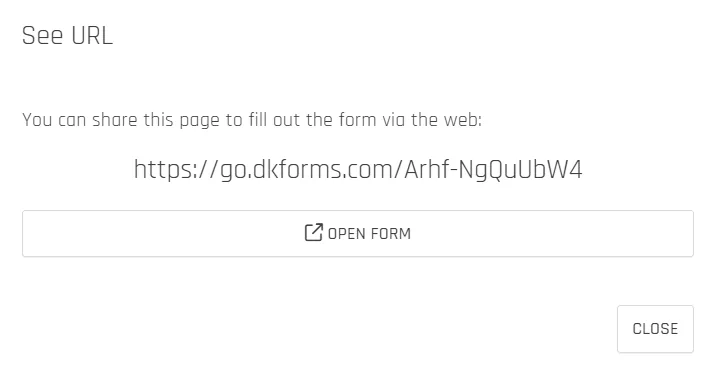
Copy the link, or click OPEN FORM.
Step 15: Use the form#
Your Data Form is ready.
Congratulations — you've created your first Data Form. Use forms to build data-capture screens that support or analyze processes across your organization.