How to create a Bucket Object Storage
Step-by-Step Guide#
Step 1: Create a Bucket for Your Project#
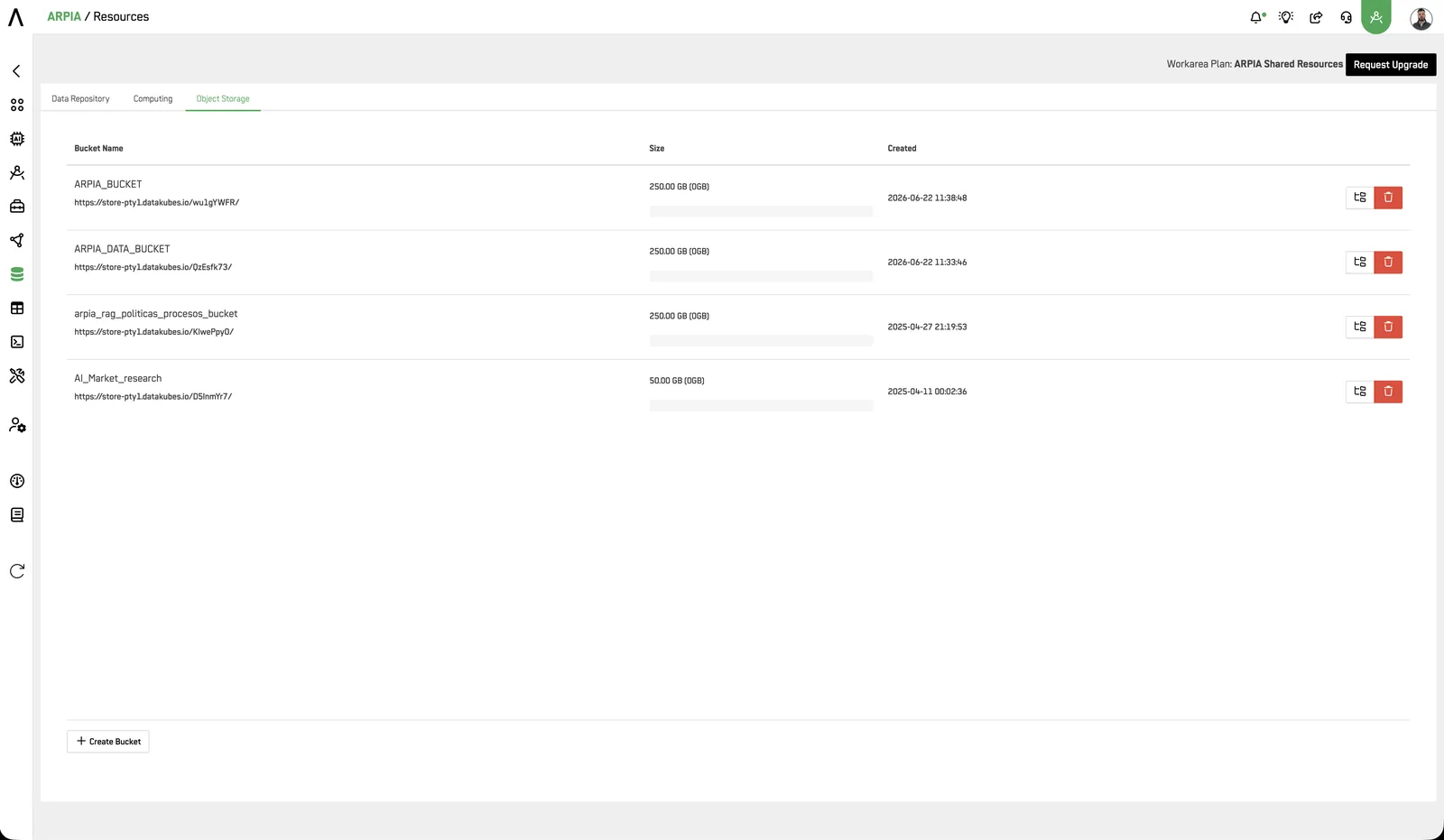
To store images or documents sent through your forms, you need to create a "Bucket." Navigate to the Object Storage section.
Step 2: Create a New Bucket#
Click on "+ CREATE BUCKET."\ After clicking on "+ CREATE BUCKET," fill out the form specifying the name, description (optional), and size of the bucket (minimum size is 250 GB by default).
Step 3: View Your Bucket#
You can now see your bucket listed and monitor the space usage.
Important
In your DataApps, specify the Bucket you will use to save images or documents.
In this view you can access the Bucket actions:
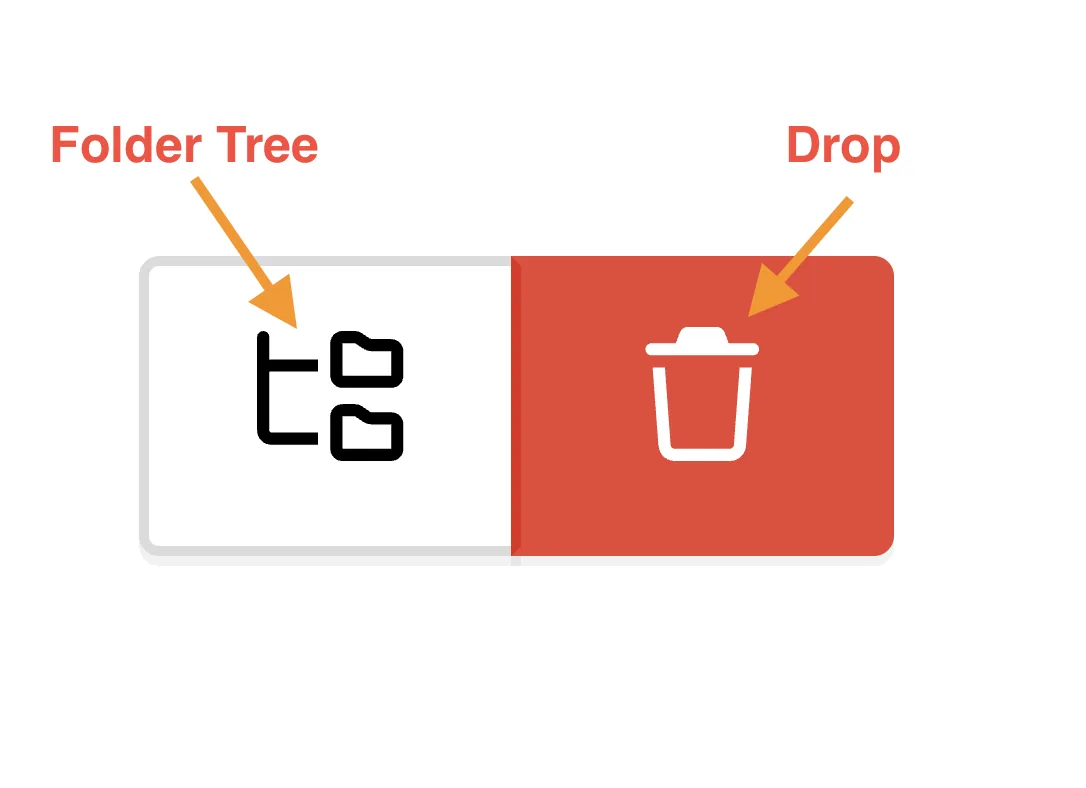
- Folder Tree: View all files uploaded to the Bucket, including the size of each file and the total size of all files combined.
- **Drop:**Here you can erase the bucket with all the files inside.