Knowledge Catalog
The searchable index of every data element in the Reasoning Knowledge.
Who Uses the Knowledge Catalog#
The Knowledge Catalog serves every role that works with data across the enterprise:
| Role | How they use it |
|---|---|
| Data Engineer | Registers and maintains nodes, ensures every table has a governed entry in the catalog |
| AI / ML Engineer | Discovers which nodes and columns are available to ground reasoning flows and agentic workers |
| Data Analyst | Searches and filters the catalog to find the right data assets without depending on engineering |
| Product Manager | Gets visibility into what data exists, who owns it, and how it connects across systems |
| IT / Platform Admin | Audits the catalog for coverage gaps and enforces repository and ownership standards |
| Compliance / Governance | Uses the catalog as the authoritative record of all governed data elements in the platform |
| AI Governance Officer | Validates that AI systems consume only cataloged, approved, and traceable data assets |
| Chief Data Officer (CDO) | Maintains enterprise-wide visibility of the data layer powering AI decisions and operations |
Enterprise Use Cases#
1. Centralized Data Discovery\ A multinational with data spread across 10+ repositories uses the Knowledge Catalog as the single place where analysts can search and find any dataset — without emailing engineers or digging through database schemas.
2. AI Grounding & Traceability\ An AI engineering team building reasoning flows for customer support uses the catalog to identify which Knowledge Nodes contain CRM, ticketing, and product data — then wires them directly into their agents. Every AI response is traceable back to a governed, cataloged node.
3. Cross-Workarea Data Sharing\ A regional finance team shares a vetted Revenue Node with three other workareas. Each team sees live, read-only data — always up to date, with no copies drifting out of sync.
4. Governance Audit Trail\ A compliance officer uses the catalog to verify that every data element used in a regulatory report is owned, categorized, and tagged — supporting audit readiness without manual documentation.
5. Onboarding Acceleration\ New engineers and analysts browse the catalog on day one to understand the full data landscape of their workarea — cutting ramp-up time from weeks to days.
6. AI Risk Containment\ Before deploying a new AI agent, the AI Governance team audits the catalog to confirm the agent only has access to nodes explicitly approved under the workarea's data policy — preventing unauthorized data exposure.
Alignment with AI Governance Frameworks#
The Knowledge Catalog is a core control surface within ARPIA's AI Governance model. It directly supports requirements across the leading frameworks and standards:
| Framework | How the Knowledge Catalog supports it |
|---|---|
| ISO 42001 (AI Management Systems) | Provides the data inventory and traceability layer required for responsible AI system design and operation |
| NIST AI RMF (AI Risk Management Framework) | Supports the Map and Measure functions by cataloging AI data inputs, ownership, and access controls |
| EU AI Act | Enables documentation of training and operational data sources required for high-risk AI system compliance |
| SOC 2 (Type II) | Supports the Availability and Confidentiality criteria by enforcing node-level access governance and audit trails |
| ISO 27001 | Contributes to information asset inventory and access control requirements under Annex A |
| GDPR / Data Privacy | Identifies and tags data elements containing personal data, supporting data minimization and subject access request workflows |
| DORA (Digital Operational Resilience Act) | Supports ICT risk management by maintaining a governed inventory of data assets used in critical AI-driven operations |
The Knowledge Catalog is not just a discovery tool — it is the data accountability layer that makes AI systems auditable, explainable, and governable.
Elements#
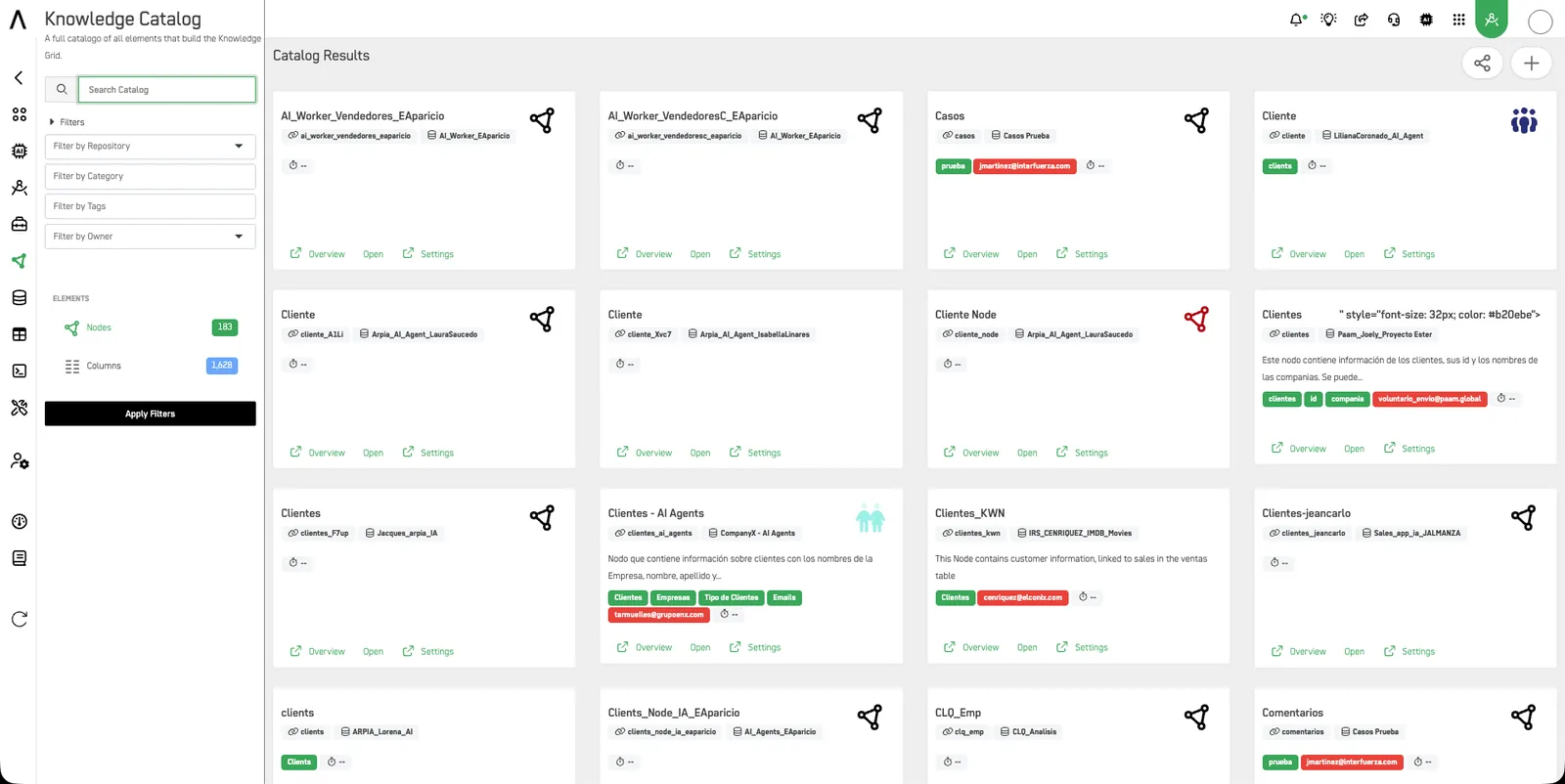
The left panel shows two element types with live counts:
- Nodes — Knowledge Nodes available in your catalog
- Columns — Individual data columns across all nodes
Browsing & Filtering#
Use the search bar and filters to navigate the catalog:
| Filter | Description |
|---|---|
| Repository | Filter nodes by their connected data repository |
| Category | Filter by workarea category |
| Tags | Filter by user-defined tags assigned to nodes |
| Owner | Filter by the user who owns the node |
Each node card shows its name, slug, workarea, tags, and quick links to Overview, Open, and Settings.
Creating a Knowledge Node#
Click the + button in the top-right corner to create a new node. Fill in the following:
Knowledge Node Repository & Type
- Repository — Select the data repository this node connects to
- Type — Choose between:
Realtime Kube— Live query node connected to a repositoryKnowledge Ontology Execution Node— Node tied to an ontology execution context
Name & Properties
- Name — Display name for the node
- Slug — SDK/URL identifier, auto-derived from name if left blank. Locked once created. Lowercase letters, digits, underscores; must start with a letter.
- Category / Subcategory — Organizational classification
- Description — Short description of what this node contains
Creating a Knowledge Node from a Table#
You can also create a Knowledge Node directly from a table in Data Objects, without going through the catalog.
In Data Objects, open the Actions menu on any table and select Create Knowledge Node.
Fill in the following:
- Knowledge Node Name — defaults to the table name, editable
- Slug — SDK/URL identifier, auto-derived from name if left blank. Locked once created.
If a Knowledge Node with that table as primary already exists, the modal will show a warning with an Open Knowledge Node link to navigate directly to it.
Click Create Node to add it to the Knowledge Catalog.
Sharing a Knowledge Node#
Knowledge Nodes can be shared across workareas, allowing other teams to access your data read-only — always reflecting your latest changes, without receiving a copy of your data setup.
To share a node, open it in Node Design and select Share Knowledge Node. Choose who can access it:
| Option | Description |
|---|---|
| My workareas | Only people who also belong to this workarea can add it elsewhere |
| Public | Anyone can add it. Use for public data only |
Recipient workareas always see your latest changes and cannot edit the node or get a copy of your data setup.
Adding a Shared Node#
Use the share icon in the top-right corner of the catalog to open the Add a shared node panel. Search for nodes shared with your workarea and add them directly to your catalog.
Once added, the node appears as a read-only federated node in your catalog.
If the owner stops sharing a node, it is automatically removed from your catalog and will no longer be accessible.