MCP Server Guide
Complete guide to connecting AI agents to your enterprise data through ARPIA's Model Context Protocol server
Overview#
The ARPIA MCP Server enables AI agents like Claude, ChatGPT, Cursor, and Windsurf to access your enterprise databases through the Model Context Protocol—a secure, standardized interface for AI-to-data communication.
What is MCP?#
The Model Context Protocol (MCP) is an open standard that provides:
- Discovery: AI agents find available data sources
- Authentication: Secure token-based access
- Interaction: Standardized query interface
- Governance: Complete audit trails
Prerequisites#
Before you begin, ensure you have:
- Administrator or Owner role in your ARPIA workspace
- Access to AutoAPI / MCP Server section in the dashboard
- At least one connected data repository (database, data warehouse, or API)
- Arpia Intelligence nodes configured - Your data sources must have Arpia Intelligence enabled before they can be exposed through MCP. See detailed setup guide →
- Understanding of your data classification requirements for security
Important: If you haven't configured Arpia Intelligence on your data sources yet, complete that setup first before proceeding with MCP collection creation.
Architecture Overview#
Token Hierarchy#
ARPIA uses a three-tier token system for granular access control:
| Token Type | Purpose | Example | Length |
|---|---|---|---|
| Collection Token | Workspace access | b3cb7ee2af-8852c0edc731c7c59e9e |
32 characters |
| Resource Token | Endpoint access | b3cb7ee2af-2c6f4ef6b5 |
20 characters |
| Variant Token | Security rules | toMBmPXFmf |
10 characters |
Token Terminology Guide:
- Collection Token (also called "Auth Token" in the UI) - Controls access to an entire MCP collection
- Resource Token (also called "Shared Token" for individual endpoints) - Controls access to specific data endpoints
- Variant Token - Applies additional security rules and access restrictions
Data Flow#
AI Agent (Claude/ChatGPT)
    ↓ Natural language query
MCP Protocol Layer
    ↓ Translates to HTTP
AutoAPI Endpoints
    ↓ Queries Arpia Intelligence nodes
Your Data Sources
Step 1: Create MCP Collection#
Via ARPIA Dashboard#
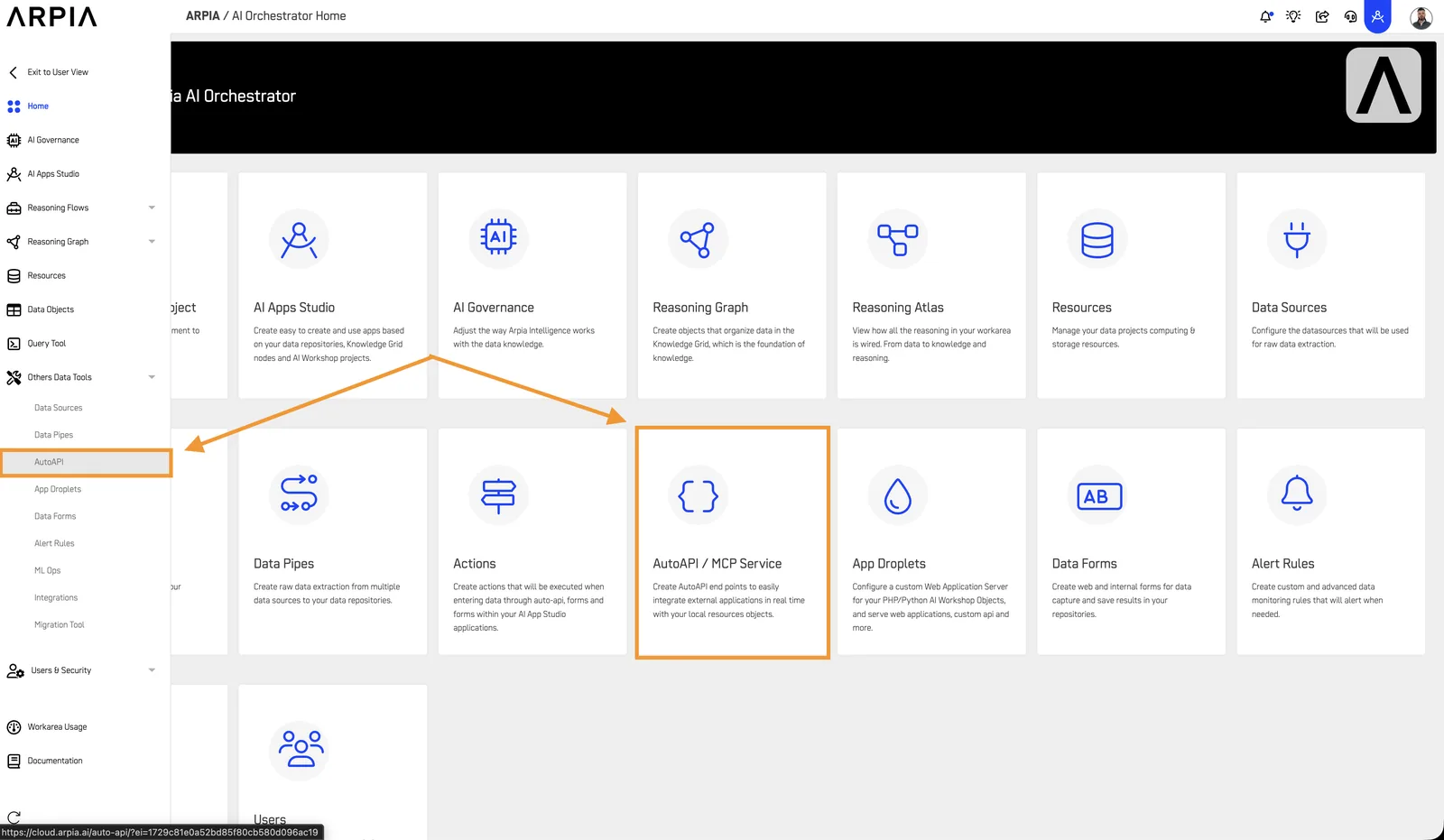
- Navigate to AutoAPI / MCP Server from home
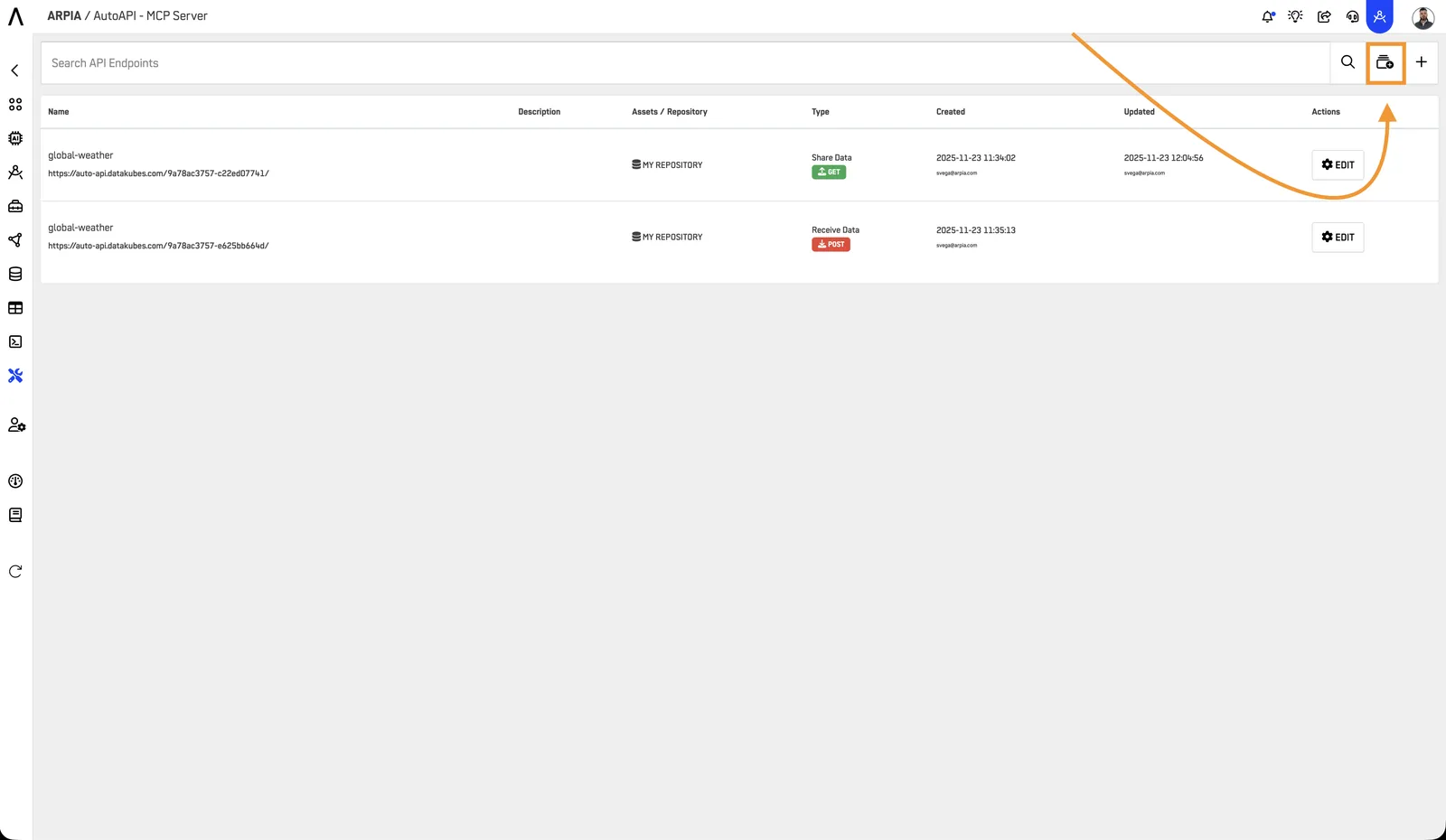
- Click + button to create new collection
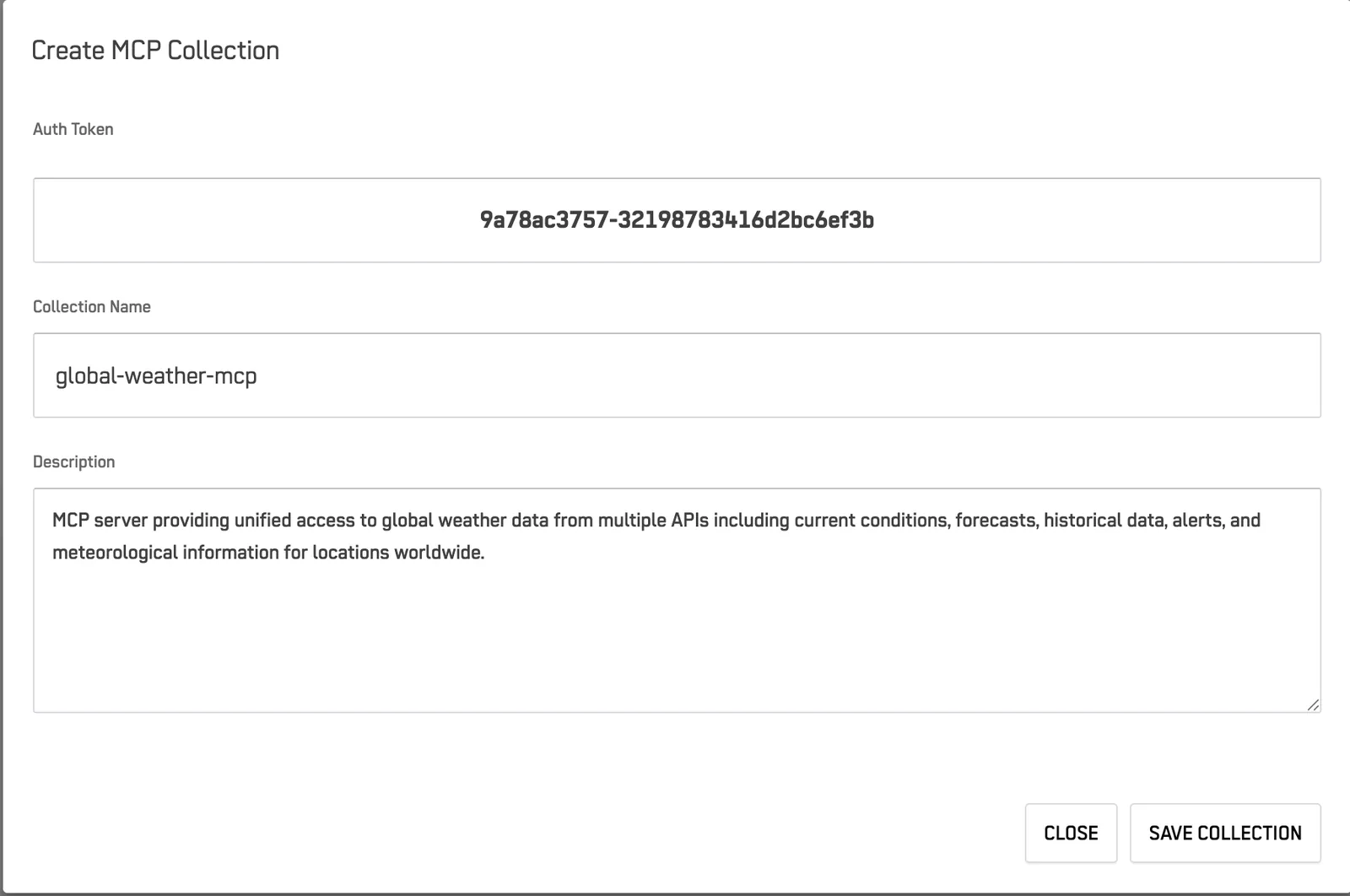
- Configure collection settings:
| Field | Description | Example |
|---|---|---|
| Auth Token | Auto-generated unique ID | b3cb7ee2af-8852c0edc731c7c59e9e |
| Collection Name | Descriptive workspace name | "Production CRM Data" |
| Description | Purpose and contents | "Customer and sales information" |
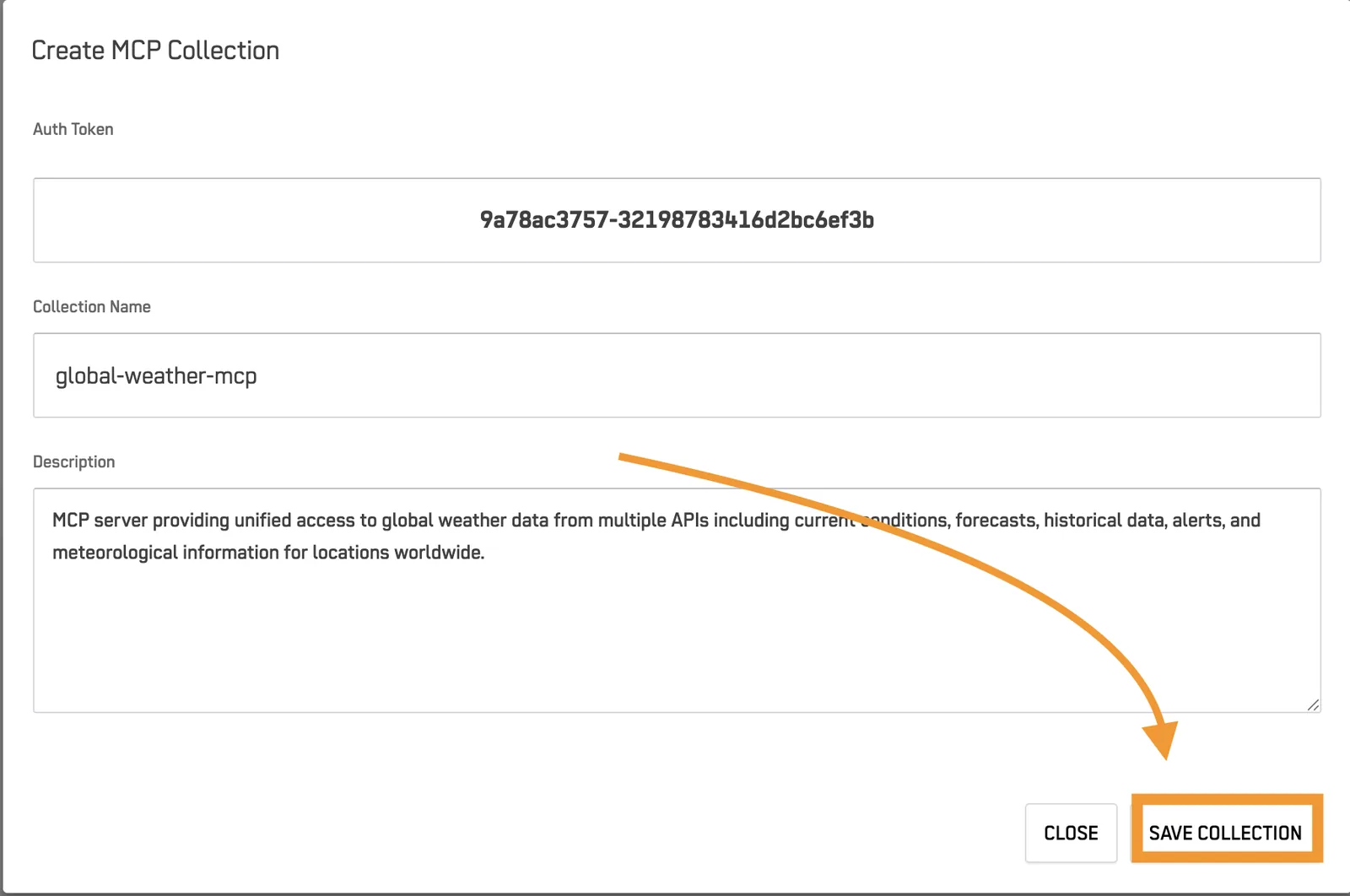
- Click SAVE COLLECTION
Security Note: Store your collection token securely. It provides access to all resources in the collection. You'll find this token at the top of your collection details page after saving.
- Click OK in the popup that says "Create AutoAPI Collection?"
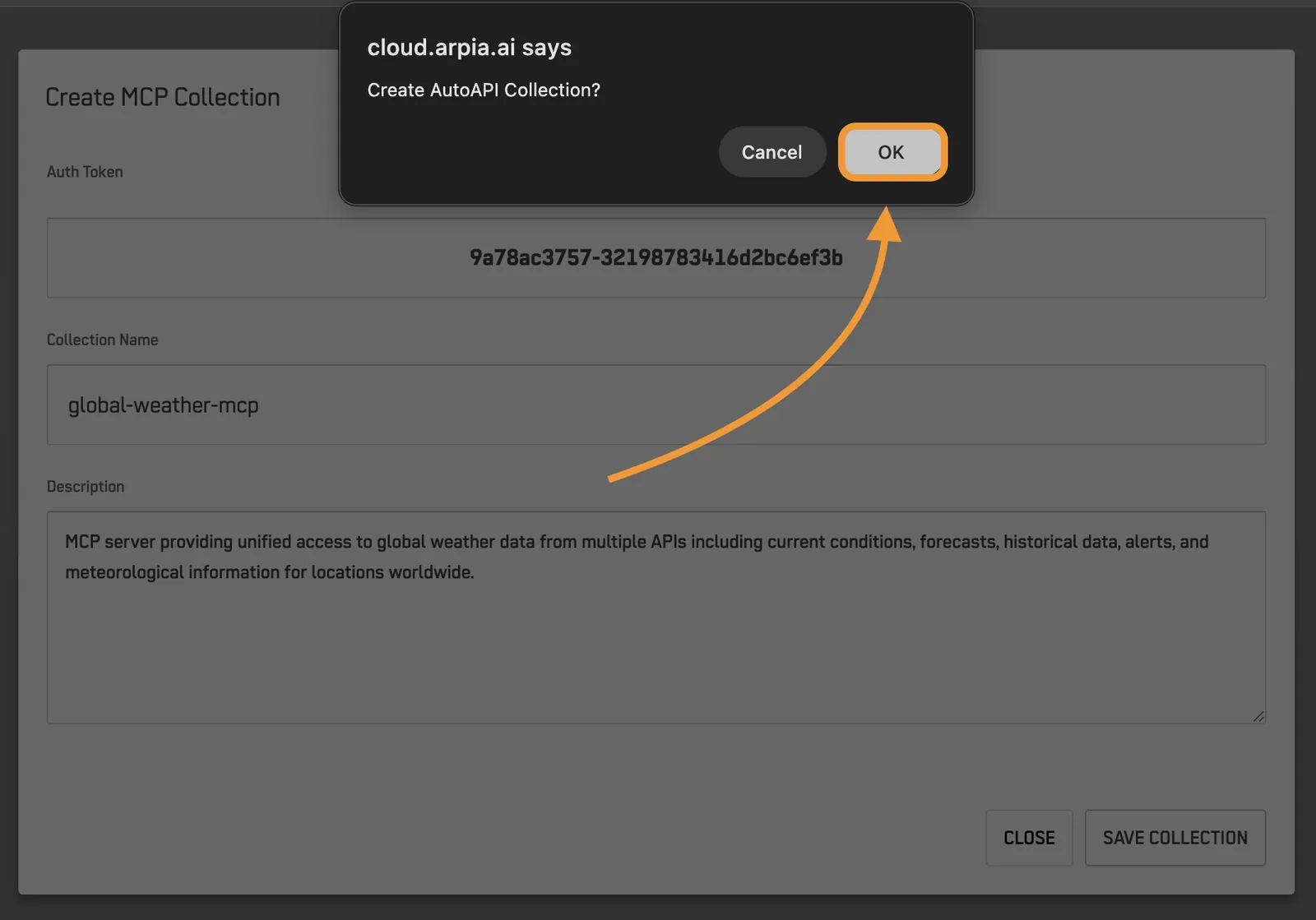
Locating Your Collection Token#
After creating your collection:
- The Collection Token appears at the top of the collection details page
- Copy and save this token securely - you'll need it to connect AI agents
- This token grants access to all resources within this collection
Step 2: Create Resources (AutoAPI Endpoints)#
Resources define what data AI agents can access and how.
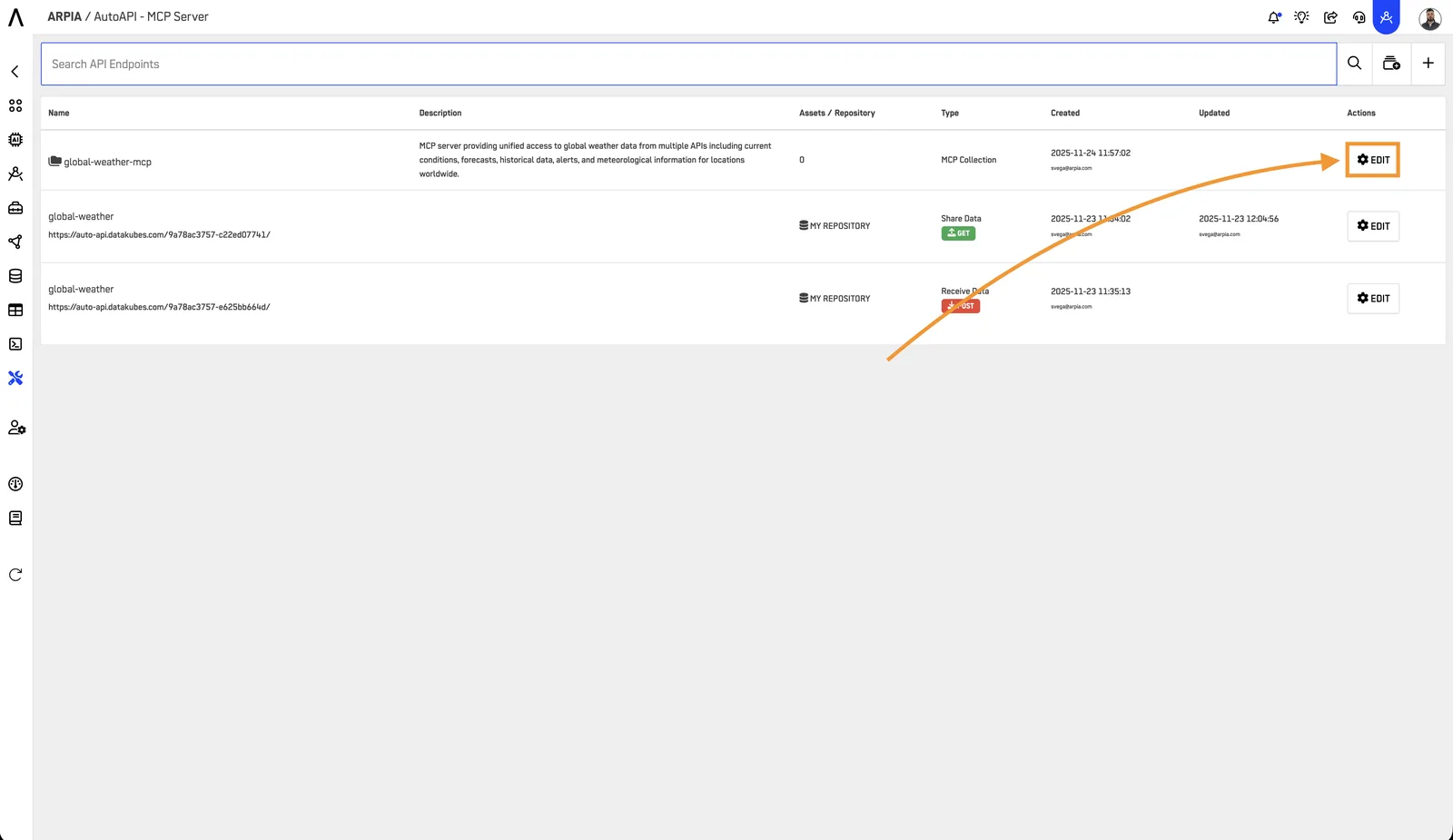
2.1 Navigate to Collection#
Open your MCP Collection by pressing "Edit".
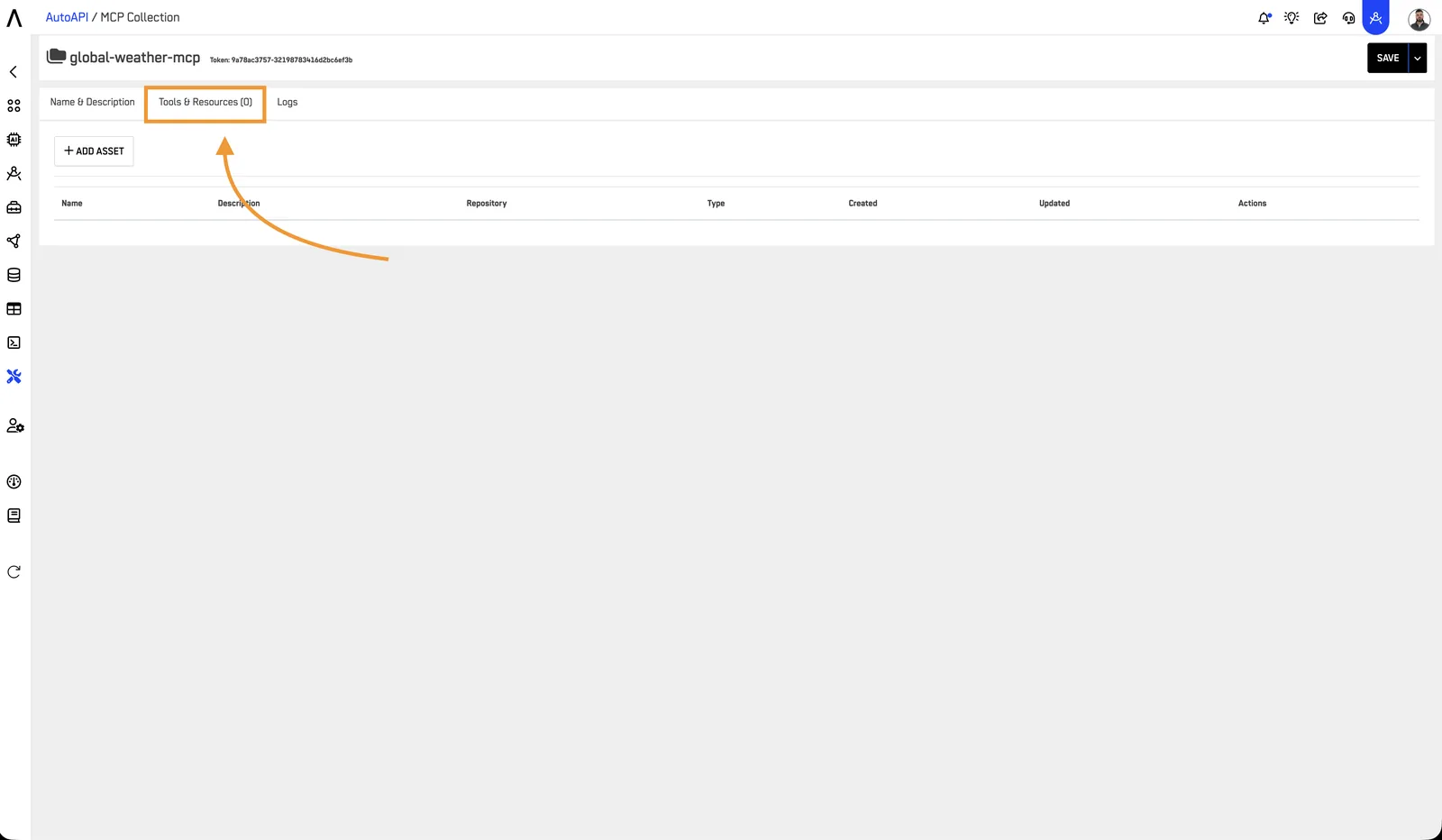
2.2 Access Tools & Resources#
Go to Tools & Resources tab
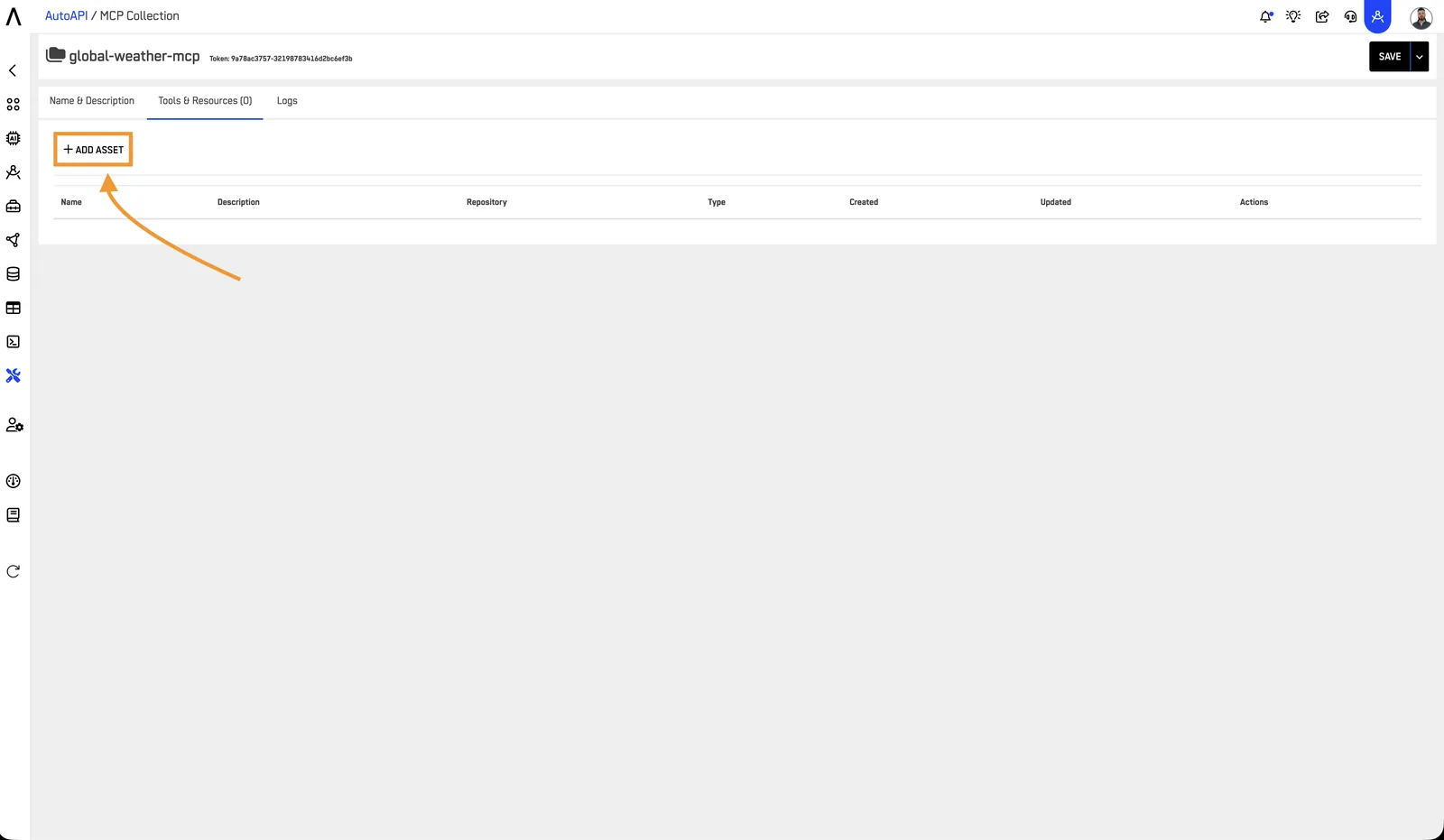
2.3 Add New Asset#
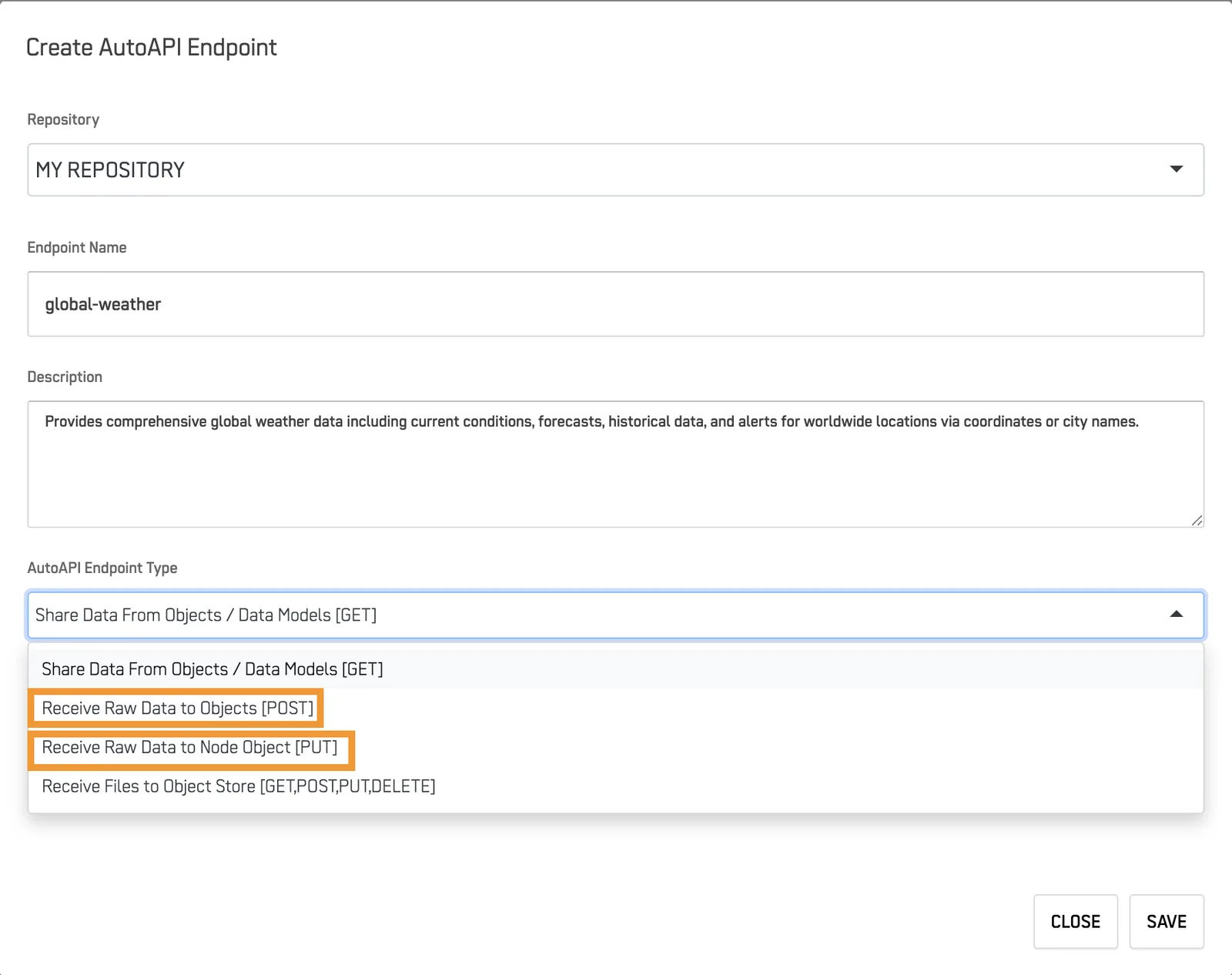
Click + ADD ASSET
2.4 Configure Endpoint#
Add the necessary information for your AutoAPI and select a method (Endpoint).
Basic Settings
- Name: Descriptive identifier (e.g., "CustomerInformation")
- Description: What data this provides (be specific - AI agents use this to understand when to query this resource)
- Repository: Select data source
Endpoint Type
| Type | Use Case | HTTP Method |
|---|---|---|
| Share Data [GET] | Query/retrieve data | GET |
| Receive Data [POST] | Submit new records/data | POST |
Add the necessary information for your AutoAPI and select a method (Endpoint).
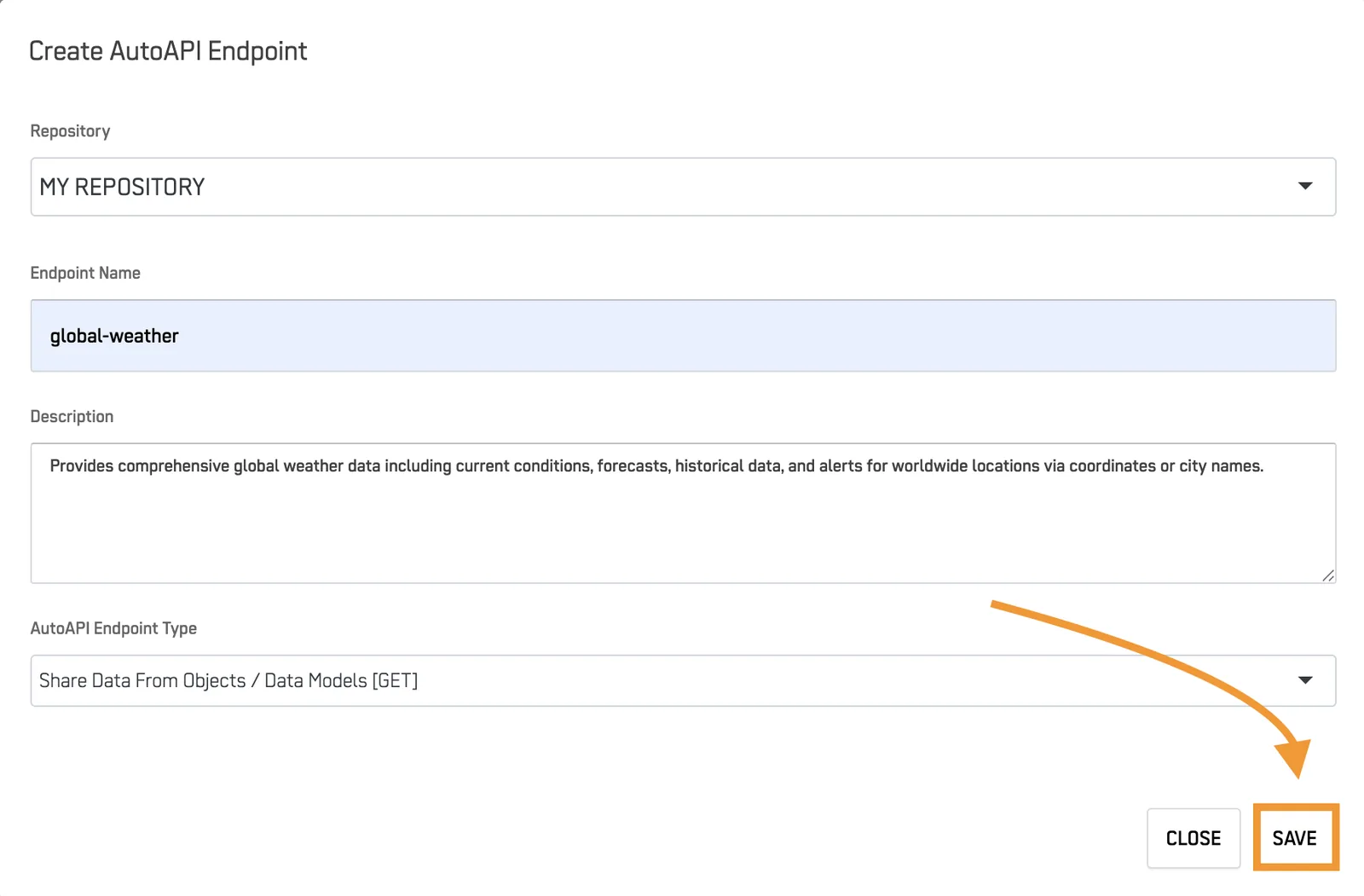
2.5 Save Asset#
Press the "Save Button".
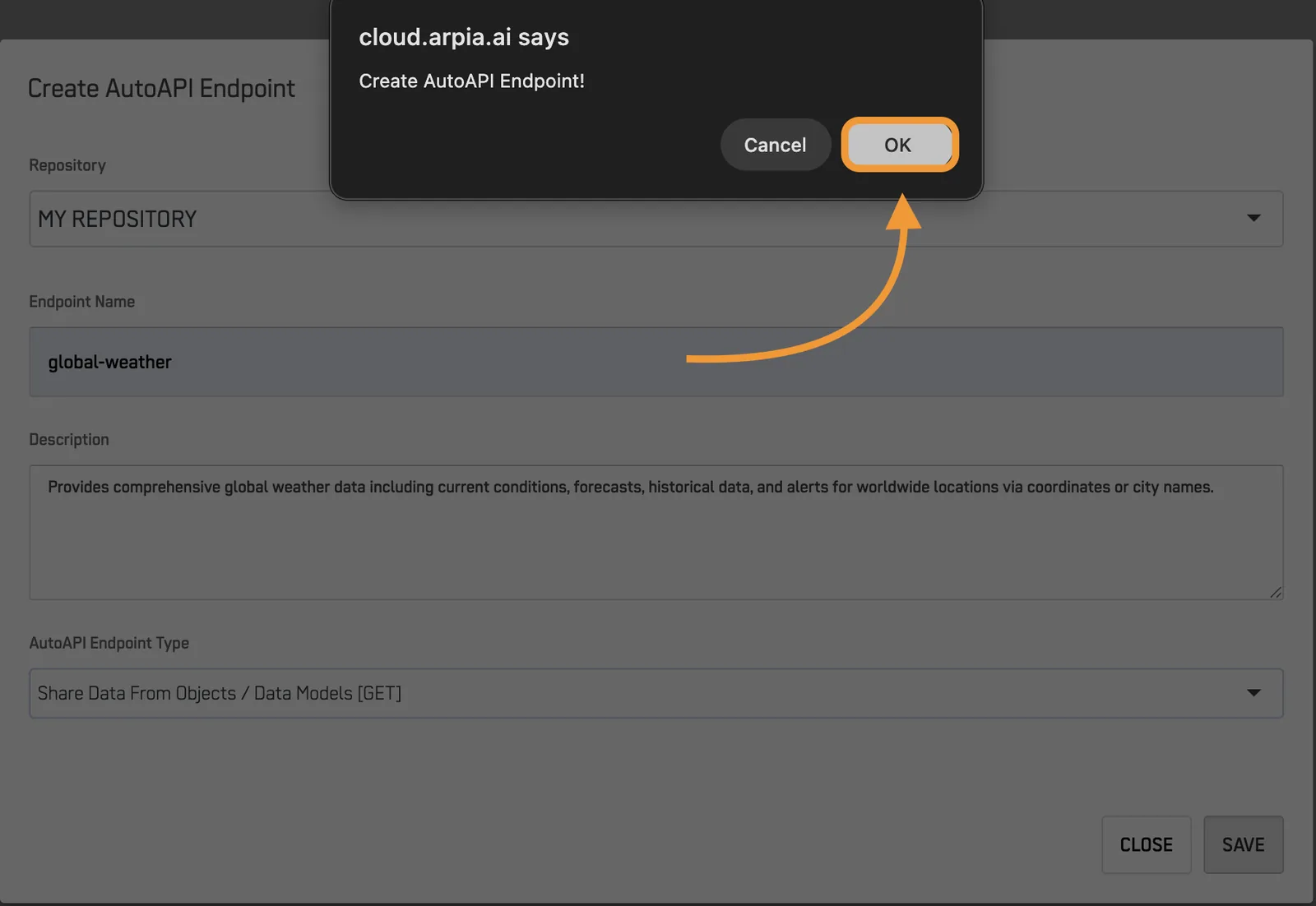
2.6 Confirm Asset Creation#
From the popup screen press OK.
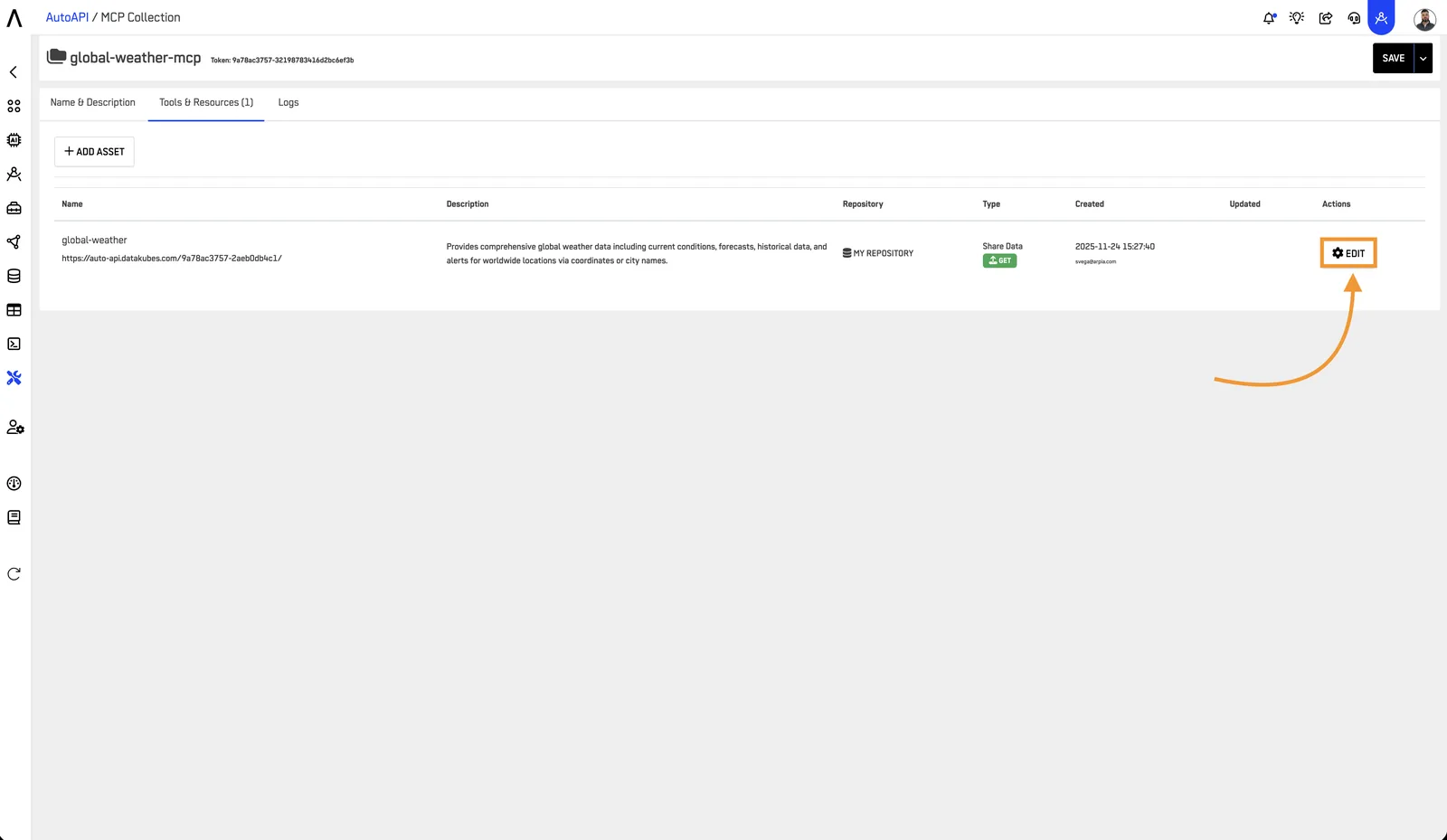
2.7 Edit Asset Configuration#
From the Asset list press "Edit" on the Asset you created.
2.8 Open Configuration Tab#
Go into the "Configuration" Tab.
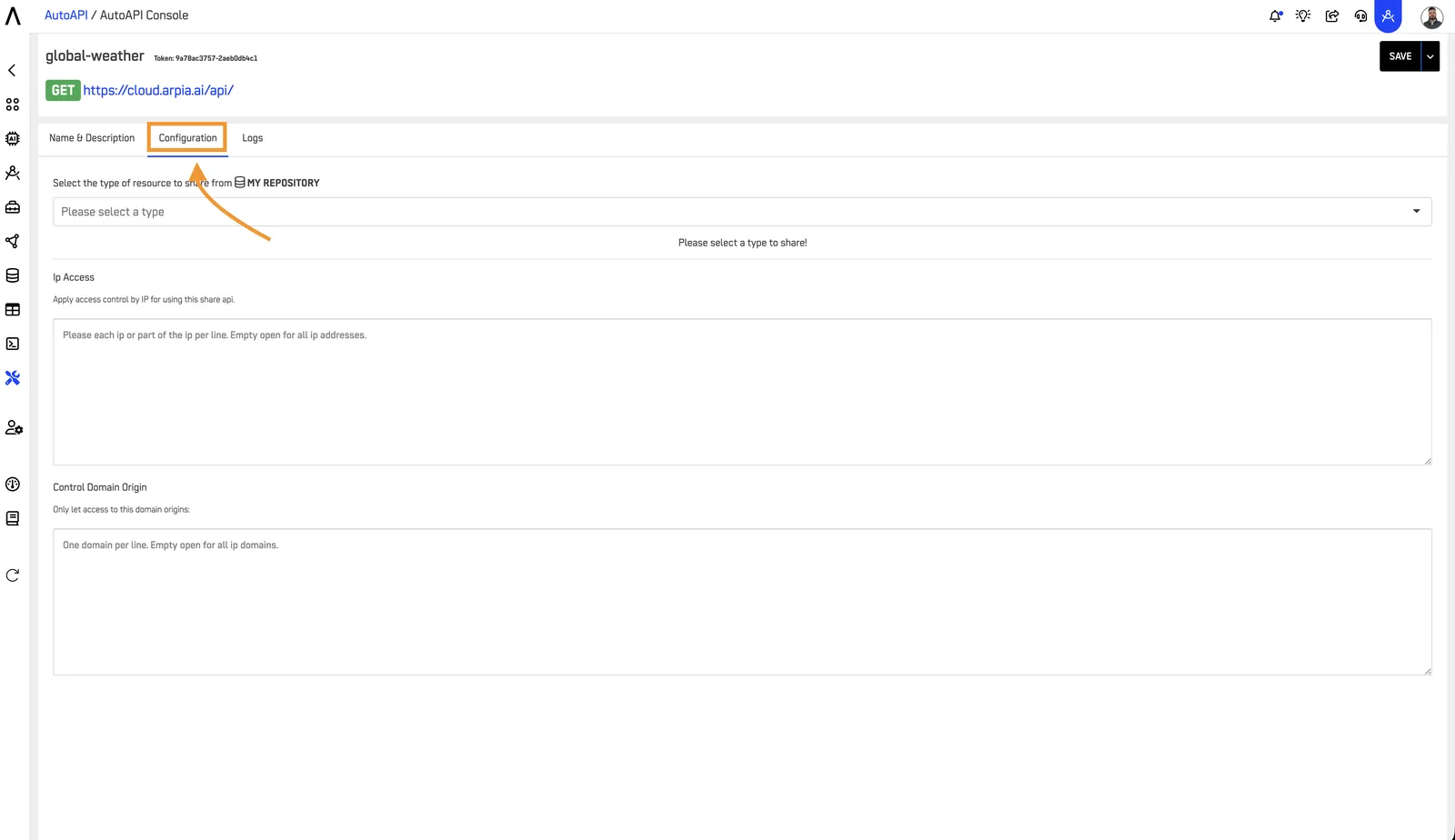
Step 3: Configure GET AutoAPI (Read Data)#
Navigate to the "Configuration" Tab to set up your GET AutoAPI for querying data.
3.1 Select Data Source#
Choose the object you would like to retrieve data from. You have two options:
- Share Repository Object: Select a "Data Object" from your repository (traditional table structure)
- Share Kube Model: Select a "Node" from your Kubes model (cube-based data model)

This allows you to access either traditional table structures or cube-based data models depending on your needs.
Note: Only data sources with Arpia Intelligence configured will appear in this list. If you don't see your table/kube, ensure you've completed the Arpia Intelligence setup.
3.2 Configure Columns#
Once you've selected your data source:
- Review the available columns from your selected table or cube
- Select which specific columns you want to expose through your AutoAPI
- Data Security Considerations:
- Exclude personally identifiable information (PII) unless absolutely necessary
- Avoid exposing sensitive fields like passwords, tokens, or private keys
- Consider whether aggregated data would be sufficient instead of row-level detail
- Review your organization's data classification policies
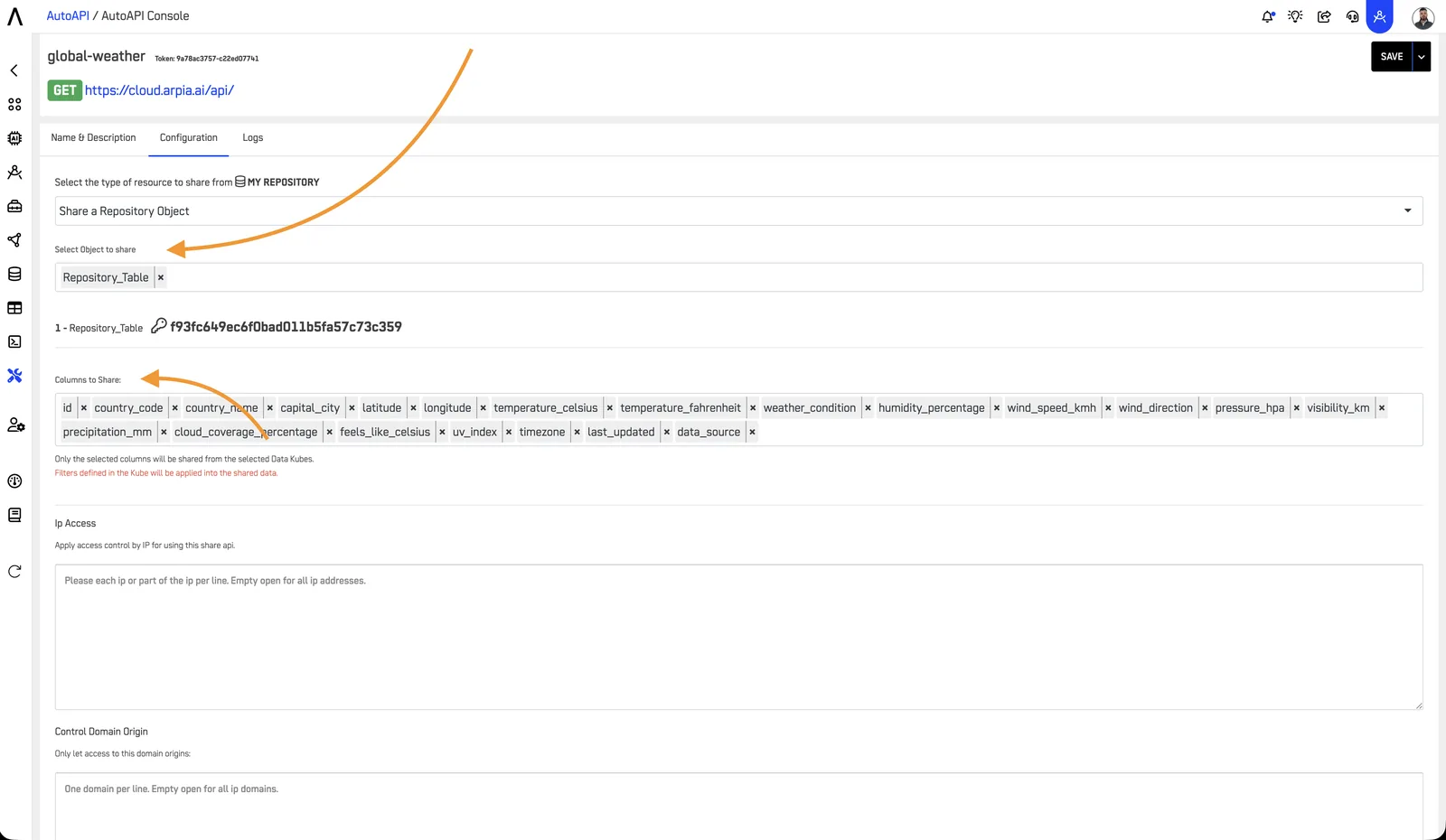
3.3 Save and Activate#
After configuring your data source and columns:
- Review your selections to ensure they meet your requirements
- Click the save button to activate your AutoAPI
- Your API endpoint will be ready for use immediately after saving
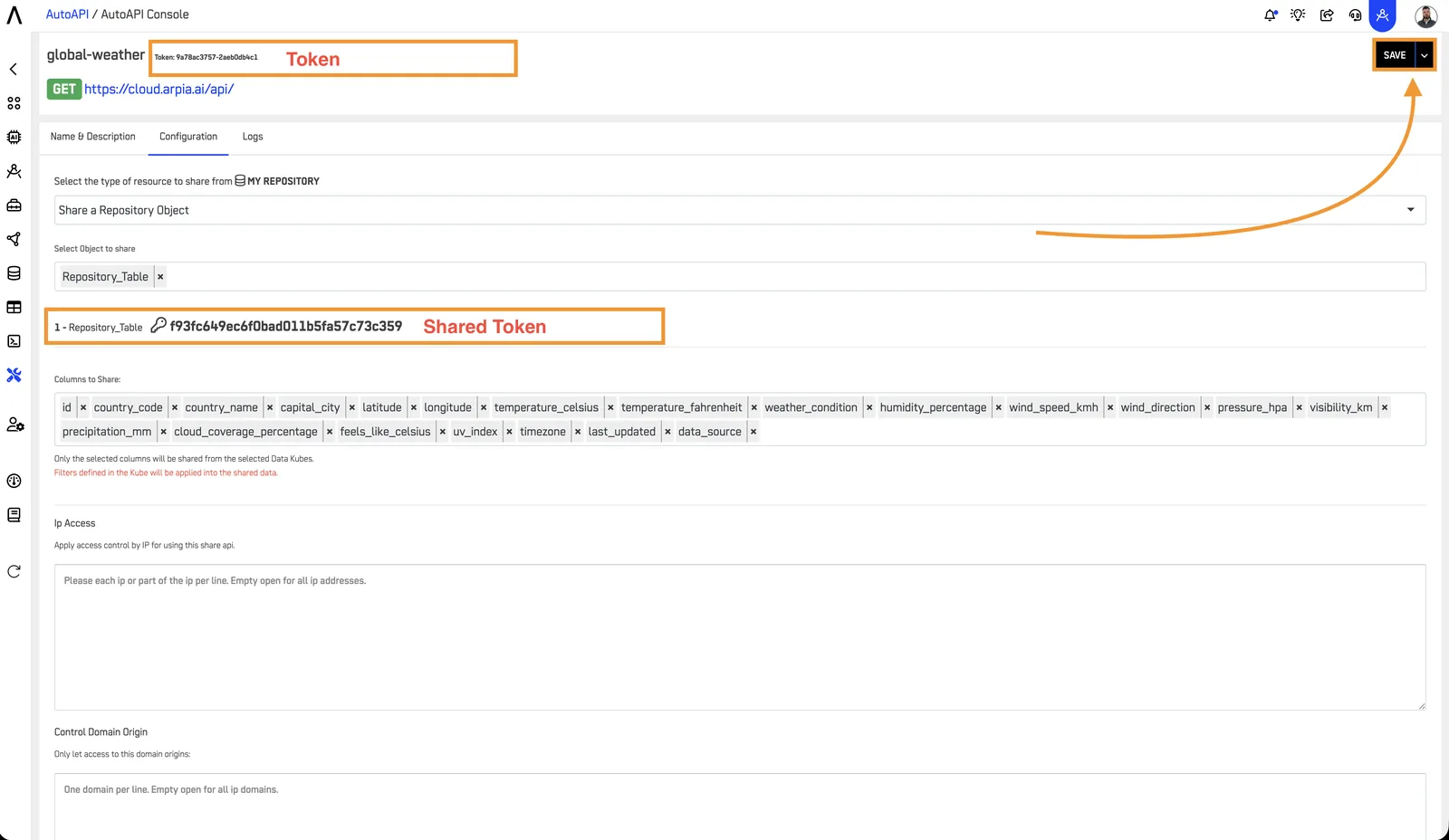
3.4 Locate Your Resource Token#
After saving your AutoAPI endpoint:
- Navigate back to the Tools & Resources tab
- Find your resource in the list
- The Resource Token (Shared Token) is displayed in the resource details
- Copy this token - you'll need it for testing individual endpoints
Step 4: Configure POST AutoAPI (Submit Data)#
If you selected "Receive Data [POST]" as your endpoint type, follow these additional configuration steps.
4.1 Define Input Schema#
In the Configuration tab:
- Map Input Fields: Define which fields your endpoint will accept
- Set Field Types: Specify data types (string, number, date, boolean)
- Mark Required Fields: Indicate which fields are mandatory
- Add Validation Rules: Set constraints (min/max values, regex patterns, allowed values)
4.2 Configure Data Destination#
Specify where submitted data should be stored:
- Target Table/Object: Select the destination in your repository
- Field Mapping: Map input fields to database columns
- Default Values: Set automatic values for fields not provided in submissions
4.3 Security Settings for POST Endpoints#
POST endpoints require additional security considerations:
- Enable request validation to prevent malformed data
- Set rate limits to prevent abuse
- Configure allowed IP ranges if applicable
- Enable audit logging for all submissions
- Consider requiring variant tokens for write operations
Step 5: Test Your Endpoints#
5.1 Test Individual AutoAPI Endpoint#
Once your AutoAPI is activated, you can test it using the following URL format:
https://cloud.arpia.ai/api/?token=YOUR_RESOURCE_TOKEN&shared_token=YOUR_RESOURCE_TOKEN
Parameters:
token: Your Resource Token (found in the resource details)shared_token: Same as token (legacy parameter support)
Finding Your Tokens:
- Resource Token: Go to Tools & Resources → Click on your resource → Copy the token displayed
Example:\
If your resource token is: b3cb7ee2af-2c6f4ef6b5
Your complete URL would be:
https://cloud.arpia.ai/api/?token=b3cb7ee2af-2c6f4ef6b5&shared_token=b3cb7ee2af-2c6f4ef6b5
Expected Success Response:
{
  "status": "success",
  "data": [
    {
      "id": 1,
      "name": "Sample Record",
      "created": "2025-11-25T10:00:00Z"
    }
  ],
  "count": 1,
  "page": 1
}
Common Error Responses:
// 401 Unauthorized - Invalid token
{
  "error": "Authentication failed",
  "message": "Invalid or missing token"
}
// 403 Forbidden - No access to resource
{
  "error": "Access denied",
  "message": "Your token does not have permission to access this resource"
}
// 400 Bad Request - Invalid parameters
{
  "error": "Invalid request",
  "message": "Invalid filter format in 'filters' parameter"
}
// 500 Internal Server Error - Server issue
{
  "error": "Internal server error",
  "message": "An unexpected error occurred. Please contact support with transaction ID: abc123xyz"
}
5.2 Test Your MCP Collection#
Test the entire MCP collection endpoint:
https://cloud.arpia.ai/mcp/?token=YOUR_COLLECTION_TOKEN
Parameters:
token: Your Collection Token (found at the top of your collection details page)
Finding Your Collection Token:
- Go to AutoAPI / MCP Server
- Click "Edit" on your collection
- Copy the token displayed at the top of the page
Example:\
If your collection token is: 9a78ac3757-32198783416d2bc6ef3b
Your complete URL would be:
https://cloud.arpia.ai/mcp/?token=9a78ac3757-32198783416d2bc6ef3b
Expected Success Response:\ A successful connection returns JSON with the MCP server capabilities:
{
  "name": "ARPIA MCP API",
  "version": "1.0.1",
  "protocol": "MCP (Model Context Protocol)",
  "mcp_methods": [
    "resources/list",
    "resources/read",
    "tools/list",
    "tools/call"
  ],
  "resources": [
    {
      "name": "Customer Information",
      "description": "Customer and sales information",
      "token": "b3cb7ee2af-2c6f4ef6b5"
    }
  ]
}
Common Error Responses:
// 401 Unauthorized - Invalid collection token
{
  "error": "Authentication failed",
  "message": "Invalid collection token"
}
// 404 Not Found - Collection doesn't exist
{
  "error": "Collection not found",
  "message": "No collection exists with this token"
}
Troubleshooting Testing Issues:
-
Can't find your token? * Collection Token: AutoAPI / MCP Server → Edit collection → Top of page * Resource Token: Tools & Resources tab → Resource details
-
Getting 401 errors? * Verify you copied the entire token without spaces * Check that the token hasn't been regenerated * Ensure the collection/resource is still active
-
Getting timeout errors? * Check your data source connection is active * Verify repository is accessible from ARPIA * Test with smaller result sets using
results=10parameter -
No resources appearing? * Ensure Arpia Intelligence is configured on your data sources * See the Arpia Intelligence configuration guide for setup instructions
Step 6: Connect AI Agents#
6.1 Connecting to Claude (claude.ai)#
For Enterprise and Team Plans (Owners and Primary Owners)
Note: Only Primary Owners or Owners can configure connectors on Claude for Work (Team and Enterprise) plans. Once configured, individual users must connect to enable the connector.
Configuration Steps:
- Navigate to Admin settings → Connectors
- Click "Add custom connector" at the bottom of the section
- Add your MCP server URL in this format:
https://cloud.arpia.ai/mcp/?token=YOUR_COLLECTION_TOKEN
Example: https://cloud.arpia.ai/mcp/?token=9a78ac3757-32198783416d2bc6ef3b
-
(Optional) Click "Advanced settings" if you want to configure OAuth: * OAuth Client ID: Leave blank (not required for token-based auth) * OAuth Client Secret: Leave blank (not required for token-based auth) * These fields are only needed if you've configured custom OAuth for your organization
-
Click "Add" to finish configuration
What Happens Next:
- The connector appears in the organization's connector list
- Individual users will see it available in their Settings → Connectors
- Users must individually connect and enable the connector to use it
For Pro and Max Plans
- Navigate to Settings → Connectors
- Locate the "Connectors" section
- Click "Add custom connector" at the bottom
- Add your MCP server URL:
https://cloud.arpia.ai/mcp/?token=YOUR_COLLECTION_TOKEN
- (Optional) Configure OAuth in Advanced settings if needed
- Click "Add"
Enabling the Connector in Claude
After adding the connector:
- Open any Claude chat
- Click the "Search and tools" button (lower left of chat interface)
- Find your ARPIA connector in the list
- Click "Connect" to authenticate (if required)
- Toggle on the specific tools you want to enable
- Start using natural language to query your data
Example Claude Query:
Show me active customers from the Production CRM Data
Claude will automatically:
- Discover available resources from your MCP collection
- Query the appropriate endpoint
- Format and present the results
6.2 Removing or Editing Connectors#
To modify or remove your connector:
- Navigate to Settings → Connectors
- Locate your ARPIA connector
- Click "Remove" to delete, or click the three dots (•••) to edit
- Follow the prompts to make changes
6.3 Development Tools (Cursor)#
For AI-powered development environments, add to your configuration file:
For Cursor:
// .cursor/config.json
{
  "mcpServers": {
    "arpia": {
      "url": "https://cloud.arpia.ai/mcp/?token=YOUR_COLLECTION_TOKEN"
    }
  }
}
6.4 ChatGPT Integration#
ChatGPT integration requires creating a custom GPT with an OpenAPI specification:
- Go to ChatGPT → Explore GPTs → Create
- Configure your GPT with ARPIA MCP capabilities
- Add OpenAPI specification:
{
  "openapi": "3.0.0",
  "info": {
    "title": "ARPIA MCP Server",
    "version": "1.0.1"
  },
  "servers": [{
    "url": "https://cloud.arpia.ai/api",
    "description": "ARPIA MCP Server"
  }],
  "components": {
    "securitySchemes": {
      "bearerAuth": {
        "type": "http",
        "scheme": "bearer",
        "bearerFormat": "token"
      }
    }
  },
  "security": [{
    "bearerAuth": []
  }]
}
- Configure authentication with your Collection Token
Step 7: Configure Variant Tokens (Optional)#
Variant tokens add an additional security layer by applying role-based access rules to resources.
7.1 What Are Variant Tokens?#
Variant tokens allow you to:
- Create multiple access levels for the same resource
- Apply row-level security filters automatically
- Grant time-limited access to specific users
- Implement role-based access control (RBAC)
7.2 Creating Variant Tokens#
- Navigate to your resource → Configuration tab
- Scroll to Security Variants section
- Click "Add Variant"
- Configure variant settings:
| Setting | Description | Example |
|---|---|---|
| Variant Token | Auto-generated token | toMBmPXFmf |
| Variant Name | Descriptive identifier | "Sales Team Access" |
| Access Rules | Filters applied automatically | region = 'North' |
| Expiration | Optional time limit | 90 days |
| Allowed IPs | IP whitelist (optional) | 192.168.1.0/24 |
7.3 Using Variant Tokens#
Pass the variant token as an additional parameter:
https://cloud.arpia.ai/api/?token=YOUR_RESOURCE_TOKEN&variant=YOUR_VARIANT_TOKEN
The variant rules are applied automatically to all queries, ensuring users only see data they're authorized to access.
7.4 Variant Token Best Practices#
- Create separate variants for each role or department
- Set expiration dates for temporary access grants
- Use IP restrictions for sensitive data access
- Monitor variant usage in the Logs tab
- Rotate variant tokens when team members leave
Authentication Methods#
ARPIA supports multiple authentication methods with the following priority order:
Priority Order (Highest to Lowest)#
- Authorization Header (Recommended for production)
Authorization: Bearer YOUR_COLLECTION_TOKEN
- URL Parameters (Convenient for testing)
?token=YOUR_COLLECTION_TOKEN
- Custom Headers (Legacy support)
X-ARPIA-Token: YOUR_COLLECTION_TOKEN
Security Recommendation: Use the Authorization header in production to prevent tokens from appearing in server logs and browser history.
MCP Operations Flow#
1. Resource Discovery#
AI agents first discover available resources:
// Request
{
  "method": "resources/list"
}

// Response
{
  "resources": [
    {
      "name": "Customer Information",
      "description": "Customer and sales information",
      "token": "b3cb7ee2af-2c6f4ef6b5",
      "type": "data"
    },
    {
      "name": "Order History",
      "description": "Historical order data",
      "token": "c4de8ff3bg-3d7g5hg7c6",
      "type": "data"
    }
  ]
}
2. Schema Inspection#
Before querying, AI agents inspect the available fields:
// Request
{
  "method": "tools/list",
  "resource": "b3cb7ee2af-2c6f4ef6b5"
}

// Response
{
  "name": "Customer Information",
  "fields": [
    {"name": "id", "type": "integer", "description": "Unique customer ID"},
    {"name": "name", "type": "string", "description": "Customer name"},
    {"name": "status", "type": "string", "description": "Account status"},
    {"name": "created", "type": "datetime", "description": "Creation date"}
  ],
  "filterable": ["status", "created"],
  "sortable": ["name", "created"],
  "aggregatable": ["status"]
}
3. Data Query#
Finally, AI agents query the data:
// Request
{
  "method": "tools/call",
  "operation": "resource_read",
  "resource_token": "b3cb7ee2af-2c6f4ef6b5",
  "params": {
    "filters": [
      {"field": "status", "type": "=", "value": "ACTIVE"}
    ],
    "orderby": [
      {"field": "created", "type": "DESC"}
    ],
    "results": 50,
    "page": 1
  }
}

// Response
{
  "status": "success",
  "data": [
    {
      "id": 1001,
      "name": "Acme Corp",
      "status": "ACTIVE",
      "created": "2025-11-15T08:30:00Z"
    },
    {
      "id": 1002,
      "name": "TechStart Inc",
      "status": "ACTIVE",
      "created": "2025-11-14T14:22:00Z"
    }
  ],
  "count": 50,
  "page": 1,
  "total_records": 247
}
Performance & Limits#
Query Performance#
- Target Response Time: <1 second for typical queries
- Maximum Timeout: 30 seconds
- Optimization Tips:
- Use filters to reduce dataset size
- Index filtered columns in your database
- Use pagination for large result sets
- Request only needed columns
- Configure appropriate Dimension Limiting in Arpia Intelligence settings
Rate Limits#
| Tier | Requests/Minute | Burst Capacity | Daily Limit |
|---|---|---|---|
| Standard | 100 | 150 | 10,000 |
| Enterprise | Configurable | Configurable | Unlimited |
Rate Limit Response (HTTP 429):
{
  "error": "Rate limit exceeded",
  "message": "You have exceeded 100 requests per minute",
  "retry_after": 45,
  "limit": 100,
  "window": "1 minute"
}
Handling Rate Limits:
- Implement exponential backoff retry logic
- Cache frequently accessed data
- Use pagination to distribute load
- Contact support for enterprise rate limit increases
Data Limits#
- Page size: 1-1,000 records per request (recommended: 100)
- Maximum payload size: 5MB per response
- File uploads (POST endpoints): 100MB maximum
- Query complexity: Maximum 10 filters per request
- Sort fields: Maximum 3 sort criteria per request
Monitoring & Troubleshooting#
View Activity Logs#
- Navigate to your collection
- Click the Logs tab
- Review operation details:
| Column | Description |
|---|---|
| Transaction ID | Unique identifier for support requests |
| Timestamp | When the request occurred |
| IP Address | Source of the request |
| Status | NORMAL, ERROR, WARNING |
| Method | resources/list, tools/call, etc. |
| Resource | Which endpoint was accessed |
| Duration | Response time in milliseconds |
| Payload | Request details (click to expand) |
Common Issues & Solutions#
| Issue | Cause | Solution |
|---|---|---|
| Timeout (30s) | Large dataset query | Add filters, reduce page size, index database columns |
| Auth Failed (401) | Invalid token | Verify collection token, check token hasn't been regenerated |
| Access Denied (403) | Insufficient permissions | Check variant token restrictions, verify user has resource access |
| Missing Fields | Column restrictions | Review endpoint configuration, ensure columns are selected |
| Slow Queries (>5s) | No indexes | Add indexes to filtered/sorted columns in your database |
| Empty Results | Overly restrictive filters | Review filter criteria, check data exists in source |
| Rate Limited (429) | Too many requests | Implement retry logic with exponential backoff, cache results |
| Malformed JSON | Invalid filter syntax | Validate JSON structure, check filter operator compatibility |
| Resource Not Found | Arpia Intelligence not enabled | Configure Arpia Intelligence on data source |
| No Dimension Data | Dimension Limiting too low | Increase Dimension Limiting in Generative Query Settings |
Troubleshooting Decision Tree#
Is the endpoint responding?
├─ NO → Check collection/resource token validity
│       Check ARPIA service status
│       Verify network connectivity
│
└─ YES → Are you getting data?
    ├─ NO → Check filters aren't too restrictive
    │       Verify data exists in source
    │       Check variant token restrictions
    │       Verify Arpia Intelligence is configured
    │
    └─ YES → Is performance acceptable?
        ├─ NO → Add database indexes
        │       Reduce result page size
        │       Add more specific filters
        │       Optimize Dimension Limiting settings
        │
        └─ YES → Monitor regularly for changes
Getting Support#
When contacting ARPIA support, provide:
- Transaction ID from logs
- Collection Token (first/last 4 characters only)
- Timestamp of the issue
- Complete error message
- Request payload (sanitize any sensitive data)
- Arpia Intelligence configuration (if issue relates to data access)
Best Practices#
1. Security First#
Token Management:
- Store tokens in secure environment variables, never in code
- Rotate collection tokens quarterly
- Regenerate tokens immediately if compromised
- Use variant tokens for role-based access
- Monitor logs for unusual access patterns (new IPs, off-hours access)
Data Protection:
- Apply least-privilege principle to column selection
- Use variant tokens to enforce row-level security
- Enable IP restrictions for sensitive endpoints
- Set reasonable expiration times for temporary access
- Audit logs monthly for security review
2. Performance Optimization#
Database Optimization:
- Create indexes on columns used in filters
- Index columns used for sorting
- Use composite indexes for multi-column filters
- Monitor query execution times in your database
Arpia Intelligence Optimization:
- Set appropriate Temperature values (lower = more deterministic)
- Configure Dimension Columns strategically for better AI understanding
- Use Dimension Limiting to balance context vs. performance
- Choose correct Usage Type for your use case (Generative AI Query recommended for MCP)
- See the Arpia Intelligence configuration guide for detailed optimization strategies
Query Optimization:
- Use reasonable page sizes (recommended: 100 records)
- Implement pagination for large datasets
- Cache frequently accessed, slowly-changing data
- Use specific filters to reduce result sets
- Request only necessary columns
Caching Strategy:
# Example: Simple cache implementation
from functools import lru_cache
from datetime import datetime, timedelta

@lru_cache(maxsize=100)
def get_cached_data(endpoint, cache_key):
    # Cache for 5 minutes
    return fetch_from_arpia(endpoint)
3. Clear Documentation#
Resource Naming:
- Use descriptive, consistent naming conventions
- Include data domain in name (e.g., "CRM_Customers", "Finance_Invoices")
- Document any business logic or calculations
- Keep descriptions under 200 characters but informative
Change Management:
- Maintain a changelog for schema modifications
- Version your API configurations
- Notify users before breaking changes
- Test changes in development environment first
Example Resource Documentation:
Name: CRM_ActiveCustomers
Description: Active customer records with contact info and account status (updated nightly at 2 AM UTC)
Filters: status, region, account_type, created_date
Sort: name, created_date, last_activity
Arpia Intelligence: Generative AI Query enabled, Temperature=1, Dimension Limiting=20
Notes: Excludes test accounts and deleted records. Region field uses ISO 3166-1 alpha-2 codes.
4. Error Handling#
Implement robust error handling in your integrations:
import requests
import time

def query_arpia_with_retry(url, max_retries=3):
    for attempt in range(max_retries):
        try:
            response = requests.get(url, timeout=30)

            if response.status_code == 200:
                return response.json()

            elif response.status_code == 429:  # Rate limited
                retry_after = int(response.headers.get('Retry-After', 60))
                time.sleep(retry_after)
                continue

            elif response.status_code in [500, 502, 503]:  # Server errors
                time.sleep(2 ** attempt)  # Exponential backoff
                continue

            else:  # Other errors (401, 403, 400, etc.)
                response.raise_for_status()

        except requests.exceptions.Timeout:
            if attempt == max_retries - 1:
                raise
            time.sleep(2 ** attempt)

    raise Exception(f"Failed after {max_retries} attempts")
5. Testing & Validation#
Before Production:
- Test with small datasets first
- Verify all filters work as expected
- Test error scenarios (invalid tokens, missing data)
- Measure response times under load
- Validate data accuracy against source
- Confirm Arpia Intelligence is properly configured
Ongoing Monitoring:
- Set up alerts for error rate spikes
- Monitor average response times
- Track API usage patterns
- Review logs weekly for anomalies
- Verify Arpia Intelligence performance
Quick Start Example#
Complete example using curl:
#!/bin/bash

# Configuration
COLLECTION_TOKEN="9a78ac3757-32198783416d2bc6ef3b"
RESOURCE_TOKEN="9a78ac3757-2c6f4ef6b5"
BASE_URL="https://cloud.arpia.ai"

# Test 1: Check MCP collection is accessible
echo "Testing MCP collection..."
curl -s -X GET "${BASE_URL}/mcp?token=${COLLECTION_TOKEN}" | jq '.'

# Test 2: Query specific resource with filters
echo -e "\nQuerying resource with filters..."
curl -s -X POST "${BASE_URL}/mcp" \
  -H "Authorization: Bearer ${COLLECTION_TOKEN}" \
  -H "Content-Type: application/json" \
  -d '{
    "method": "tools/call",
    "operation": "resource_read",
    "resource_token": "'${RESOURCE_TOKEN}'",
    "params": {
      "filters": [
        {"field": "status", "type": "=", "value": "ACTIVE"}
      ],
      "orderby": [
        {"field": "created", "type": "DESC"}
      ],
      "results": 10,
      "page": 1
    }
  }' | jq '.'

# Test 3: Direct AutoAPI endpoint access
echo -e "\nTesting direct AutoAPI endpoint..."
curl -s -X GET "${BASE_URL}/api/?token=${RESOURCE_TOKEN}&shared_token=${RESOURCE_TOKEN}" | jq '.'
Expected Output:
{
  "status": "success",
  "data": [
    {
      "id": 1001,
      "name": "Example Record",
      "status": "ACTIVE",
      "created": "2025-11-25T10:00:00Z"
    }
  ],
  "count": 10,
  "page": 1
}
Related Documentation#
- Arpia Intelligence Configuration Guide: Complete setup guide for configuring AI capabilities on your data sources
- AutoAPI REST Guide: Complete API reference with all endpoints and parameters
- Data Governance: Security policies, compliance, and audit procedures
- Integration Examples: Sample code in Python, Node.js, and other languages
- Troubleshooting Guide: Comprehensive error reference and solutions
For technical support or questions, contact: support@arpia.ai