Accessing the ARPIA Platforms
Welcome to ARPIA, your platform for secure, centralized management and automation. This guide will help you access ARPIA quickly and securely.
ARPIA offers three environments: ARPIA Platform (United States), ARPIA Platform UK (United Kingdom), and ARPIA Cloud (LATAM). Your ARPIA Administrator will assign you to the appropriate one.
Step 1: Navigate to ARPIA and Select Your Region#
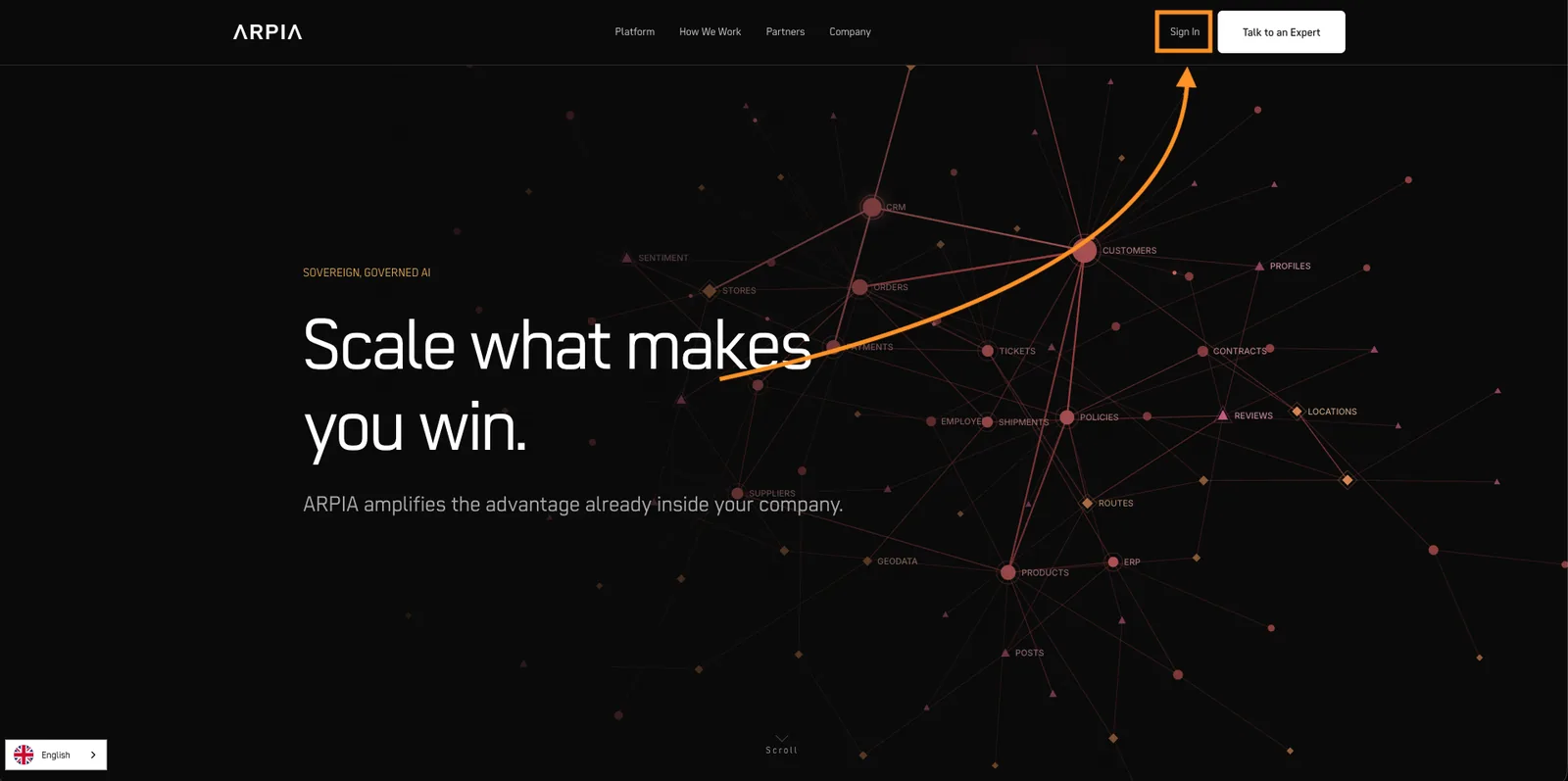
- Go to https://arpia.ai/
- Click "Sign In"
- Select your region from the pop-up: * United States → platform.arpia.ai * United Kingdom → uk.platform.arpia.ai * LATAM → cloud.arpia.ai
Step 2: Receive Your Account Credentials#
You'll receive your login credentials via email from the ARPIA team after your access request is approved.
Note: Account activation may require verification or approval from the ARPIA team.
Step 3: Choose Your Login Method#
ARPIA supports two authentication methods:
Option A: Single Sign-On (SSO) — Recommended ✅#
Sign in instantly using your organization's account.
Supported Providers:
- Google Workspace
- Microsoft 365 / Azure Active Directory
Benefits:
- ✅ Faster access
- ✅ Enhanced security
- ✅ No password to remember
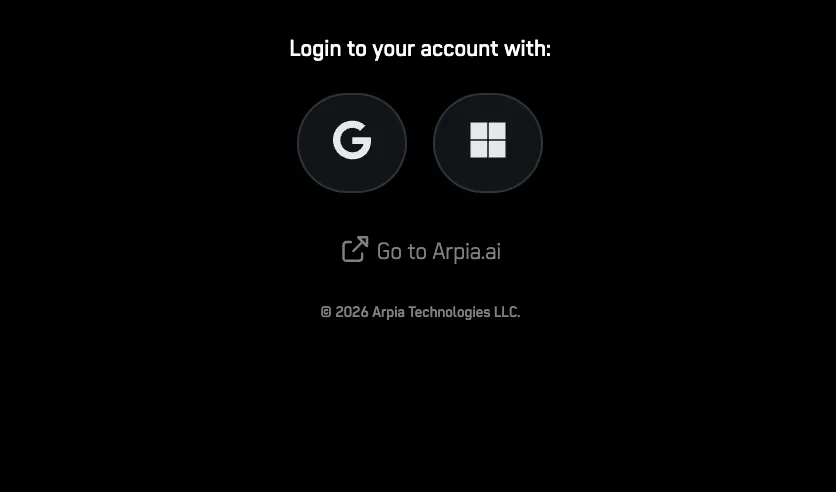
Simply click the Google or Microsoft logo and select your account when prompted.
Important: ARPIA must be authorized in your organization's Whitelist. Contact your IT administrator if you encounter access issues.
📖 Learn More: Complete SSO Setup Guide
Option B: Email and Password#
Enter your credentials and click "Log In".
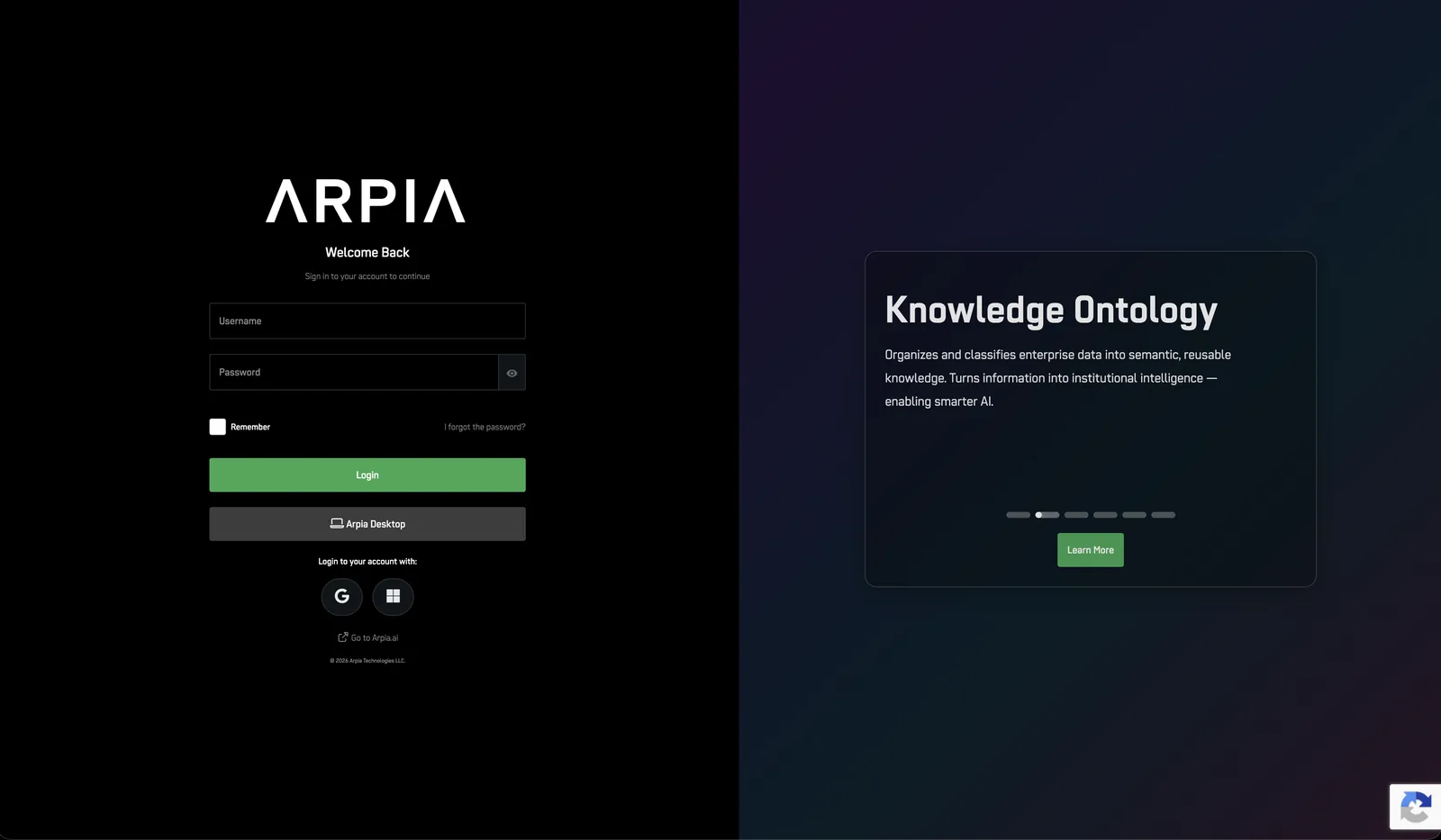
Note: All users proceed to two-factor authentication in Step 4.
Step 4: Complete Two-Factor Authentication (2FA)#
Applies to: All users (both SSO and email/password sign-in methods)
Why: Two-factor authentication adds an extra security layer to protect your account, regardless of how you sign in.
- Click "Send Code" to receive a verification code via email
- Enter the code in the provided field
- Click "Validate Code" to complete login
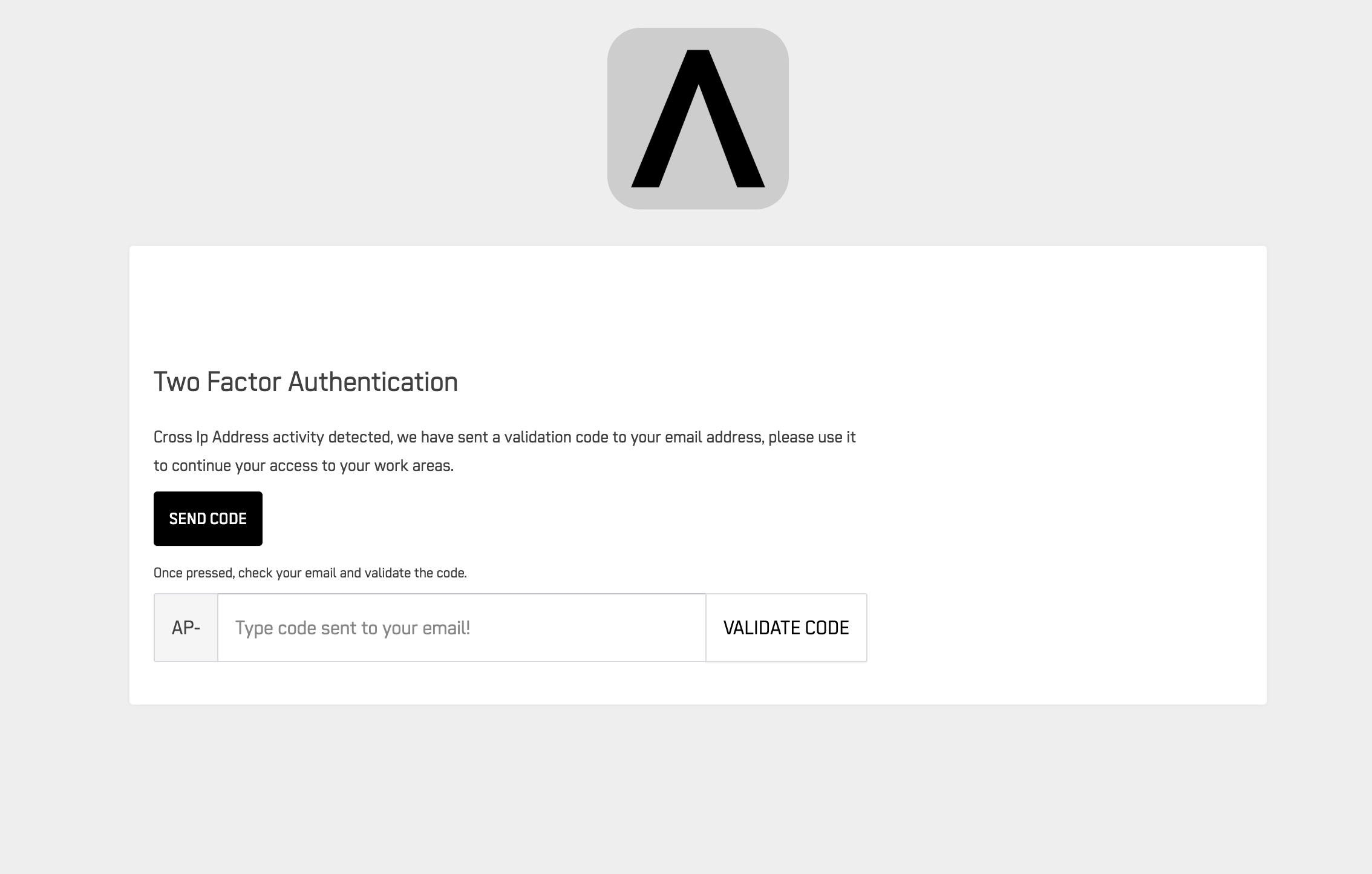
Tip: Codes expire after a few minutes. Request a new one if needed.
Step 5: Welcome to ARPIA!#
You're now on the ARPIA main screen. Start exploring the platform's features.
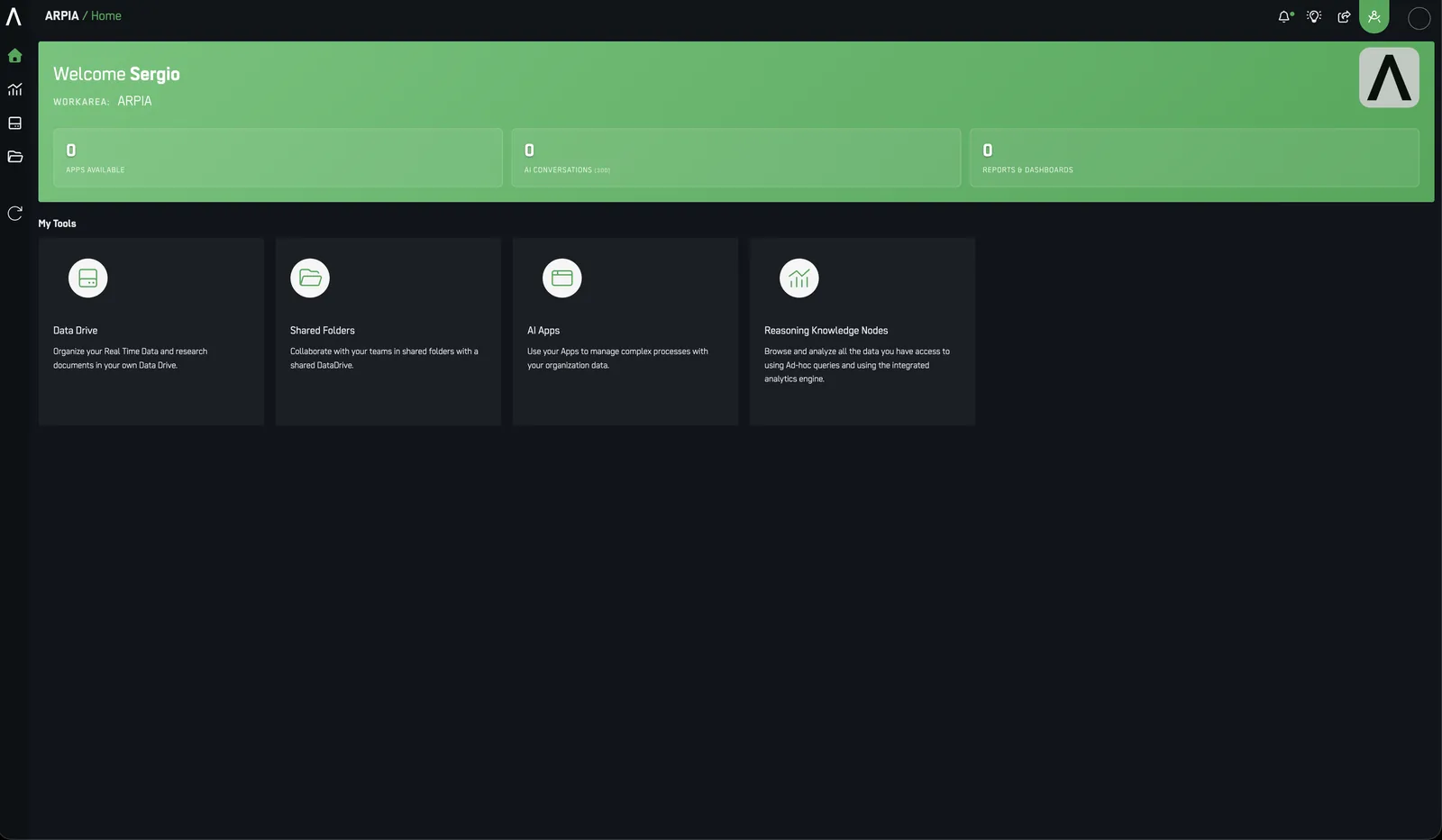
What you can do next:
- Manage users and permissions
- Configure integrations
- Explore analytics and reporting tools
Key Terms#
| Term | Definition |
|---|---|
| User | Unique identification to access the platform |
| Password | Secret key protecting your account (optional for SSO users) |
| SSO | Single Sign-On authentication via Google or Microsoft |
| 2FA | Two-Factor Authentication for enhanced security (all users) |
| Security Profile | Permission levels assigned to users |
| ARPIA Administrator | Your organization's ARPIA contact for access and support |
Need Help?#
Resources:
Support:\ Contact your ARPIA Administrator for technical assistance.