How-To: Build a Configurable Object in Arpia Workshop (0 → Functional)
Create a Workshop object that collects configuration through an HTML form, saves it in JSON, and reads it with PHP.
- Use
config.htmlto collect configuration options. - Save the options in
config.json, which Workshop creates when you save the form. - Read the saved options in
index.php.
Prerequisites#
- Open Arpia Workshop in your account.
- Select an existing data repository, or create a data repository before creating the project.
- Use the PHP 7.4 Application development environment shown in this tutorial.
1️⃣ Create a Workshop Project#
- Go to Arpia Workshop.
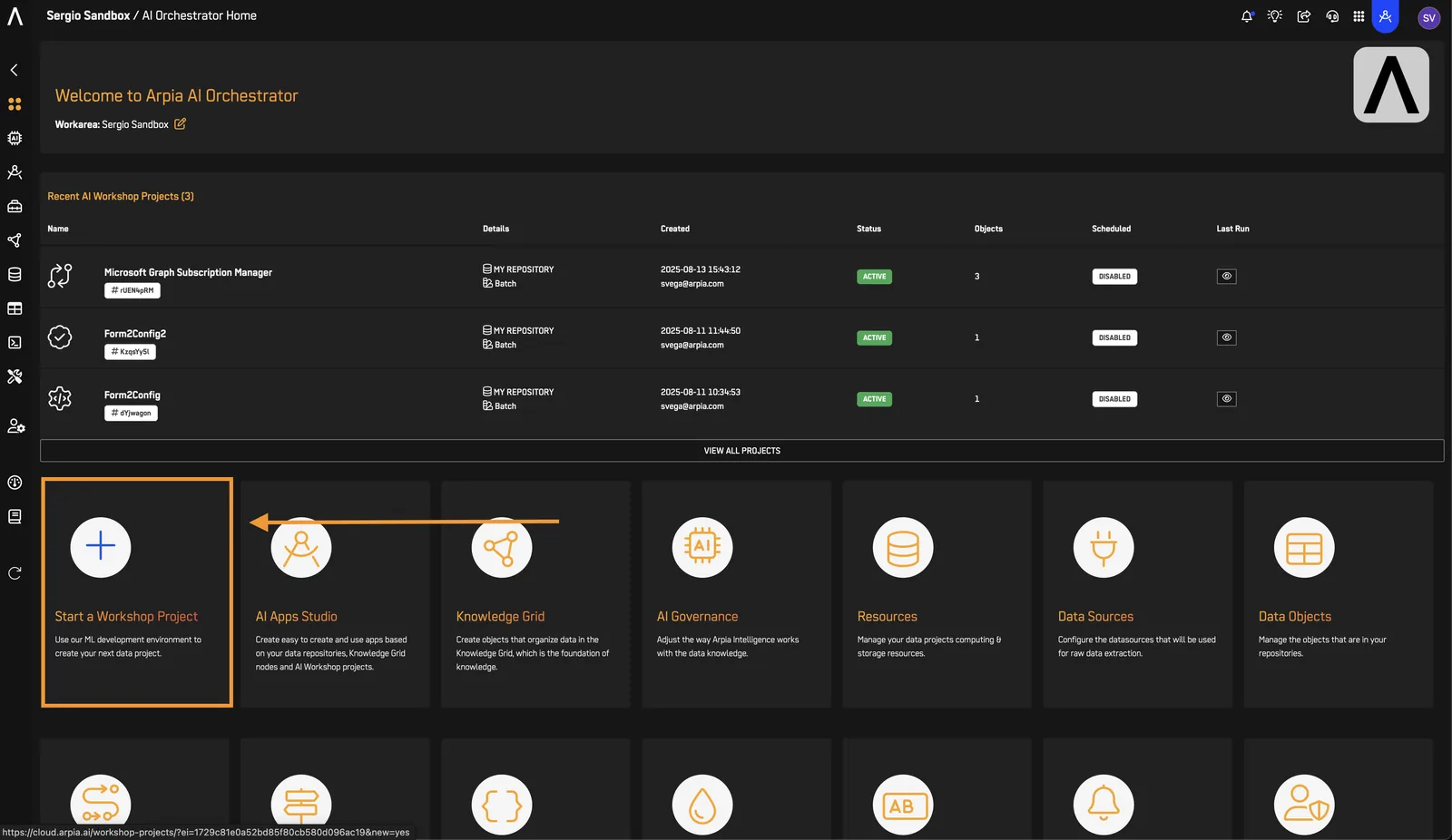
- Complete the New Project form:
- Project Name:
Form2Config - Project Type: Batch Process - Runs manually or by scheduler
- Category: Processes Workflow
- Repository: Select the repository you prepared in the prerequisites.
- Description: Optional; you can leave it blank.
- Click Create.
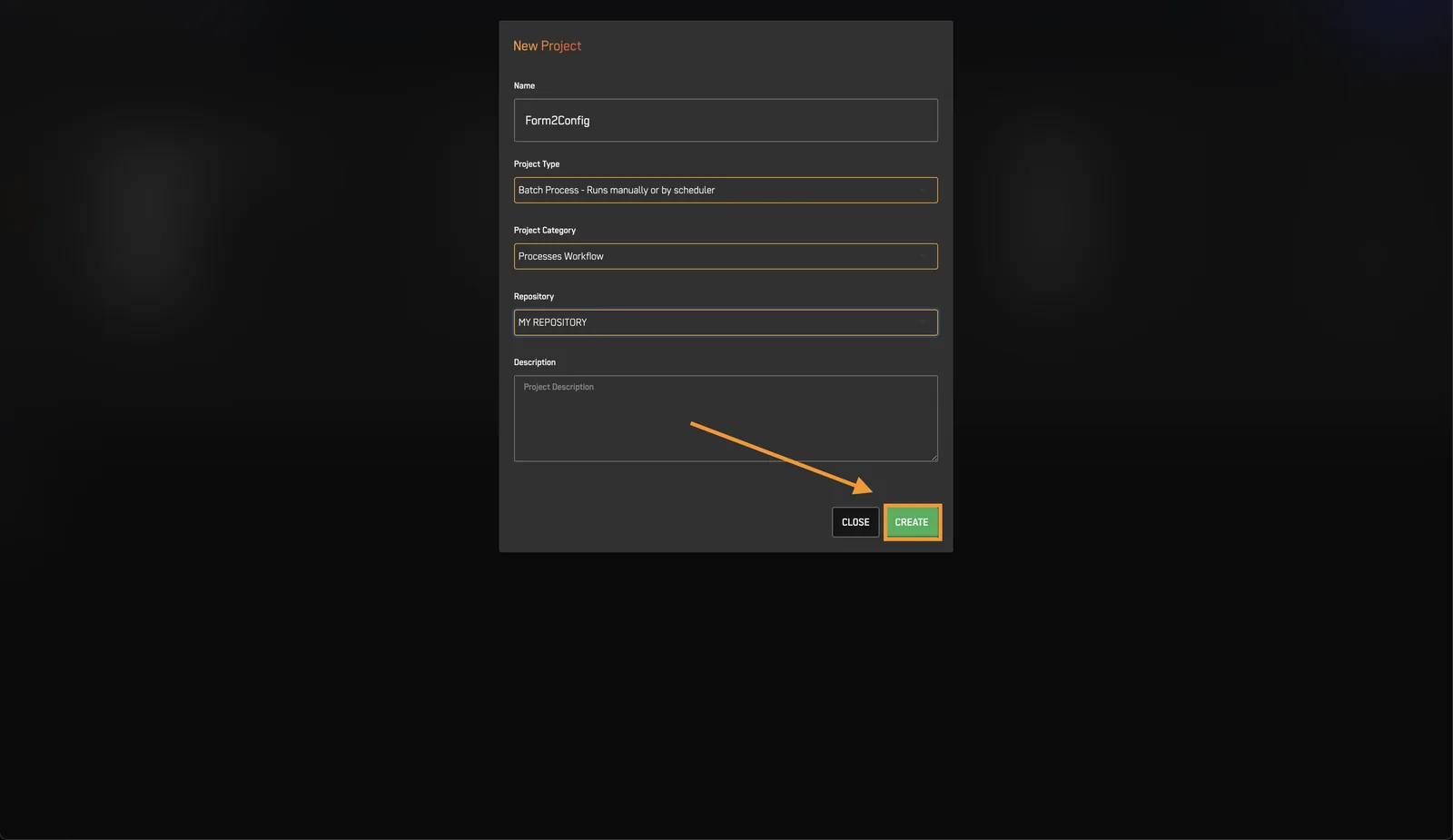
- Click OK when prompted.
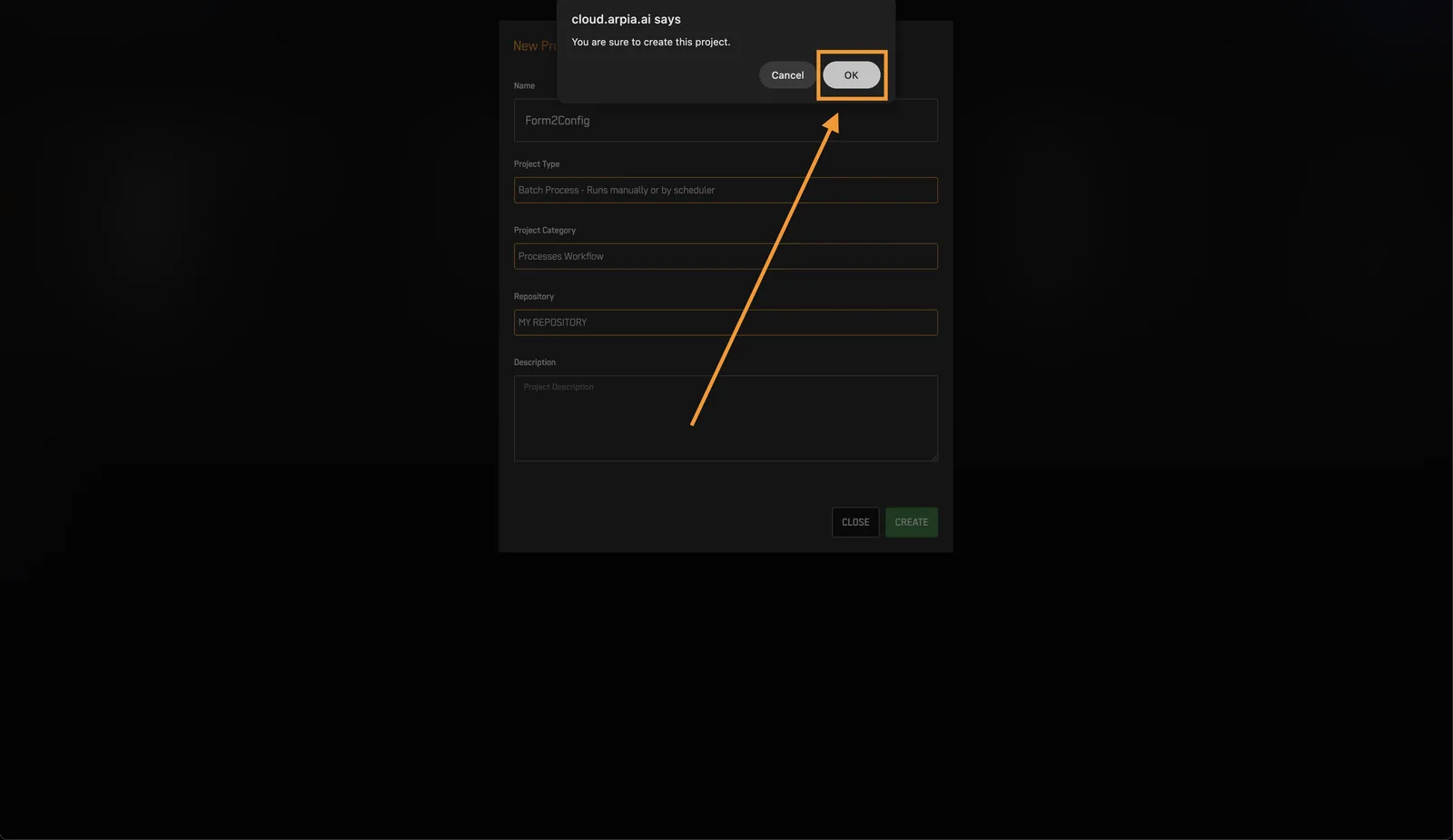
Checkpoint: Confirm that your new project appears on the AI Workshop Projects screen.
2️⃣ Create a Workshop Object#
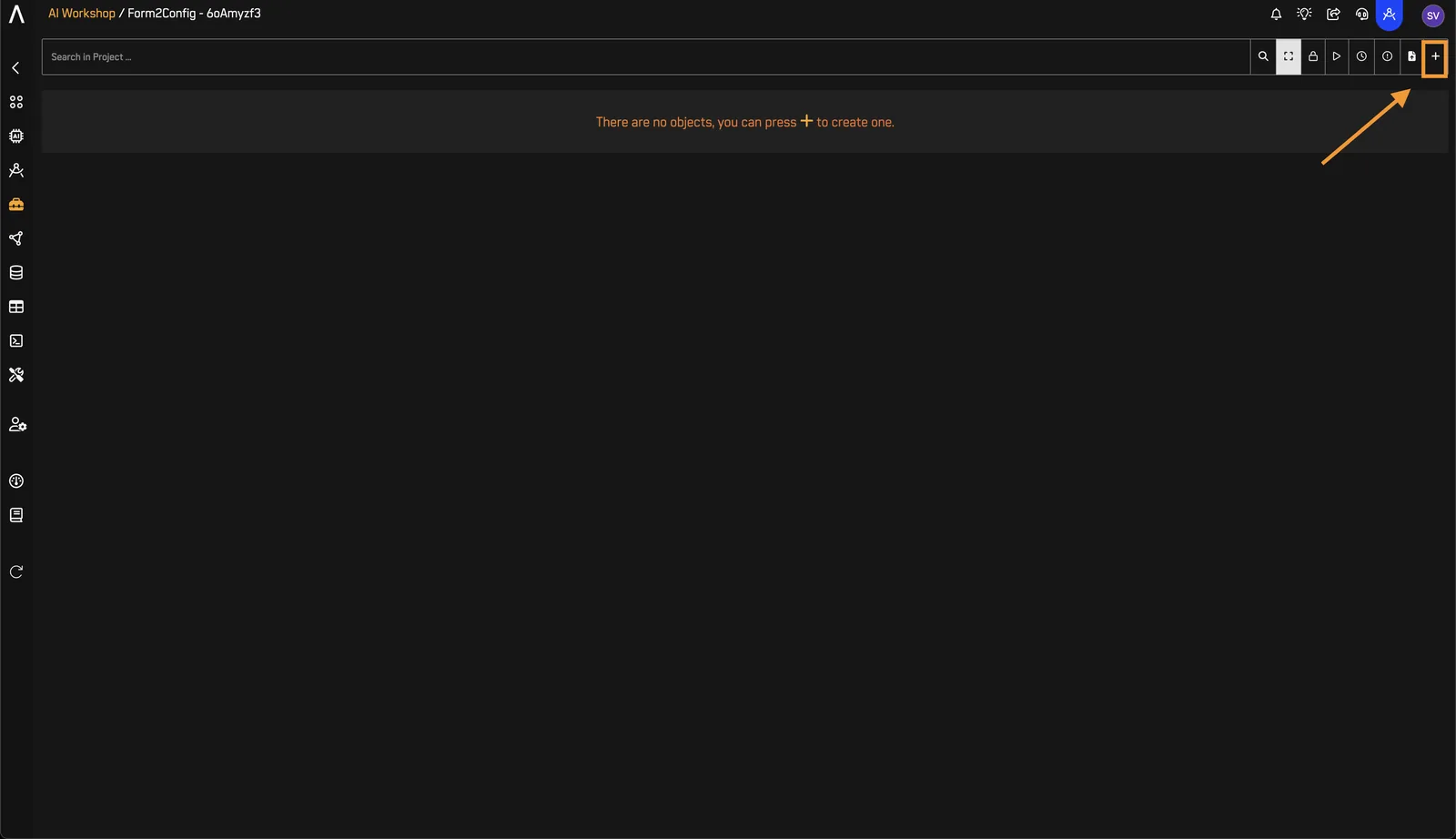
- Click Enter to open the Workshop project you created.
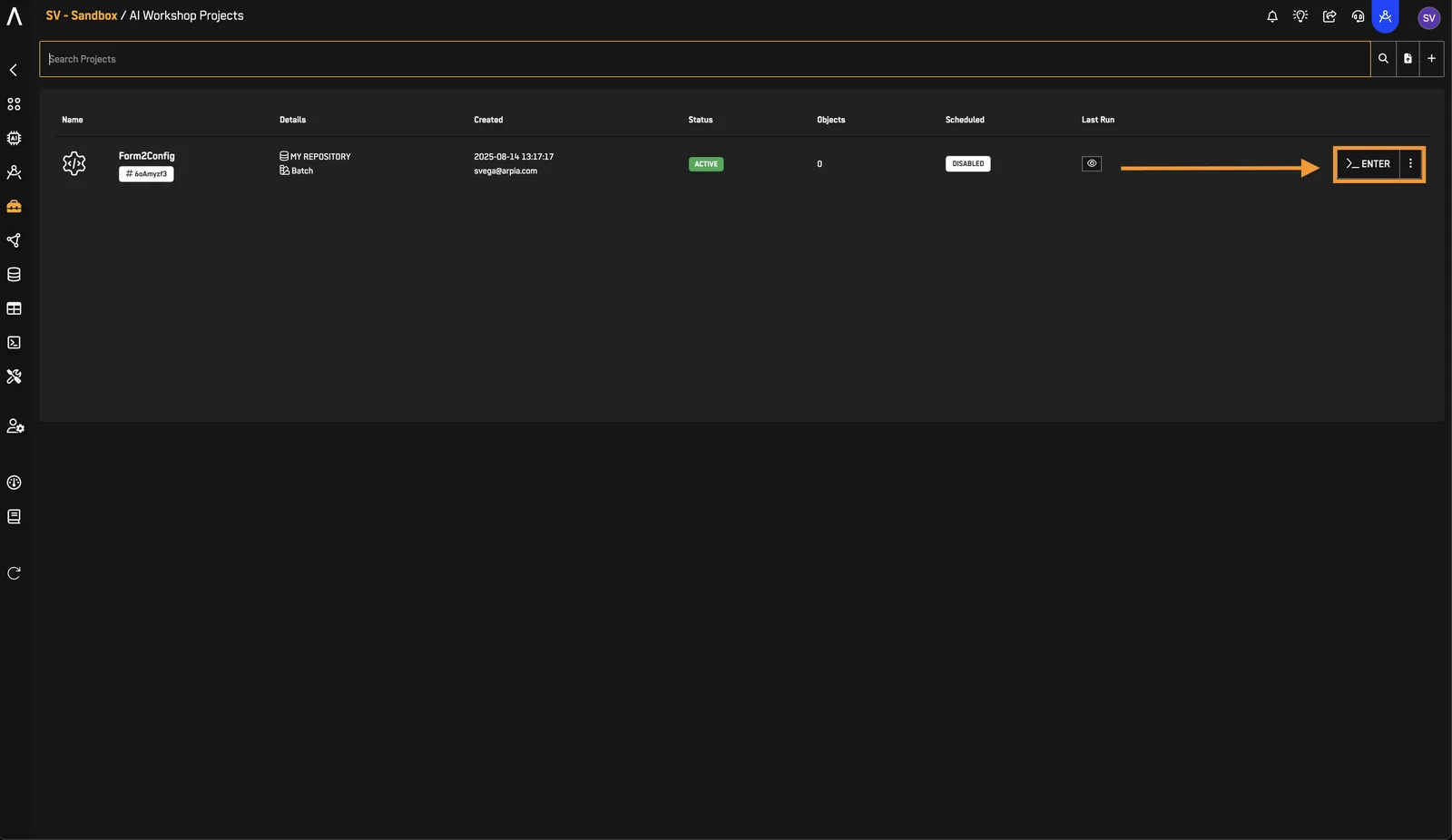
- On the Workshop project screen, click New Object.
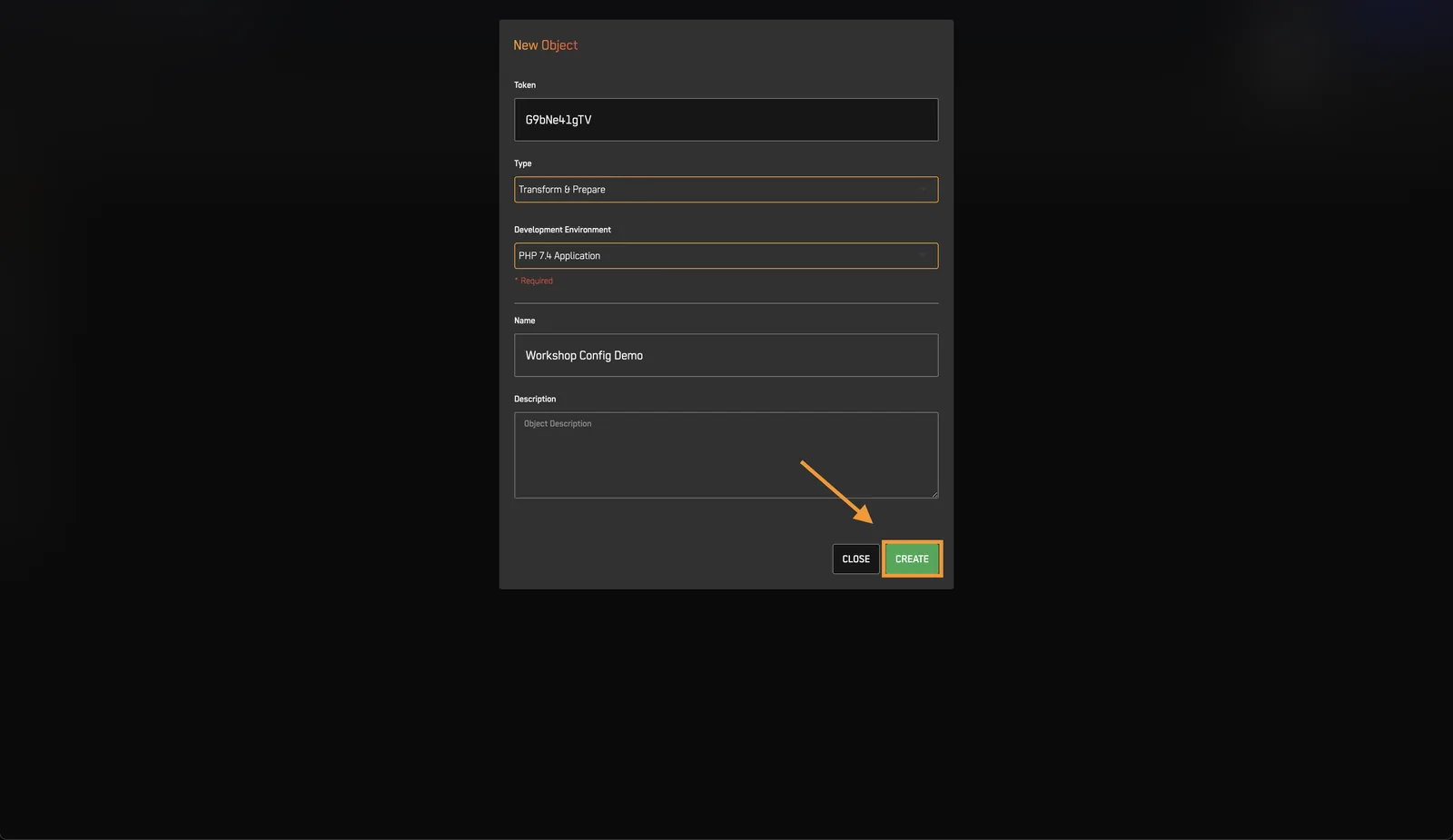
- Complete the New Object form:
- Type: Transform & Prepare
- Development Environment: PHP 7.4 Application
- Name: Workshop Config Demo
- Description: Optional; you can leave it blank.
- Click Create.
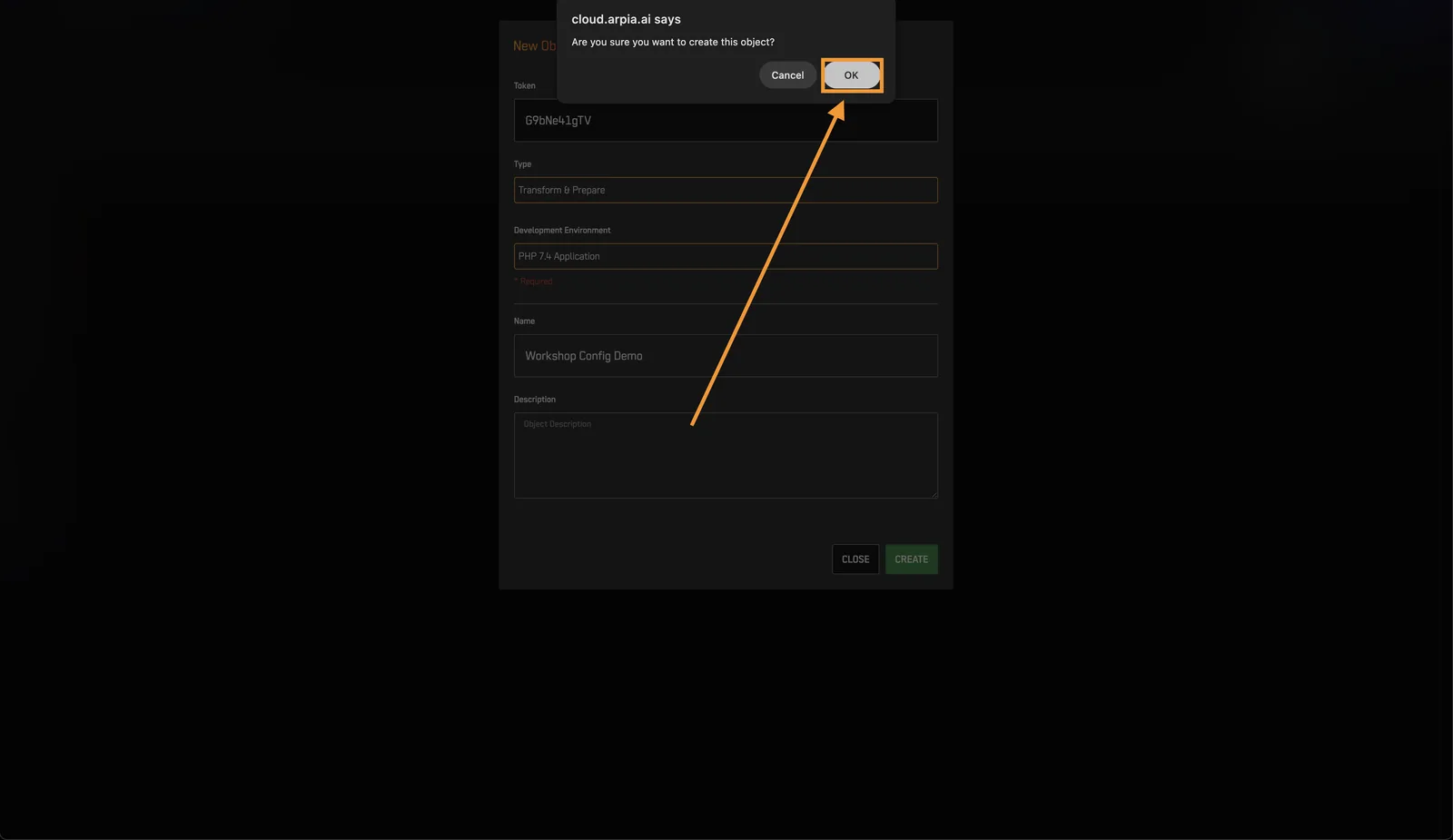
- Click OK in the confirmation dialog.
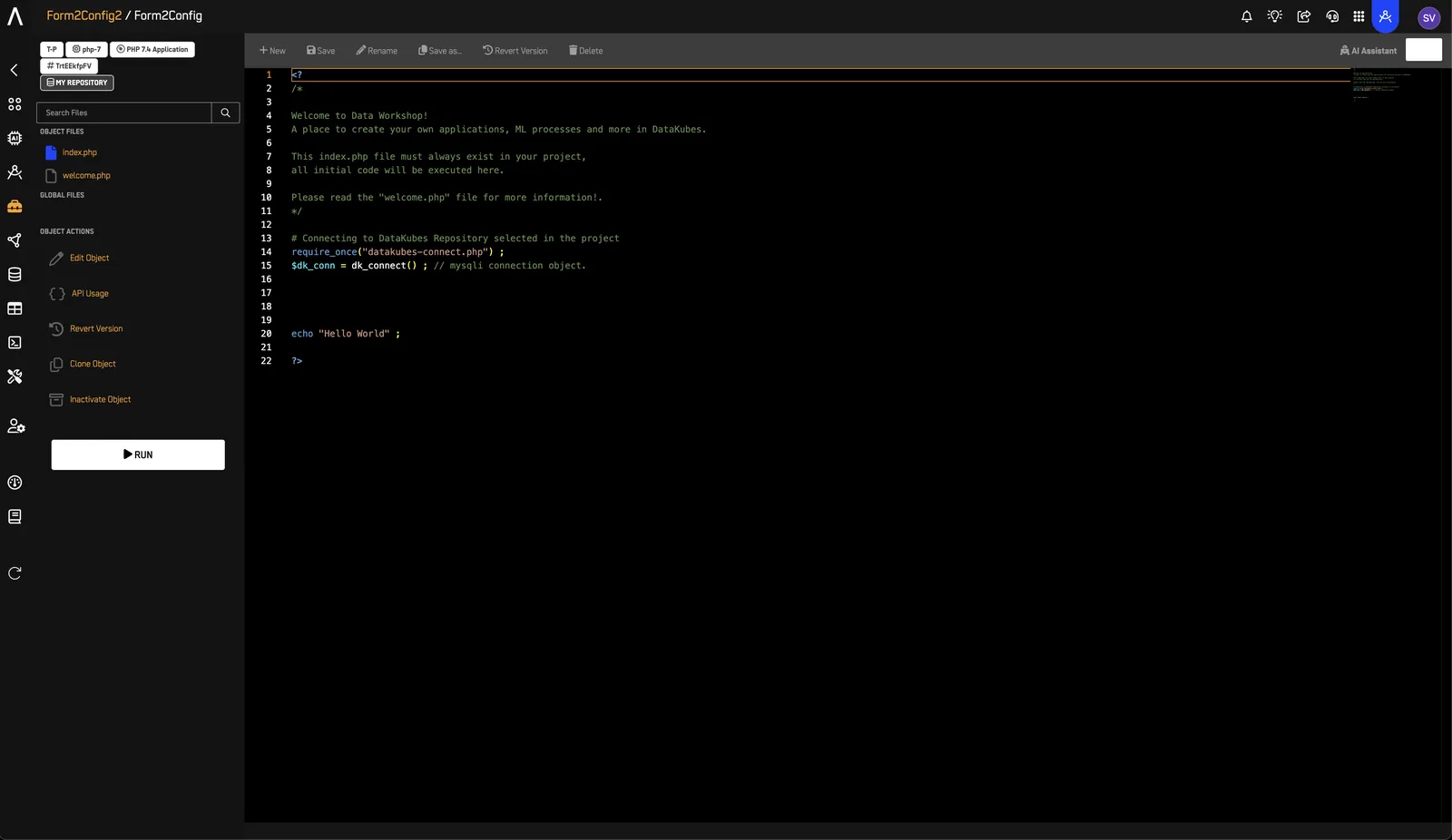
Checkpoint: Confirm that the Workshop object screen opens.
3️⃣ Create config.html#
- On the object screen, click New File.
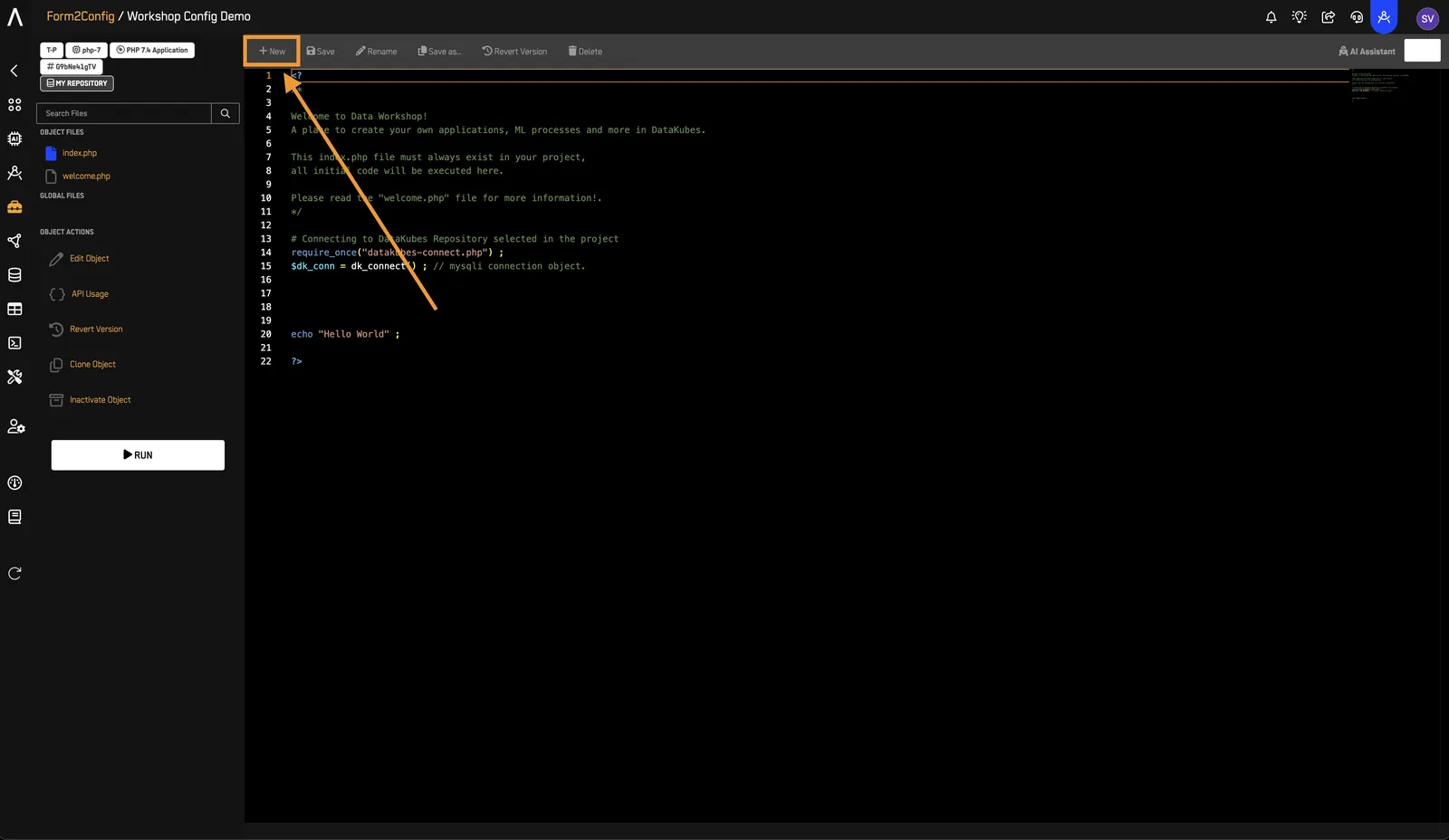
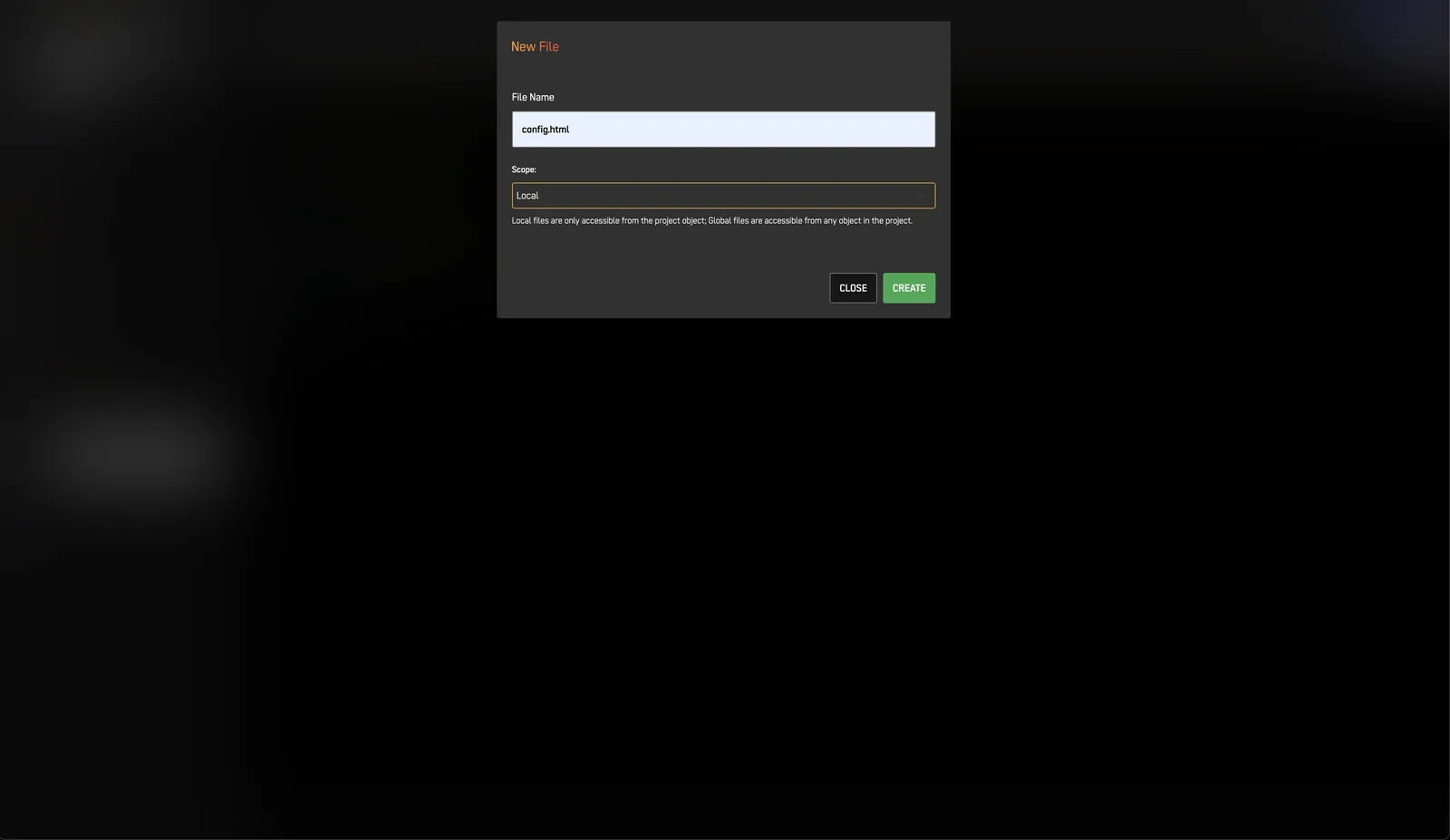
- Set File name to
config.html. - Set Scope to Local.
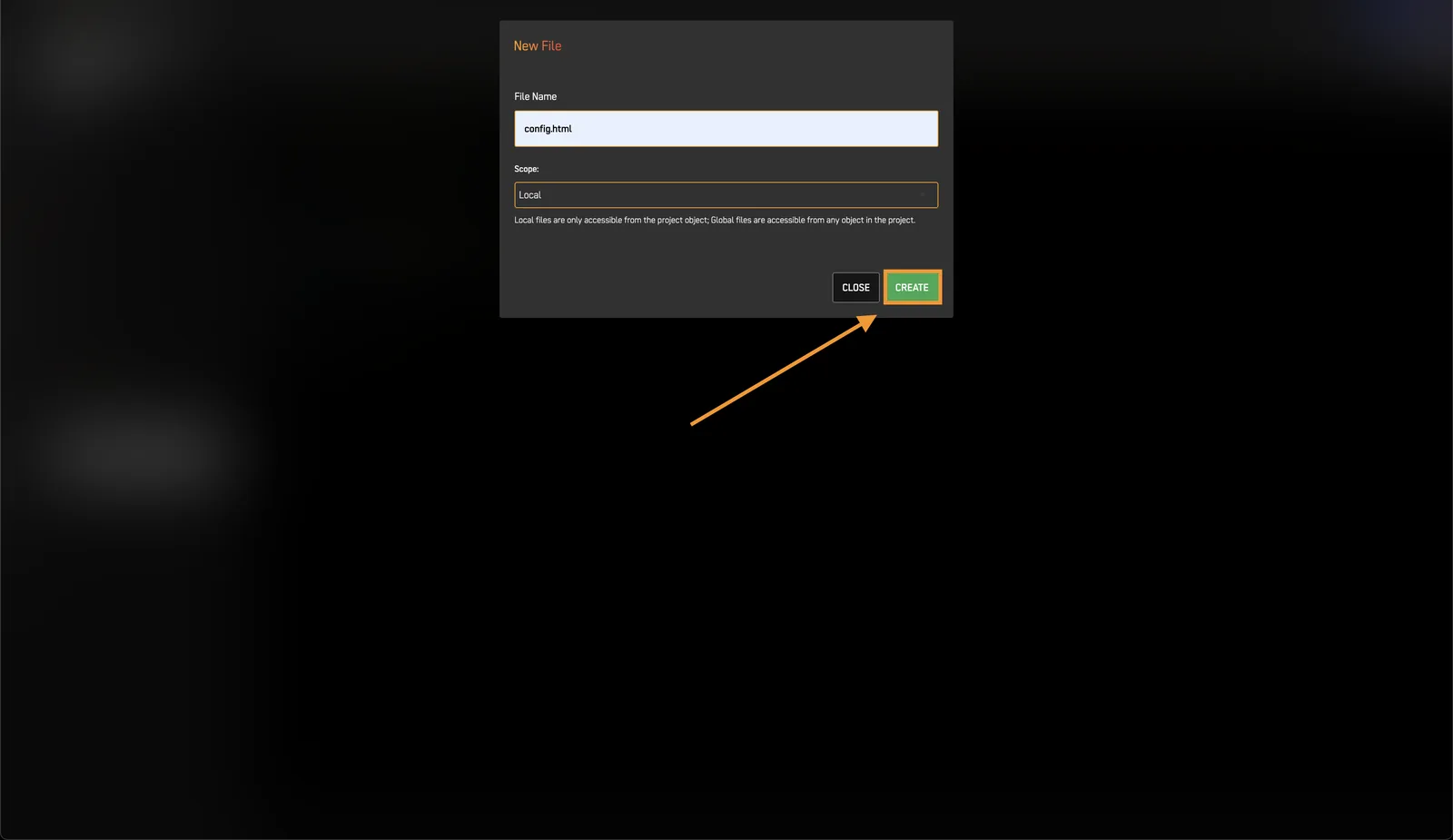
- Click Create.
- Paste the following template into
config.htmlin the Workshop object editor.
Example config.html
Use this template inside Workshop, not as a standalone HTML page. The script uses jQuery ($) and looks for fields inside #workshop-config.
The script reads saved field values from config_opts when that JavaScript object is available. If it is absent or invalid, the script keeps the form defaults. Do not paste the saved config.json contents into the script: save your values through the form in step 5.
<div>
        <div class="row">
            <div class="col-sm-12 text-center">
                    <h2>Config Template</h2>
                    <p>Configure the values your Workshop object reads.</p>
            </div>
        </div>


        <form>


            <h3>Configuration values</h3>

            <div class="form-group">
                <label for="config-repository">Repository</label>
                <input id="config-repository" type="text" class="form-control" name="repository" value="" placeholder="TEST">
            </div>

            <div class="form-group">

                <label for="config-option">Option</label>
                <select id="config-option" name="var" class="form-control">
                    <option value="123">Option 1</option>
                    <option value="12233">Option 2</option>
                </select>

                <p class="mt-3">Option 1 saves 123; Option 2 saves 12233.</p>
            </div>

        </form>


            <div class="">
                <button class="btn btn-lg btn-block btn-secondary btn-save-config" type="button">Save Config</button>
            </div>


</div>


<script>

function load_config_opts() {
    // Keep form defaults when no saved configuration is available.
    const savedConfig = typeof config_opts !== "undefined" &&
        config_opts !== null && typeof config_opts === "object" &&
        !Array.isArray(config_opts) ? config_opts : {};

    $("#workshop-config").find("input, select, textarea").each(function () {
        const $el = $(this);
        const name = $el.attr("name");

        if (!name || !Object.prototype.hasOwnProperty.call(savedConfig, name)) return;

        const value = savedConfig[name];
        const type = $el.attr("type");

        if ($el.is("select") || $el.is("textarea")) {
            $el.val(value);
        } else if (type === "checkbox") {
            if (Array.isArray(value)) {
                // Multiple checkboxes with same name (e.g., name="features[]")
                $el.prop("checked", value.includes($el.val()));
            } else {
                $el.prop("checked", value == true || value == $el.val());
            }
        } else if (type === "radio") {
            $(`input[name="${name}"][value="${value}"]`).prop("checked", true);
        } else {
            // text, number, email, hidden, etc.
            $el.val(value);
        }
    });
}


$(document).ready(function() {
    load_config_opts();
});
</script>
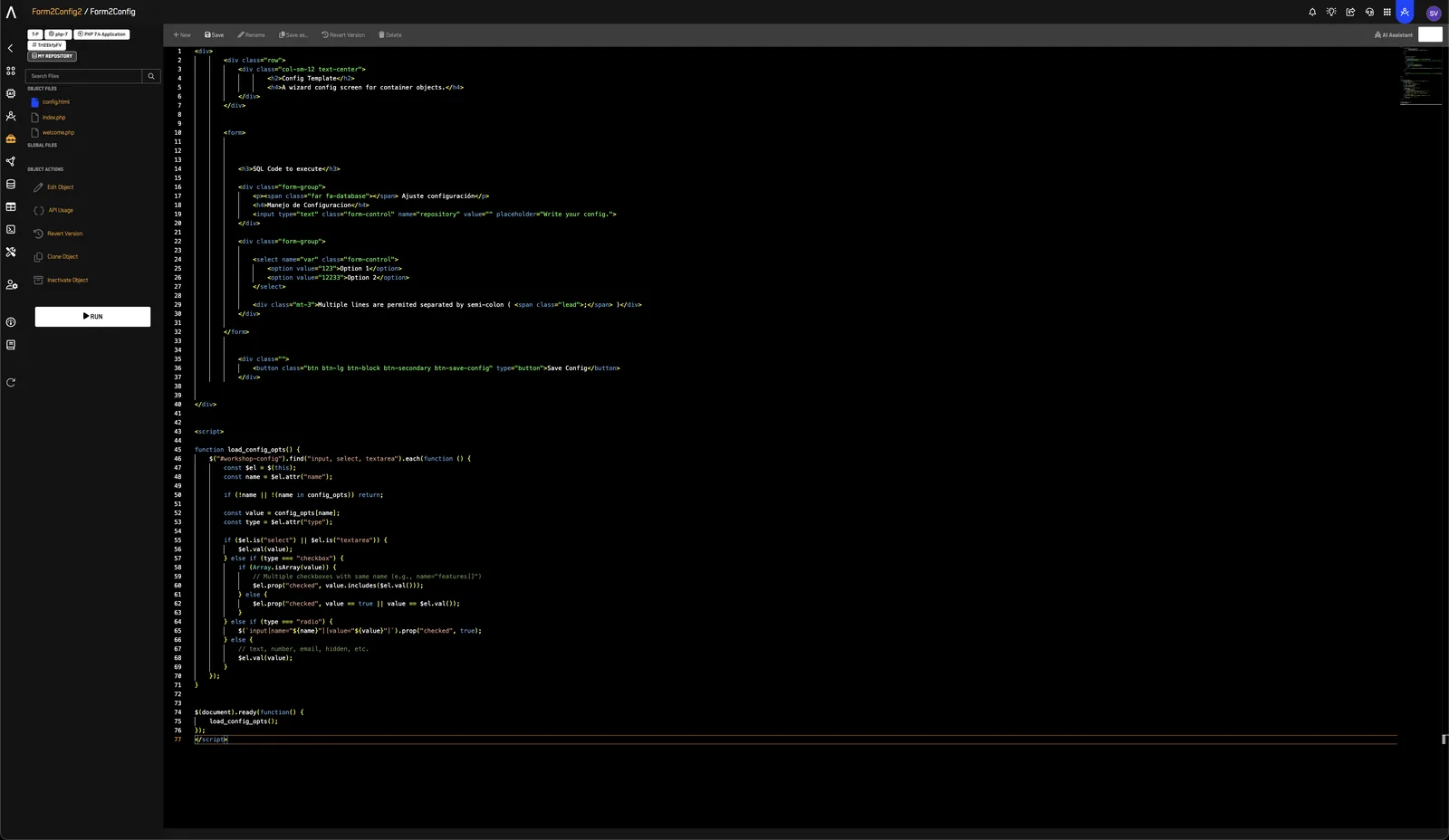
- Click Save.
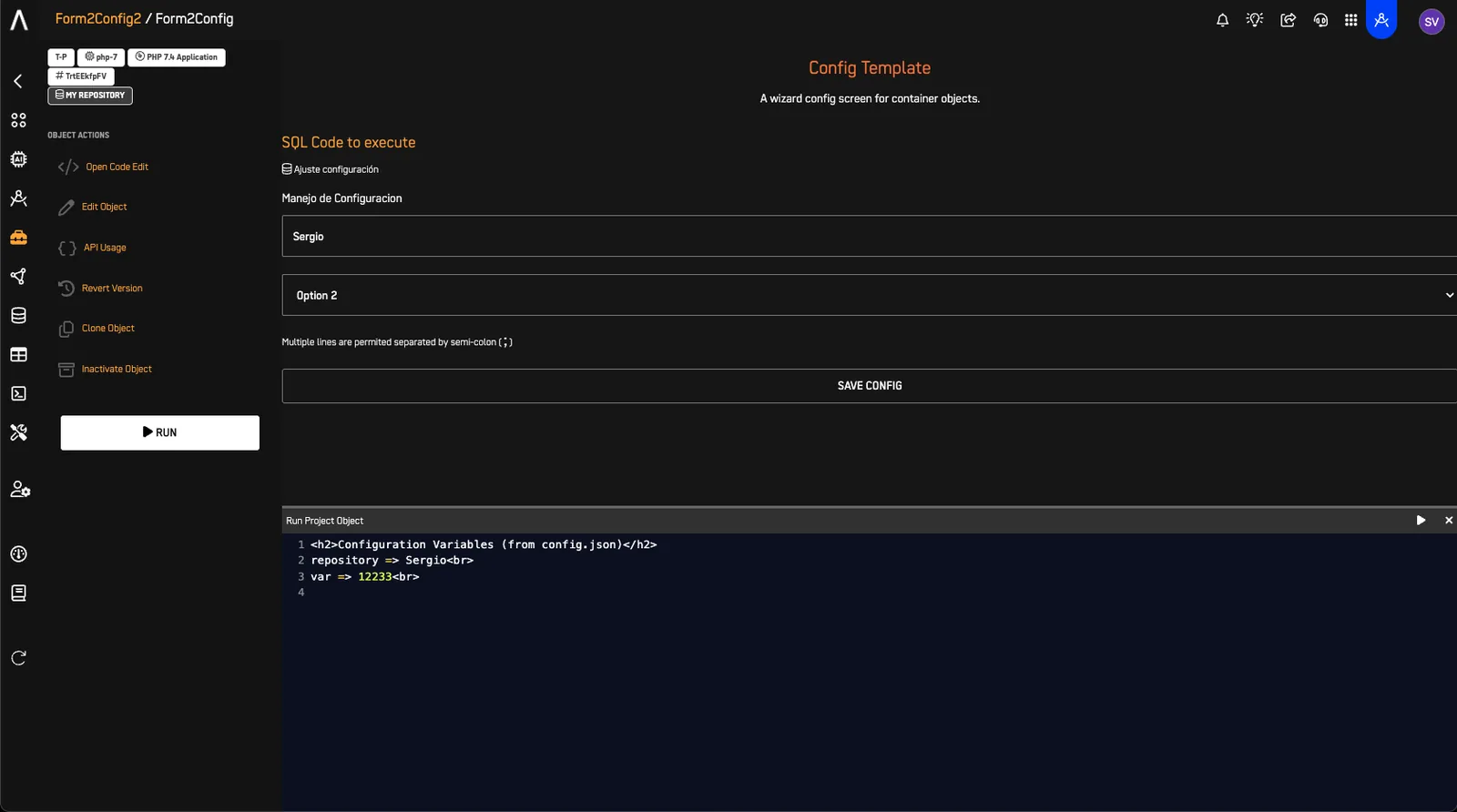
Expected result: When you open the form in step 5, it contains a Repository field, an Option list, and a Save Config button. With no saved configuration, the repository is blank and Option 1 is selected.
4️⃣ Create config.json#
Workshop creates config.json when you complete the configuration form and click Save Config for the first time. Do not create the file manually. Follow step 5 to save your values and verify the file contents.
5️⃣ Fill Form to Save Data#
- Click your object's name in the top-right corner of the screen to return to the Workshop project screen.
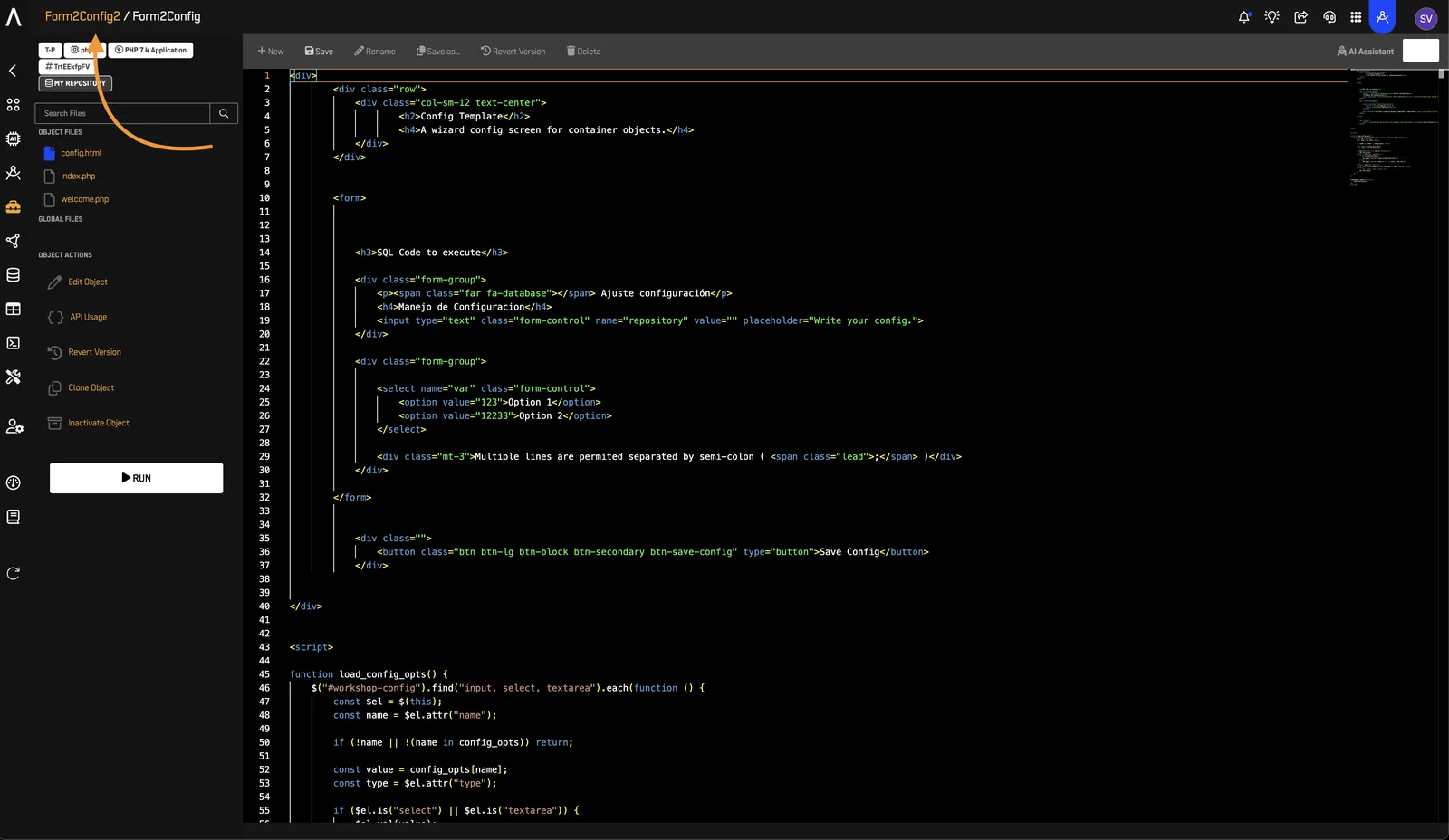
- Click your Workshop object to open its configuration form.
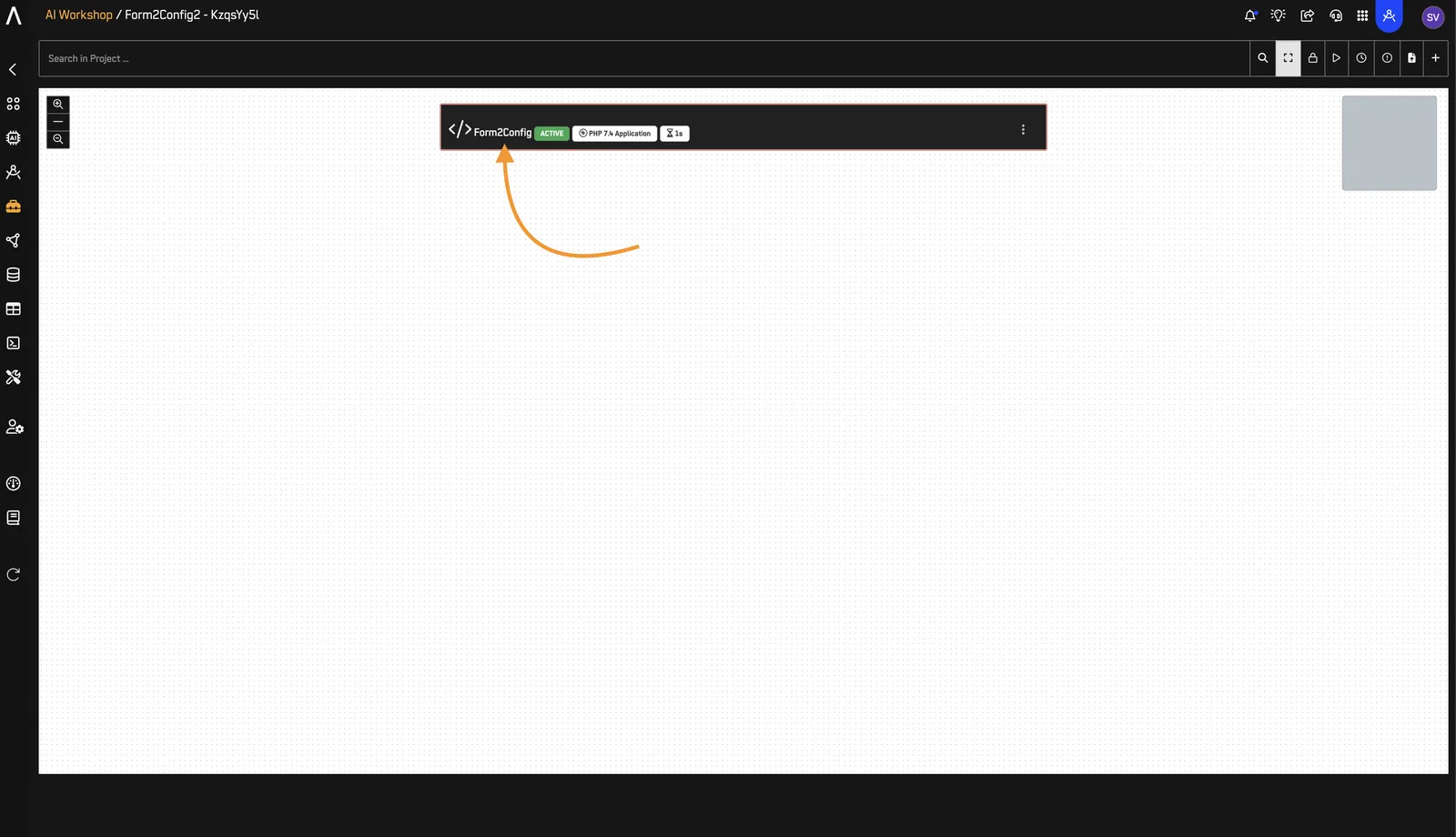
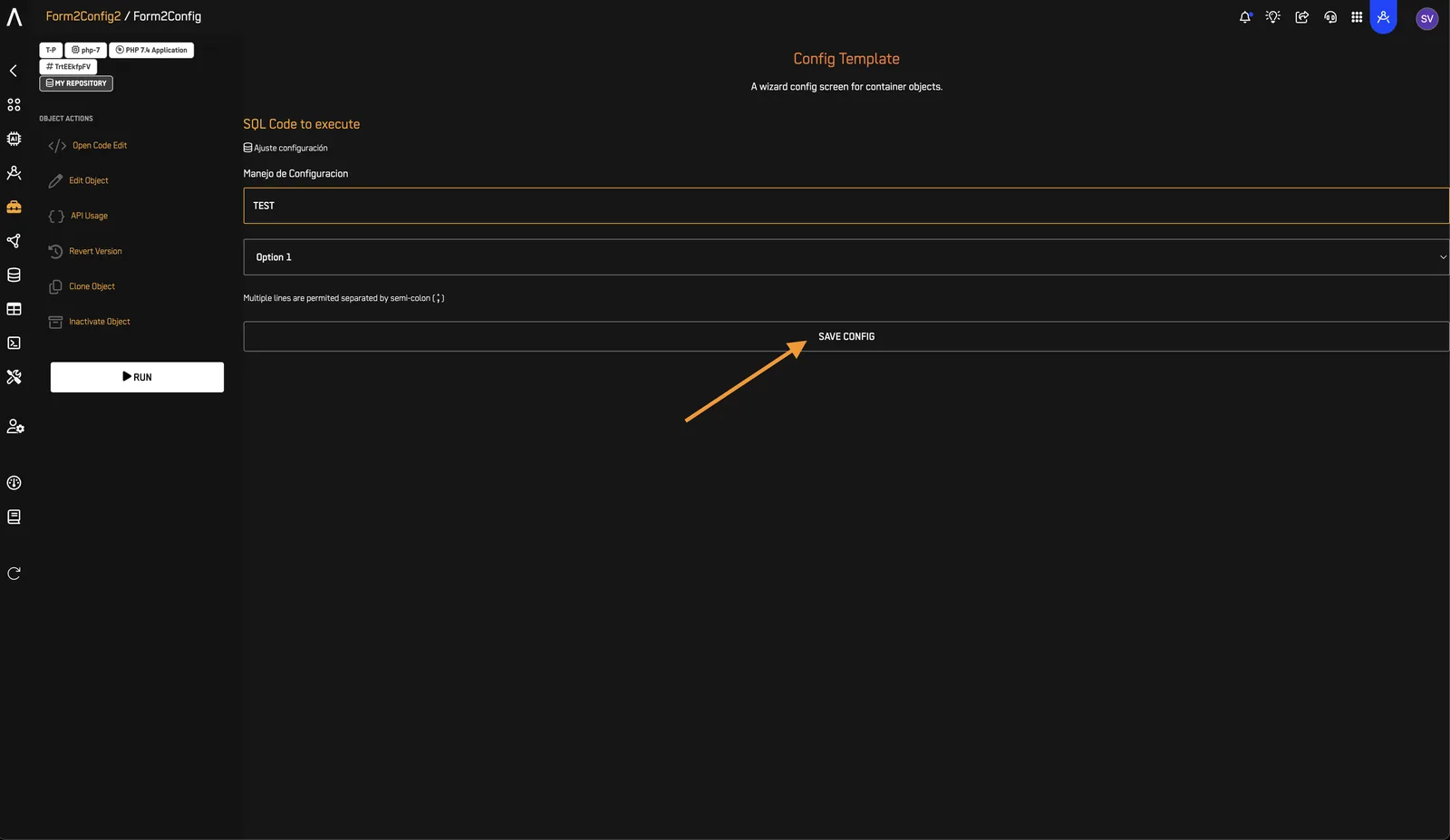
- Complete the form:
- Repository:
TEST - Option: Option 1 (
value="123")
- Click Save Config.
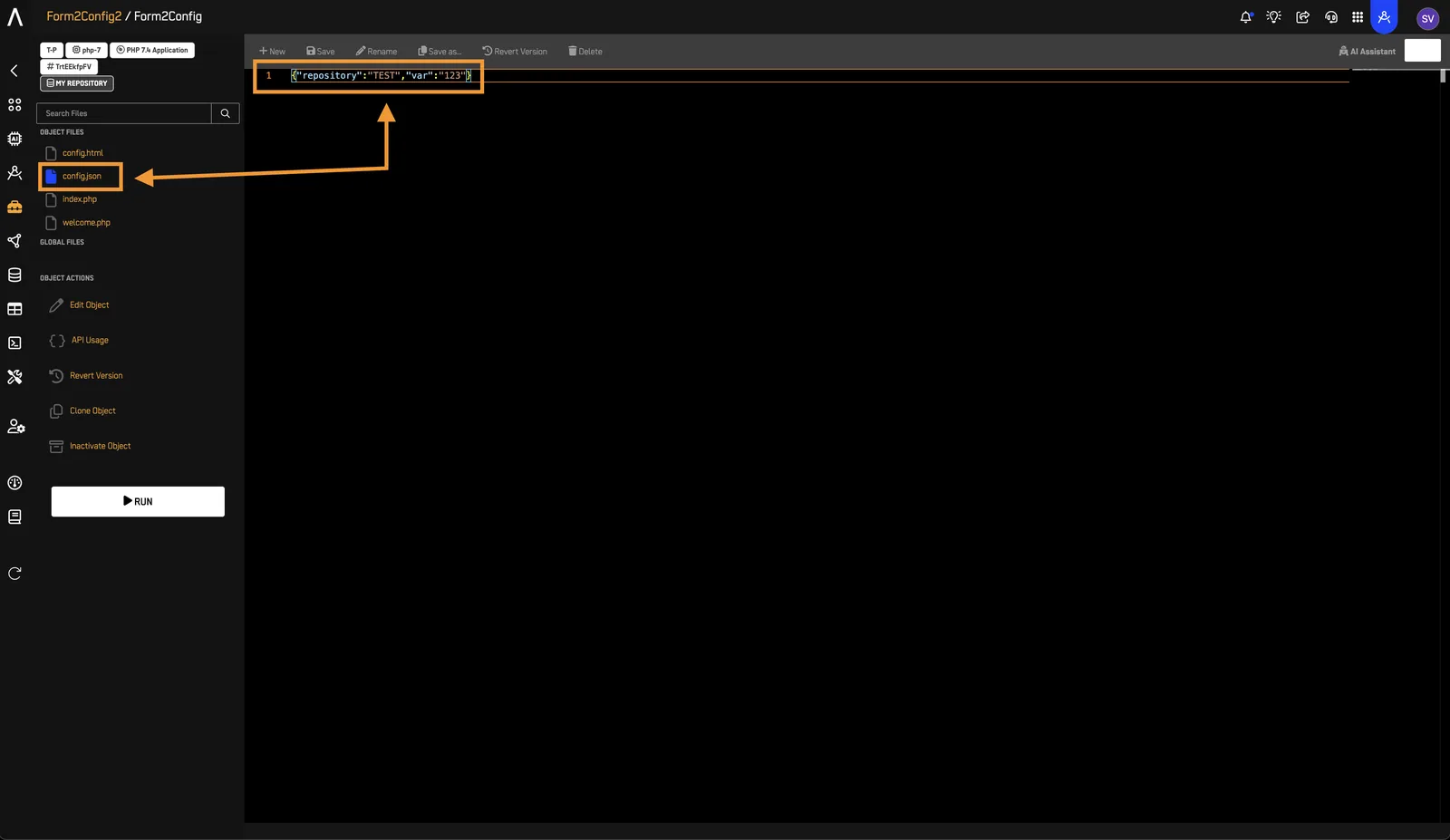
- Click Open Code Edit.
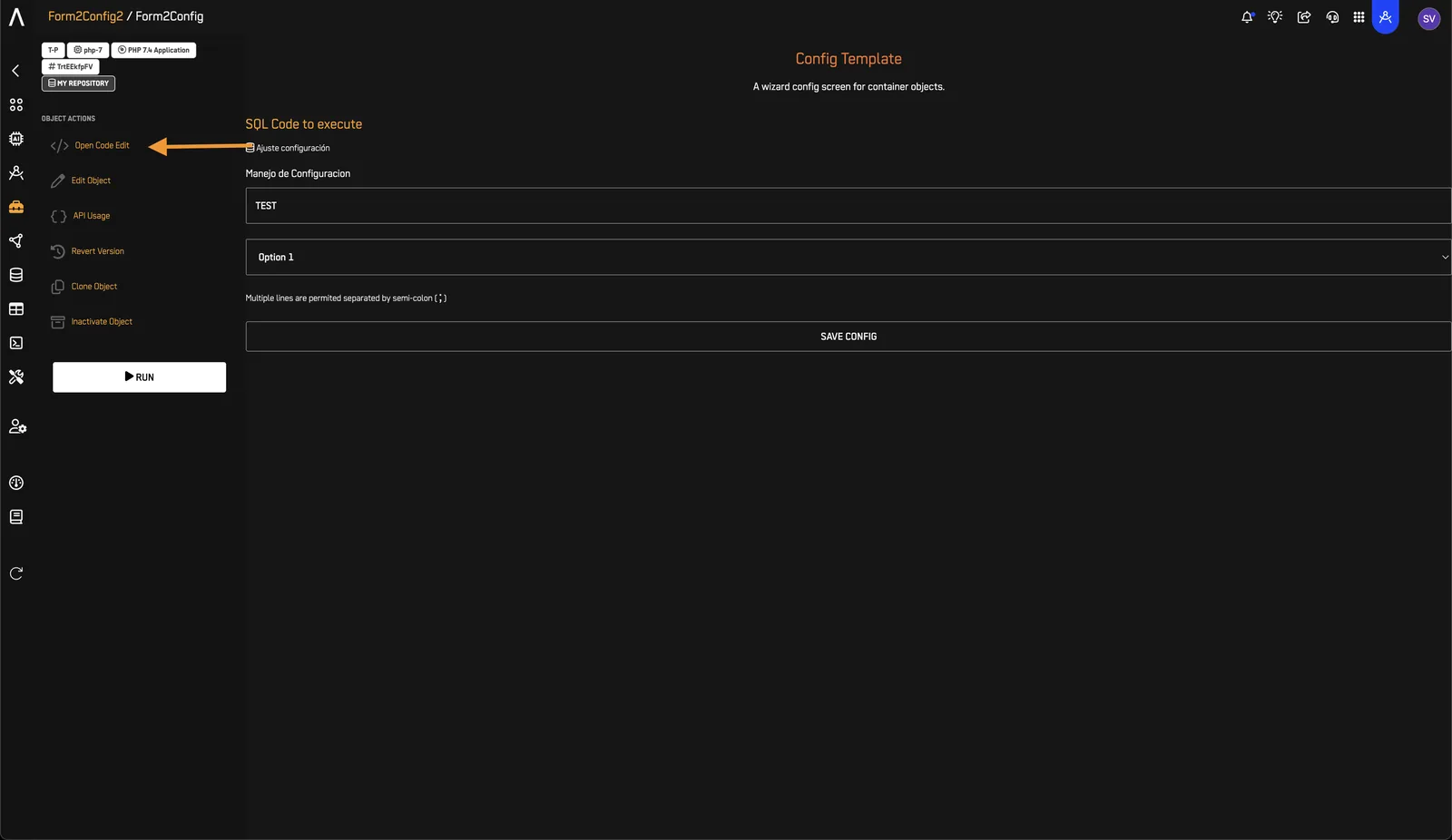
- Open
config.jsonand confirm that it contains:
{
  "repository": "TEST",
  "var": "123"
}
6️⃣ Modify index.php#
- Open
index.php.
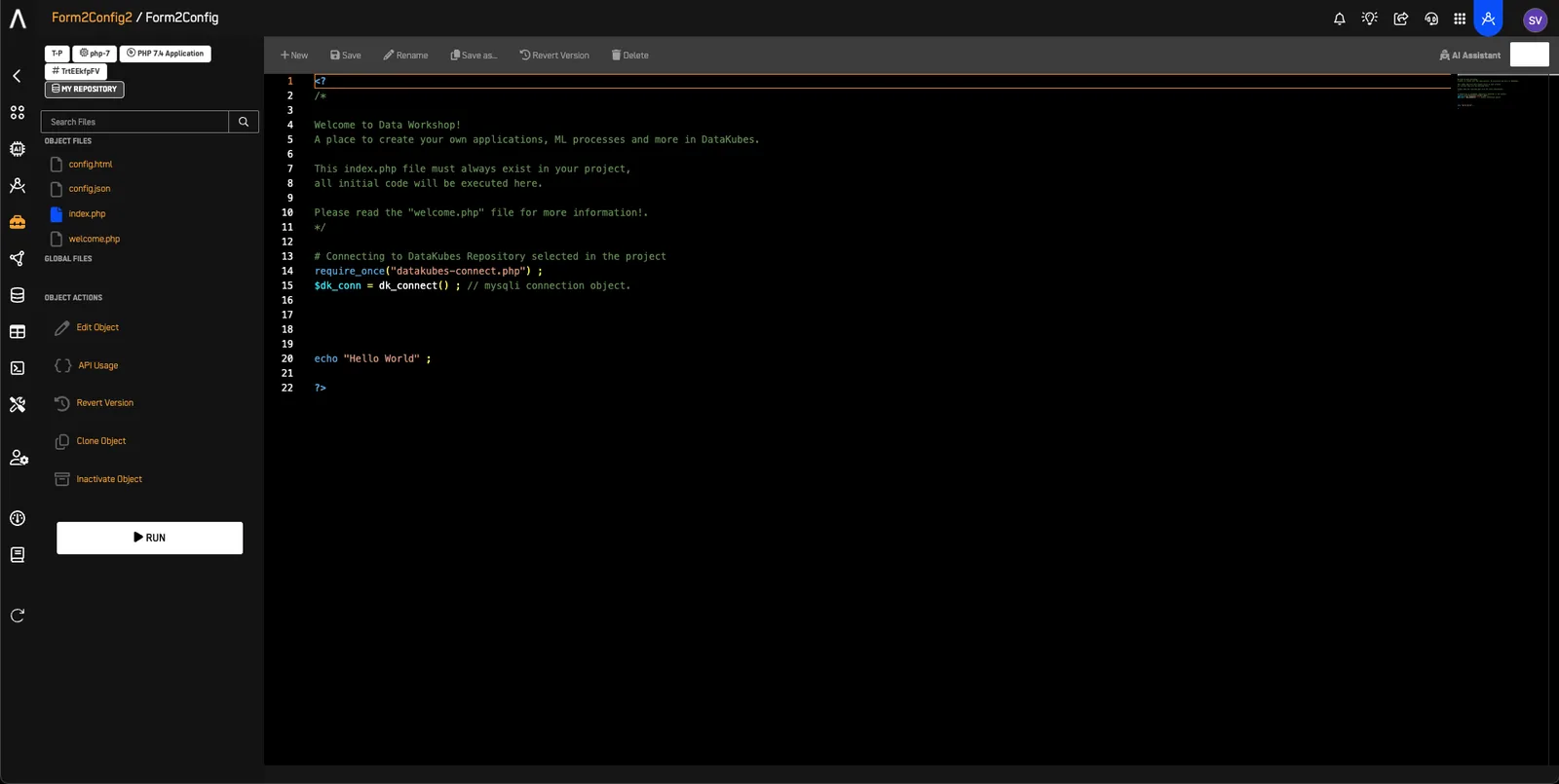
- Remove the Hello World placeholder code.
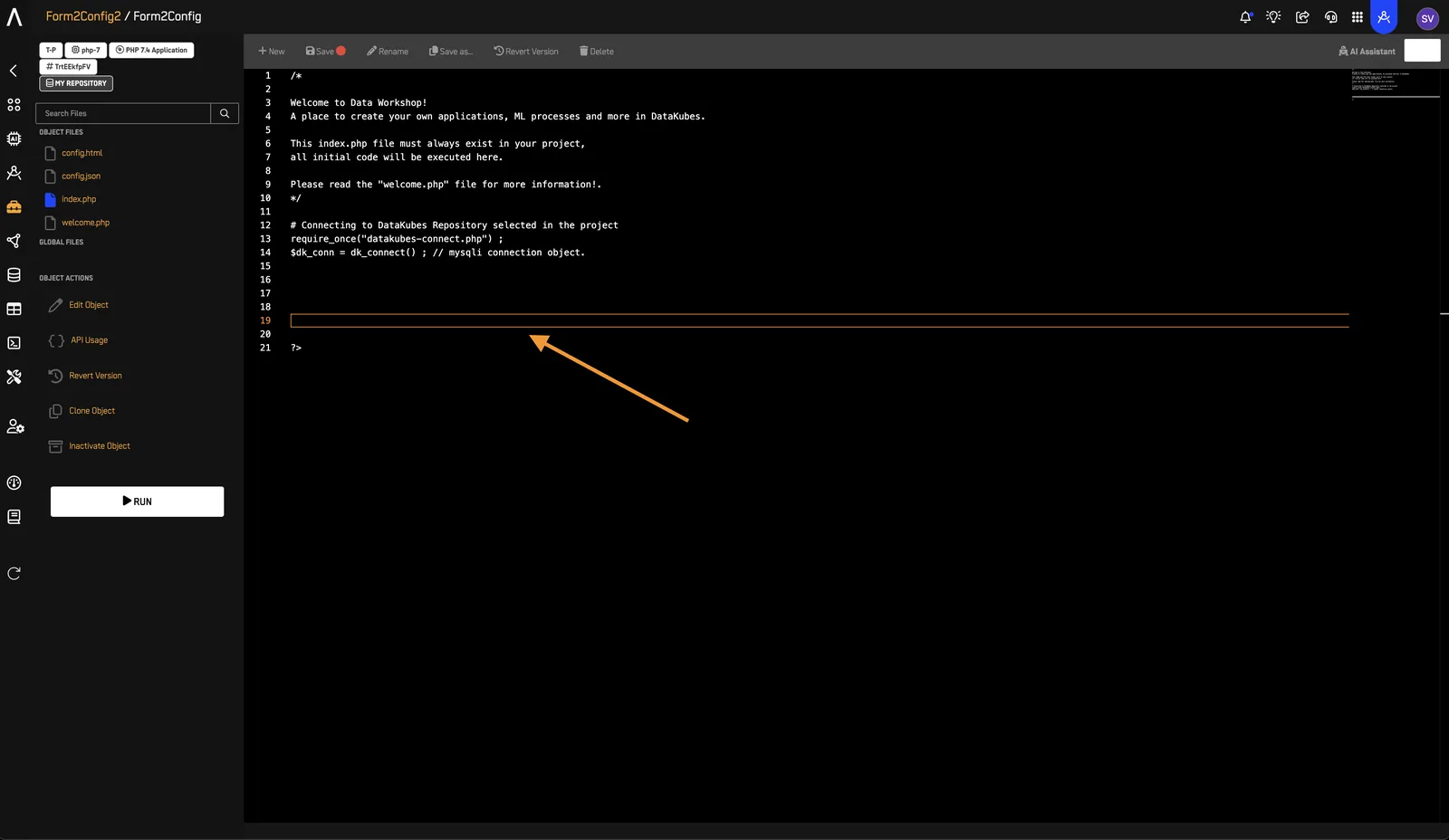
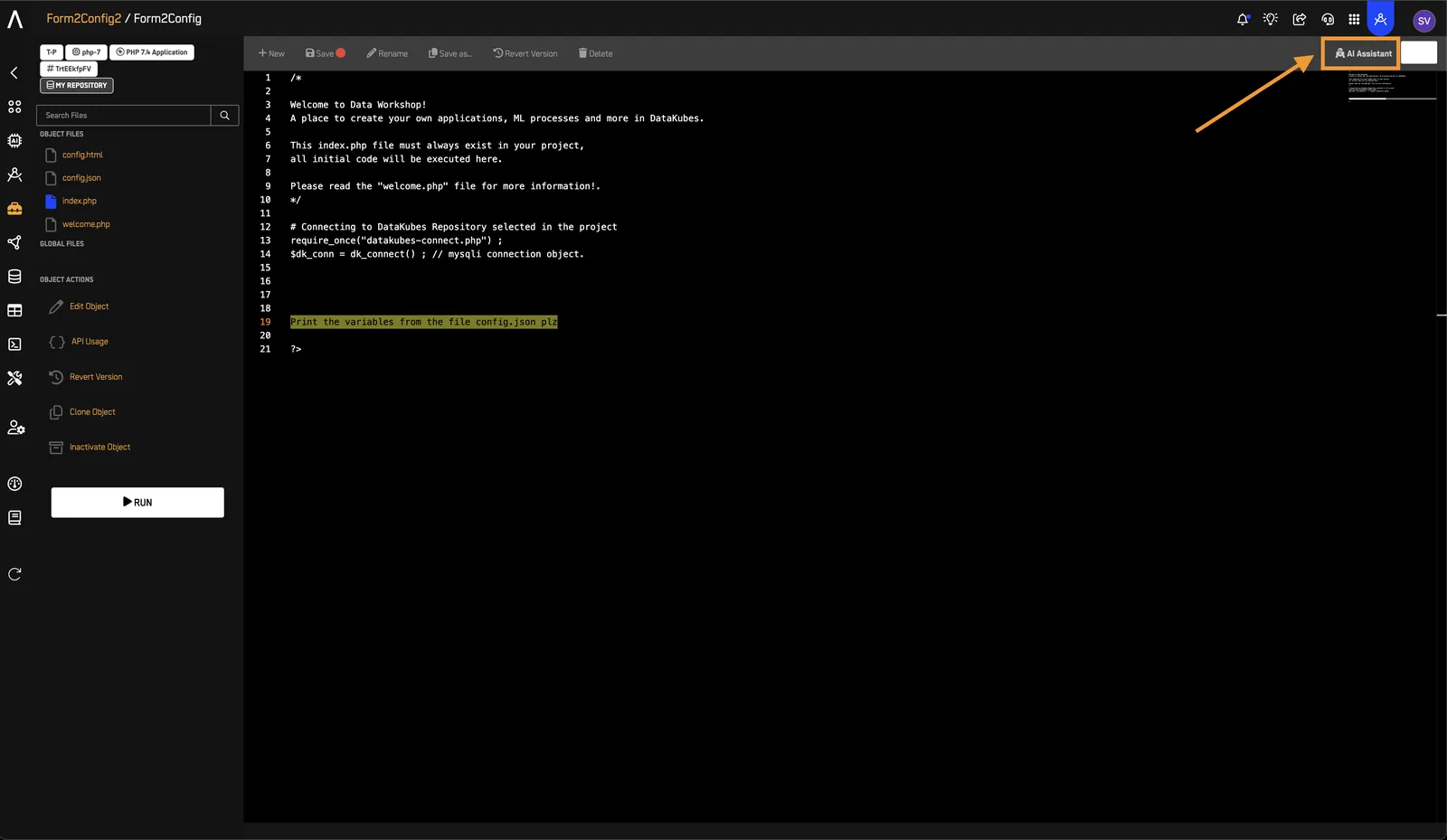
- In the space where you removed the placeholder code, enter this request for the AI Assistant:
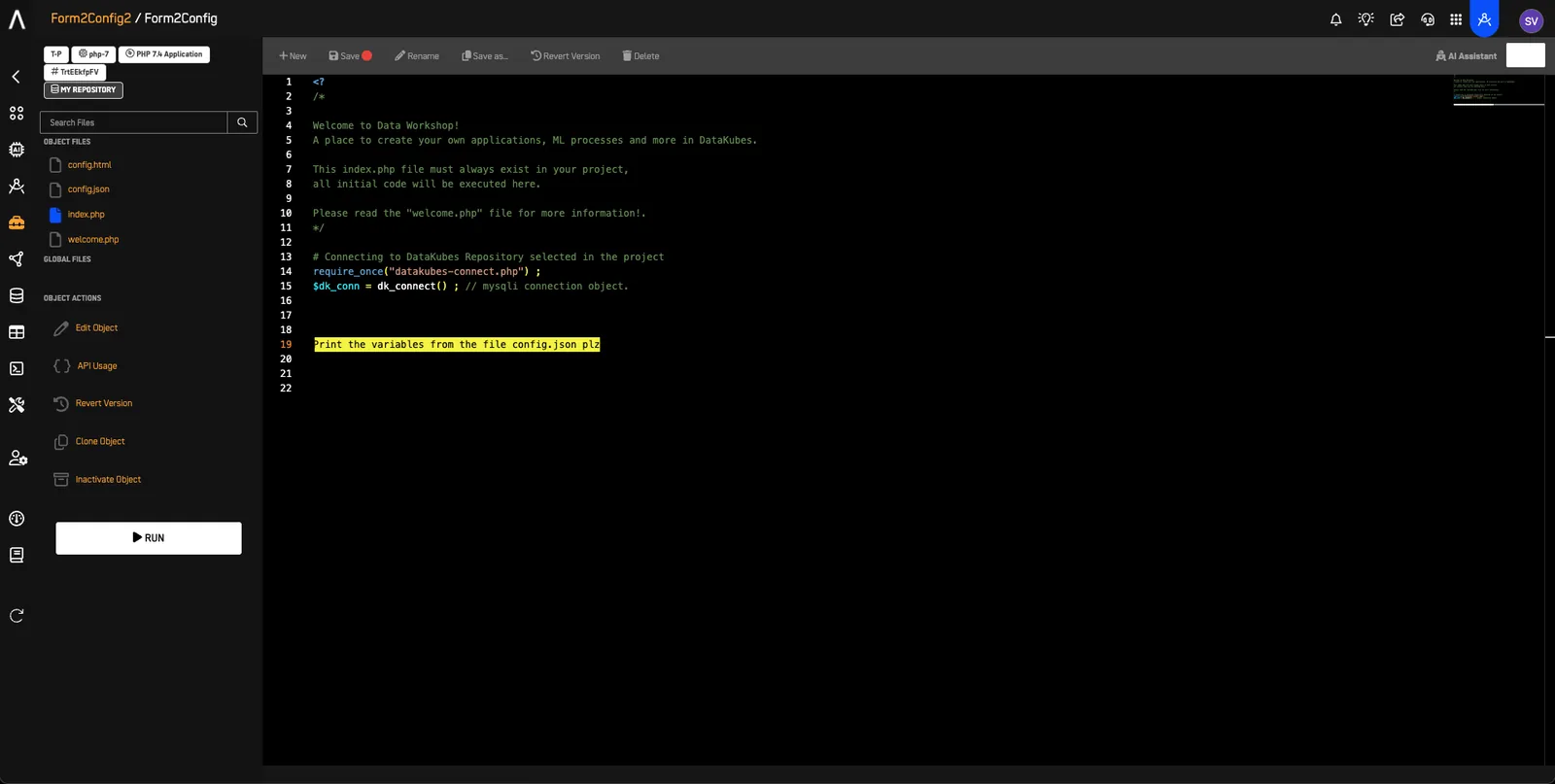
Read config.json from this object's files, decode the JSON, and display the repository and var values in HTML. Escape values before displaying them. Report missing or unreadable files, invalid JSON, and missing fields without displaying warnings or treating missing values as successful output.
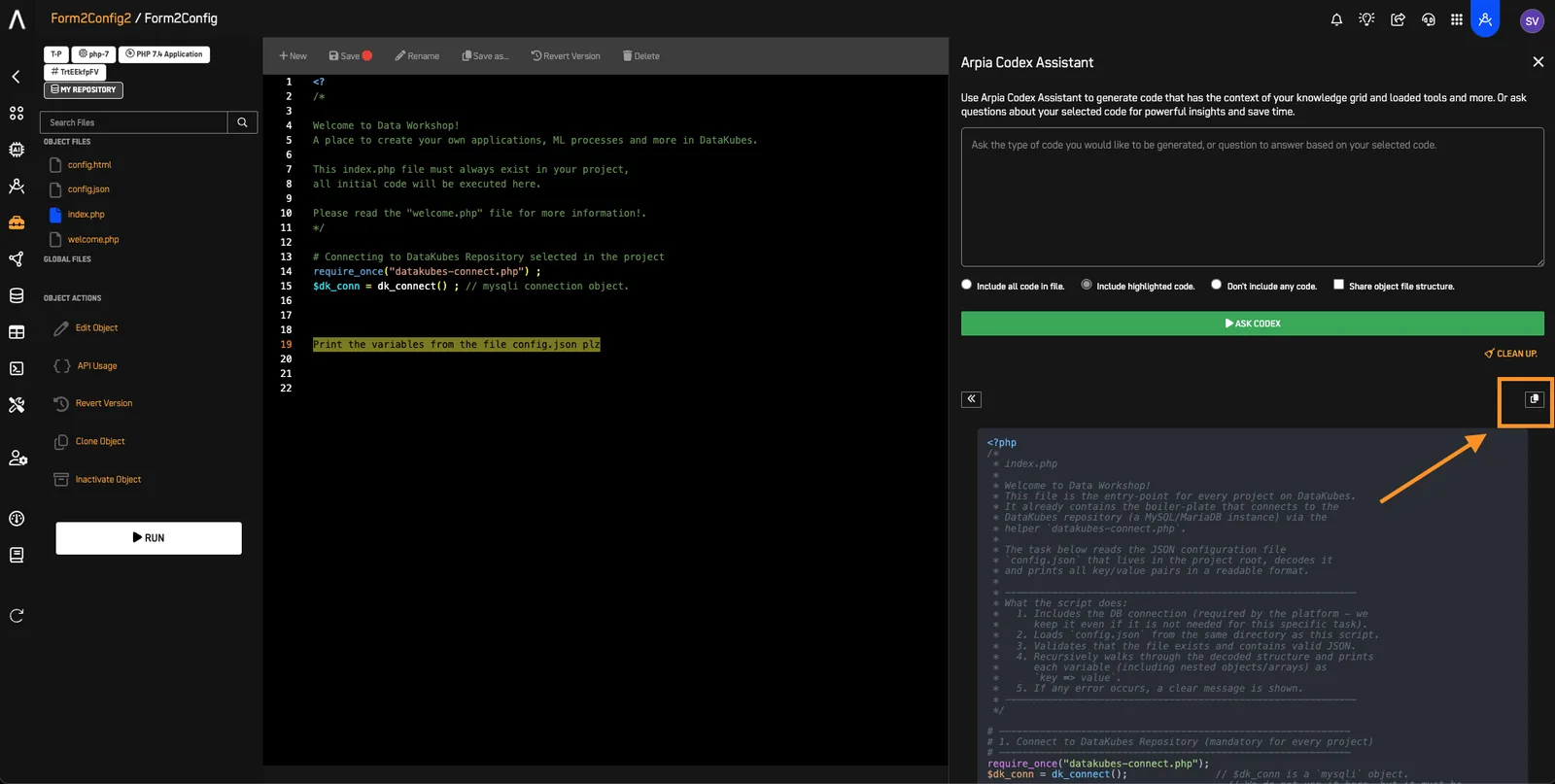
- Highlight the request so the AI Assistant can use it as context. The line number depends on your file; it does not need to be line 19.
- Click AI Assistant.
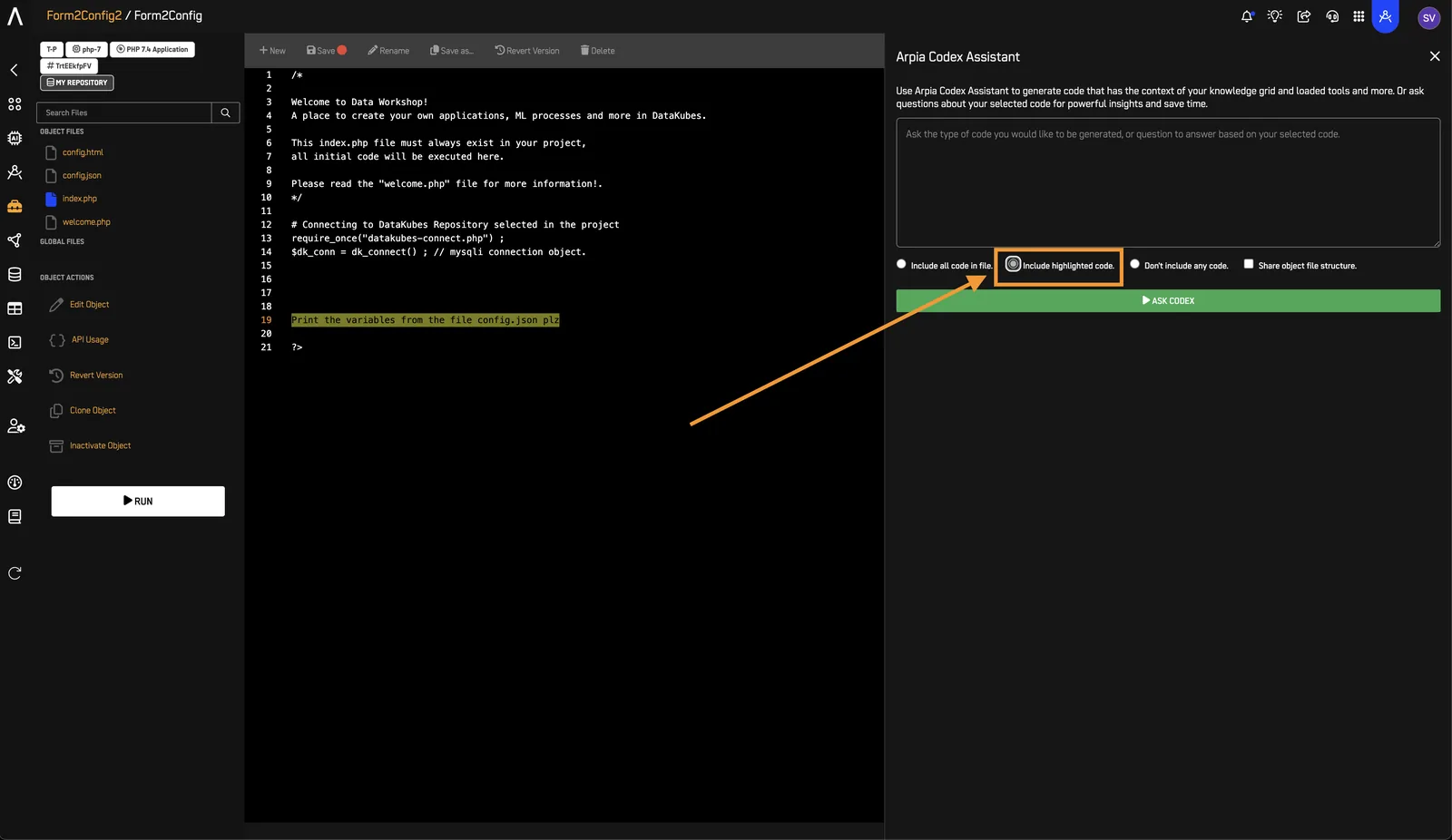
- Select Include Highlighted Code to send the selected request to the assistant.
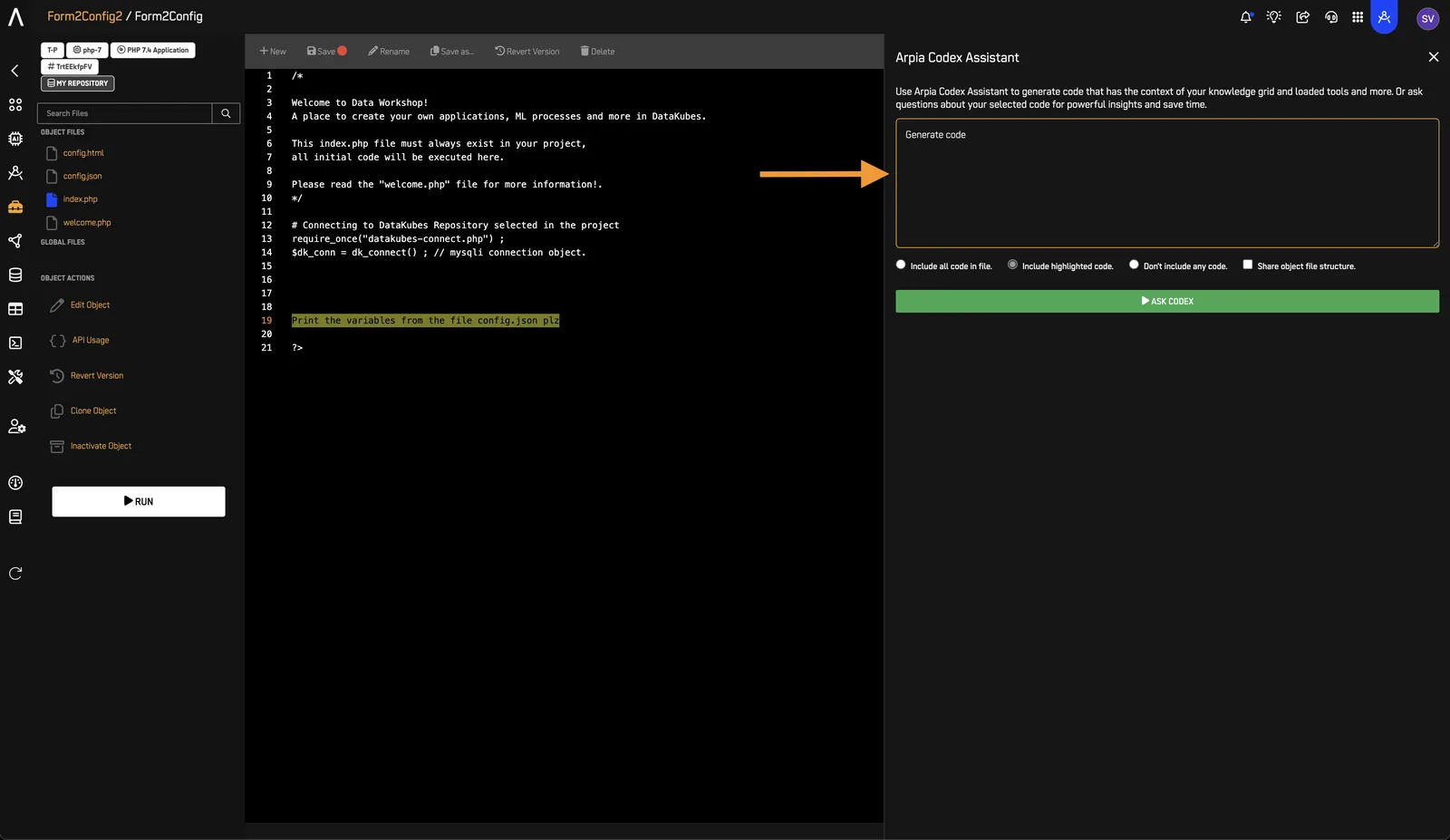
- In the assistant's text field, enter Generate code.
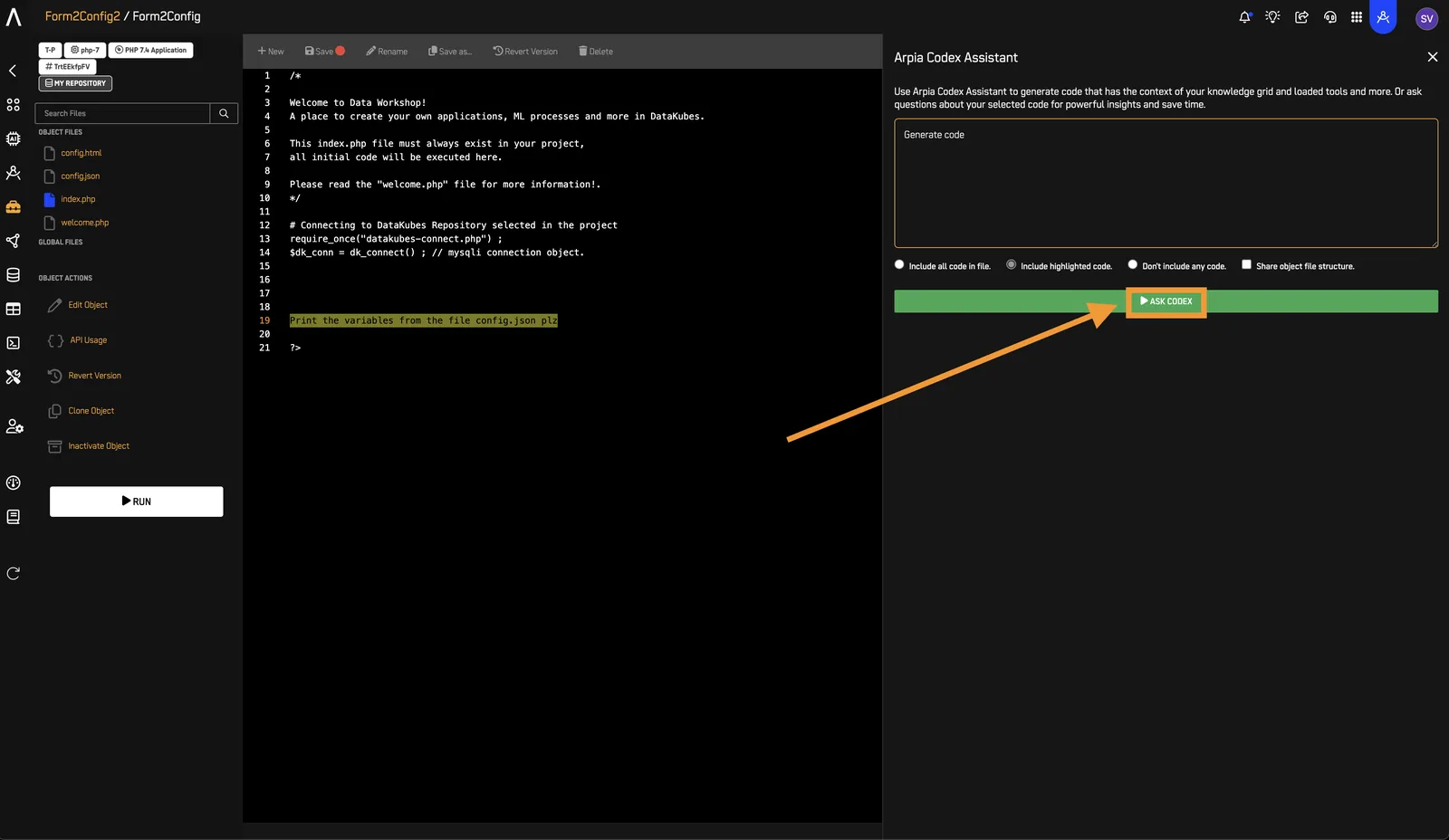
- Click Ask Codex.
- Review the generated PHP code. Confirm that it reads
config.json, checks for the error conditions in your request, and escapes values for HTML output. Then copy the code.
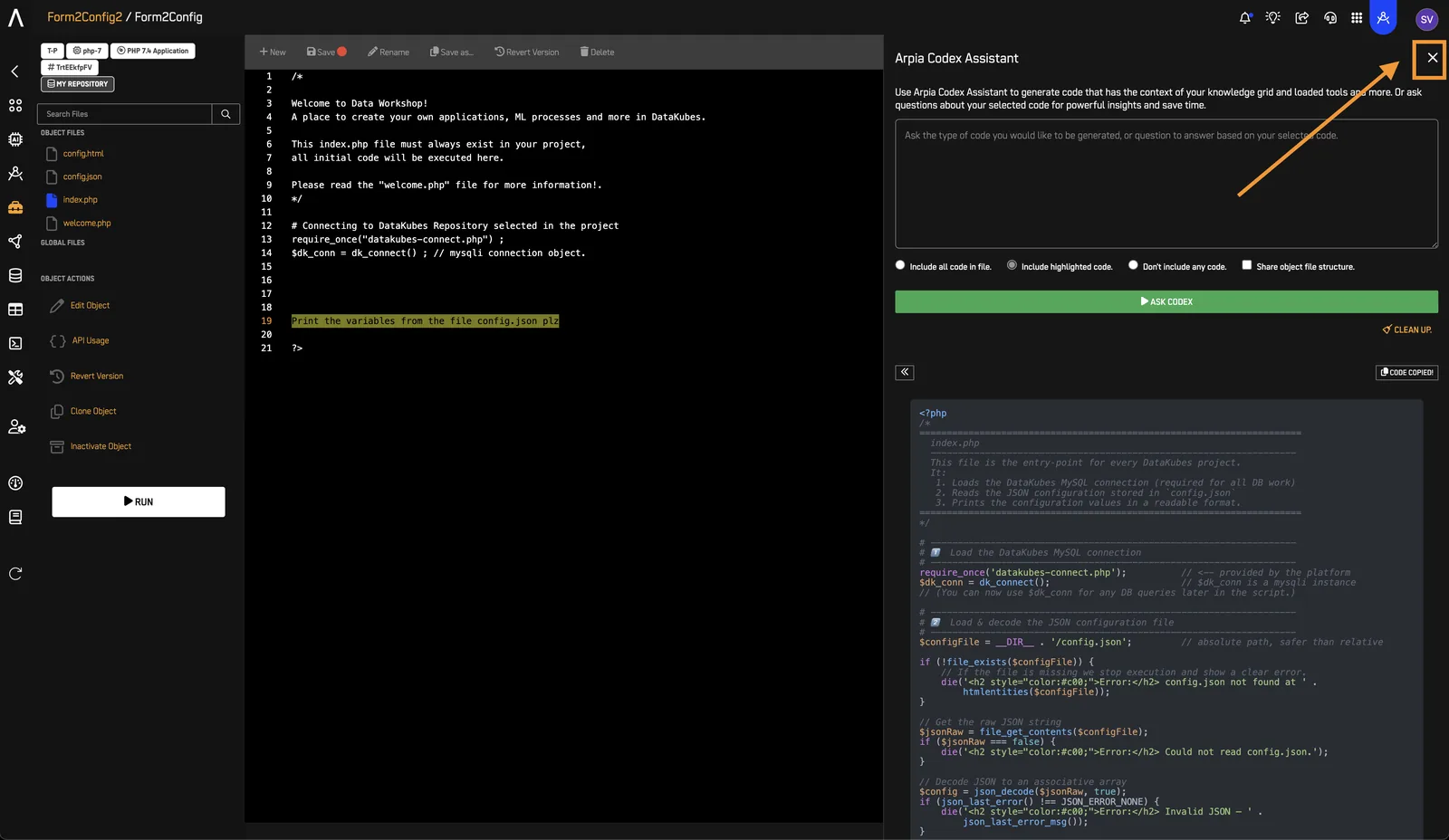
- Click X to close the Arpia Codex Assistant window.
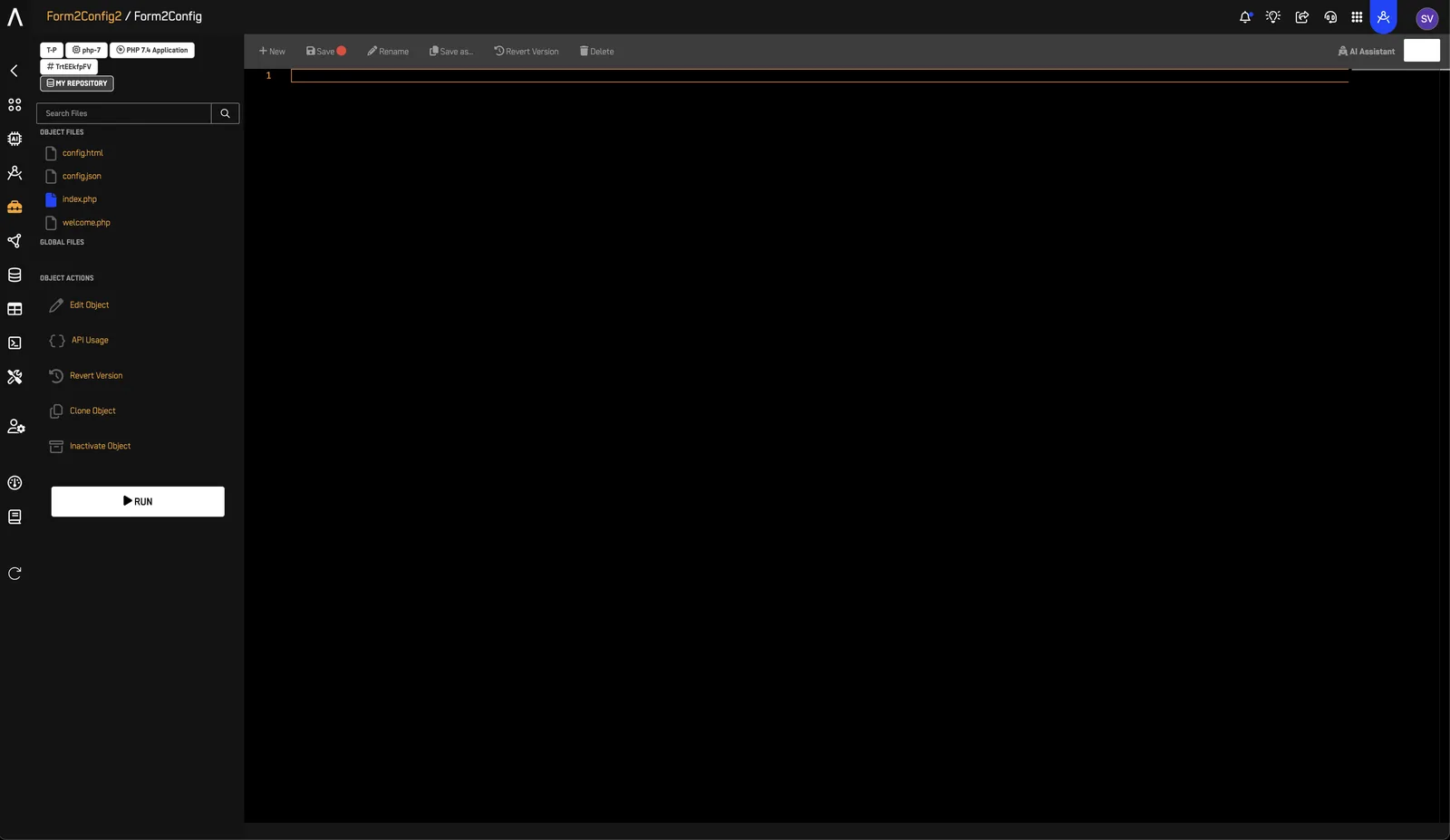
- Replace the contents of
index.php, including the text request, with the generated PHP code. Include the opening<?phptag only once.
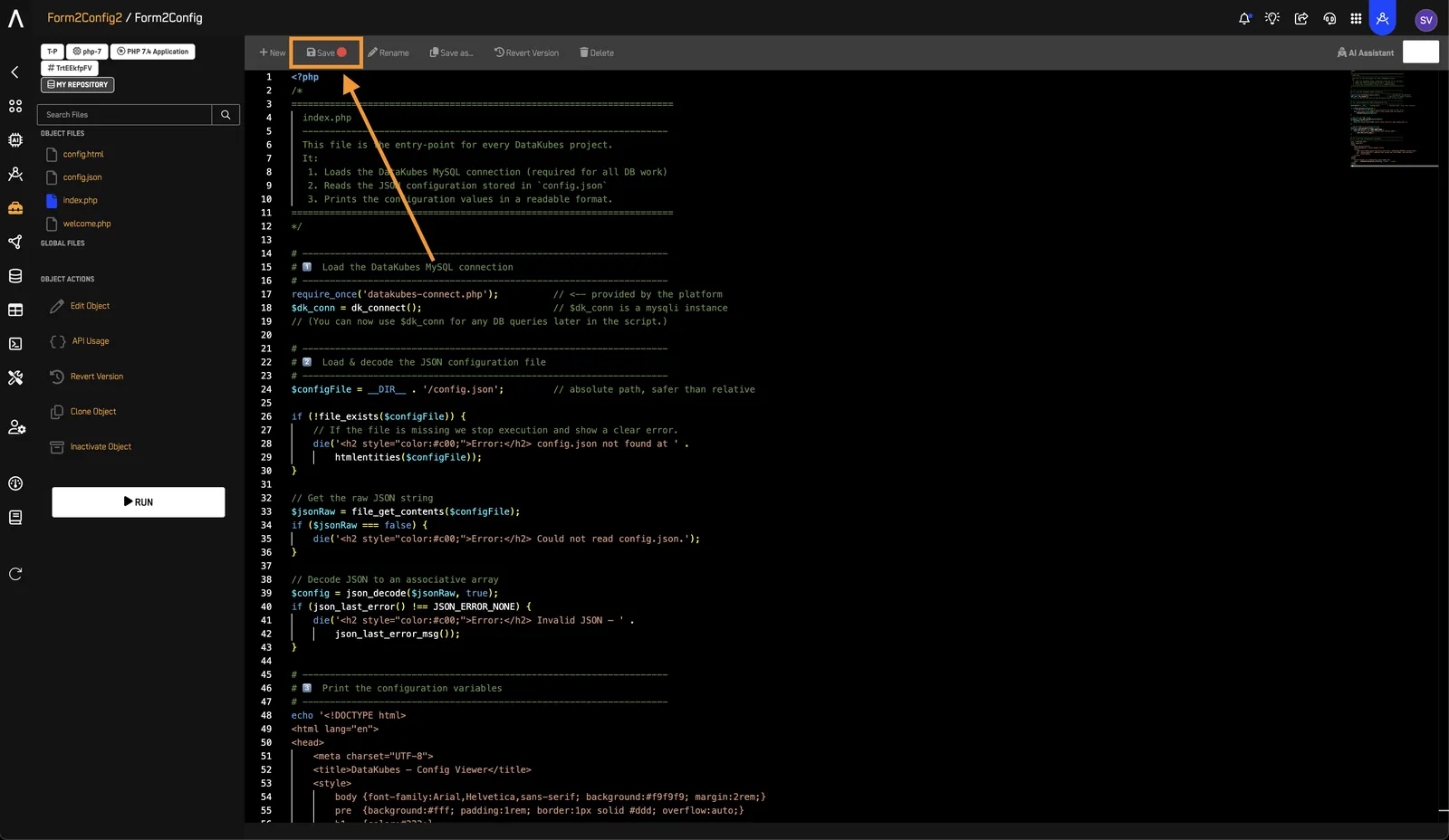
- Click Save.
7️⃣ Run the Workshop Object#
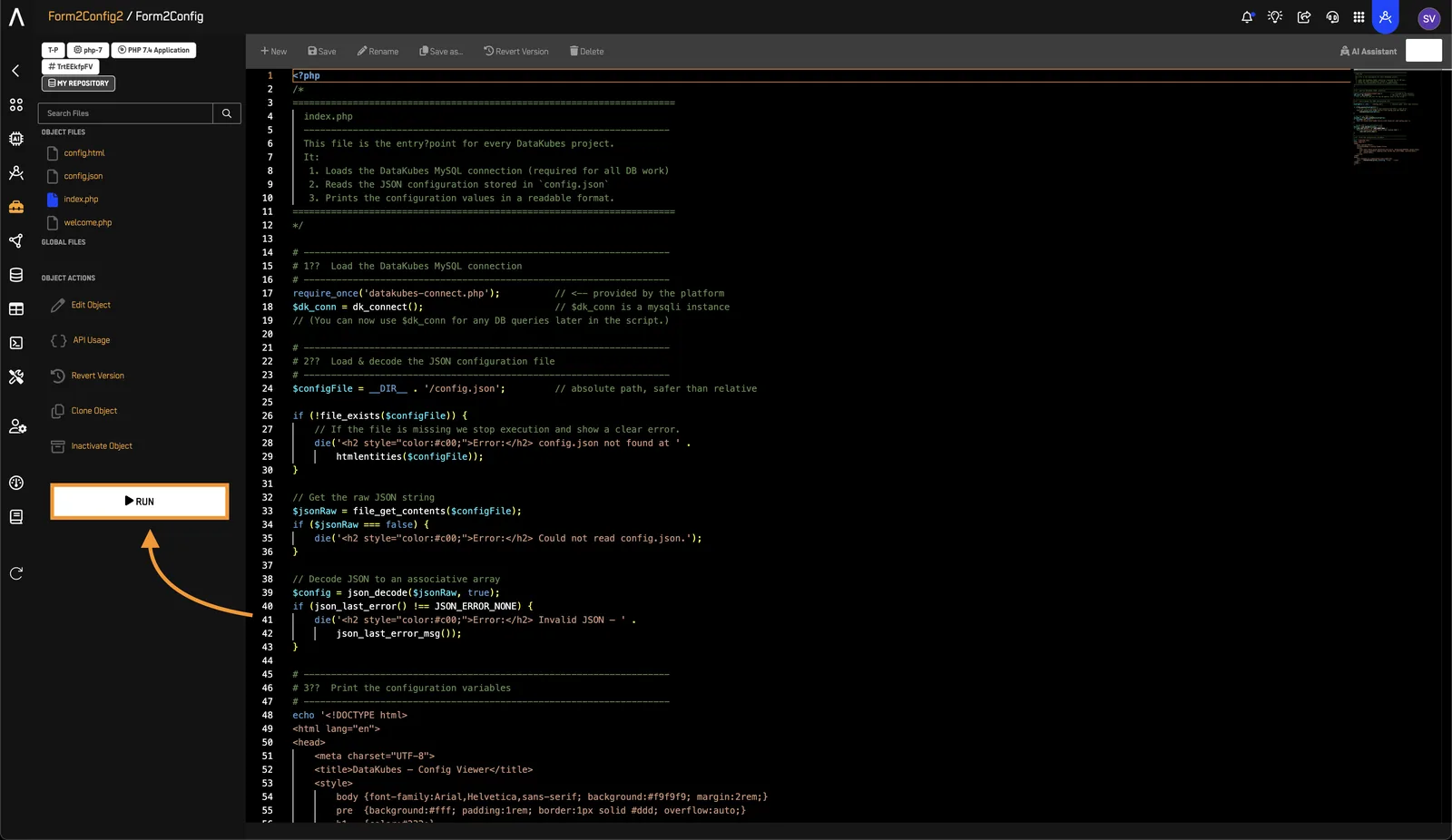
- Click Run.
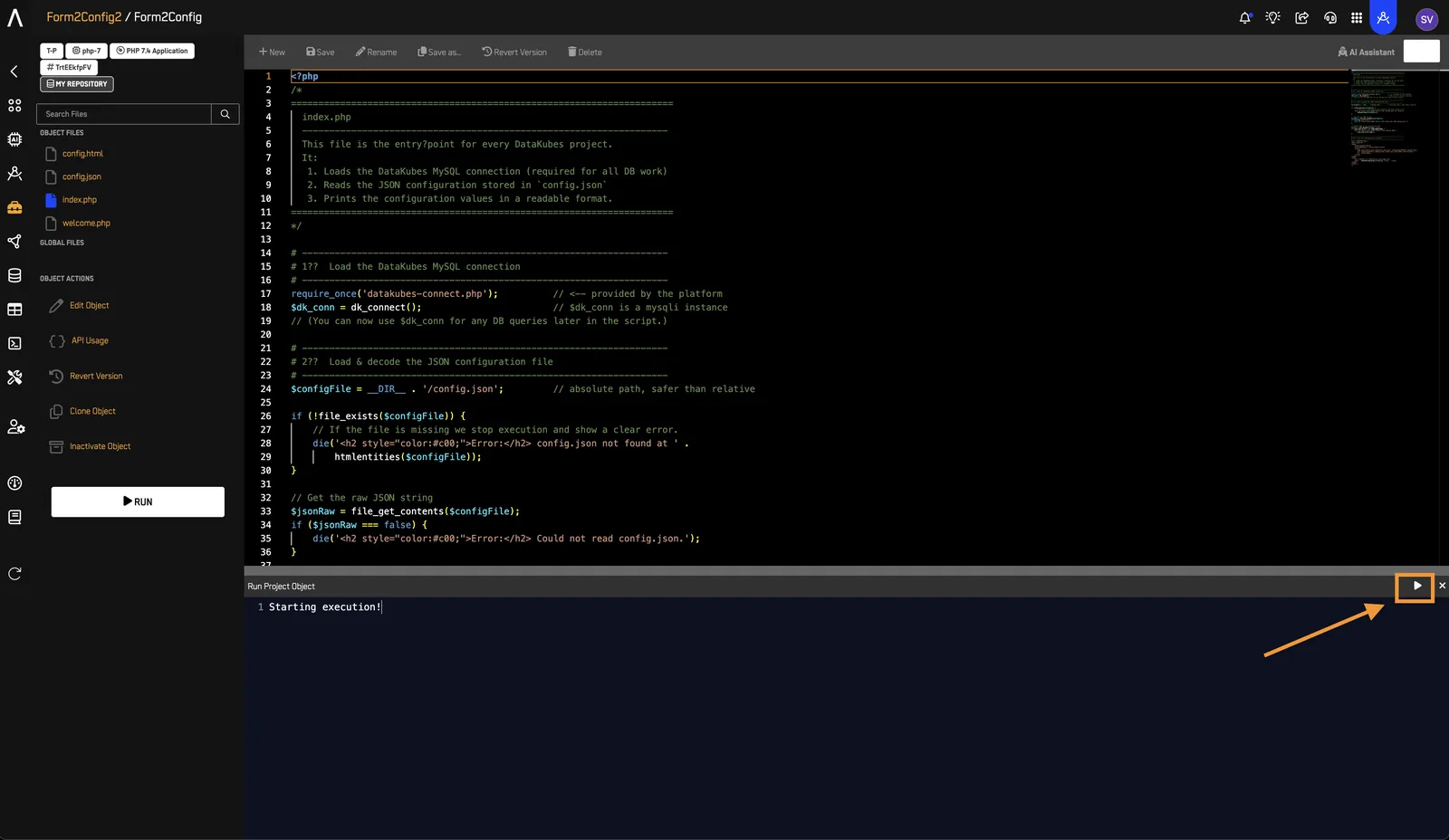
- Click Start to execute the object.
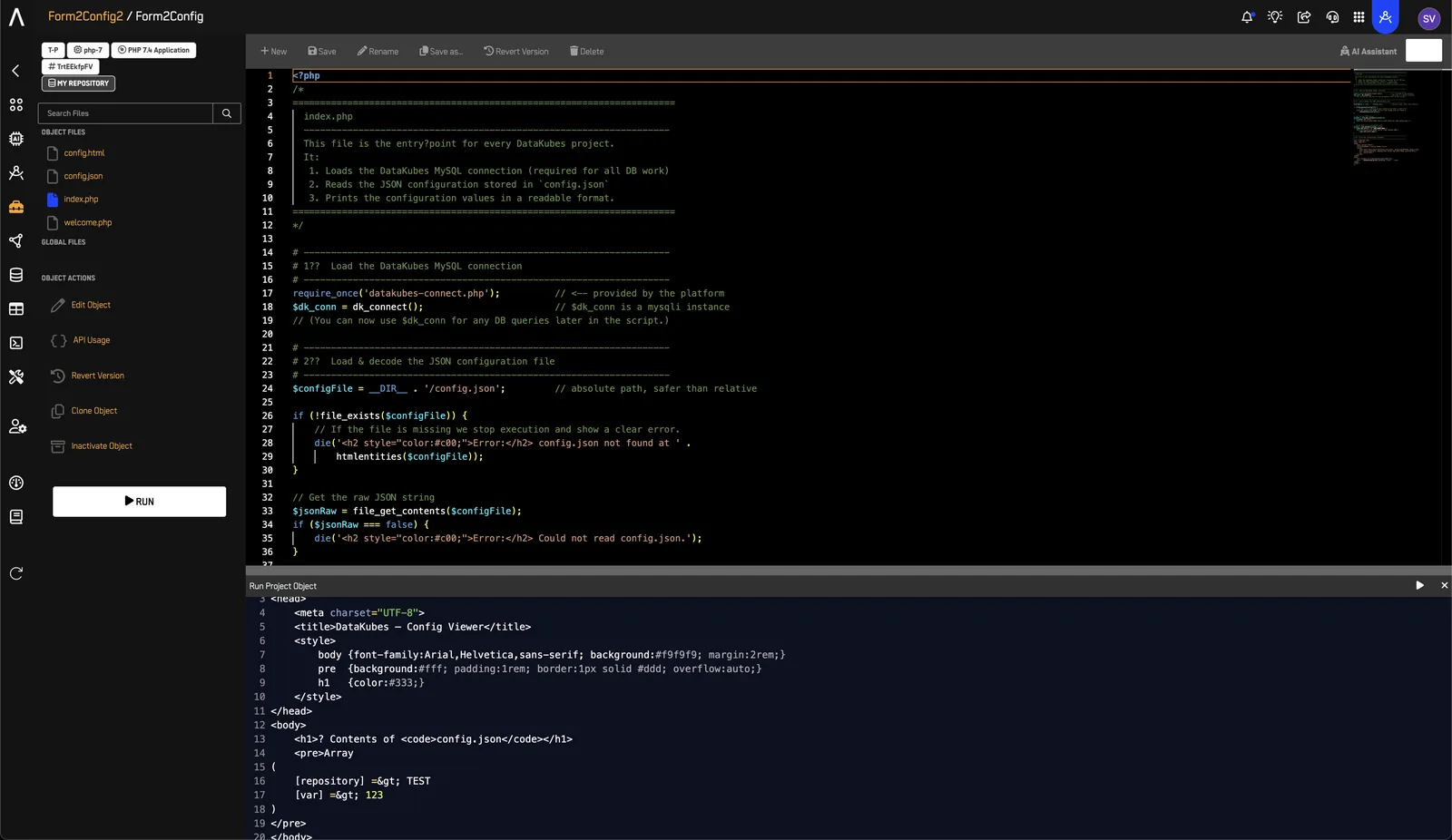
- Confirm that the output contains
repositorywith valueTESTandvarwith value123, with no PHP warnings. The HTML layout can vary because the AI Assistant generates the code.
8️⃣ Run with Option 1#
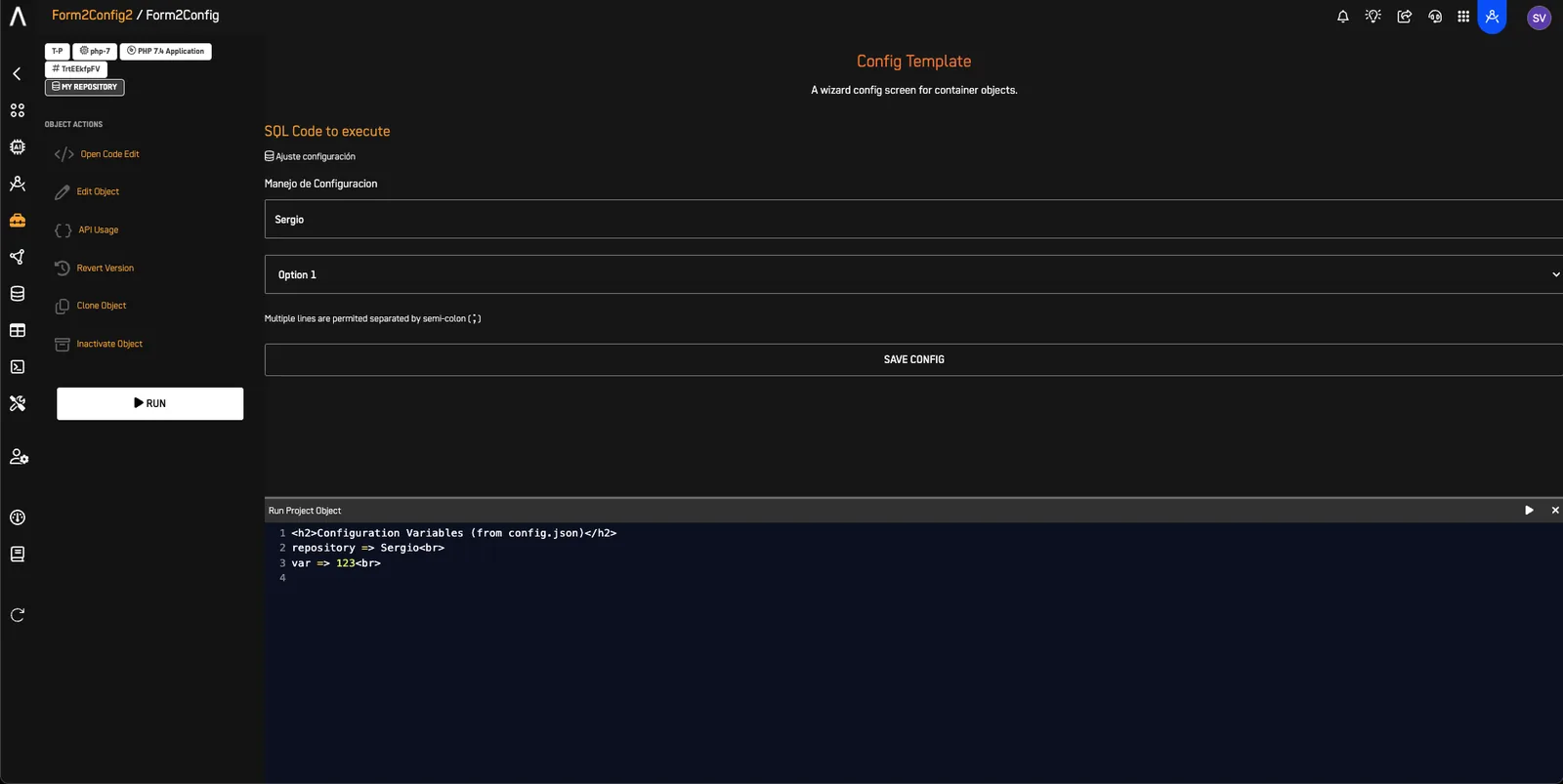
- Repeat step 5 with Repository set to
TESTand Option 1 selected. Click Save Config. - Run the object as described in step 7.
Expected output: The configuration contains repository: TEST and var: 123. The following HTML illustrates one possible generated layout.
<!DOCTYPE html>
<html lang="en">
<head>
<meta charset="UTF-8">
<title>DataKubes – Config Viewer</title>
<style>
body {font-family:Arial,Helvetica,sans-serif; background:#f9f9f9; margin:2rem;}
pre {background:#fff; padding:1rem; border:1px solid #ddd; overflow:auto;}
h1 {color:#333;}
</style>
</head>
<body>
<h1>? Contents of <code>config.json</code></h1>
<pre>Array
(
[repository] => TEST
[var] => 123
)
</pre>
</body>
</html>
9️⃣ Run with Option 2#
- Repeat step 5, but select Option 2 (
value="12233") and keep Repository set toTEST. Click Save Config. - Open
config.jsonand confirm thatvaris"12233". - Run the object as described in step 7.
Expected output: The configuration contains repository: TEST and var: 12233. The following HTML illustrates one possible generated layout.
<!DOCTYPE html>
<html lang="en">
<head>
<meta charset="UTF-8">
<title>DataKubes – Config Viewer</title>
<style>
body {font-family:Arial,Helvetica,sans-serif; background:#f9f9f9; margin:2rem;}
pre {background:#fff; padding:1rem; border:1px solid #ddd; overflow:auto;}
h1 {color:#333;}
</style>
</head>
<body>
<h1>? Contents of <code>config.json</code></h1>
<pre>Array
(
[repository] => TEST
[var] => 12233
)
</pre>
</body>
</html>
Troubleshooting#
| Symptom | Action |
|---|---|
config.json is missing |
Open the object's configuration form, enter the values from step 5, and click Save Config. Return through Open Code Edit and check for the file. |
| The form does not restore saved values | Check the browser console for JavaScript errors. Confirm that jQuery is available, the fields are inside #workshop-config, and config_opts contains the saved values. If config_opts is absent, the template keeps its defaults; the fallback does not load config.json. |
| The output still shows Option 1 | Select Option 2, click Save Config, and confirm that config.json contains "var": "12233" before running again. |
| PHP reports invalid JSON or missing fields | Compare config.json with the example in step 5. Save the configuration form again, then confirm that both repository and var exist. |
| PHP displays the text request or reports a syntax error | Remove the request text from index.php. Paste only the generated PHP code, check the PHP opening tag, and save before running again. |
| The output is blank or reports a file-read error | Confirm that config.json exists in the same Workshop object. Review the generated code's file path and error handling before running again. |
Summary#
Your Workshop object now:
- Collects inputs through the HTML form in
config.html. - Saves values in
config.json. - Reads and displays the saved values through
index.php.
Optional: Apply the configuration pattern#
Use the same pattern for data transformation pipelines, API integration settings, AI model parameters, or backend processes configured through a user interface.