How to use the Calendar Screen?
Step-by-Step Guide: Calendar Screen#
This guide provides detailed, sequential instructions for configuring a Calendar Screen in ARPIA. Follow these steps to transform your date-based data into an interactive calendar.
Before You Begin#
What You'll Need:#
- Repository name containing your events table
- Table name with your event data
- Knowledge Node (Main Kube) name that connects to your table
- Column names for: start date, end date, and event title
First time using Calendar Screen? Read the Calendar Screen Overview first to understand the concepts before configuring.
Step 1: Access the Screen Settings#
The Calendar Screen has two control buttons in the top-right corner:
- Screen Settings (gear icon): Opens the configuration panel.
- Preview: Shows your calendar with current settings.
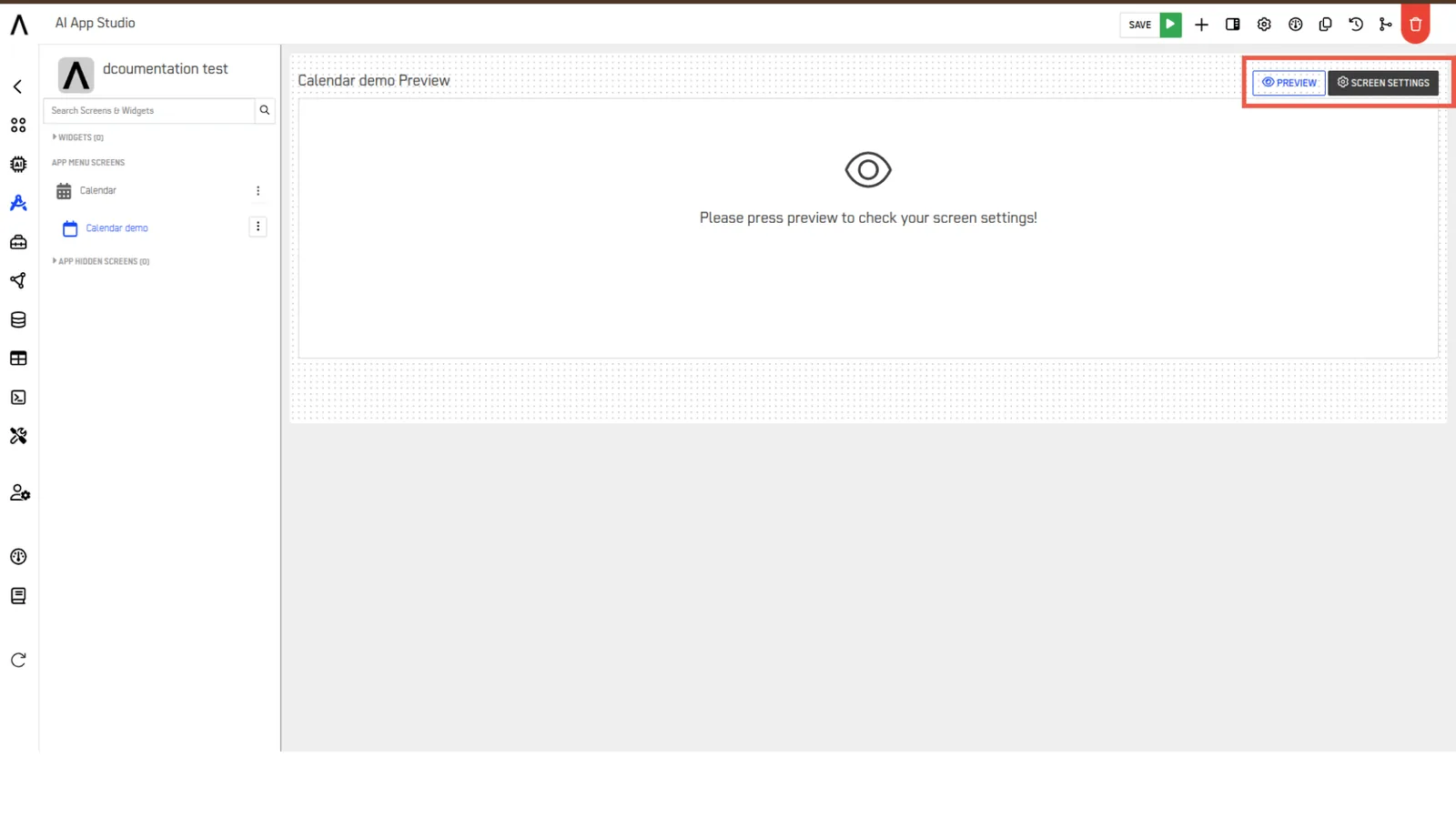
Click Screen Settings to open the configuration panel:
Understanding the Configuration Panel#
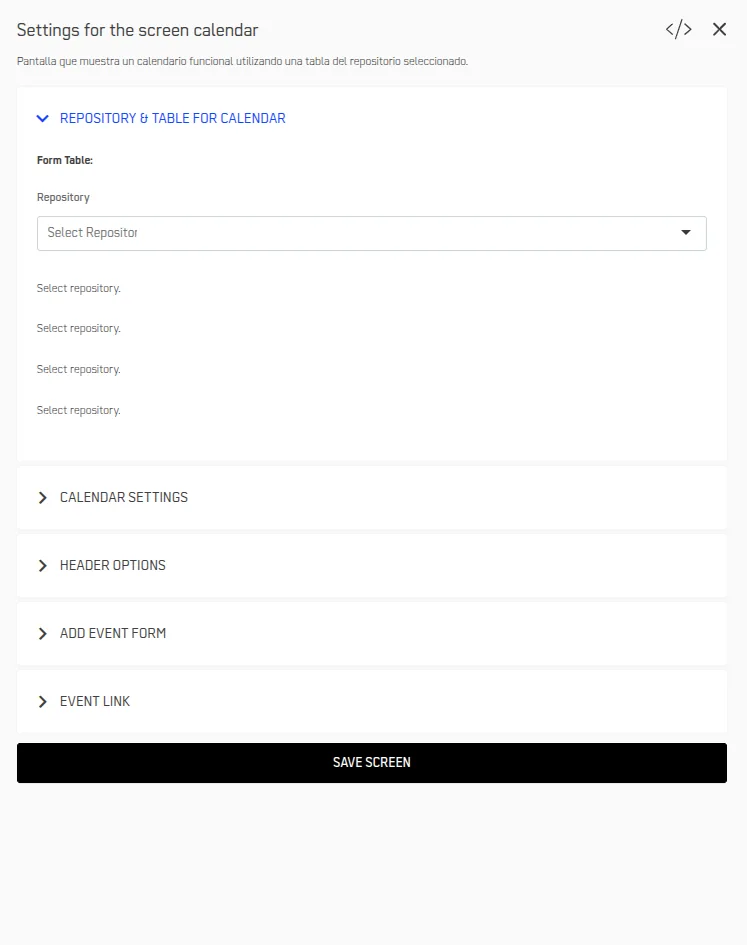
The settings panel contains 5 tabs:
| Tab | Description |
|---|---|
| Repository & Table for Calendar | Data source connection. |
| Calendar Settings | Display options and user capabilities |
| Header Options | Navigation buttons and actions |
| Add Event Form | Event creation/editing interface |
| Event Link | What happens when users click events |
Step 2: Select Repository, Table and Knowledge Node#
First, configure the data source for your calendar events.
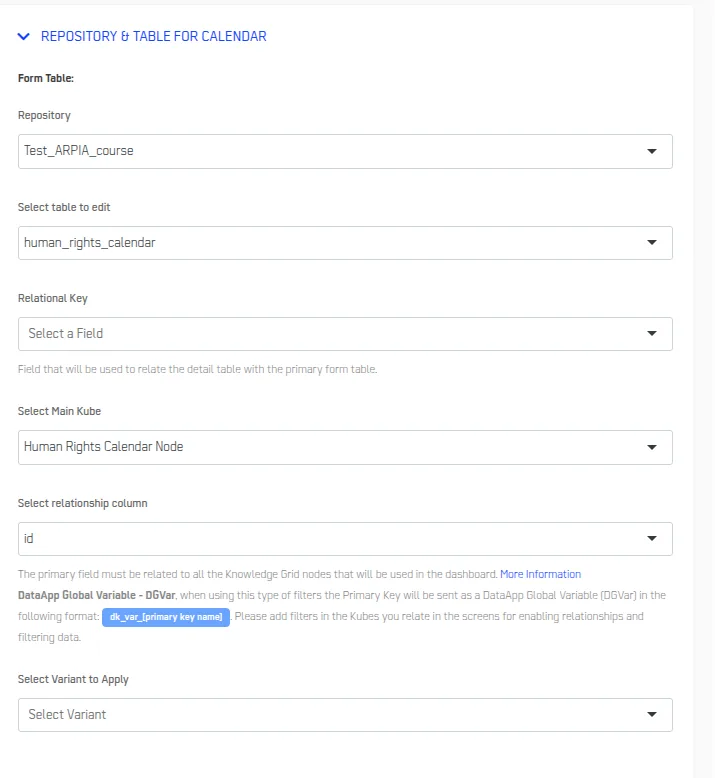
Configure Data Source#
- Select your Repository from the dropdown
- Click SAVE in the top-right corner
- Refresh your browser page
Critical Step
You MUST refresh after selecting the repository. This allows ARPIA to load available tables and nodes.
Select Main Kube (Knowledge Node)#
What is Main Kube?\ The Main Kube (Knowledge Node) is a required data access layer that connects your calendar to the table. The calendar cannot access table data directly—it must go through a Knowledge Node.
Before proceeding: Ensure you have already created a Knowledge Node for your events table. If not, create one now:
- Go to Knowledge Nodes section in ARPIA
- Create a new node pointing to your events table
- Configure the node with necessary columns
- Save the node
Configure Main Kube:
- In the Select Main Kube dropdown, select your Knowledge Node
- Click SAVE
- Refresh your browser page
- Return to Screen Settings
🚧 Important: Without a Main Kube selected, your calendar will not be able to display any events.
Select Your Table#
- In the Select table to edit dropdown, select your events table
- Click SAVE
- Refresh your browser page again
- Return to Screen Settings
Critical Step: You MUST refresh after selecting the table. This loads the specific columns you'll map in Step 3.
Optional: Configure Relational Key#
What is Relation Key? Links your events table to a related detail table through the Knowledge Node. For example, linking an "Events" table to an "Event_Details" table.
When to use it:
- You have supplementary information in another table
- You need to display or edit related records
- You're building a complex event management system
When to skip it:
- All your event information is in one table
- You're building a simple calendar
- You're just getting started
If using Relational Key:#
- Select the Relational Key dropdown
- Choose the column that links to your detail table
- In Select relationship column, choose the primary field
- Click SAVE
Step 3: Configure Calendar Settings#
Click the Calendar Settings tab to configure how your calendar displays event data.
Configure Requiered Fields
These four fields are required for your calendar to work:
| Field | Description |
|---|---|
| Start Calendar in: | Choose default view: Month, Week, Day, or List. |
| Event Start Date Column: | Column with start date/time |
| Event End Date Column: | Column with end date/time |
| Event Title Column: | Column from your table that will be displayed as the event title on the calendar. |
Click the Preview button (top-right corner).
You should now see your events on the calendar! If not, see Troubleshooting below.
Configure Optional Display Settings#
Display Options:
| Field | Description | Recommended Setting |
|---|---|---|
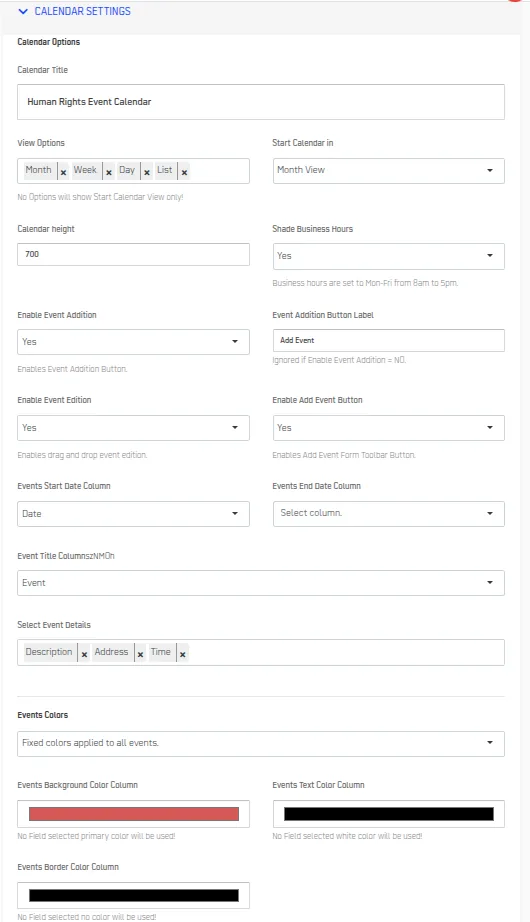
| Calendar Title (1) | Header text above calendar | Your app name or "Events Calendar" |
| View Options (2) | Let users switch views | Enable Month, Week, Day, List |
| Calendar Height | Display height in pixels | 950 (default) or 1000 for more space |
| Shade Business Hours | Highlight Mon-Fri 8 AM-5 PM | Enable for business schedules |
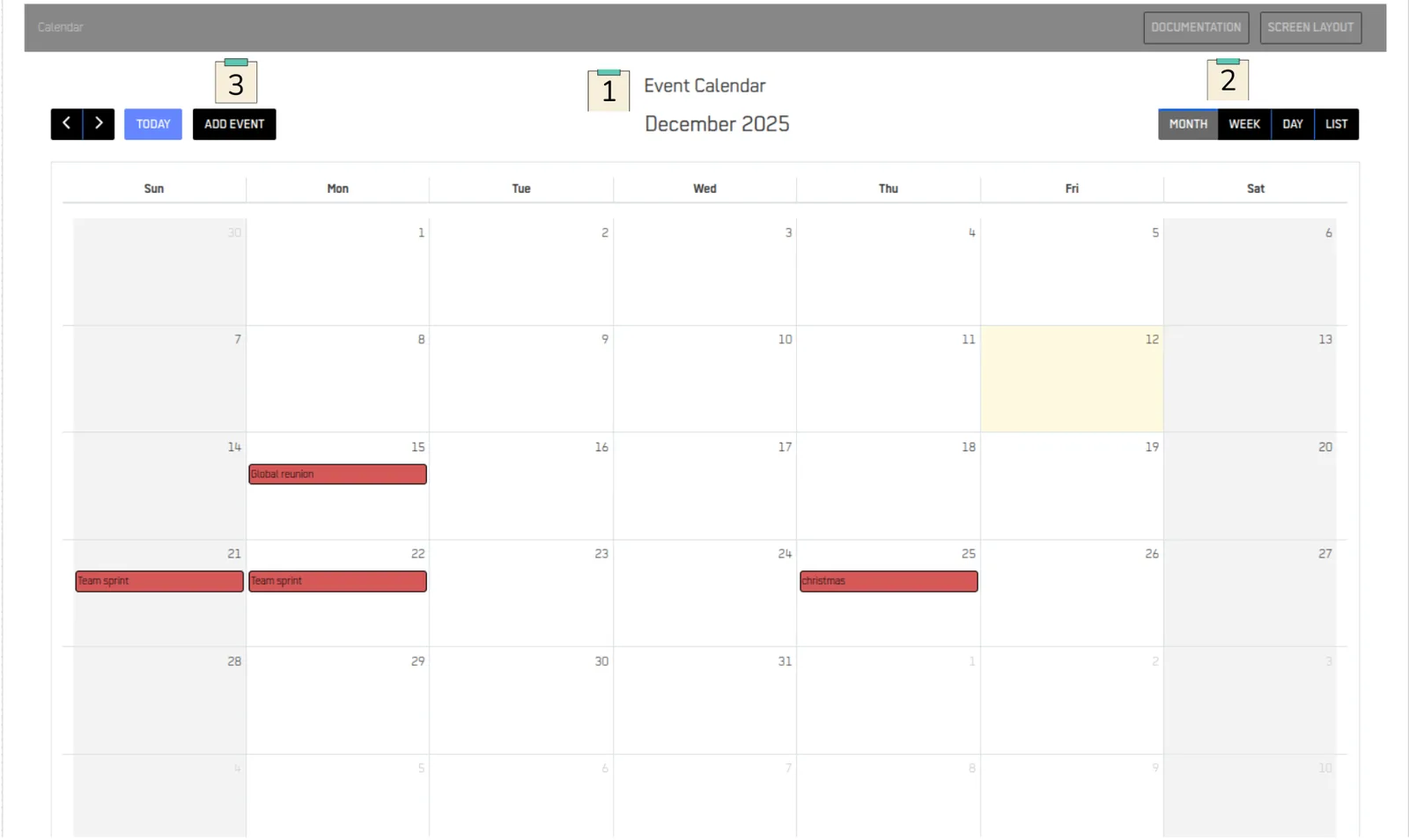
Interaction Options
| Field | Purpose | When to Enable |
|---|---|---|
| Enable Event Addition | Let users create events | When users need to add events |
| Event Addition Button Label(3) | Button Text | Change to "+ New Event" or "+ Add" |
| Enable Event Edition | Allow dra g-and-drop rescheduling | When users need to move events |
| Enable Add Event Button | Show add button in toolbar | Almost always (if addition enabled) |
Event Details Display
| Field | Purpose | Example |
|---|---|---|
| Select Event Details | Additional fields to show in popup | Choose fields like "venue", "coordinator", "status" |
Color Configuration
| Field | Purpose | Notes |
|---|---|---|
| Events Colors | Color scheme for events | Fixed colors or dynamic based on data |
| Events Background Color Column | Column to determine background color | Optional customization |
| Events Text Color Column | Column to determine text color | Optional customization |
| Events Border Color Column | Column to determine border color | Optional customization |
Example configuration:
Step 4: Configure Header Options#
Customize the calendar header and add action buttons that navigate to other screens or external URLs.
Enable Header#
- Find Show Header Options
- Select Yes
- The header section will appear above your calendar
Add Action Buttons#
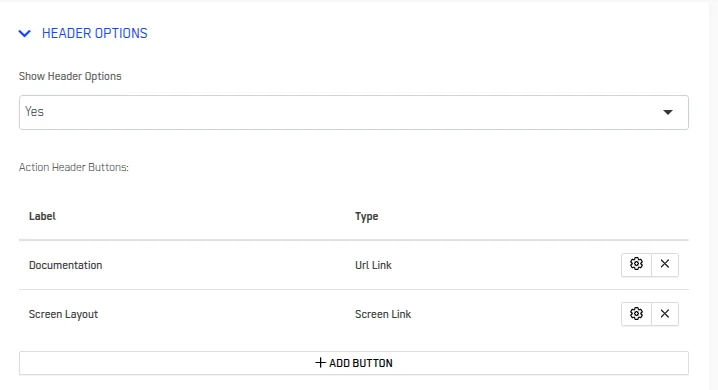
Click + ADD BUTTON to create a new button.
For Screen Link Buttons
- Label of Button : Enter button text (e.g., "View All Events")
- Button Type: Select "Screen Link"
- Select Screen: Choose destination screen from dropdown
- Click APPLY
For URL Link Buttons
- Label of Button: Enter button text (e.g., "Export Calendar")
- Button Type: Select "URL Link"
- URL to link: Enter full URL (e.g., https://yourcompany.com/export)
Manage Existing Buttons#
All created buttons appear in the Action Header Buttons list.\ For each button, you can:
- Edit: Click the gear icon → Modify settings → APPLY
- Delete: Click the X icon → Confirm deletion
Button Recommendations#
Useful button combinations:
For Event Management
- "View All Events" (List Screen)
- "Reports" (Dashboard Screen)
- "Settings" (Configuration Screen)
For External Integration
- "Export to CSV" (URL to export function)
- "Help Guide" (URL to documentation)
Step 5: Design the Add Event Form#
This is where you design the form that appears when users add or edit calendar events. The form builder uses fields from your Knowledge Node.
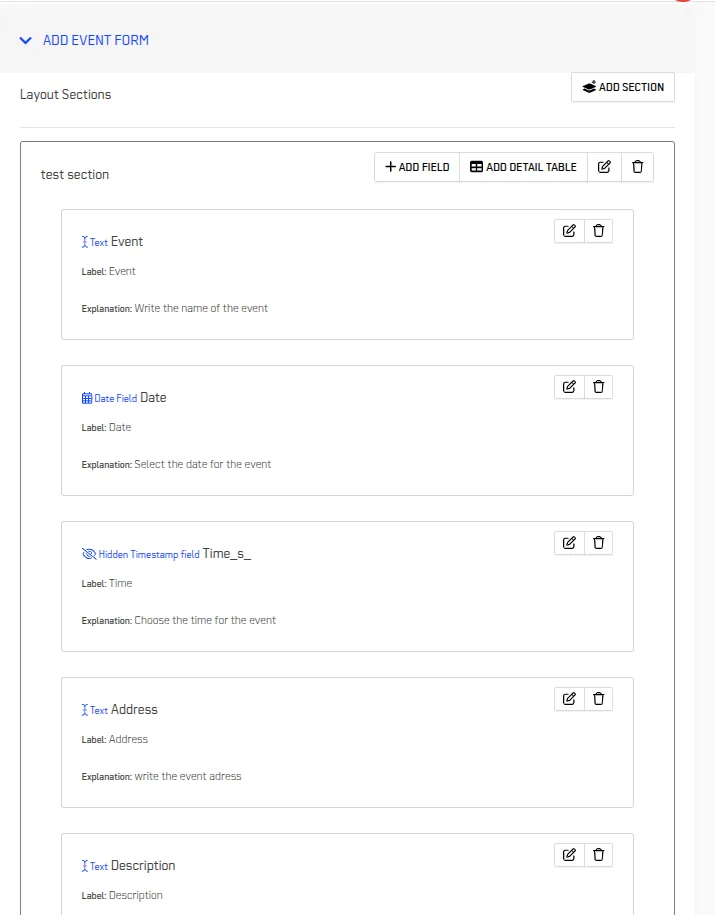
When you add a field, you'll configure these properties:
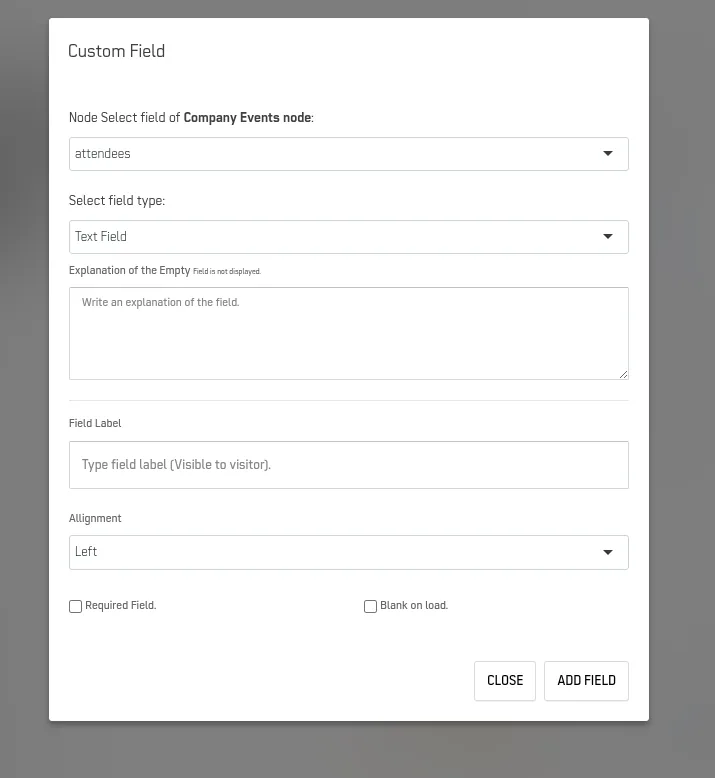
| Property | Purpose | Example |
|---|---|---|
| Node Select field | Choose which column from your Knowledge Node | event_name, start_datetime, venue |
| Select field type | Type of input control | Text Field, Date Time, Number, Dropdown, Text Area |
| Explanation of the Empty | Help text shown when field is empty | "Enter the event title" |
| Field Label | Label visible to users | "Event Name", "Start Date & Time" |
| Alignment | Field alignment | Left, Center, Right |
| Required Field | Whether field must be filled | Check for required fields |
| Blank on load | Whether field starts empty | Uncheck to show existing data |
Managing Fields#
- Reorder: Drag fields up/down to change order
- Edit: Click gear icon on any field
- Delete: Click X icon to remove field
Essential Fields to Include#
Minimum Required Fields:
- Event Title Field
- Node field: event_name
- Field type: Text Field
- Field Label: "Event Name"
- Required Field: ✓ Checked
- Start Date/Time Field
- Node field: start_datetime
- Field type: Date Time
- Field Label: "Start Date & Time"
- Required Field: ✓ Checked
- End Date/Time Field
- Node field: end_datetime
- Field type: Date Time
- Field Label: "End Date & Time"
- Required Field: ✓ Checked
Recommended Additional Fields:
- Event Type (dropdown or text)
- Venue/Location (text field)
- Description/Notes (text area)
- Status (dropdown or text)
- Coordinator (text field or dropdown)
Form Organization Best Practices#
- Group Related Fields
- Use Clear Labels
- Add Helpful Empty Explanations
Note: For detailed information on form design capabilities, refer to the Form Layout documentation.
Step 6: Configure Event Click Behavior#
Define what happens when a user clicks on a calendar event. Four options are available:
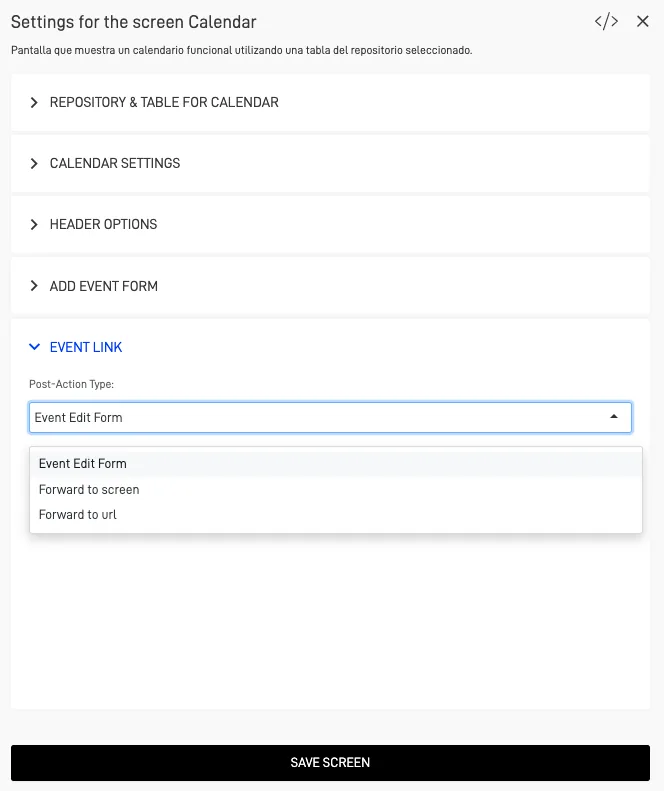
Option 1: Event Edit Form#
Opens the edit form you designed in the "Add Event Form" settings tab. Users can modify event details directly.
When to use:
- Users frequently need to edit events
- Quick updates are the primary use case
- You don't have a separate detail screen
How to configure:
- Select Event Edit Form
- Click SAVE
Option 2: Forward to Screen#
Navigates the user to a specified screen within the application.
When to use:
- You have a detail screen with comprehensive event information
- Users need to see related data (attendees, documents, history)
- You want to provide multiple actions (edit, delete, duplicate)
How to configure:
- Select Forward to Screen
- Primary Key Handling: Choose one: * As a relationship: Establishes relational link * Not sent: Just navigates without passing ID
- Select Screen: Choose destination screen from dropdown
- Click Save
Option 3: Open Screen in right sidebar#
Shows the target screen in a sidebar panel while keeping the calendar visible
When to use:
- Users need to reference the calendar while viewing details
- You want to avoid full navigation away from calendar
- Quick reference is the primary need
How to configure:
- Select Open Screen in right sidebar
- Primary Key Handling: Choose one: * As a relationship: Establishes relational link * Not sent: Just navigates without passing ID
- Select Screen: Choose destination screen from dropdown
Option 4: Forward to URL#
Redirects the user to an external URL.
When to use:
- You're integrating with an external system
- Event details live outside ARPIA
- You need to trigger external processes
How to configure:
- Select Forward to URL
- URL: Enter the full URL
- Click SAVE
Example: https://example.com/event-details?
Troubleshooting#
Events Not Appearing#
Problem: Calendar loads but no events show.
Solutions:
- Check date format: Must be YYYY-MM-DD HH:MM:SS format
- Verify column mapping: Screen Settings → Calendar Settings → Verify start/end date columns
- Verify date range: Navigate to the date range where your events should appear
- Check permissions: Verify user has read access to the table
Calendar Not Loading After Configuration#
Problem: Blank screen or error message.
Solutions:
- Verify save and refresh: After selecting repository/table, did you save AND refresh browser?
- Verify table exists: Ensure the selected table hasn't been deleted or renamed
- Clear browser cache:
- Ctrl+Shift+Delete (Windows)
- Cmd+Shift+Delete (Mac)
- Clear cache and reload
- Check browser console for any error messages
Unable to Add or Edit Events#
Problem: Buttons don't appear or don't work.
Solutions:
- Confirm that Enable Event Addition and Enable Event Edition are enabled
- Verify that you have appropriate permissions to modify the linked table
- Check form configuration:
- All required fields included in Add Event Form?
- All required fields marked as required?
- Form field validations not too restrictive?
Event Click Does Nothing#
Problem: Clicking events has no effect.
Solutions:
- Check Event Link: Screen Settings → Event Link tab → Verify option selected
- Check destination:
- If "Forward to Screen": Does the screen exist and is it published?
- If "Forward to URL": Is the URL correct?
- Check primary key: Does your table have a primary key defined?
- Test alternative: Temporarily change Event Link to "Event Edit Form" to test basic functionality
Wrong Events Showing#
Problem: Events appear on wrong dates or times.\ Solutions:
- Check timezone: Dates might be storing in different timezone\ Verify data:
sql   SELECT event_name, start_datetime, end_datetime
   FROM your_table
   WHERE start_datetime BETWEEN '2024-12-01' AND '2024-12-31';\`
- Check column mapping: Ensure start/end columns aren't swapped
Best Practices#
✓ Start with required fields only - Add optional features after basic calendar works
✓ Use descriptive names for your Event Title Column to make events easily identifiable
✓ Use consistent date format - Always YYYY-MM-DD HH:MM:SS
✓ Keep primary key stable - Don't change event IDs after creation
✓ Enable Shade Business Hours for calendars used in business contexts\ ✓ Test event drag-and-drop functionality after enabling Enable Event Edition\ ✓ Keep the Add Event Form simple with only necessary fields to improve user experience
✓ Add helpful labels - "Event Budget (USD)" not just "Budget"