Creating a Machine Learning Model with AutoML
In this guide, you will learn how to build a Machine Learning model quickly using ARPIA's AutoML feature.
Step 1: Access the AI Workshop#
- From your Home page in the Orchestrator, navigate to the AI Workshop.
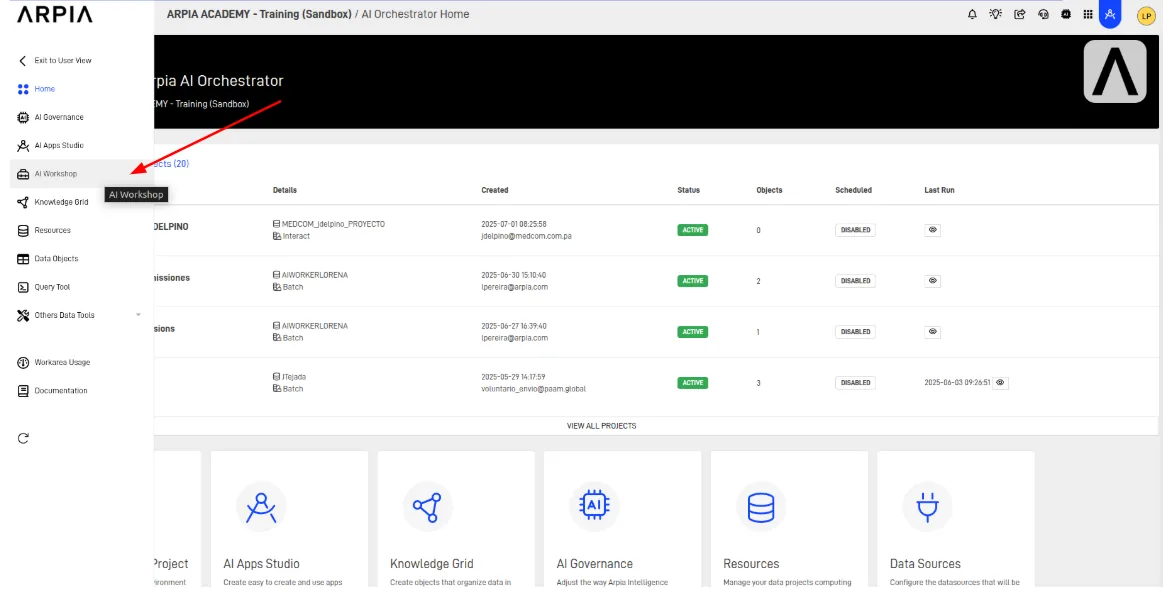
Step 2: Select a Project#
- Choose the project where you want to create the Machine Learning model.
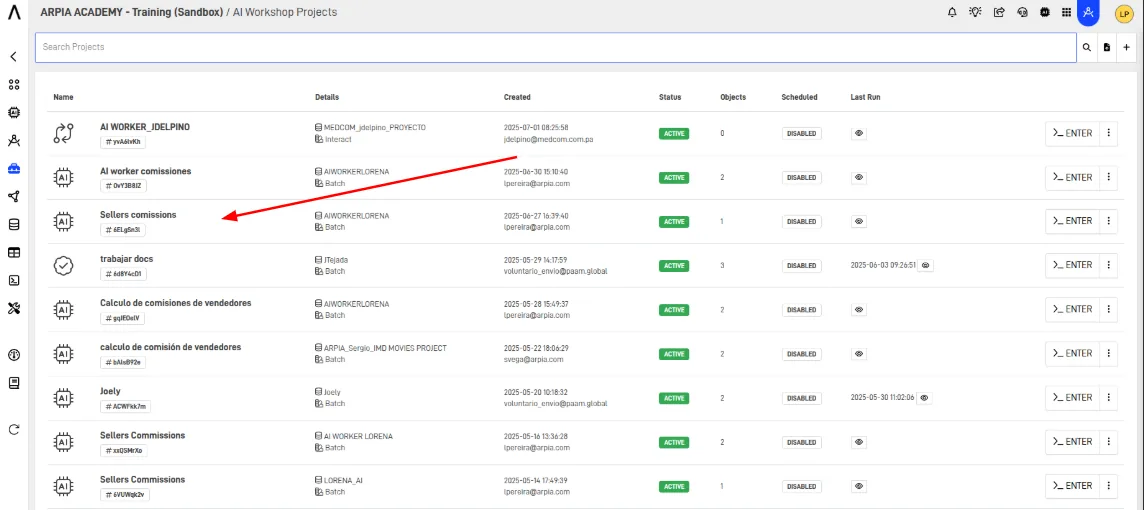
Step 3: Add a New Model#
- Click on the + button to start creating a new model.
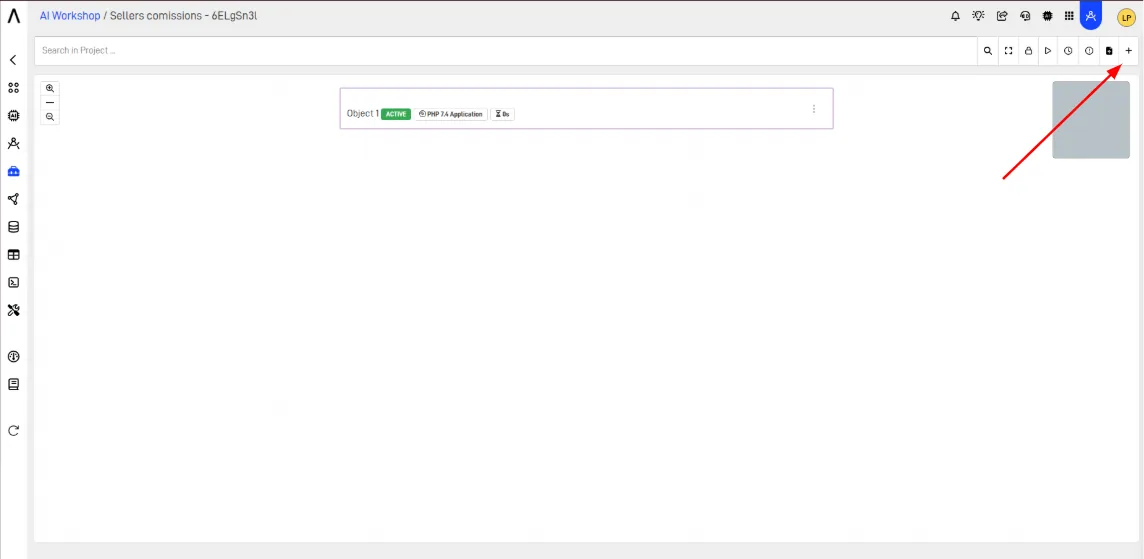
Note: Ensure that your data source and output storage structure are available and properly set up in the workshop.
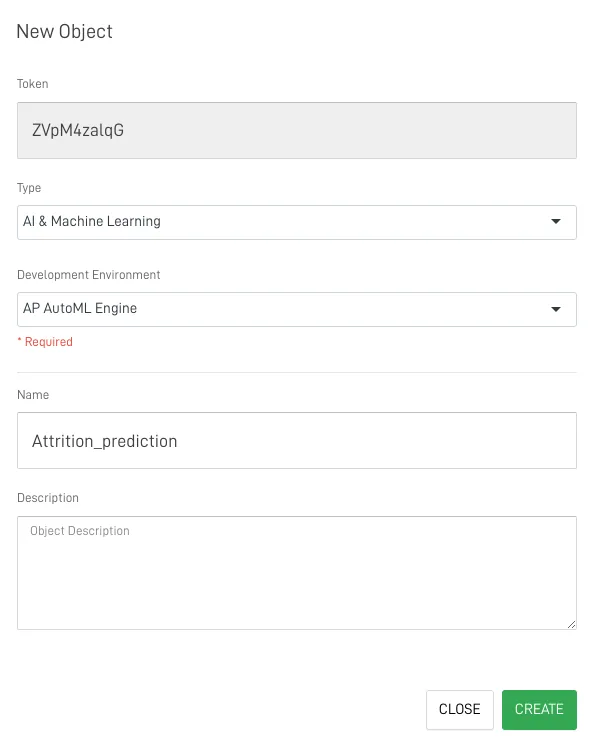
Step 4: Configure Model Details#
- In the new window: * Select Machine Learning for the Type field. * Choose DK AutoML Engine as the Development Environment. * Enter a Name and an optional description for your model.
Step 5: Configure Engine Settings#
- Set the following in the Engine Settings: * Choose preconfigured models. * Define the percentage of data for testing. * Enable dataset randomization if needed. * In AutoML Engine Status, select Metrics. * Opt to retrain on each batch if required.
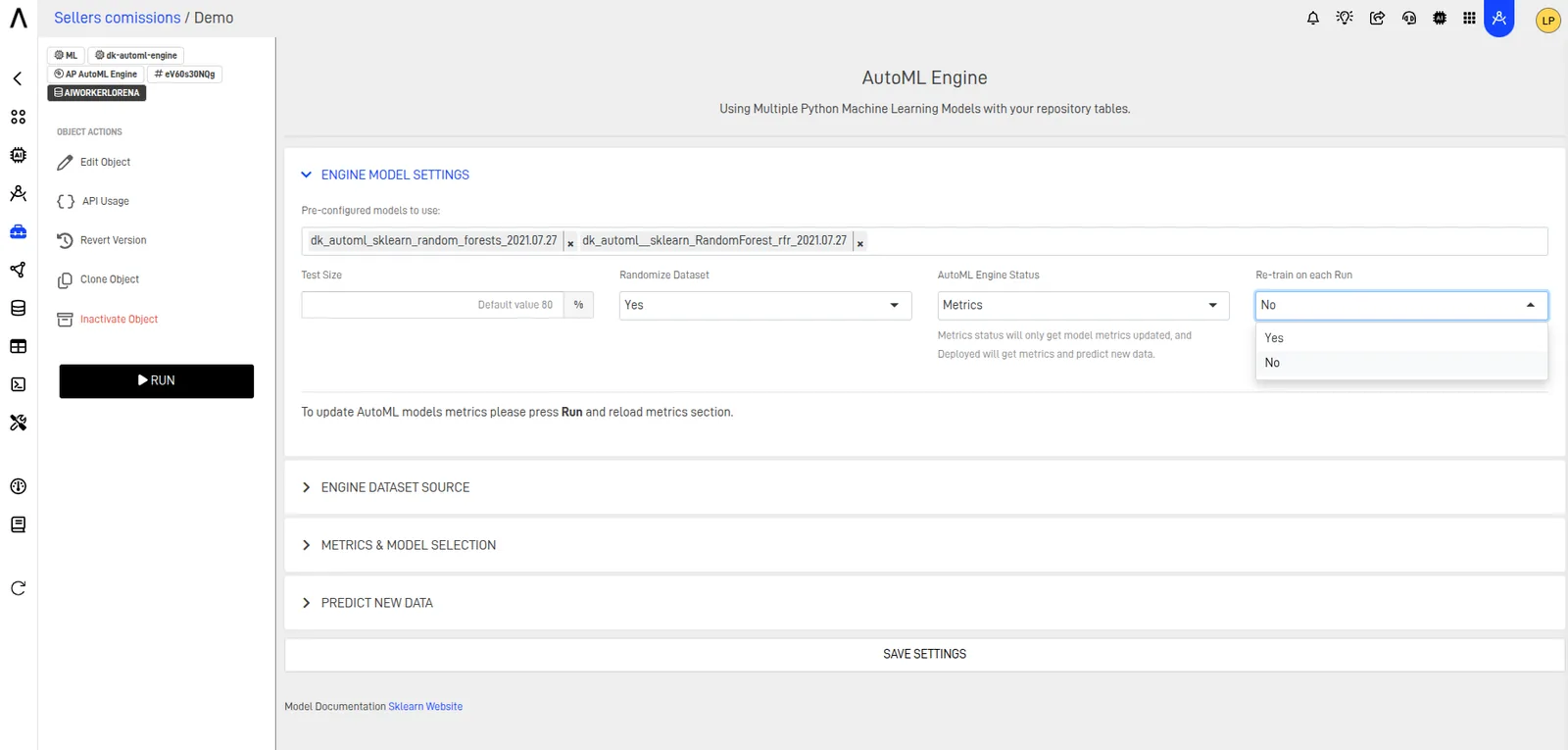
Note: ARPIA's AutoML supports both classification and regression models. Learn more in the blog: ¿Clasificación o Regresión?
Step 6: Select Dataset Source#
- In Engine Dataset Source: * Choose the table for training the model. * Select the columns to train the model (Features Columns). * Specify the column to predict (Target Column).
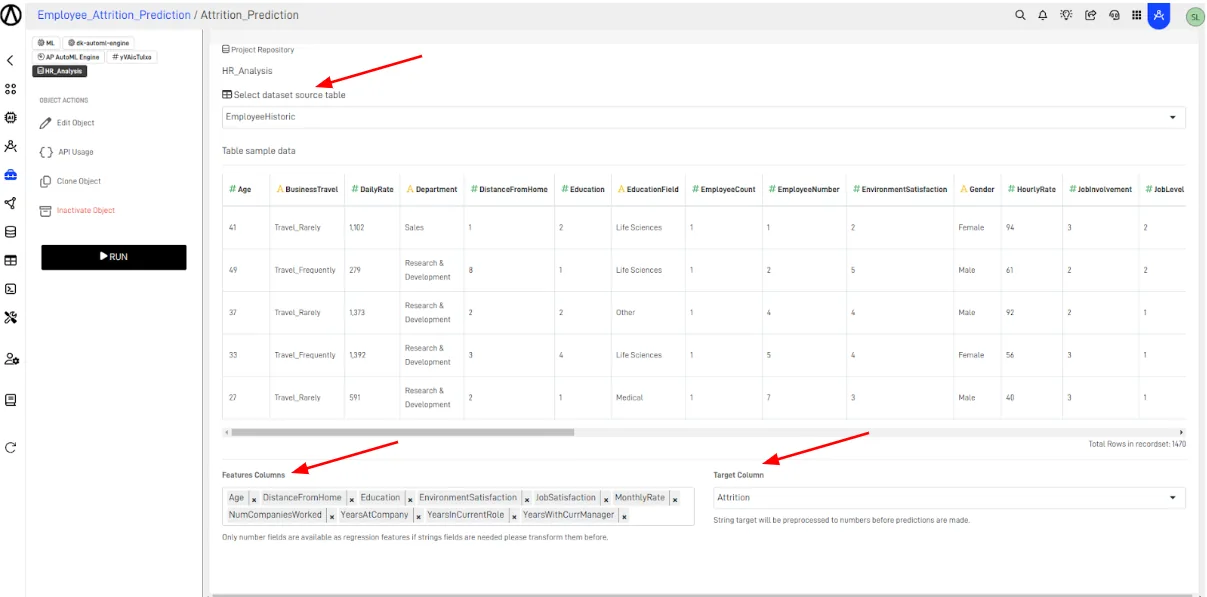
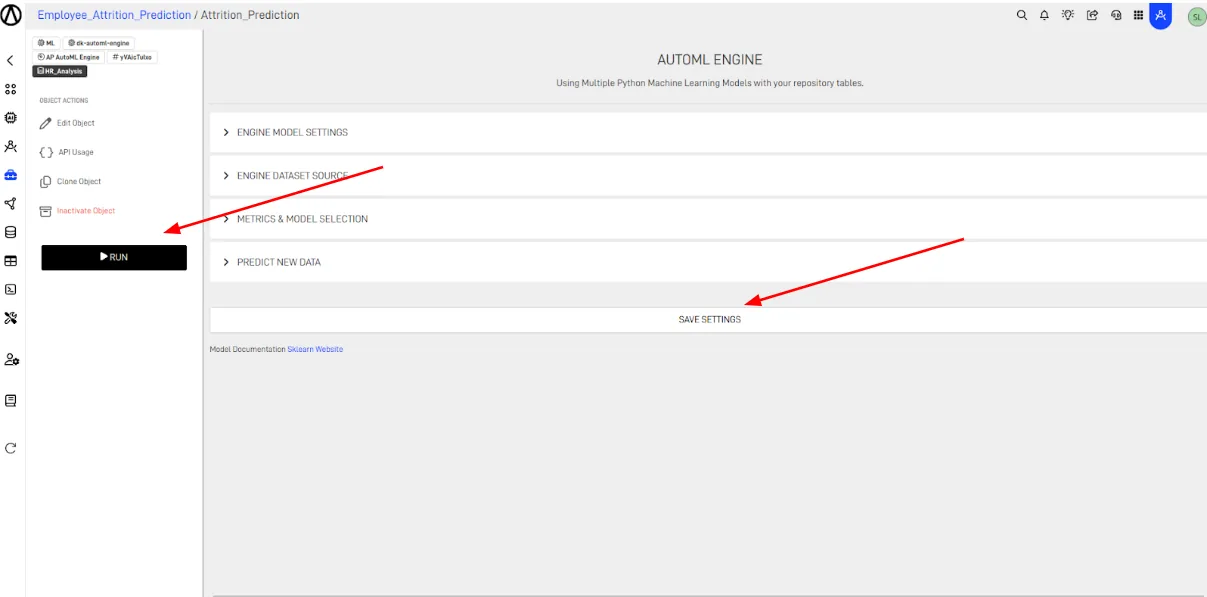
Step 7: Save and Run Settings#
- Click on SAVE SETTINGS, then click RUN to initiate the model creation process.
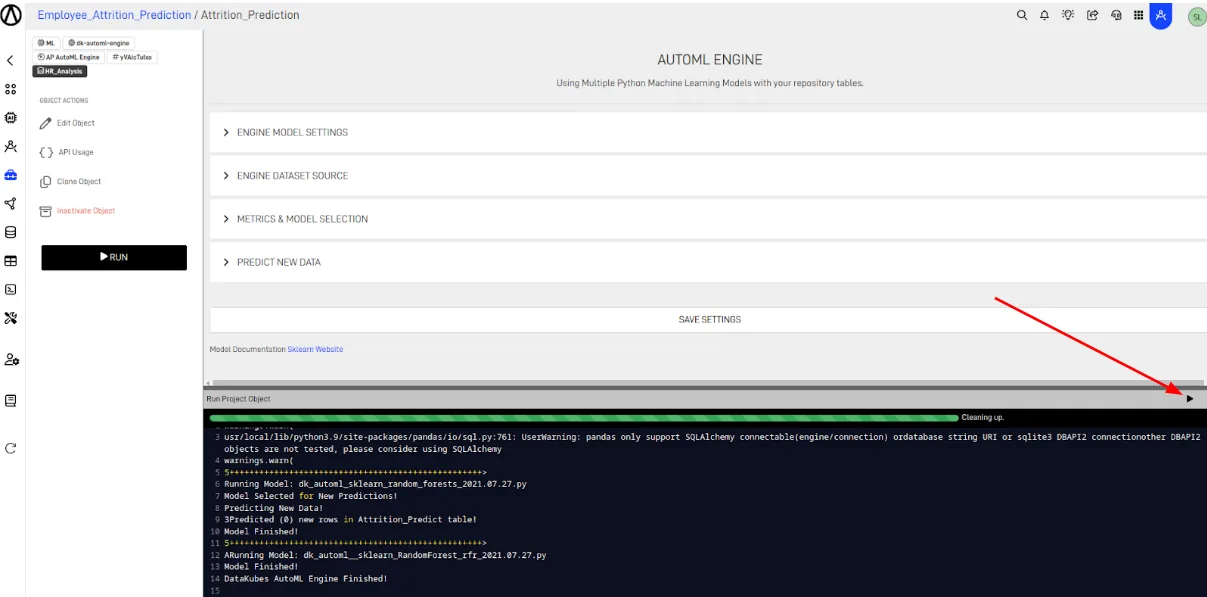
Step 8: Execute the Model#
- After clicking RUN, a new window will open. Confirm the execution by clicking on the Start button on the screen that opened. Monitor the training progress and results in the status section.
Step 9: Review Metrics#
- Once the training is complete, the Metrics section will display the evaluation metrics. Review the models and select the one with the best accuracy.
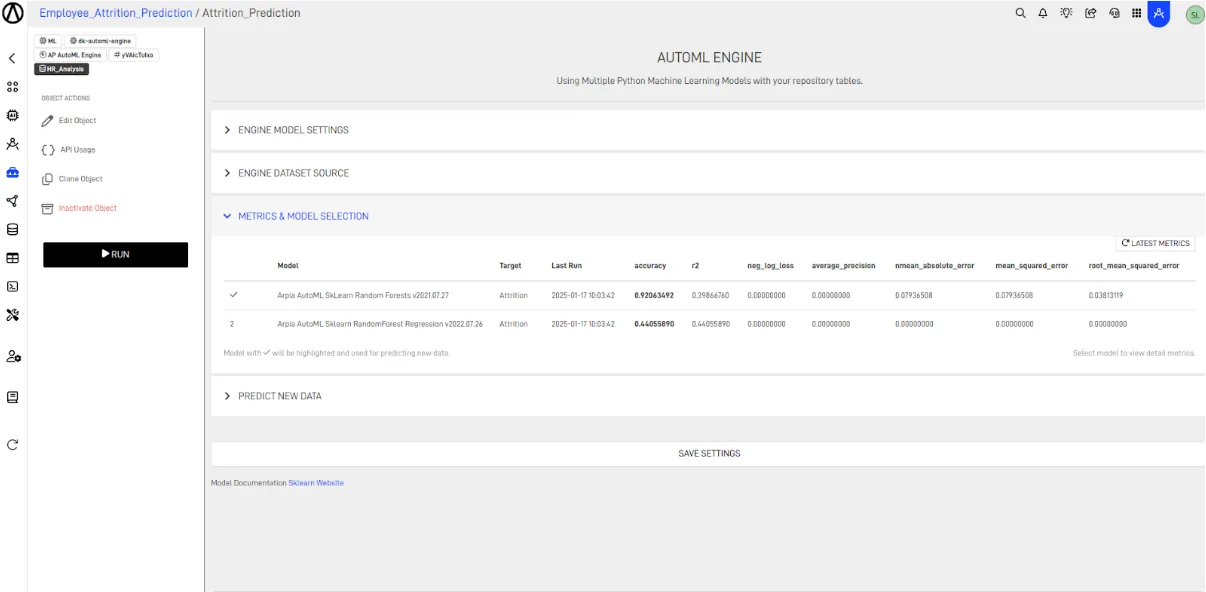
Tip: Accuracy measures how well the model performs. Values closer to 1 indicate better performance.
Step 10: Deploy the Model#
- In the ENGINE SETTINGS section, update AutoML Engine Status to Deployed.
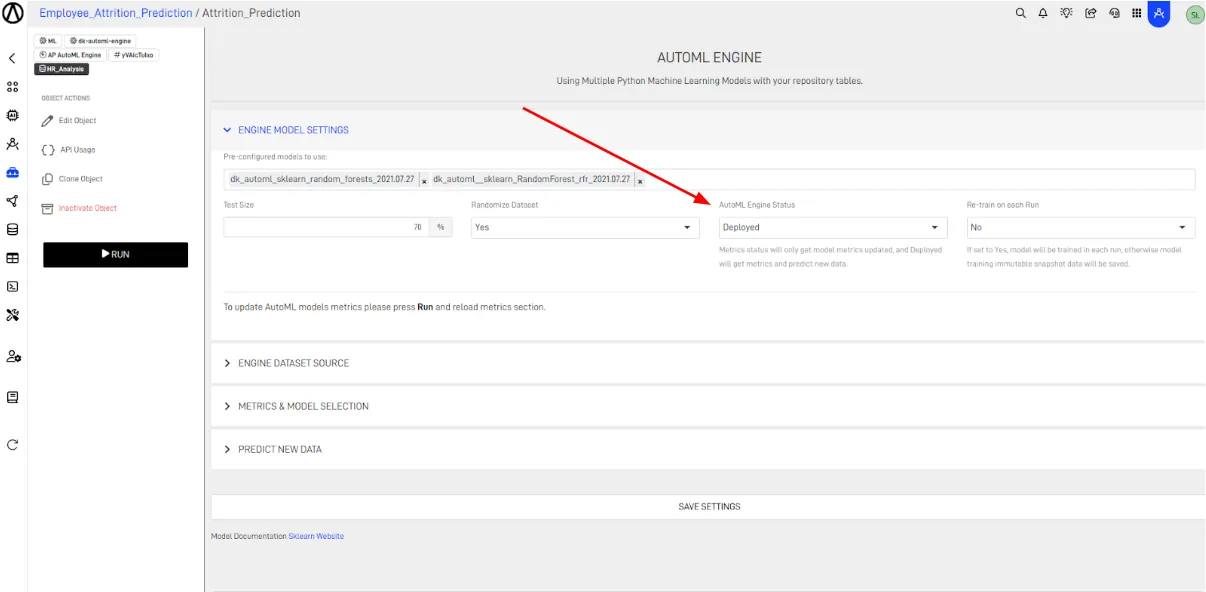
Step 11: Save and Execute Deployment#
- Click SAVE SETTINGS and then RUN to deploy the model.
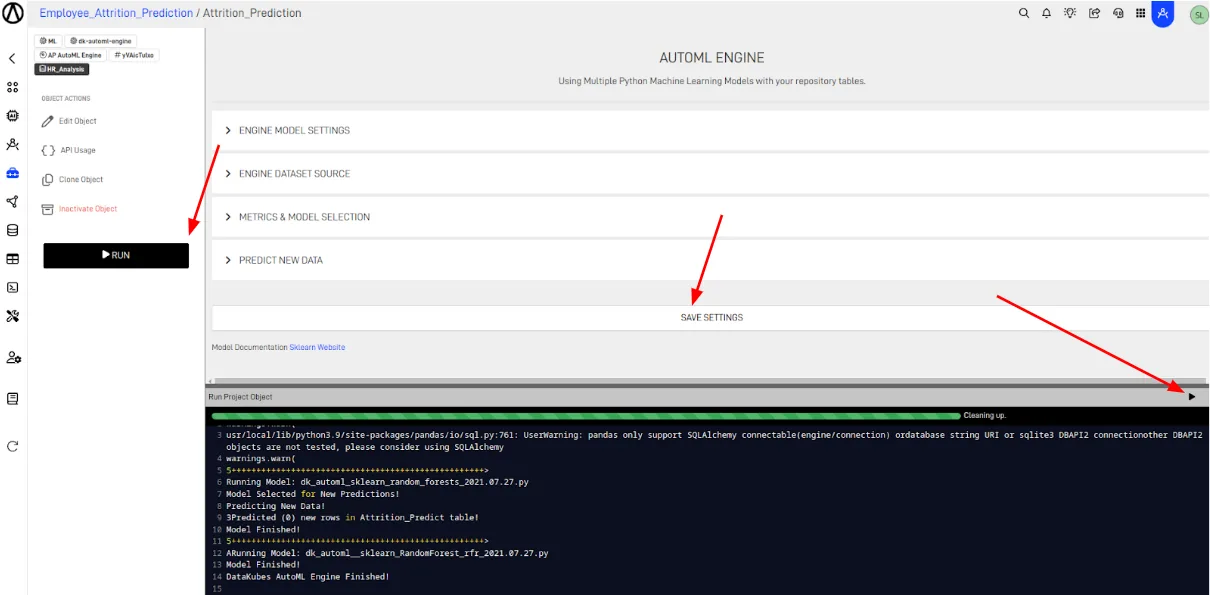
Step 12: Review Final Metrics#
- After deployment, revisit the Metrics section to verify the model’s performance and readiness.
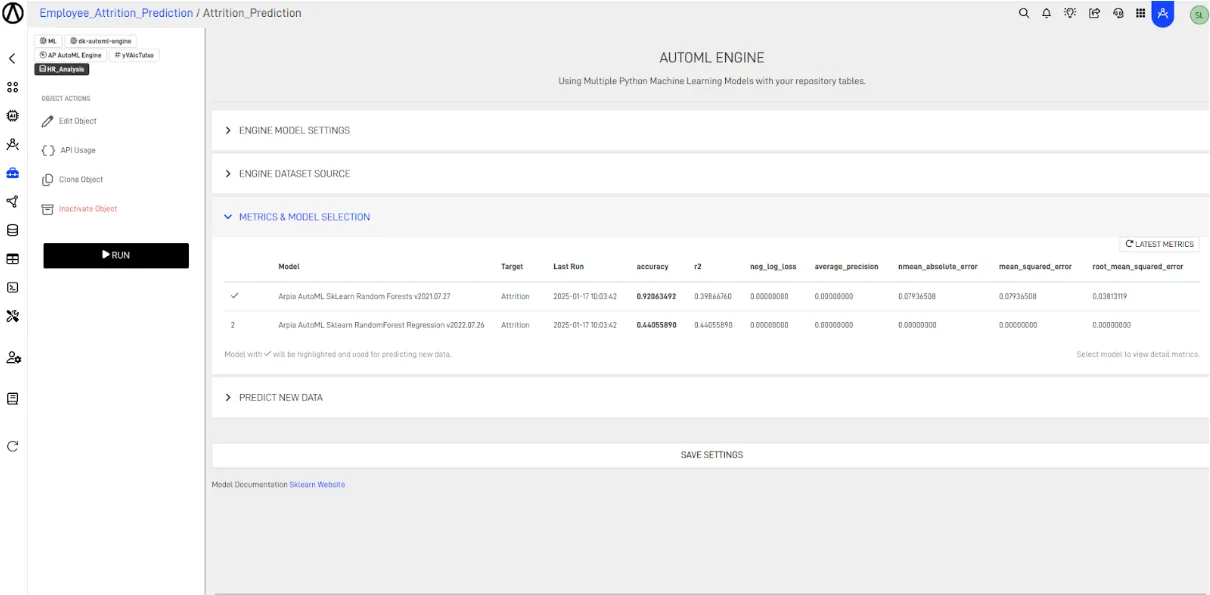
Note: When a model is selected, a checkmark appears, indicating that it is ready for prediction.
Step 13: Predict New Data#
- In the PREDICT NEW DATA section:
- Choose the table where the model will be applied.
- Select the columns that contain each required data.
- Select the target column to be predicted.
- Select the primary key of the table where the model will be applied.
- Click SAVE SETTINGS and RUN to store predictions in the selected table.
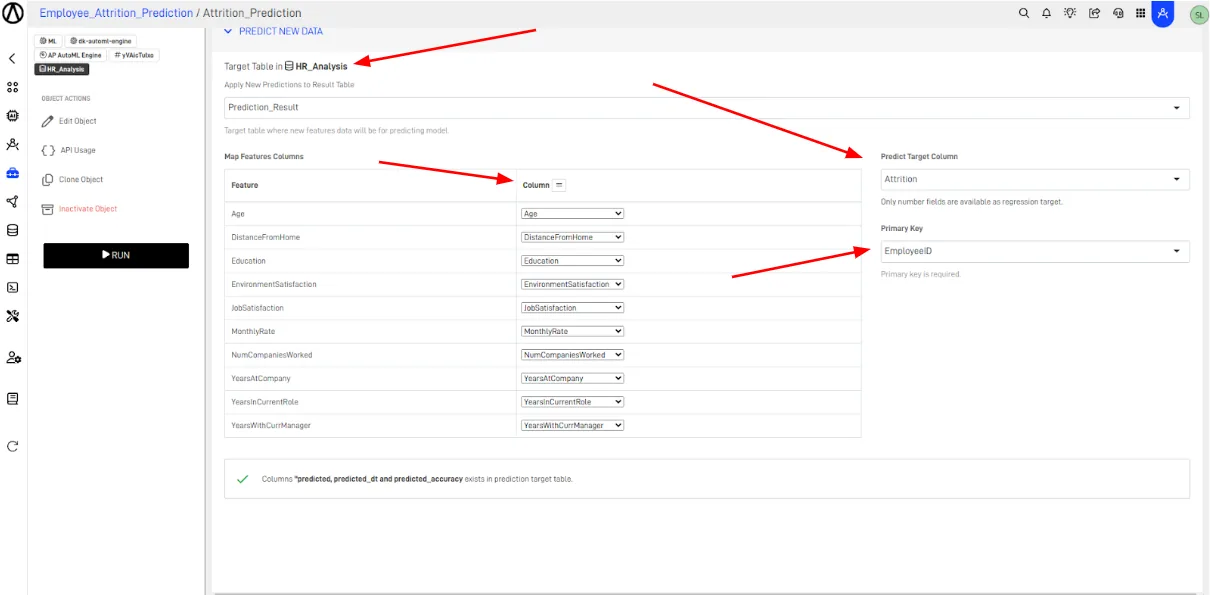
Note: ARPIA will automatically create "predicted", "predicted_dt", and "predicted_accuracy" columns if they do not exist in the table.
Conclusion#
You have now successfully created and deployed your first AutoML model in ARPIA. Use it to make predictions and enhance your data-driven decisions!