How to create an App Droplet
Step-by-Step Guide#
Step 1: Access App Droplets in Orchestrator#
- Navigate to the Home page of your Orchestrator.
- Select the App Droplets option from the menu.
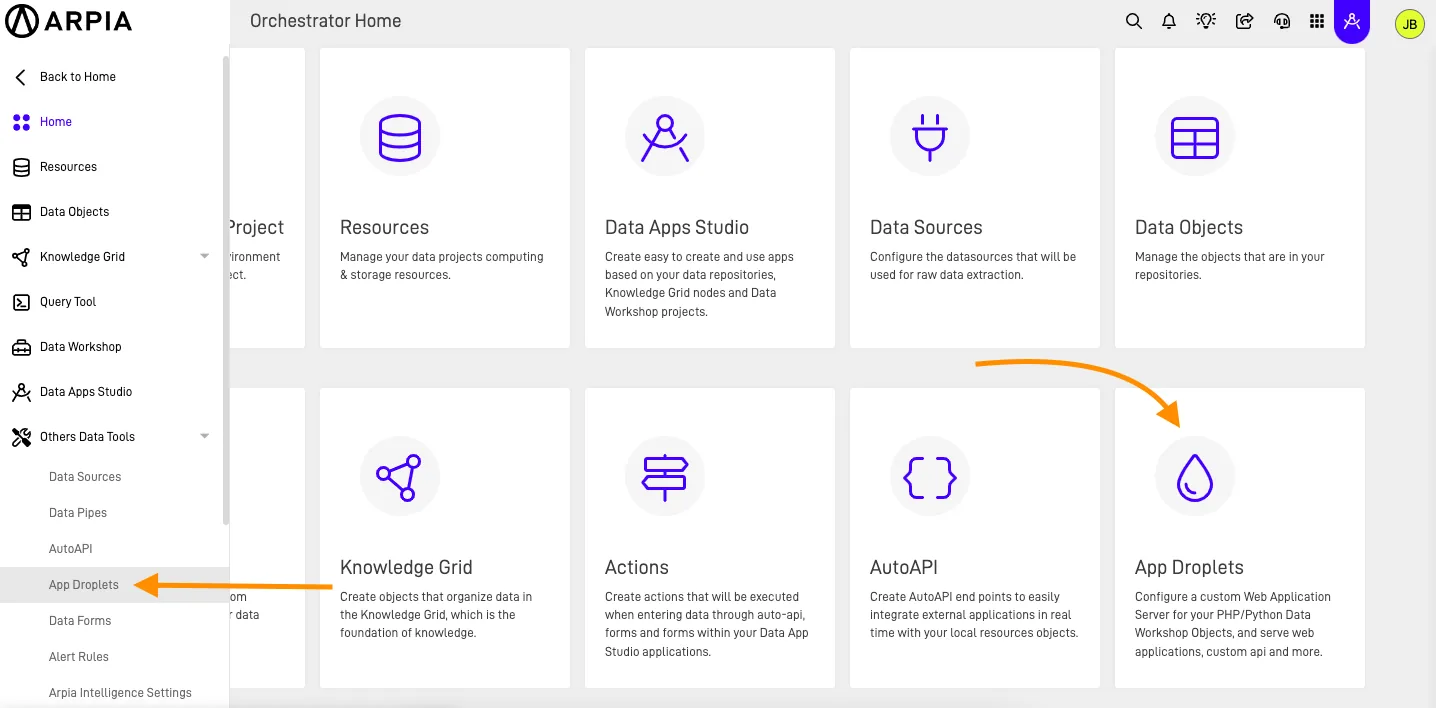
Step 2: Create a New App Droplet#
- On the App Droplets page, you will see a list of all previously created droplets.
- To create a new App Droplet, click the + button.
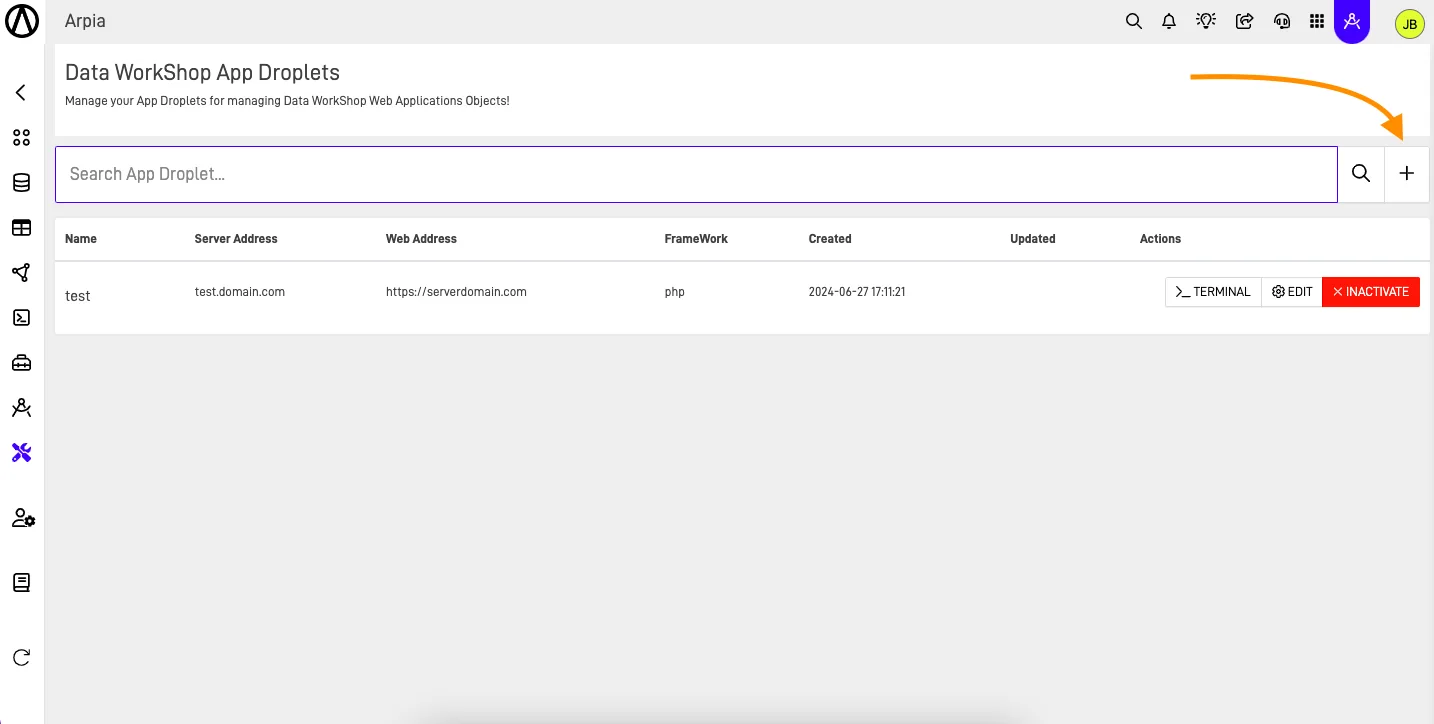
Step 3: Fill Out the App Droplet Form#
- A new screen will open, prompting you to fill out the required details for your new App Droplet.
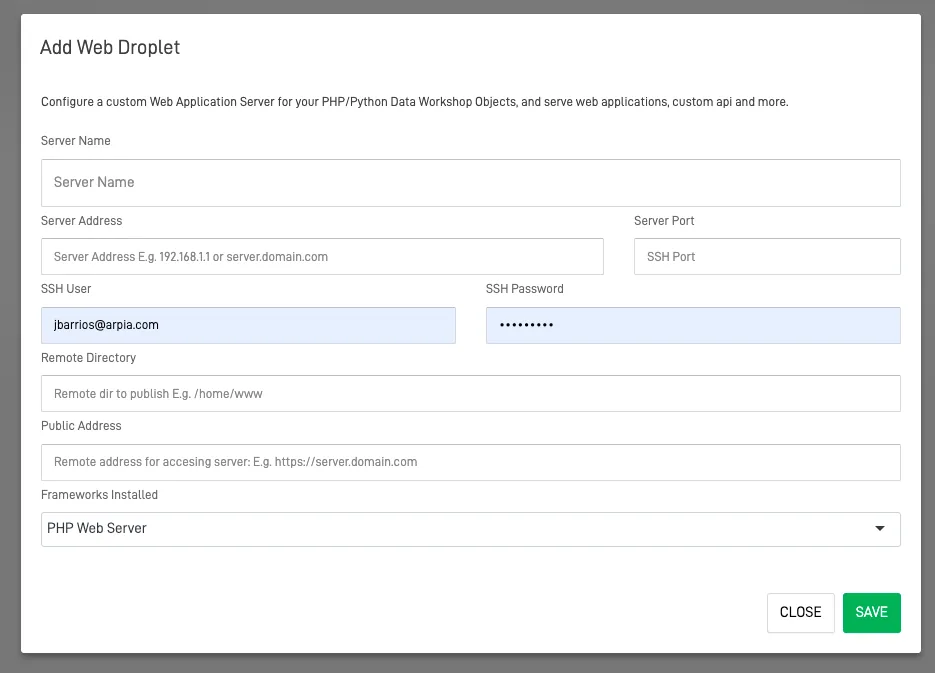
- Use the following table as a guide to complete the form:
| Section | Description |
|---|---|
| Server Name | A name for identifying the server. |
| Server Address | The IP address or domain name of the server hosting your web application. Example: 192.168.1.1 or server.domain.com. |
| Server Port | The network port number used by the server to listen for incoming requests. |
| SSH User | The username for logging into the server via Secure Shell (SSH). |
| SSH Password | The password associated with the SSH user. |
| Remote Directory | The directory path on the server where your web application files are stored. |
| Public Address | The address users can use to access your web application. |
| Framework Installed | The web development framework installed on the server (e.g., PHP, Python). |
Step 4: Create the App Droplet#
- After completing the form, click the SAVE button.
- Your new App Droplet will be created and displayed in the list of droplets.
App Droplet Actions#
Once your App Droplet is successfully created, three actions are available from the App Droplet main menu:
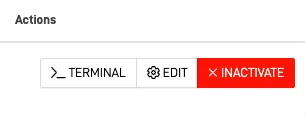
- TERMINAL: Opens a direct terminal connection to your server.
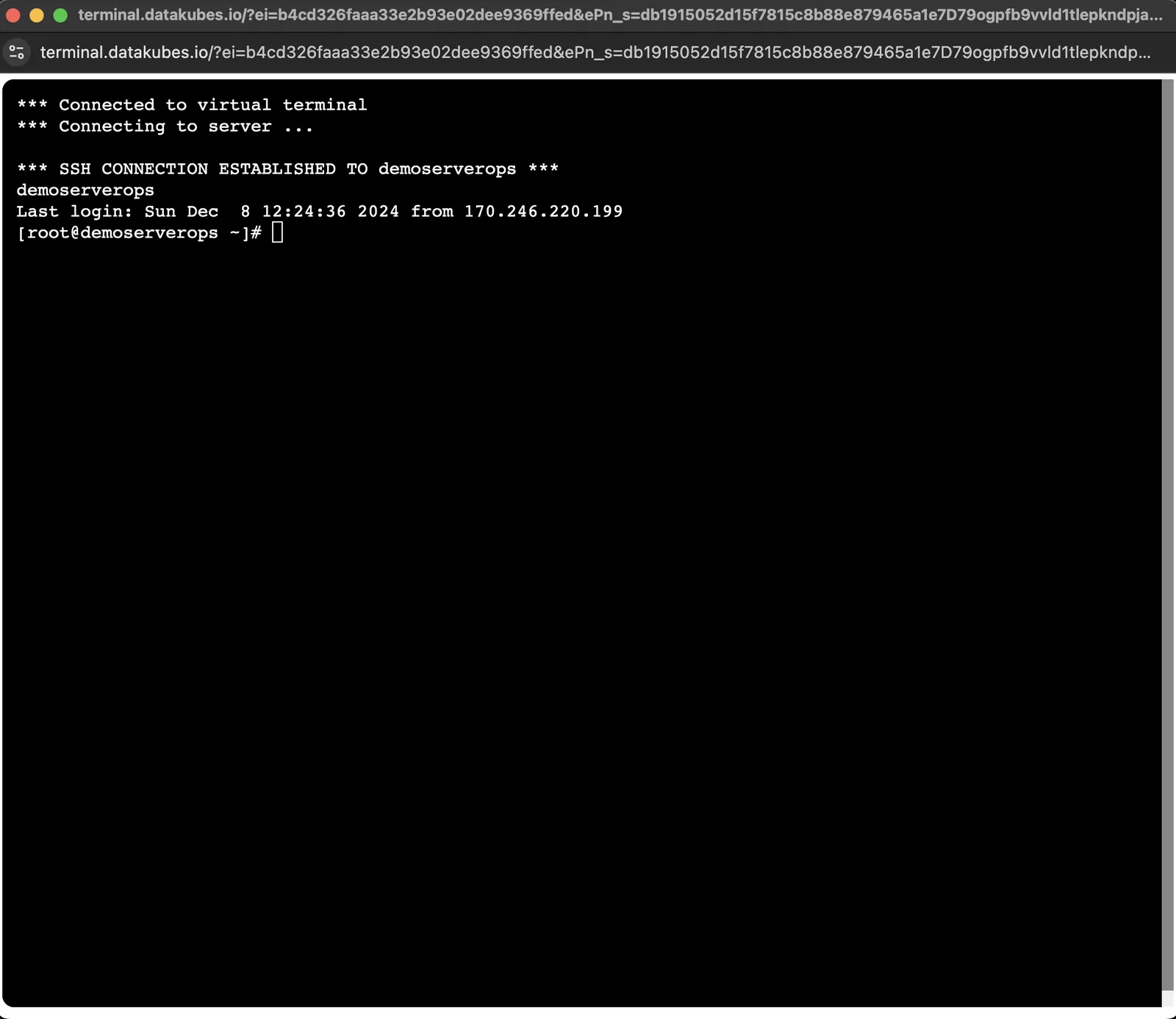
- EDIT: Allows you to modify the configuration of your App Droplet.
- INACTIVATE: Removes the App Droplet from the list. Note: This action cannot be undone.