Dropdown of screens
Dropdown of Screens: Properties#
The Dropdown of Screens does not contain objects or elements to add. Instead, it operates primarily through its properties, which are divided into three main tabs.
"Screen Options" Tab#
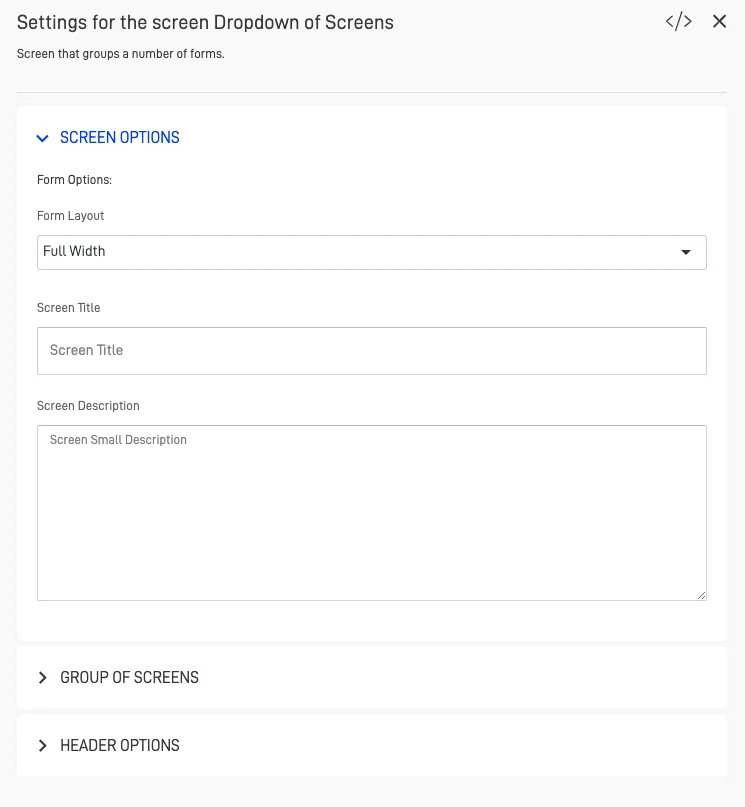
In the Screen Options tab, you can customize the primary settings of the screen. These include adjusting the layout width, setting the title, and adding an optional description if desired.
"Group of Screens" Tab#
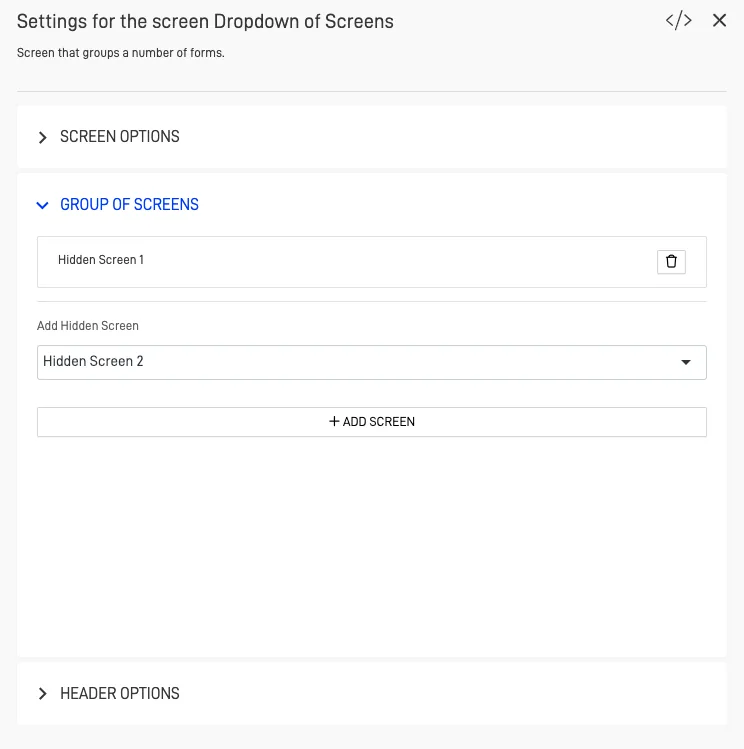
The Group of Screens tab allows you to add or remove hidden screens from the dropdown menu. This is where you manage the screens that users can access via the dropdown.
"Header Options" Tab#
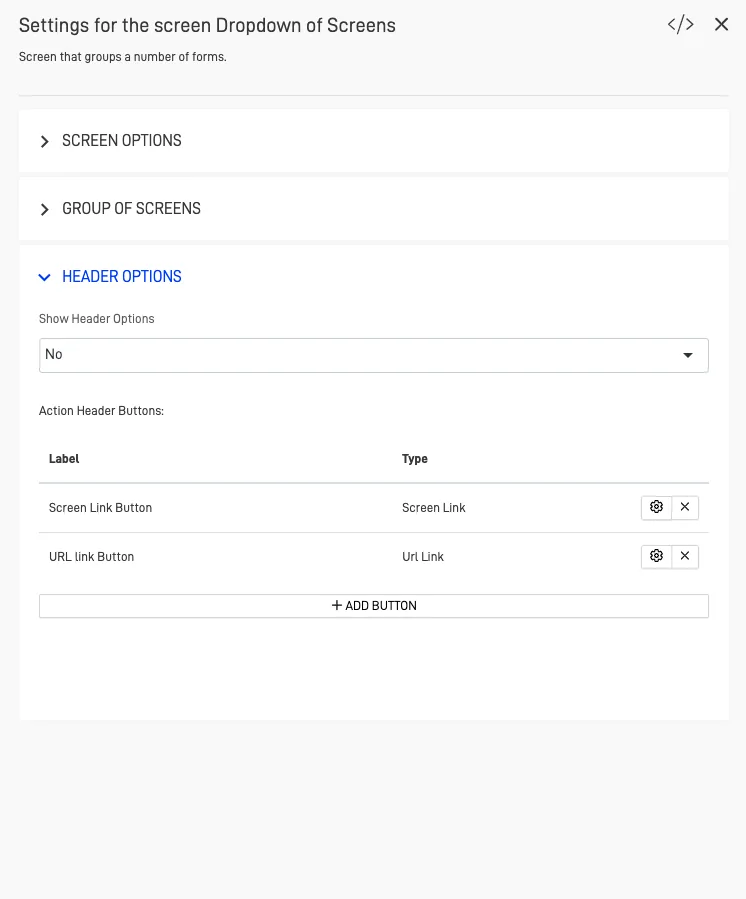
The Header Options tab enables customization of header visibility for the user. Here, you can decide whether users see action buttons and even create header action buttons that link to a screen or external URL. These buttons are customizable by name.
Screen Custom Script Editor#
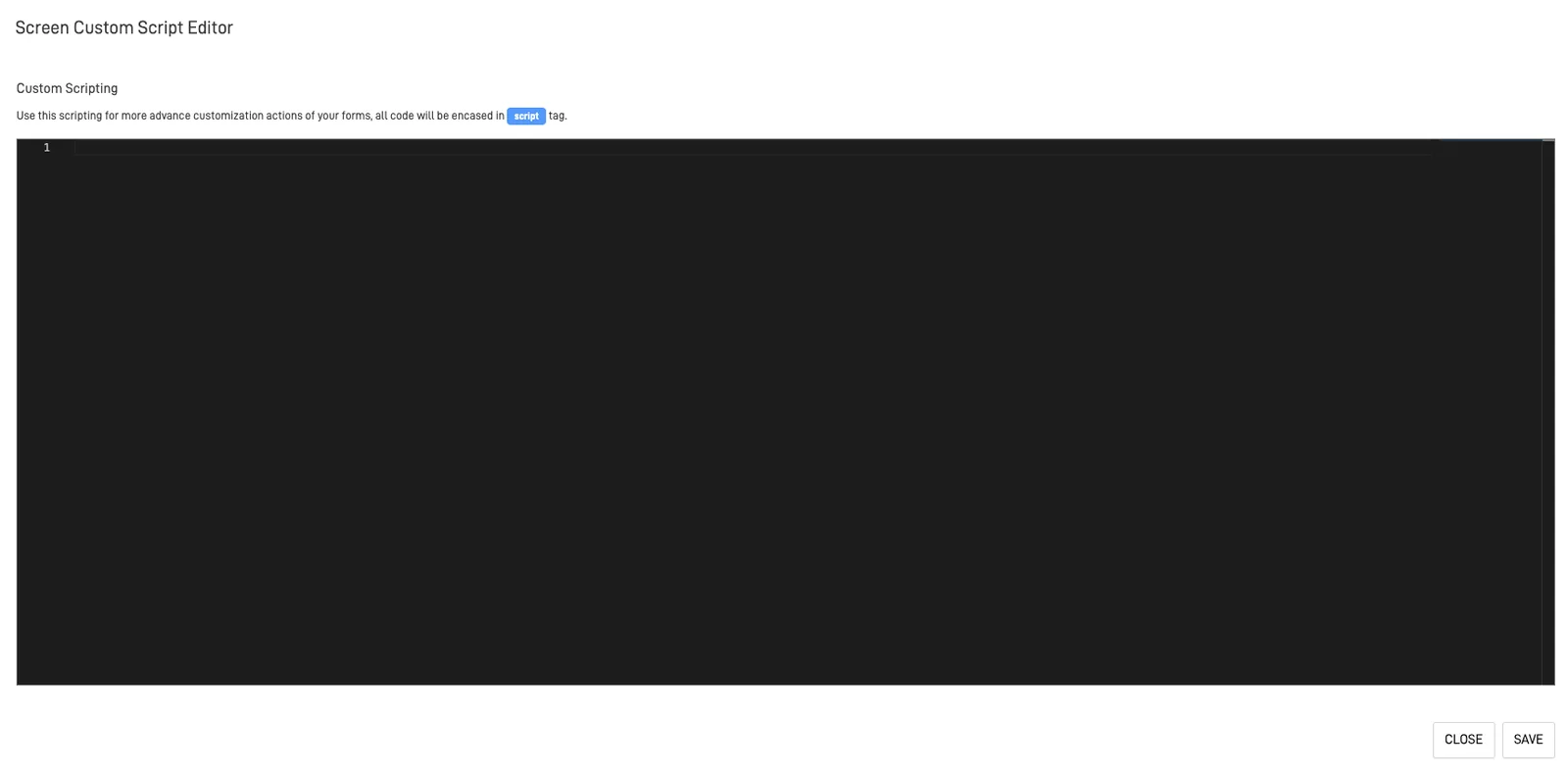
To access the Script Editor, click on the code icon at the top right corner of the settings menu for the Dropdown screen.
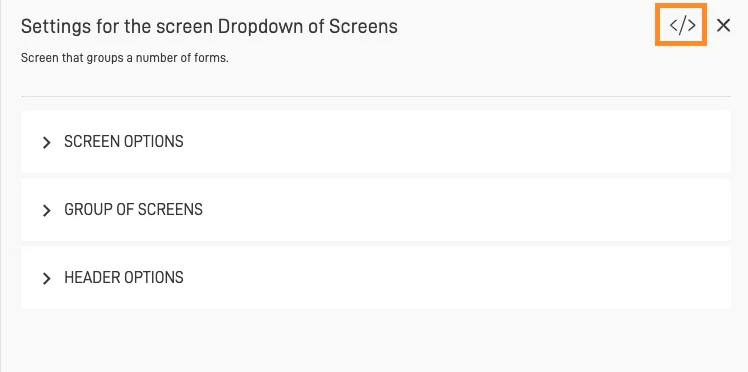
The Script Editor allows you to add JavaScript custom code, providing advanced customization options for your screen actions.
This property-based structure gives you flexibility and control over the Dropdown of Screens, ensuring you can create custom user experiences without the need to add physical elements.