Getting Started with ARPIA
Step-by-Step Guide to Access ARPIA#
Welcome to ARPIA — your platform for secure, centralized management and automation.\ This guide walks you through how to request access, log in, and complete authentication so you can start using ARPIA confidently.
Step 1: Request Your Account#
To use ARPIA, you’ll need an administrator account.\ ARPIA provides two platform environments, each accessed through its own login portal:
Both use the same login format and authentication methods (SSO or email/password with 2FA).\ However, each platform requires its own account — you must request access to the specific environment you’ve been assigned.
Important: You will only be able to log in to the platform URL provided by your ARPIA Administrator.
Trying to access the other environment without an authorized account will result in a login error.
📨 Note: Account requests may require verification or approval from the ARPIA team before activation.
Step 2: Choose a Login Method#
After clicking Login, a new window will open where you can log in using your administrator account.\ You’ll be presented with the following options:
- Email and Password
- Google SSO
- Microsoft SSO
Using Google or Microsoft SSO#
- Click the Google or Microsoft button.
- Choose your account or enter your credentials.
- If prompted, approve ARPIA’s access to your account.
- Once authenticated, you’ll be logged in automatically — no need to remember another password.
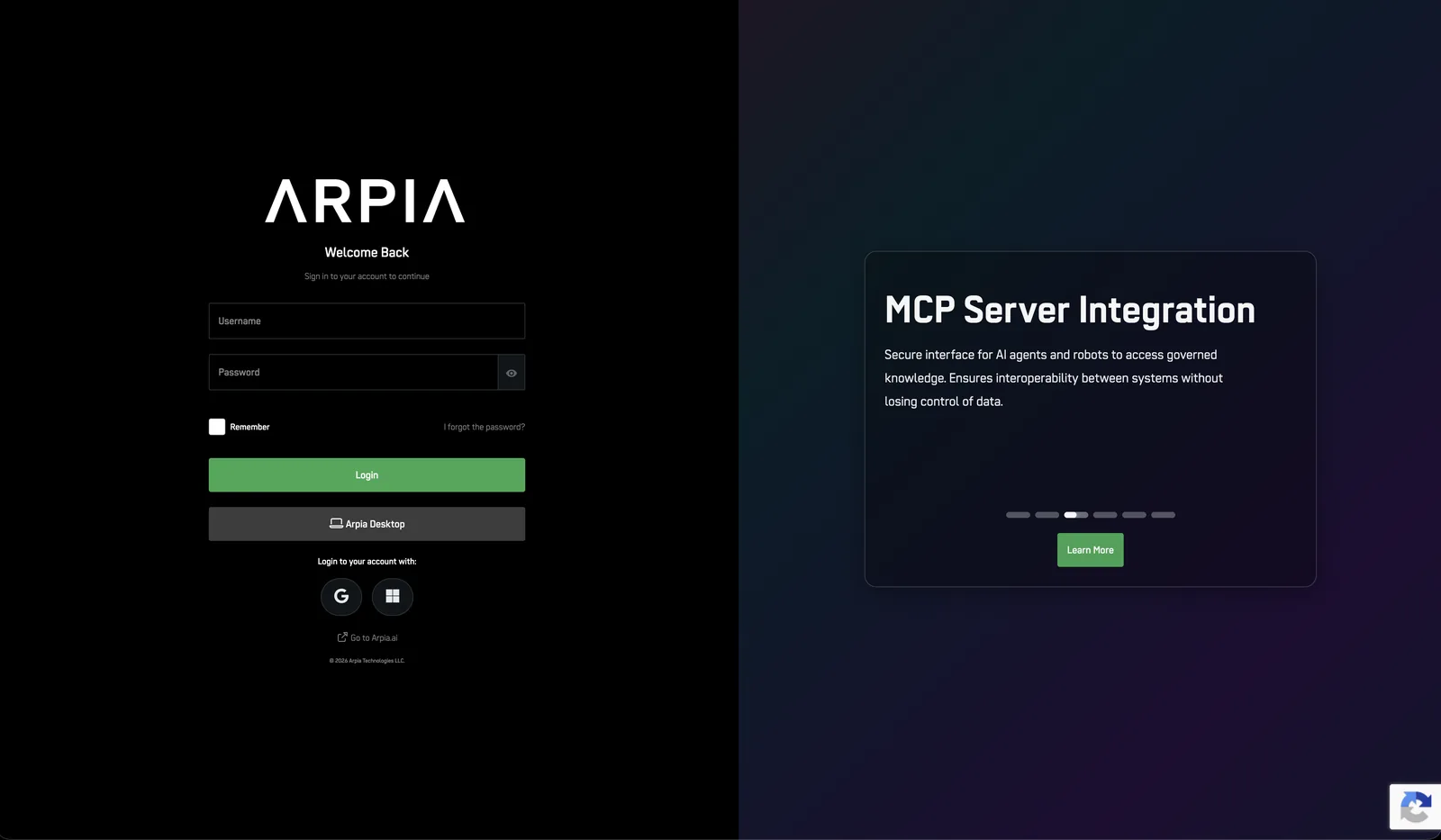
If your organization uses Google Workspace or Microsoft 365, SSO is the fastest and most secure option.
🚧
If login fails or access is denied, confirm that your organization has authorized ARPIA. Contact your IT administrator if needed.
👍
If SSO isn’t yet enabled for your organization, contact your ARPIA administrator to request activation.
🧭 If you choose Email and Password, continue to Step 3 to complete two-factor authentication.
Step 3: Complete Two-Factor Authentication (2FA)#
If you log in using Email and Password, you’ll be prompted to complete 2FA verification.
- Click Send Code to receive a verification code via email.
- Enter the code in the provided field.
- Click Validate Code to complete the login process.
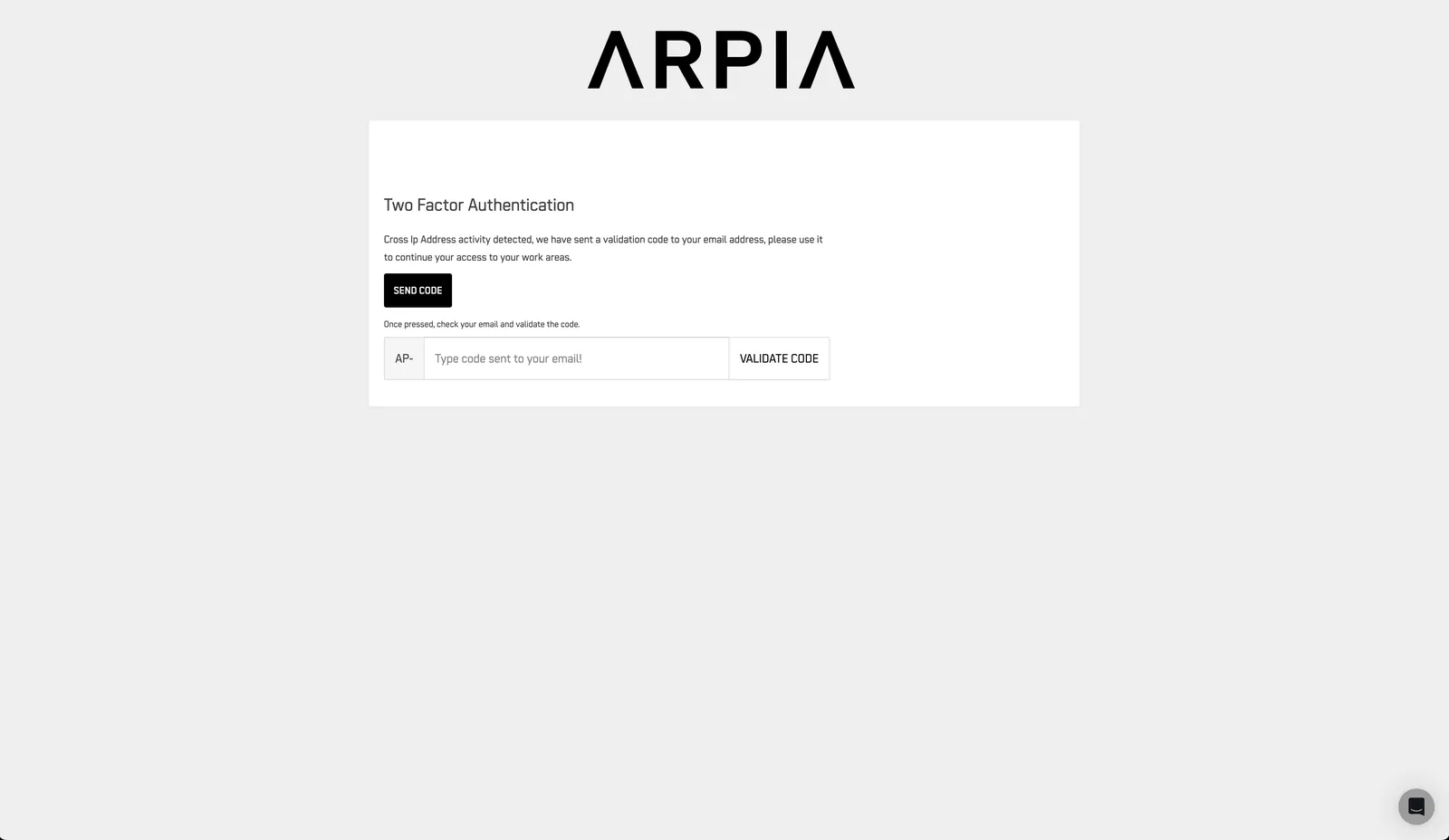
Verification codes are sent to the email associated with your ARPIA administrator account.
❗️
Codes typically expire after a short time — request a new one if needed.
Step 4: Access the ARPIA Platform#
Once logged in successfully, you’ll be redirected to the ARPIA Home Screen, where you can start exploring the platform’s features.
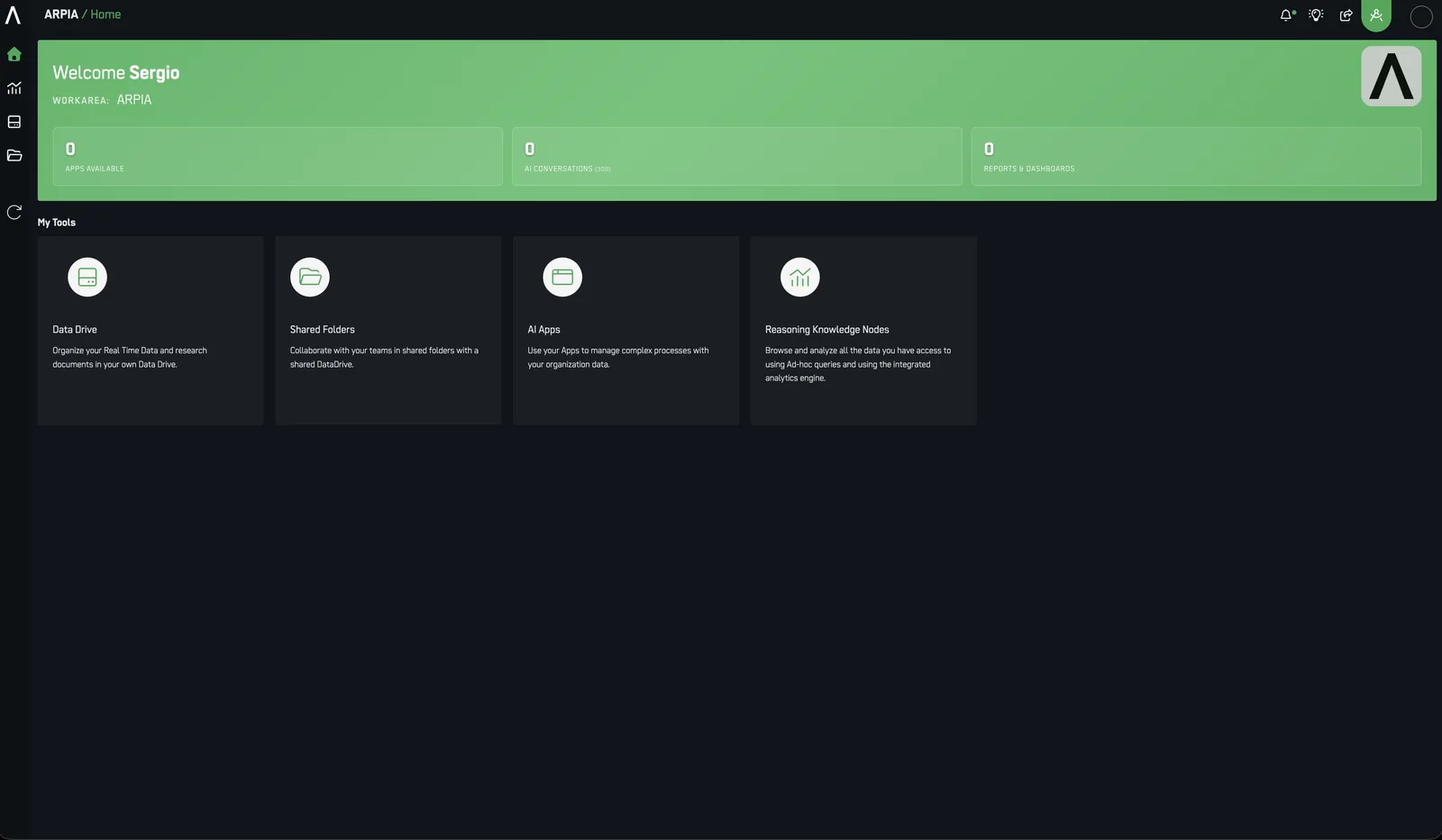
🎯 You’re now ready to explore ARPIA’s features — manage users, configure integrations, and access analytics tools tailored to your organization.