Create a Data Point
Step-by-Step Guide#
To create a Data Point, follow these steps.
Important
To create a Data Point, you must have created at least 2 Kubes that are related by a common field. If you haven't created a Kube, follow the documentation for Node - Analysis Cubes
Step 1: Access the Knowledge Grid section#
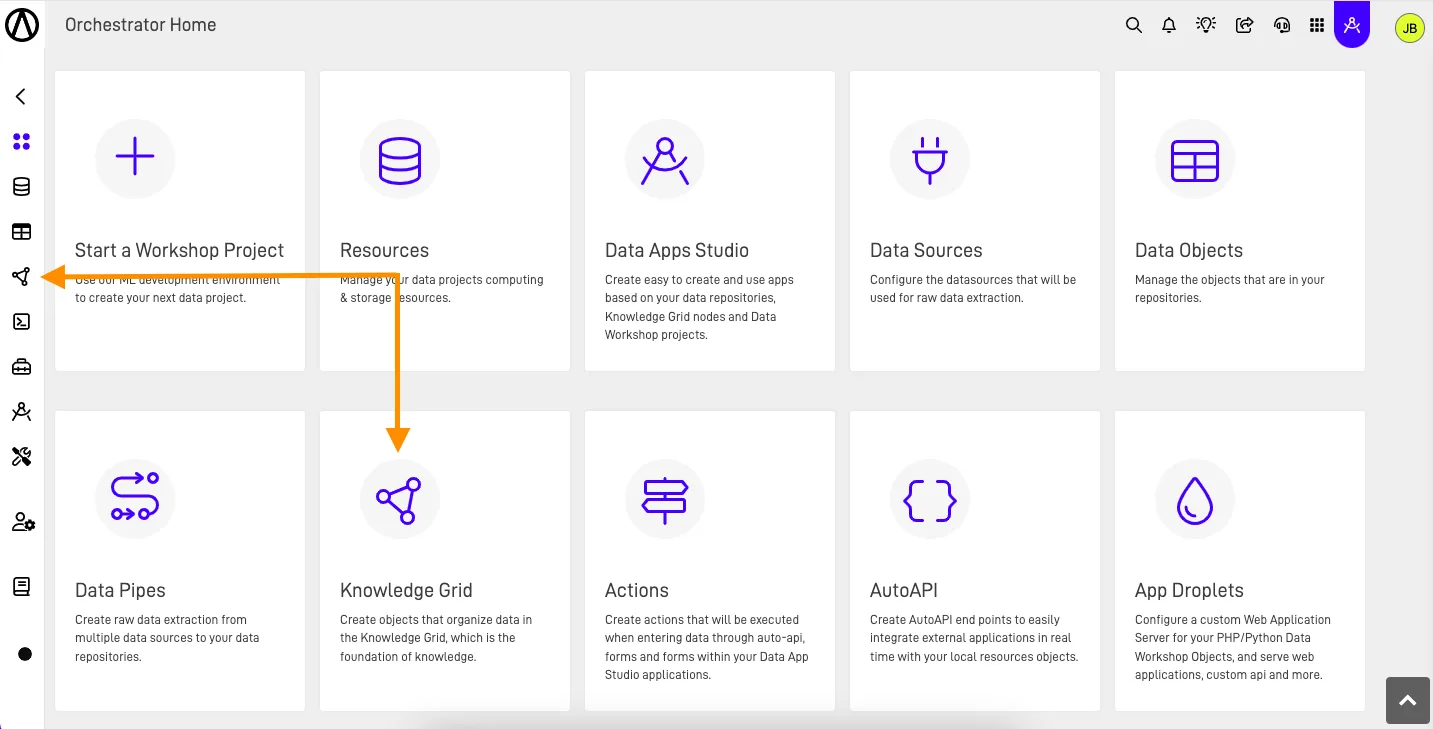
On the Orchestrator Home page, click on Knowledge Grid, as indicated in the following image:
Step 2: Select the desired Node#
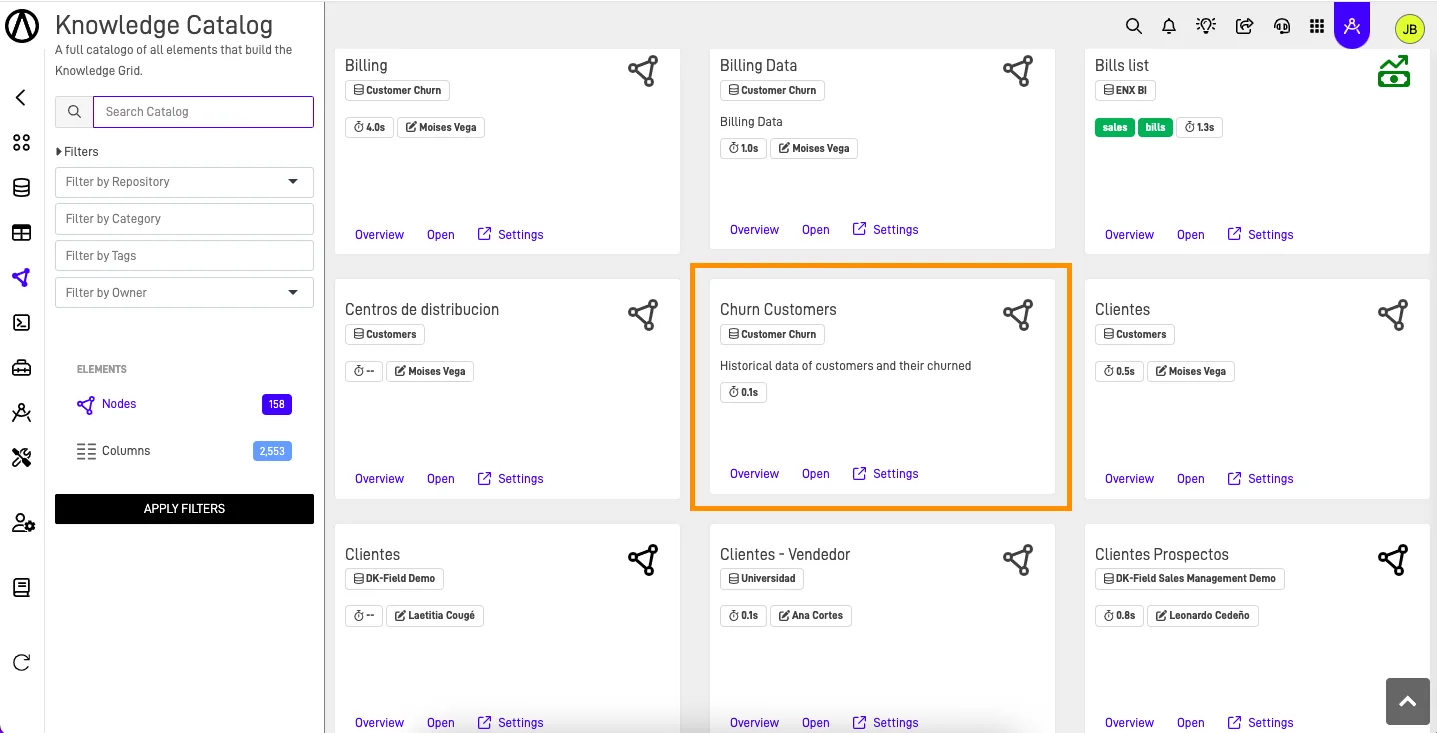
Then select the KnowGraph where you will create the Data Point.
Step 3: Access the Knowledge Grid tab#
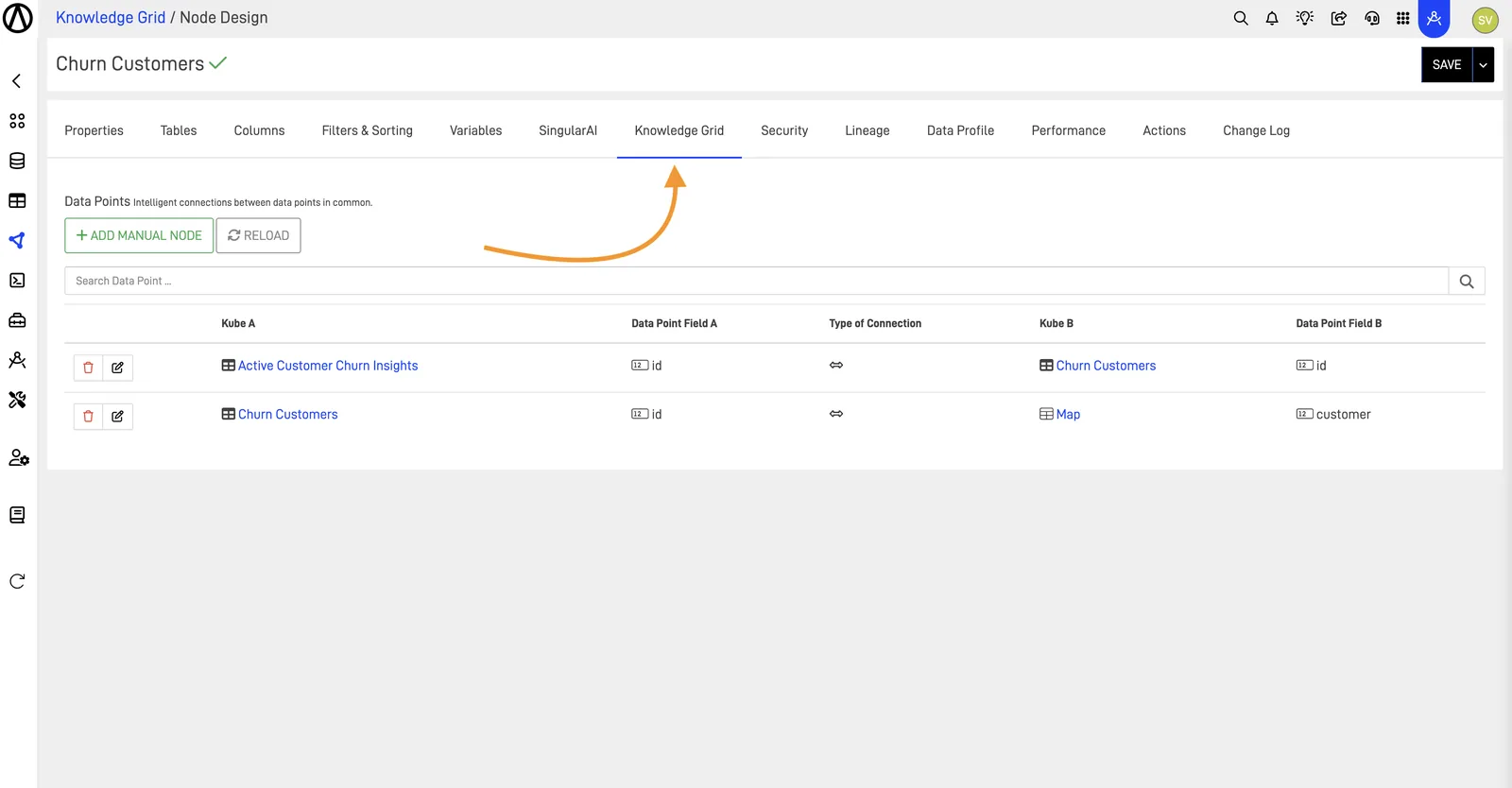
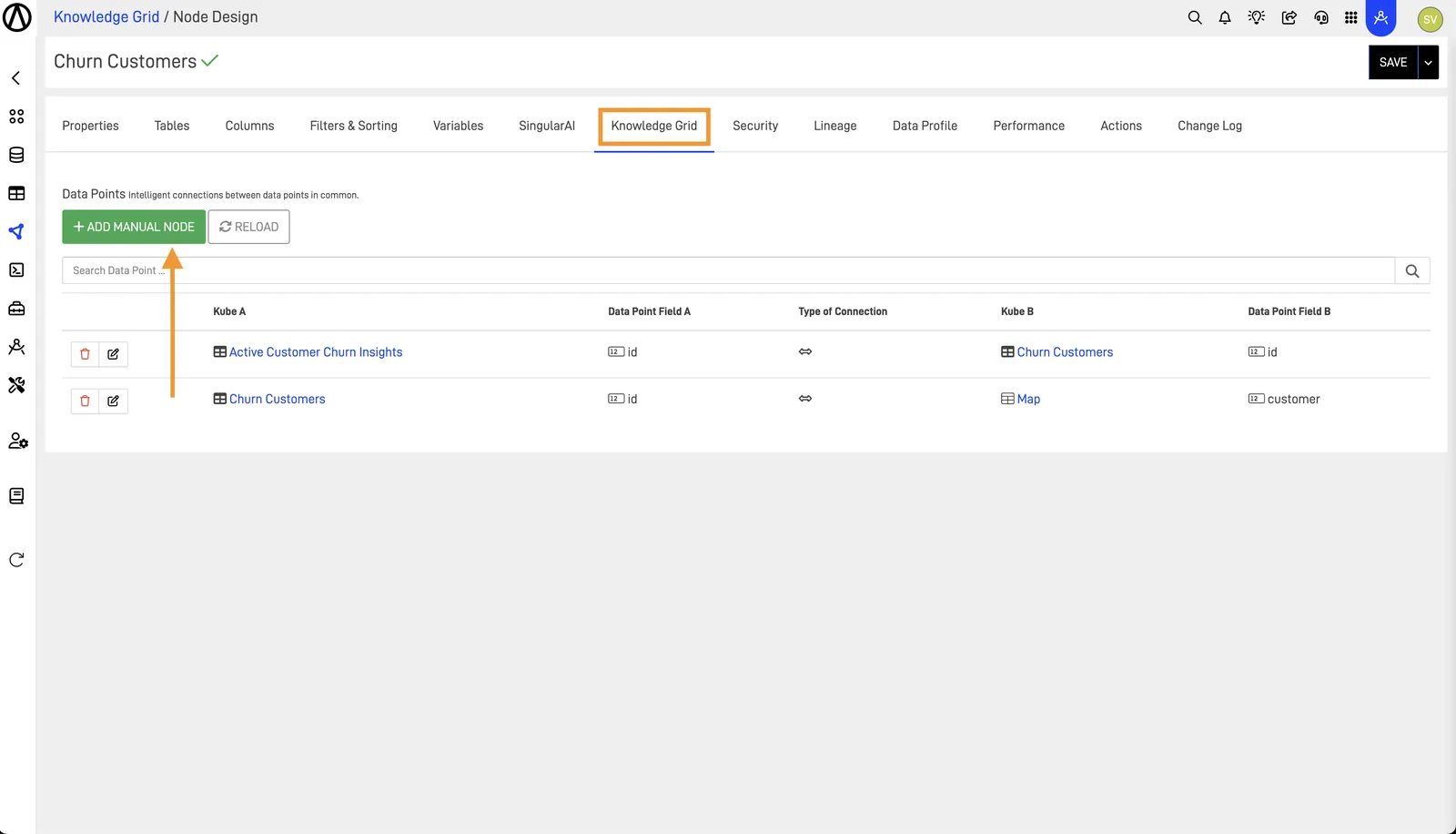
While inside the Kube configuration, select the Knowledge Grid option.
Step 4: Add Manual Node#
Click the + ADD MANUAL NODE button.
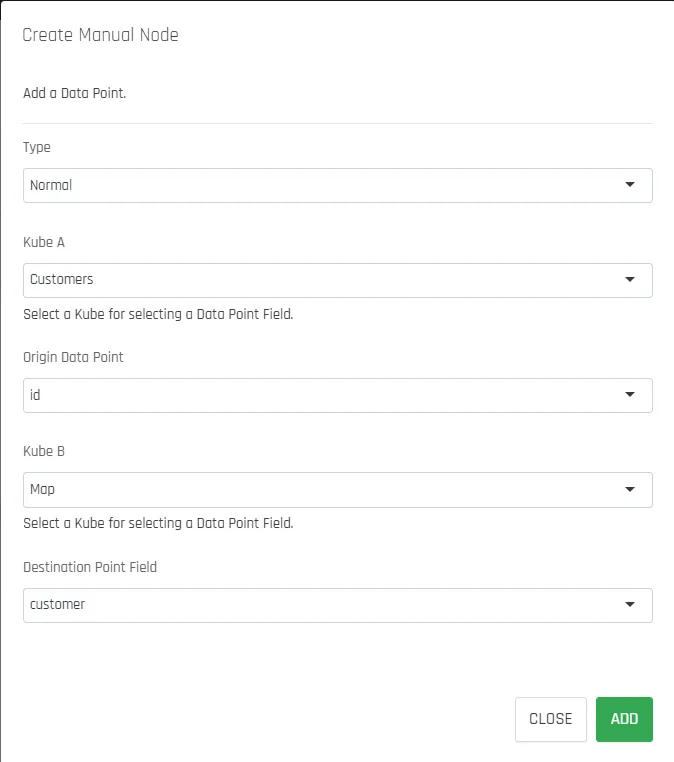
Step 5: Fill the "Create Manual Node" Form#
The following screen will appear where you need to select the fields that will relate Kube A and Kube B. After selecting, click ADD.
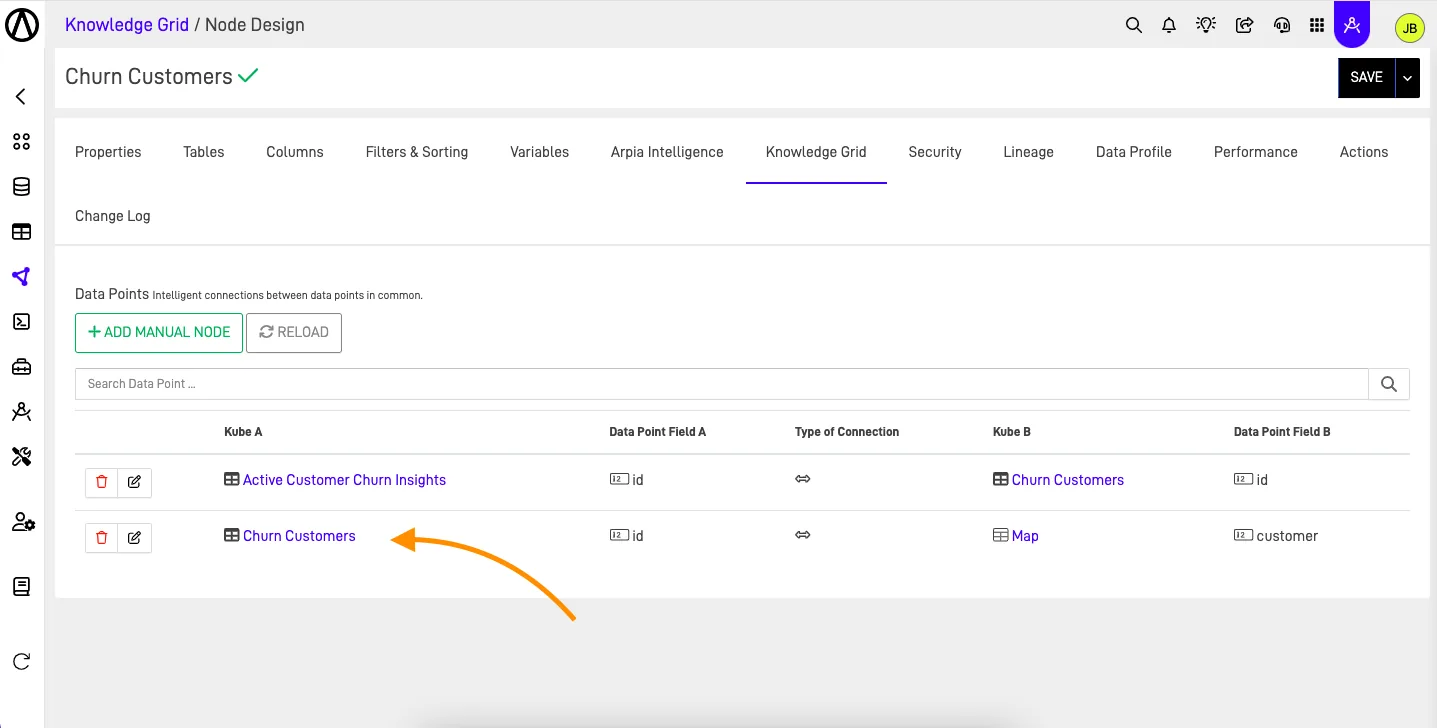
Step 6: Check the New Data Point#
You can then see your Data Point listed.
Creating Data Points with Data Tools#
Another very similar way to create Data Points is through the Data Tool. Just follow these steps.
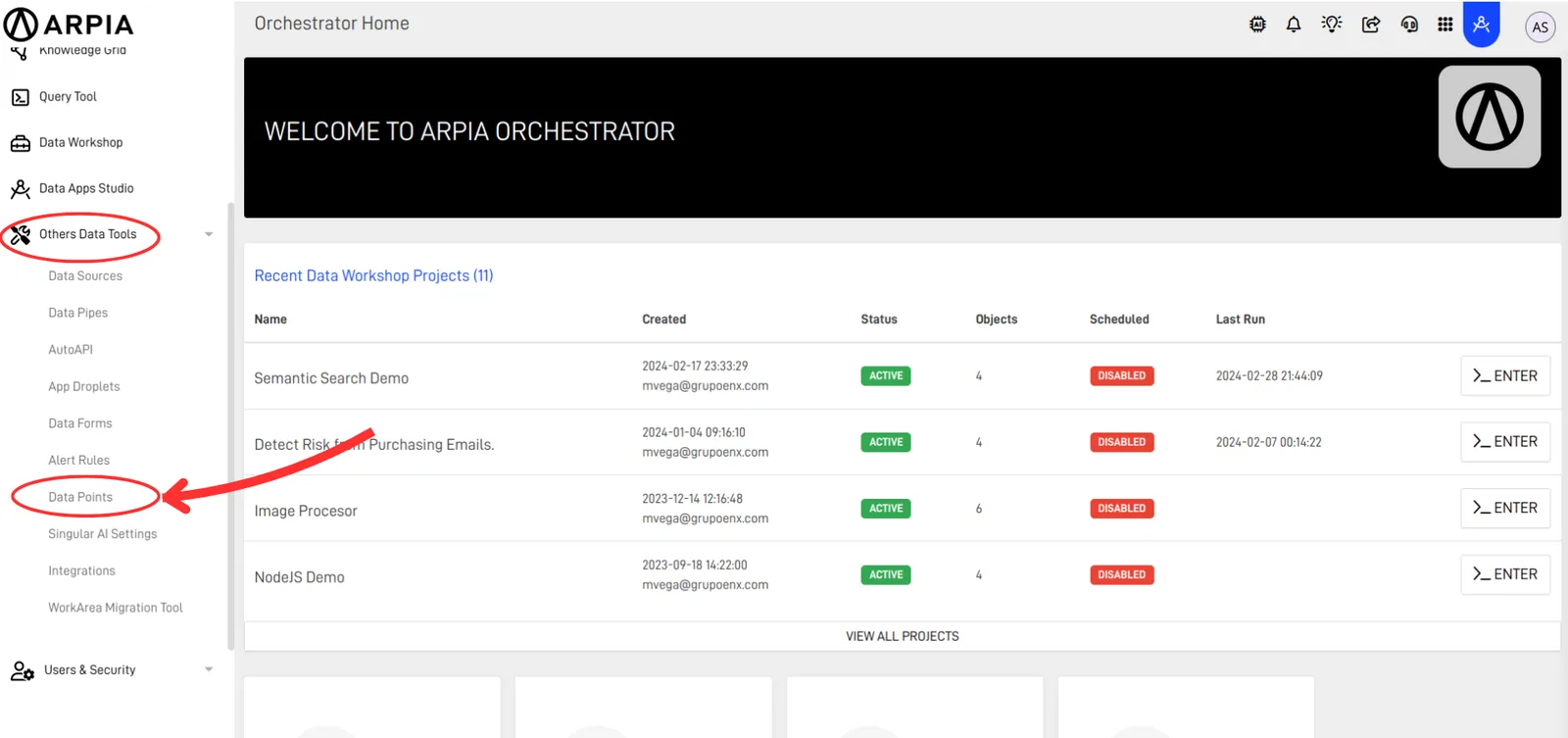
Step 1: Access the Data Points section via Other Data Tools#
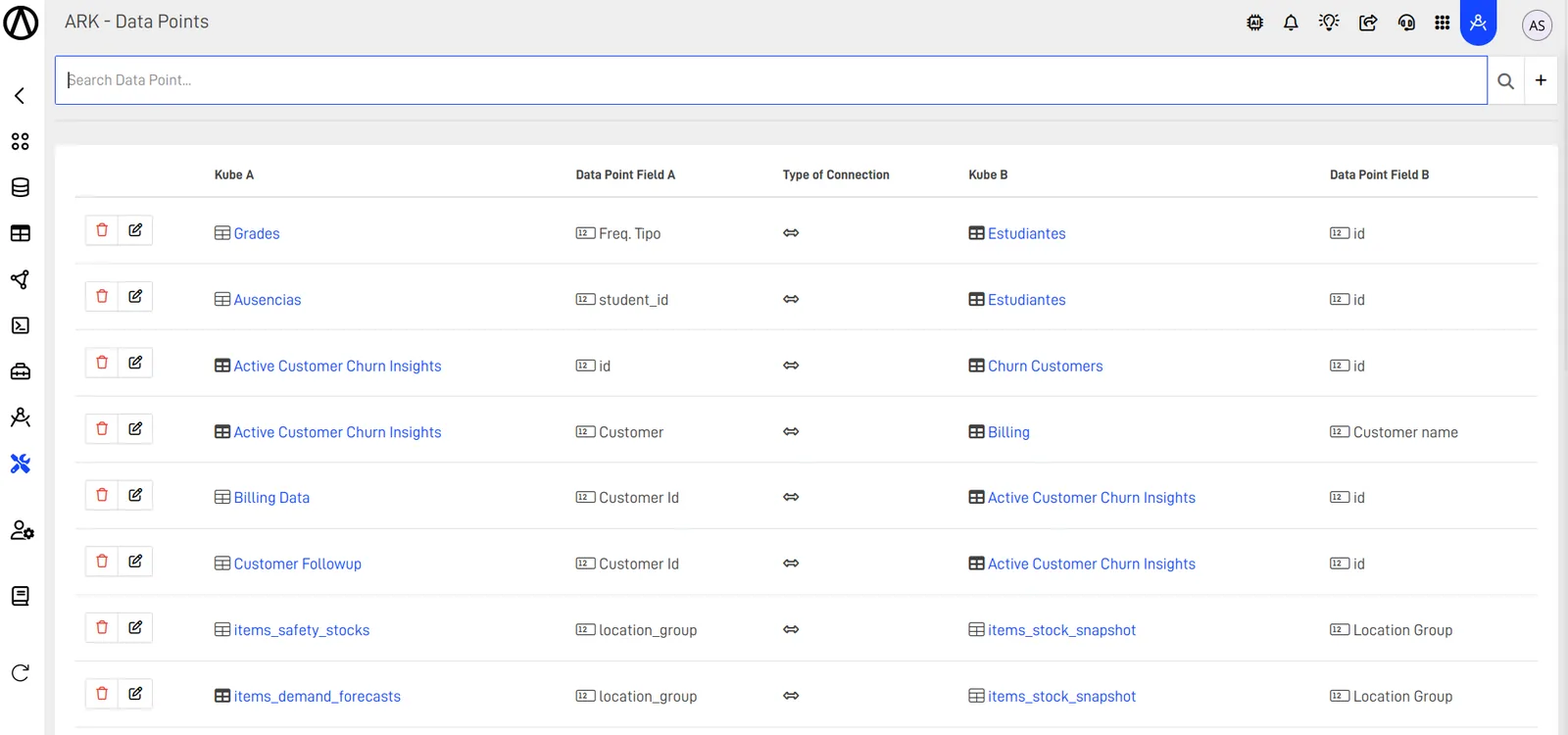
From your Orchestrator Home page, go to Others Data Tools and select Data Point.
Step 2: Create a new Data Point#
Click the + button.
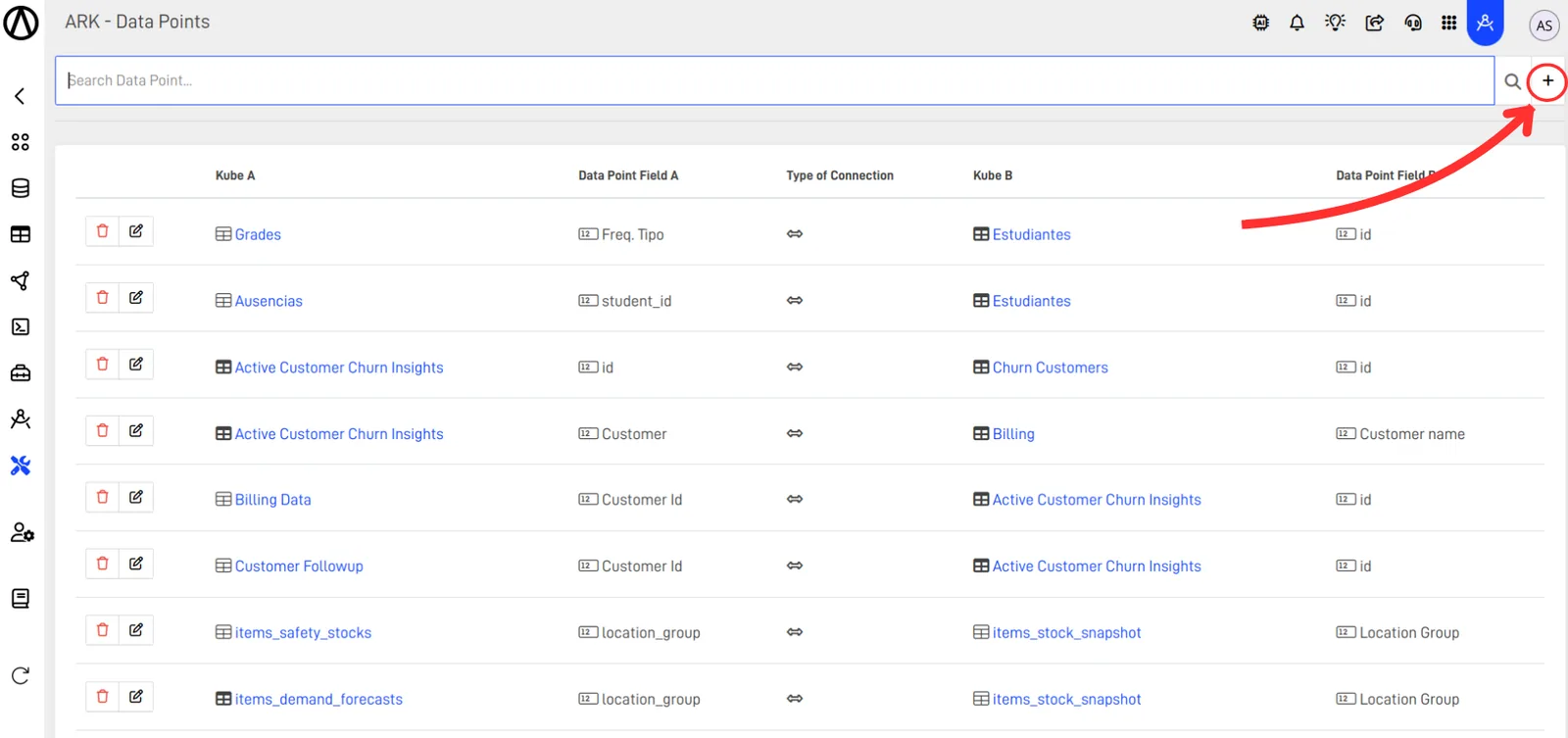
Step 3: Fill the "Create Manual Node" Form#
Clicking will open a new screen, where a form similar to Step 6 from the previous point will appear. You only need to choose the fields that will be related from Kube A and B. Finally, click the ADD button.
Step 4: Check you Data Point listed#
You will see your Data Point listed.