Build an application
Overview#
Build an Application lets you create your own Personal Application with AI — right from your user screen, using only the data nodes and actions you already have access to. No developer profile needed. When it's ready, share it with your team.
🟢 No code required. You describe what you want in plain language, and ARPIA Codex builds the app for you.
Before You Start#
Admin setup required. To use this AI feature, it must first be enabled in Global AI Configuration — only your Administrator can do this.
- Your app is scoped to your permissions — you can only build with the knowledge nodes and actions you have access to.
- When you share, people only see the data their own access allows. Sharing the app never widens anyone's data access.
Build Your App#
Create your application#
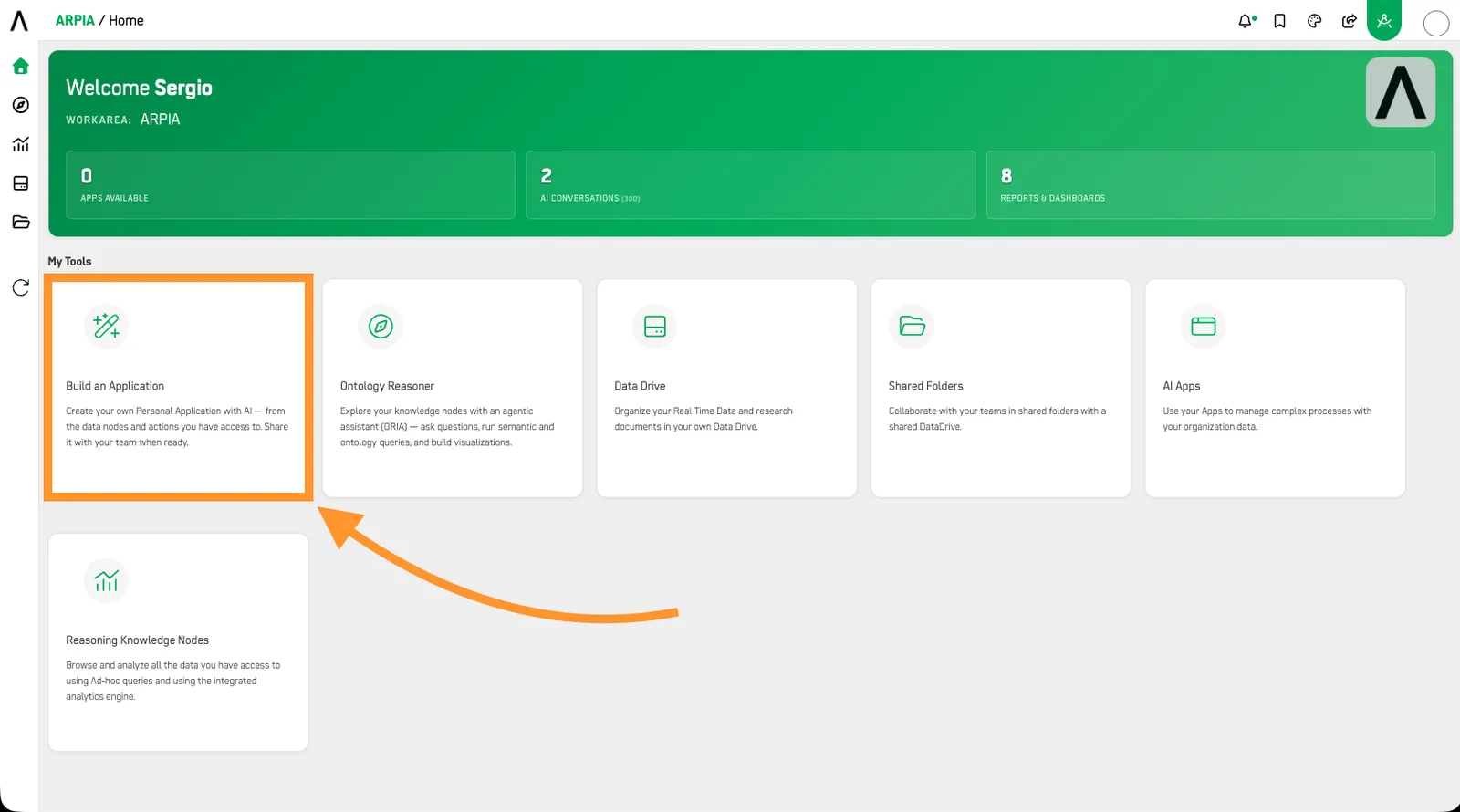
- From your home screen, in My Tools, press Build an Application.
- A new screen loads with a form. Enter a name in the field under Application name.
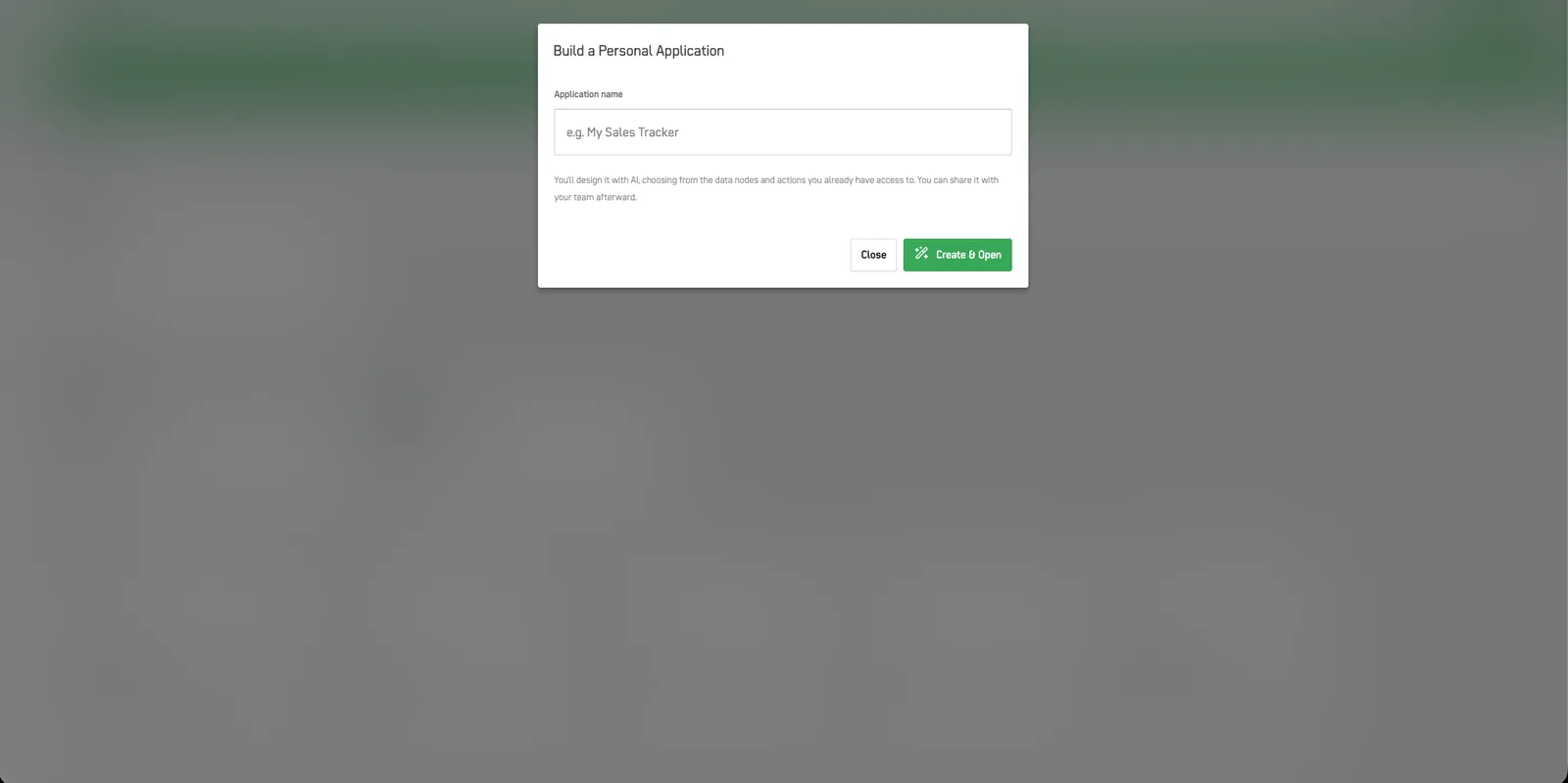
- Press Create & Open.
Build it with Codex#
Your app opens with a short welcome screen and the Arpia Codex panel on the right. Build it in 4 steps:
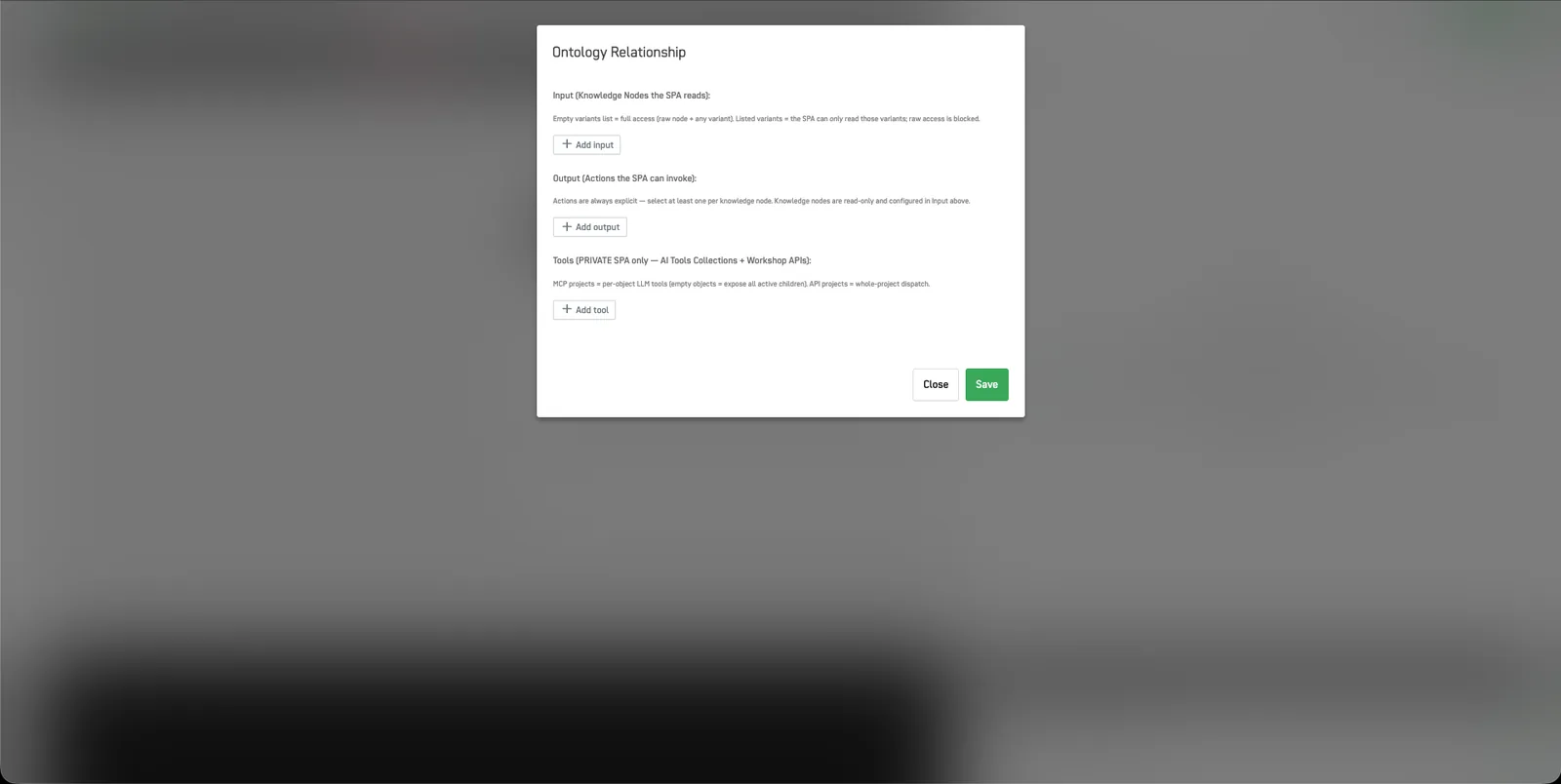
1. Pick your data. Open Ontology Nodes in the top bar to set exactly what your app can use:
- Input — the knowledge nodes your app can read. Leave the variants list empty for full access (raw node + any variant), or list specific variants to limit reading to just those.
- Output — the actions your app can run. These are always explicit: pick at least one per knowledge node.
- Tools (private apps only) — AI Tools Collections and Workshop APIs for advanced AI capabilities. See Single-Page Apps (SPA) for the full setup.
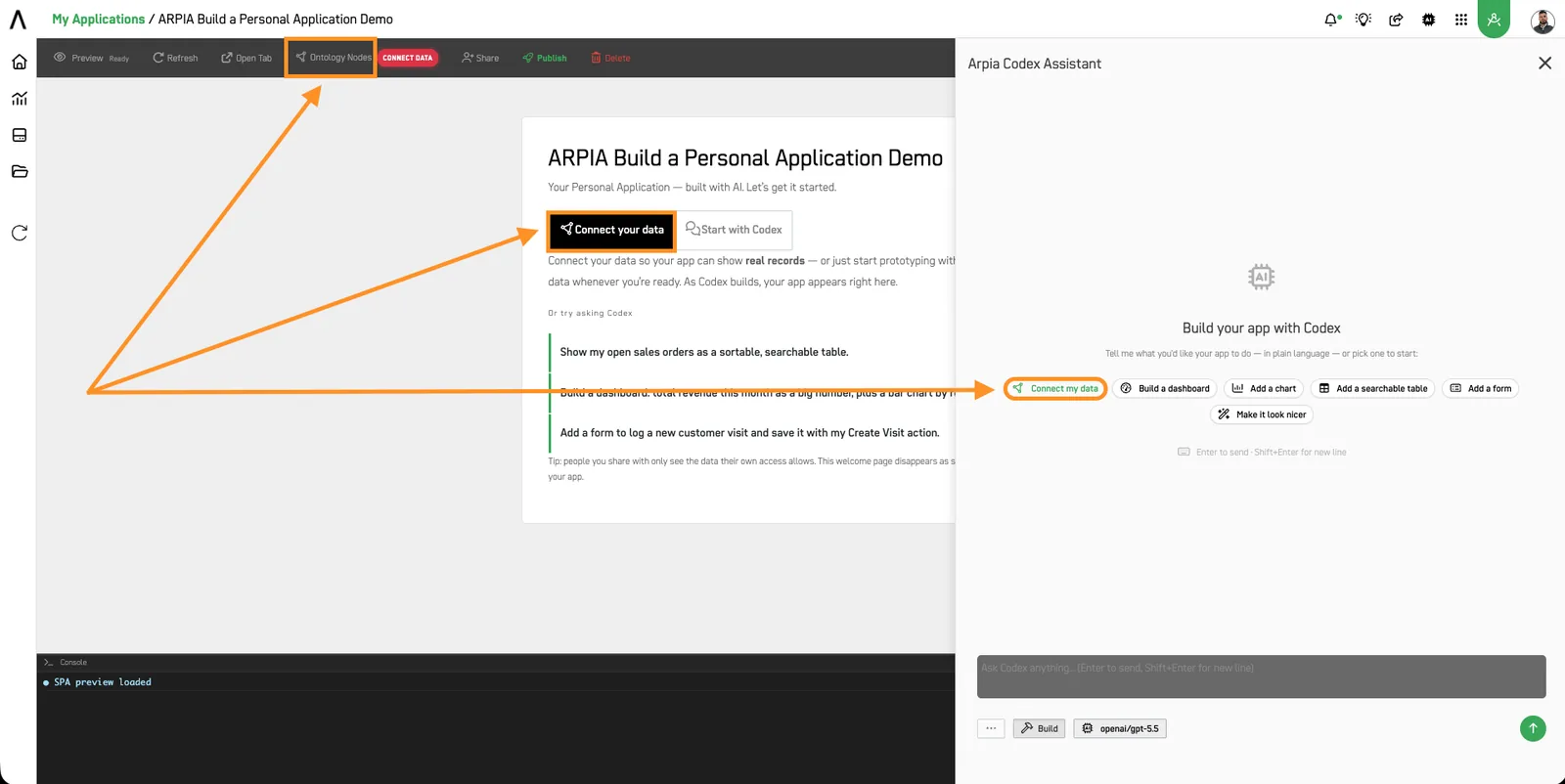
2. Describe what you want. In the Arpia Codex panel on the right, tell Codex — in plain language — what the app should do.
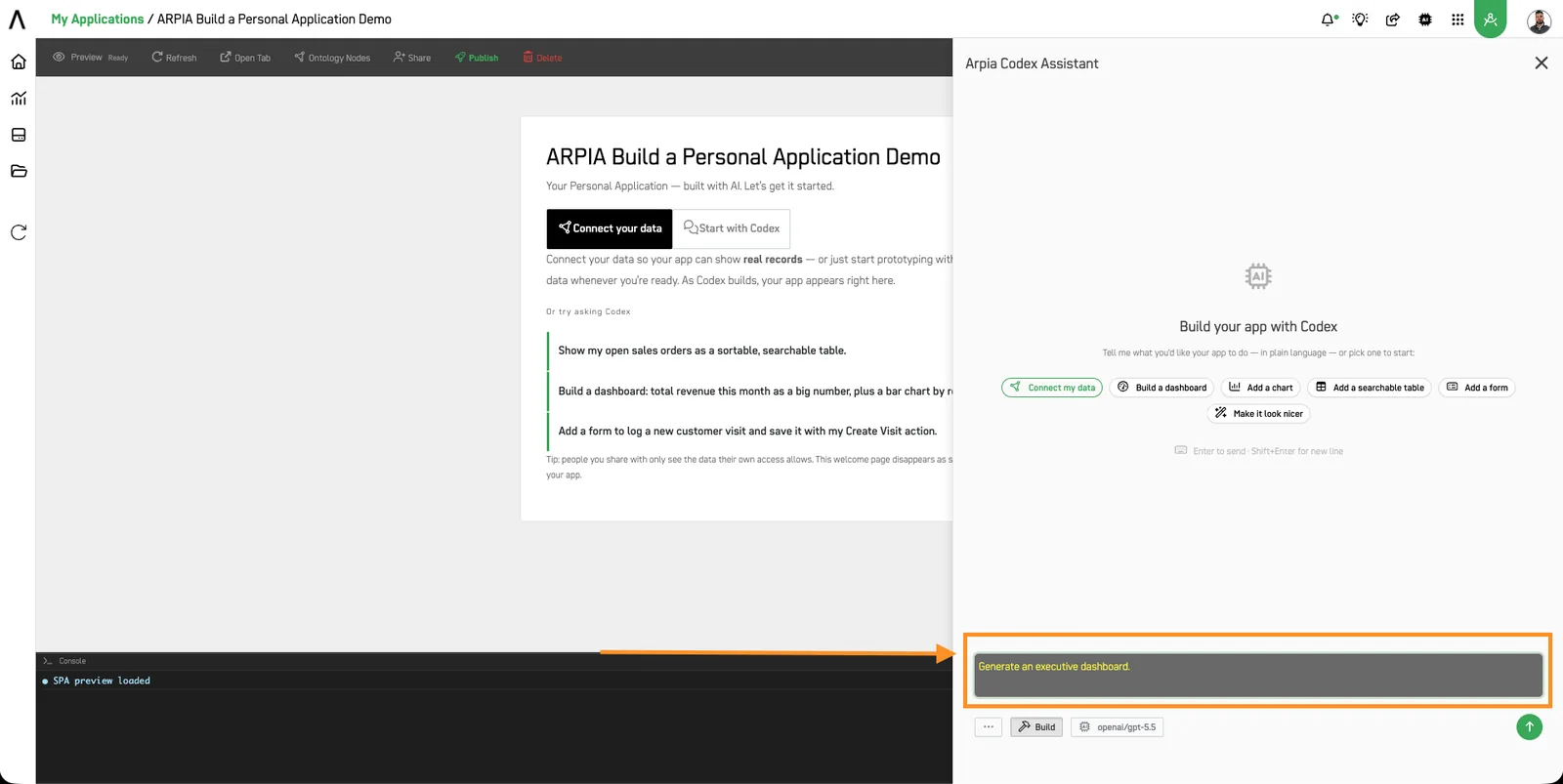
3. Watch it build. Your app renders live in the Preview as Codex works. Keep refining by chatting.
4. Publish & Share. When it's ready, press Publish, then Share it with your team.
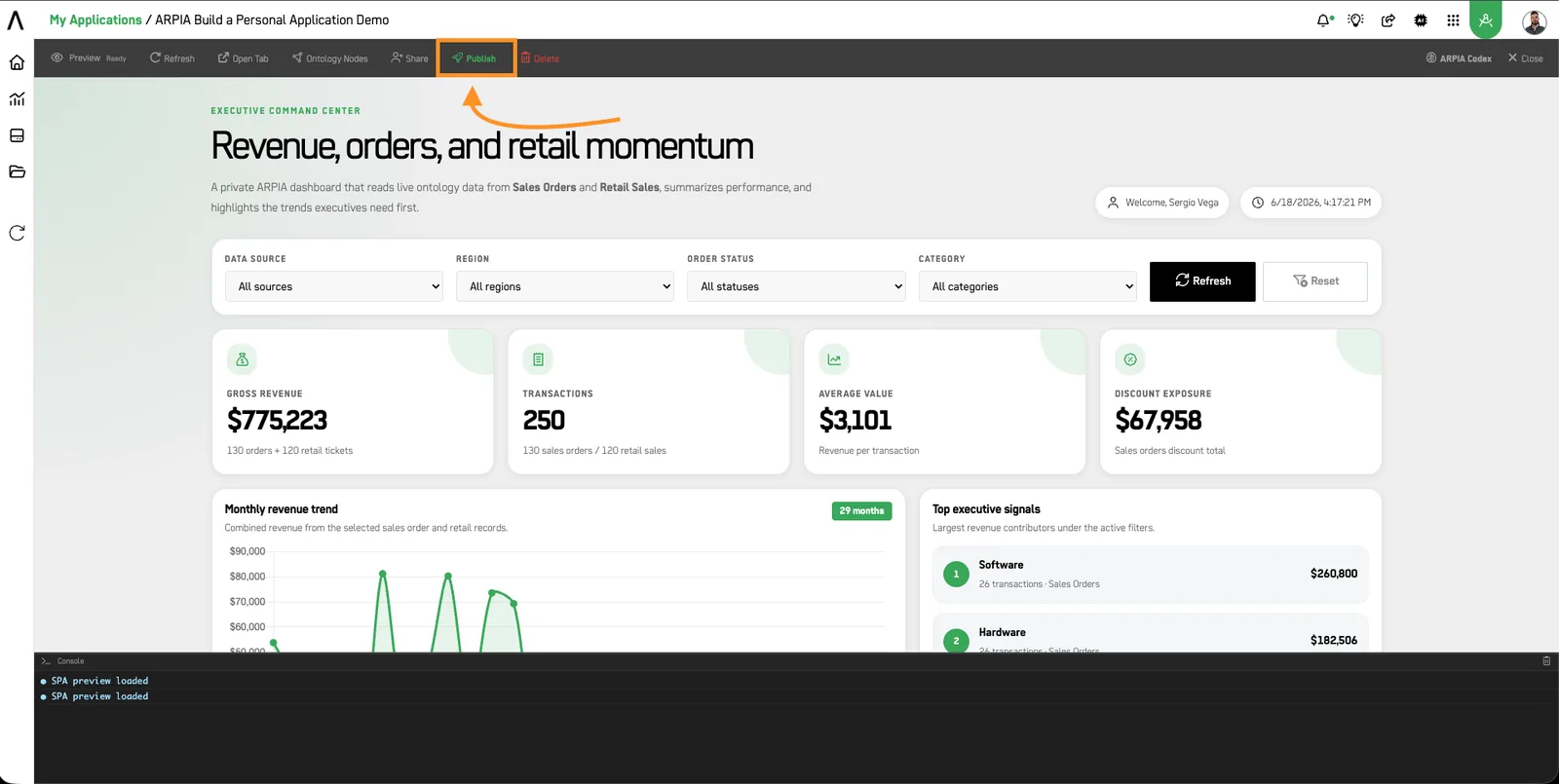
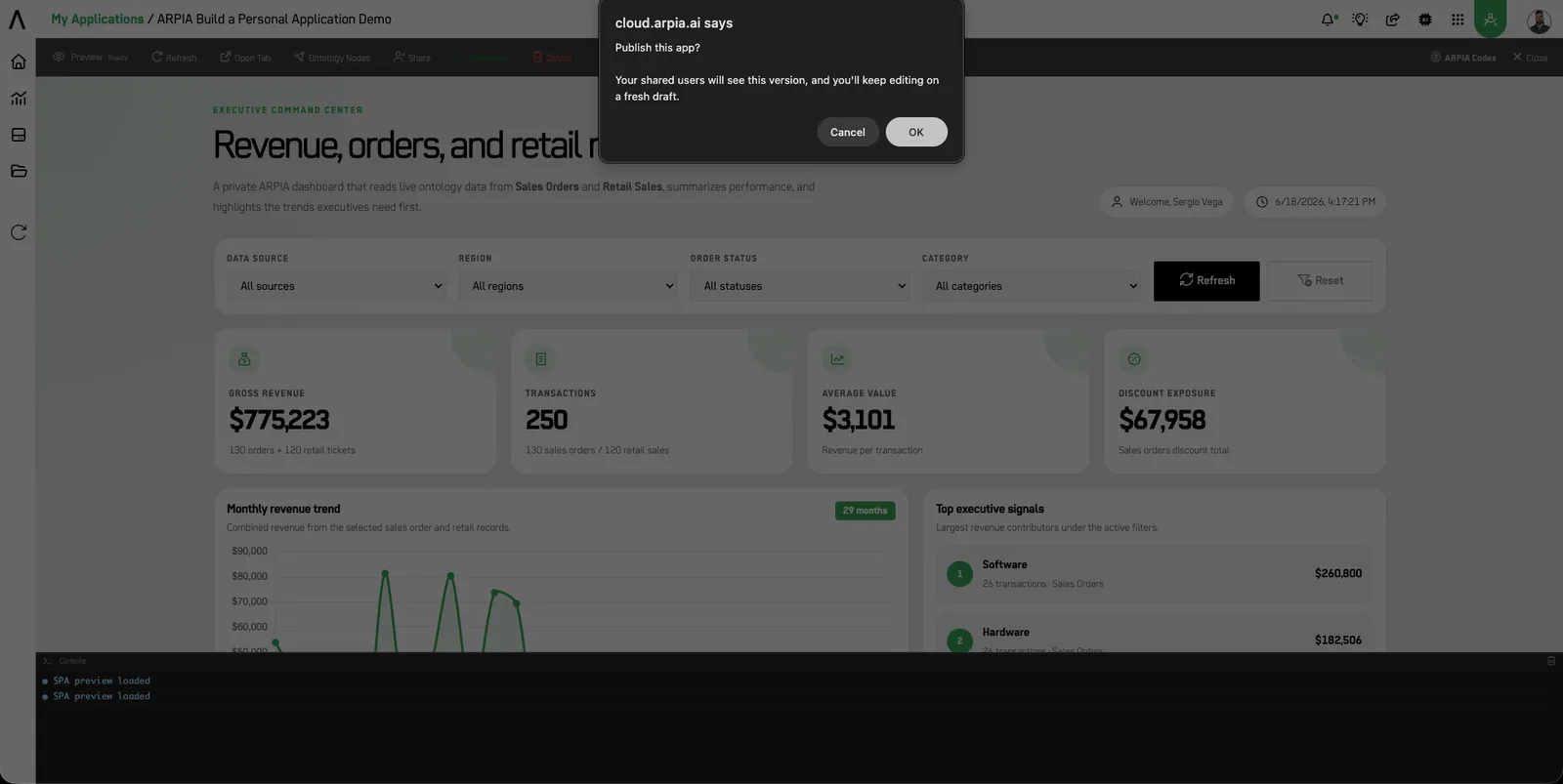
Image no longer available at the source
Not sure where to start? Try telling Codex:#
- "Show my open sales orders as a sortable, searchable table."
- "Build a dashboard: total revenue this month as a big number, plus a bar chart by region."
- "Add a form to log a new customer visit and save it with my Create Visit action."
- "Build a case management app using my Cases node. Show open cases by owner, priority, and status."
- "Add a case status update form using my approved Update Case Status action."
- "Create an invoice follow-up dashboard using the Invoice node and only the actions available to my profile."
Working With Codex#
The assistant in the panel is Arpia Codex — SPA Studio. It runs in Build mode — changes apply immediately and update the live preview as Codex works.
Input bar controls#
The Codex input bar gives you several tools to guide the build:
| Control | What it does |
|---|---|
··· |
Additional options menu |
| Build | Active mode — Codex applies changes and updates the preview live |
| Model selector | Choose which AI model powers the session (e.g. openai/gpt-5.5) |
| 📎 Attach file | Upload a file for Codex to read and use as context |
| 📷 Image | Attach a screenshot or image — Codex can see and interpret it |
⊠ |
Clear / reset the current context |
Focus Scope#
The 📎 attach button opens a Focus Scope selector before attaching:
- All Files (default) — Codex has access to everything in the current app context.
- Current File — Codex focuses only on the file currently open.
Attaching images#
You can share a screenshot directly with Codex — useful for showing a design reference, an existing layout you want to replicate, or a bug you want fixed. Codex will describe what it sees and use it to inform the build.
Full Codex reference: see Arpia Codex in SPA Studio.
Managing Your App#
From the top bar:
- Preview — use your app live as you build.
- Refresh — reload the preview.
- Open Tab — open the app in its own browser tab.
- Share — give your team access (each person sees only their own data).
- Publish — make the current version live.
- Delete — remove the app.
Access & Sharing#
Your Personal Application respects ARPIA's permissions end to end:
- You build only from your nodes and actions.
- Each viewer you share with sees the app through their own access — never yours.
Building in a Workarea as a developer instead? See Single-Page Apps (SPA) for the full in-platform and ZIP-upload workflow.