How to design a Data Form
Customize your Data Form’s theme, layout, and content from the Design tab.
Prerequisite#
Create a Data Form before customizing its design. Follow How to create a Data Form if you need to create one.
Step 1: Access the Data Forms section#
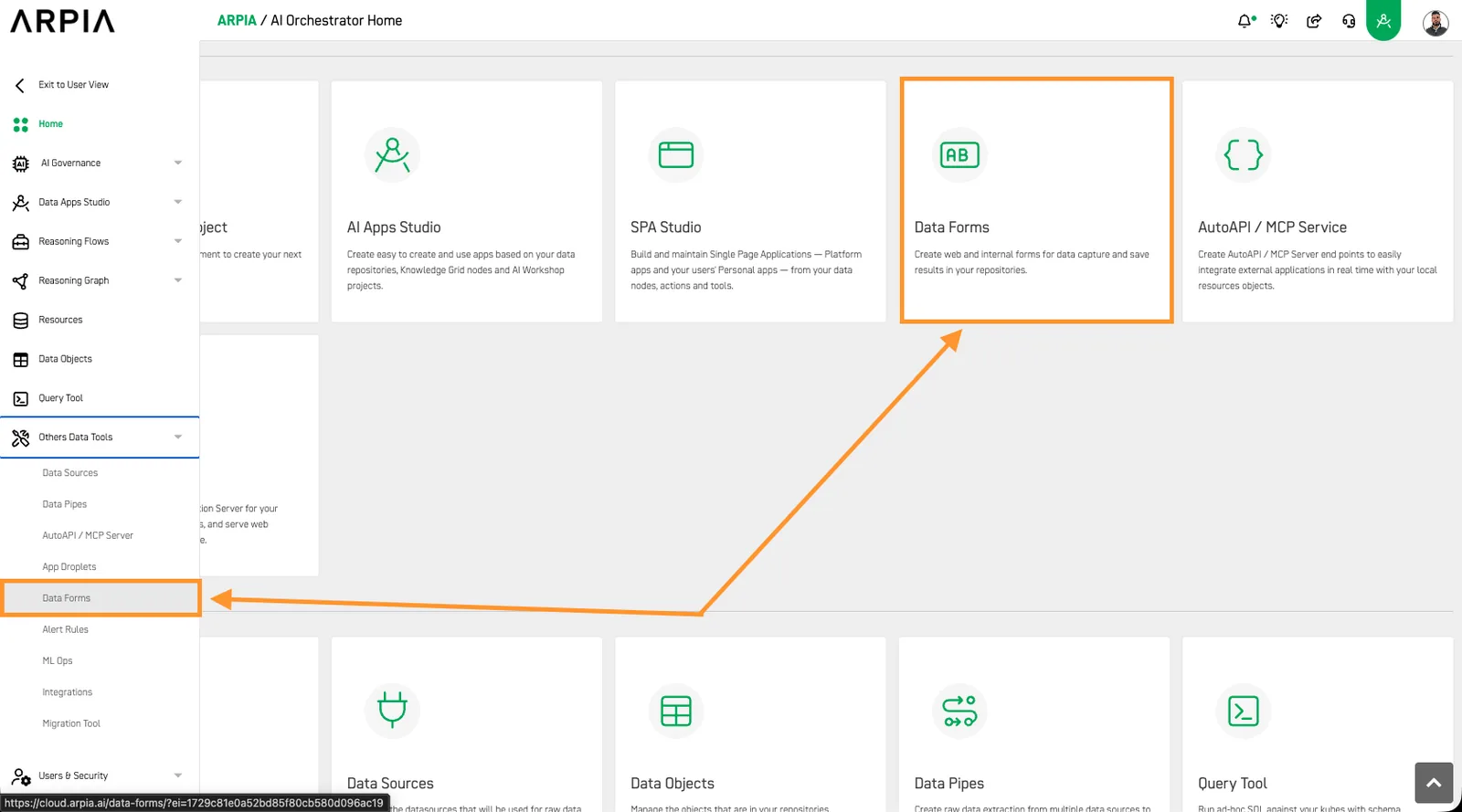
From your Orchestrator Home screen, select the Data Forms option.
Step 2: Select the form to customize#
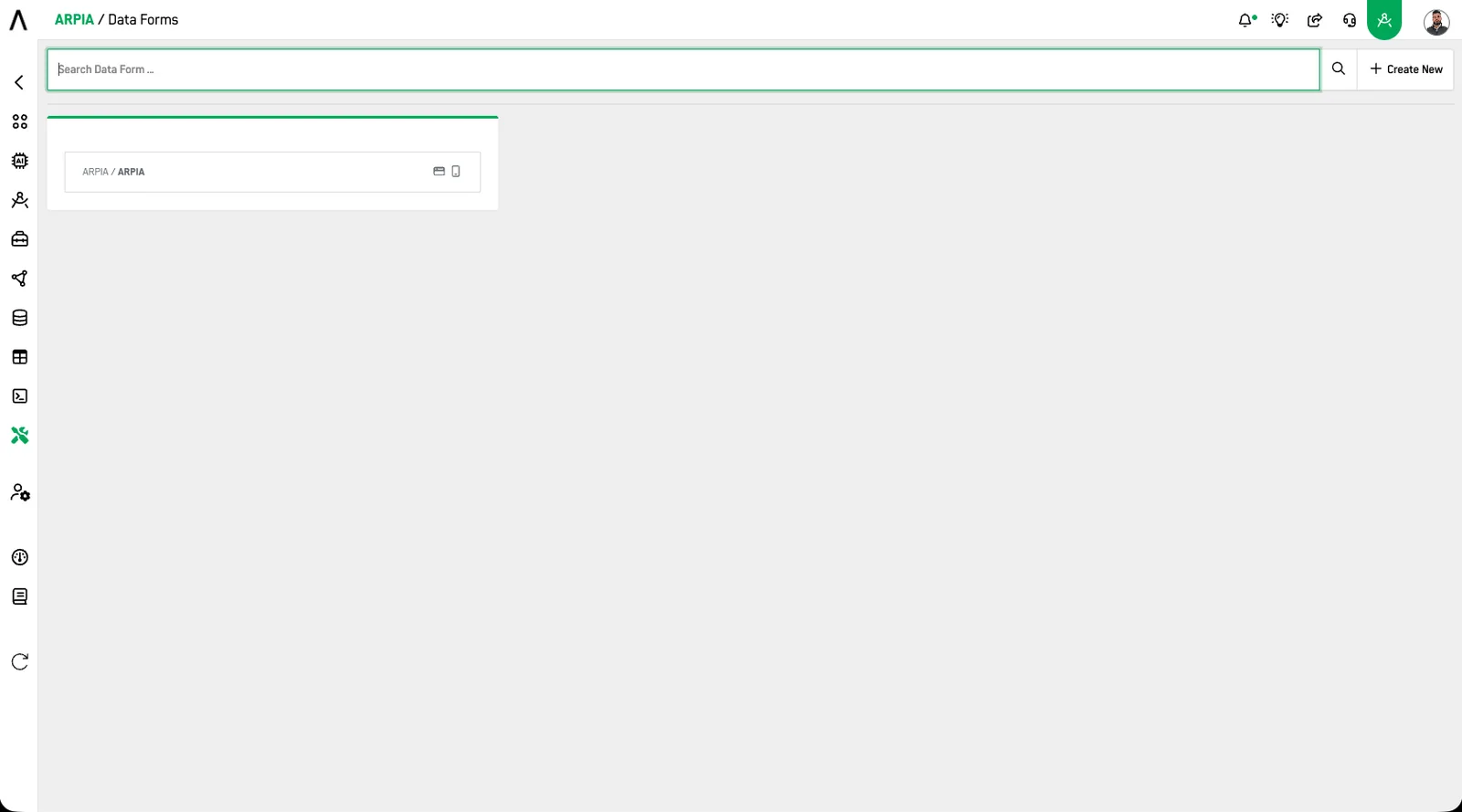
The Data Forms window lists your forms by group. Select the form you want to customize.
Step 3: Select the Design tab#
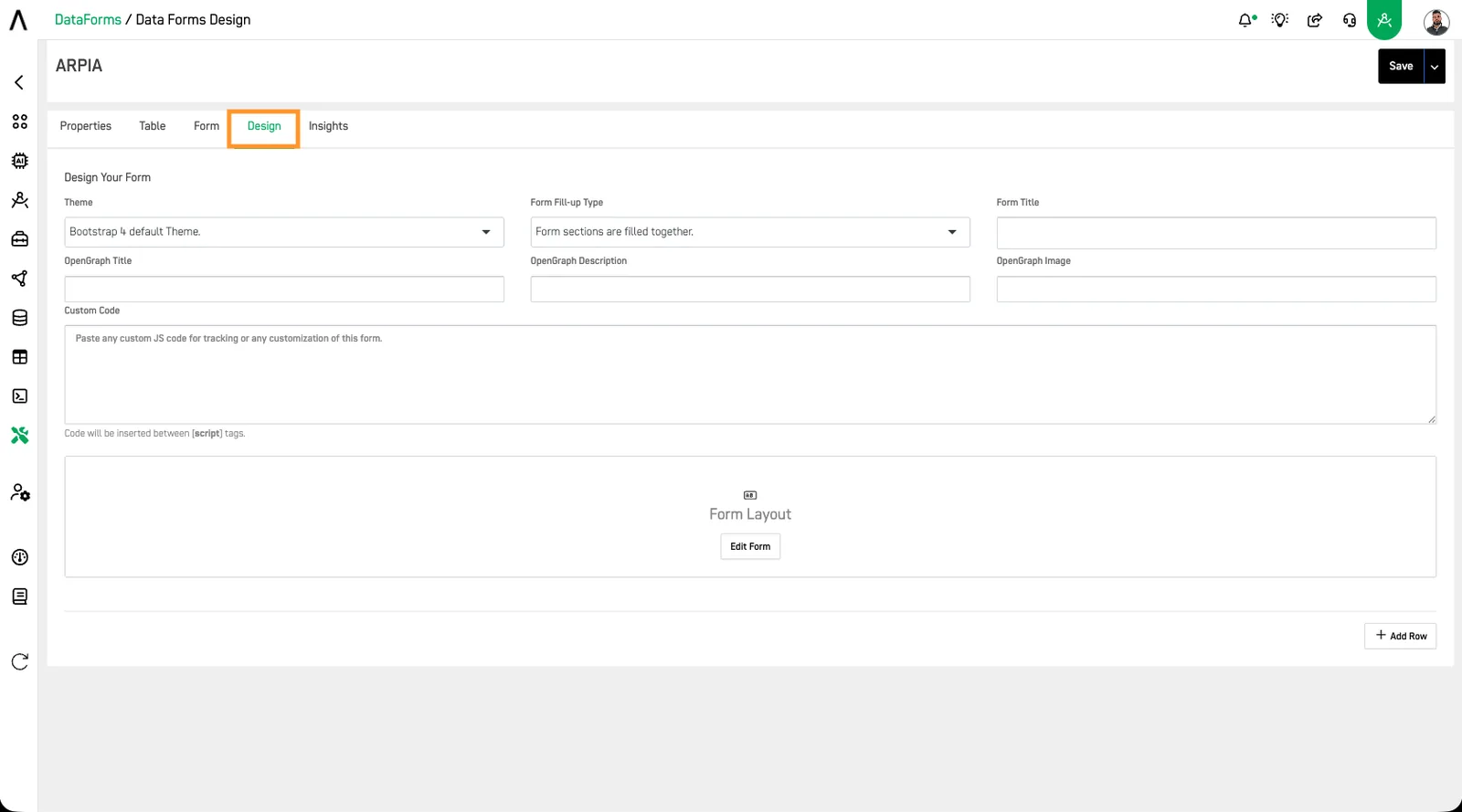
Select the Design tab to access your form’s design options.
Step 4: Review the design screen#
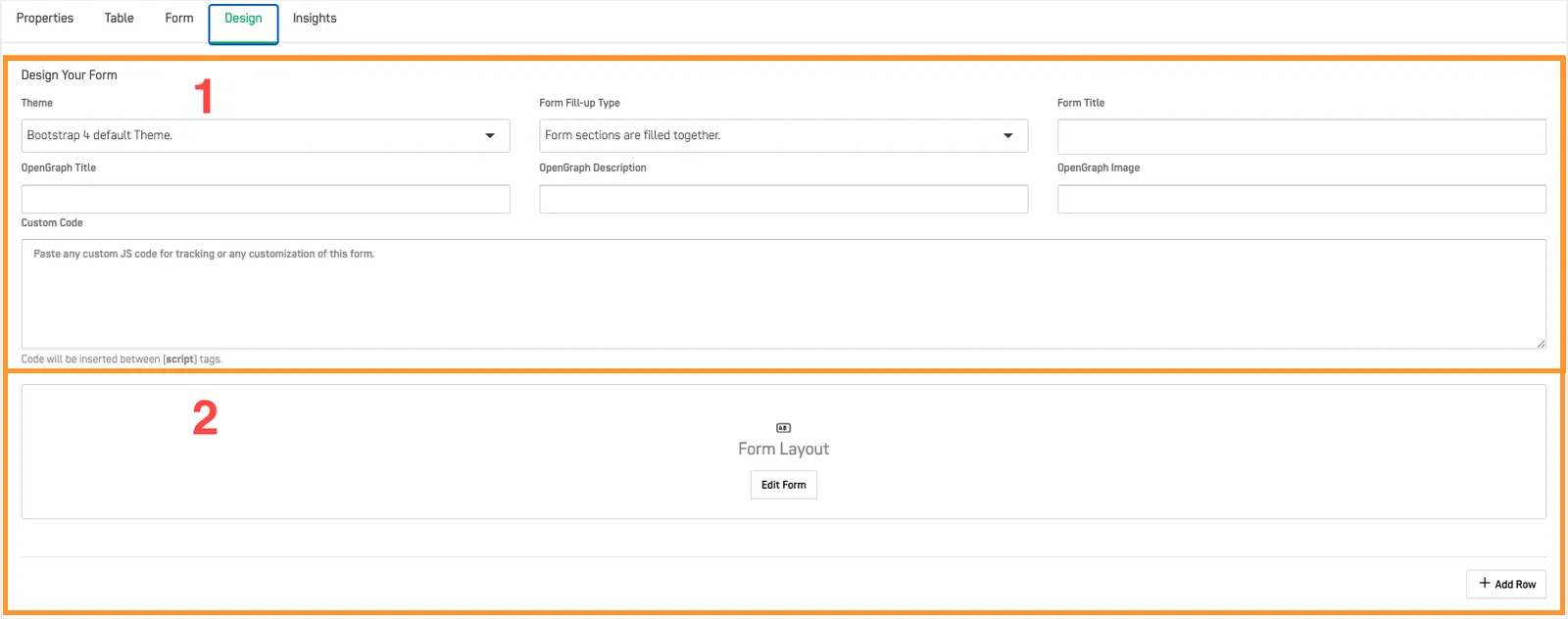
Use the two areas marked in the screenshot to customize your form:
- Change the form type, title, theme, and custom code.
- Add rows and arrange them by dragging and dropping them.
Step 5: Select your form theme#
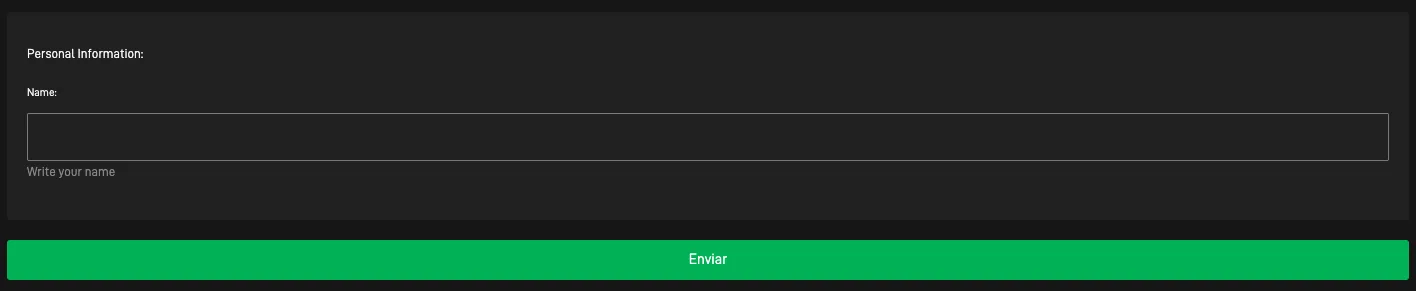
Choose from three themes: Bootstrap 4 Default Theme, DataKubes Theme, and DataKubes Dark Theme.
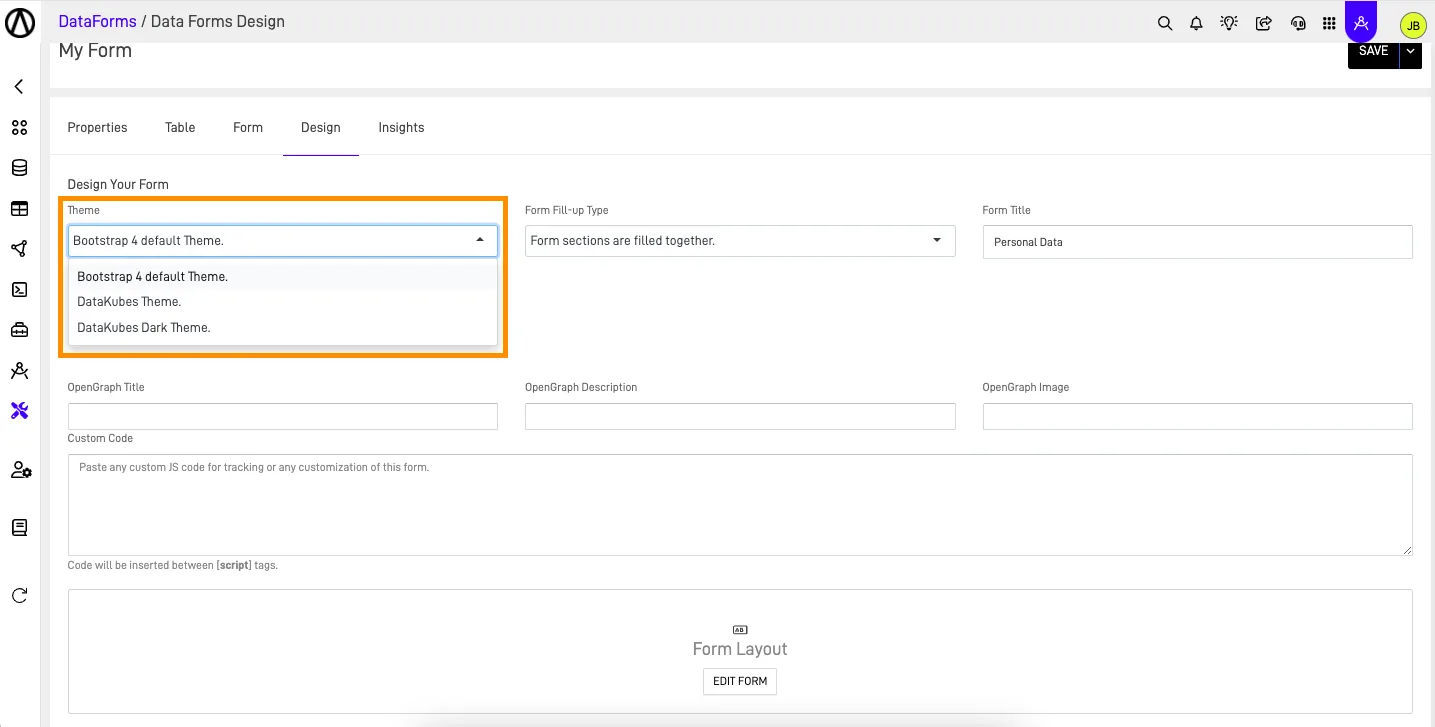
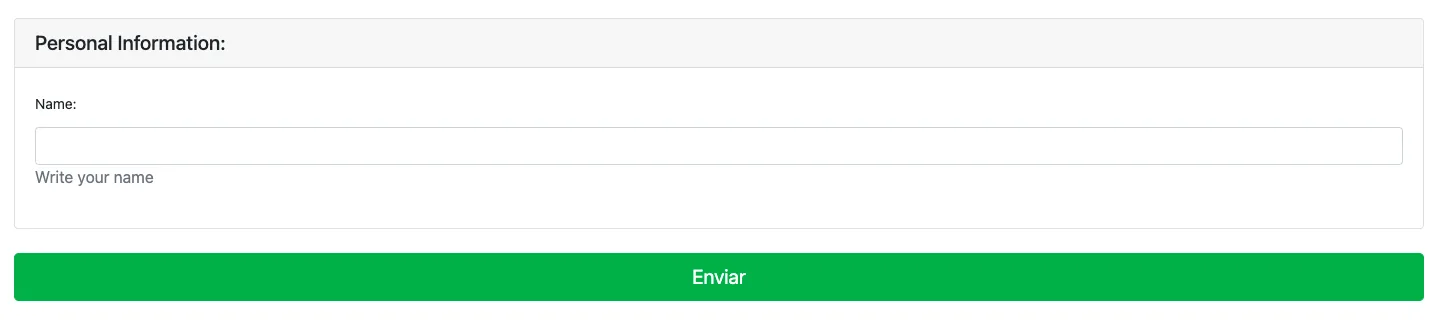
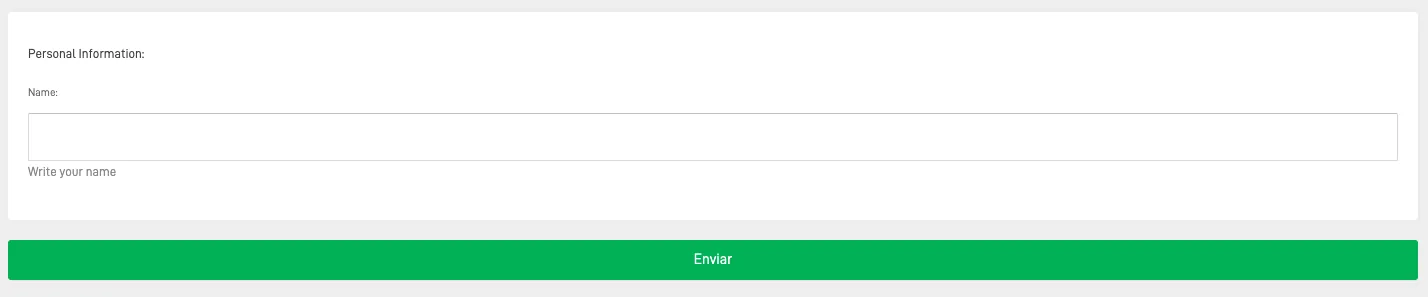
Compare the theme examples below.
Bootstrap 4 Default Theme#
DataKubes Theme#
DataKubes Dark Theme#
Step 6: Select how people complete the form#
Select the Form fill-up type (the setting that controls how people move between form sections). Choose whether to display sections together, in expandable sections, or in sequential steps.
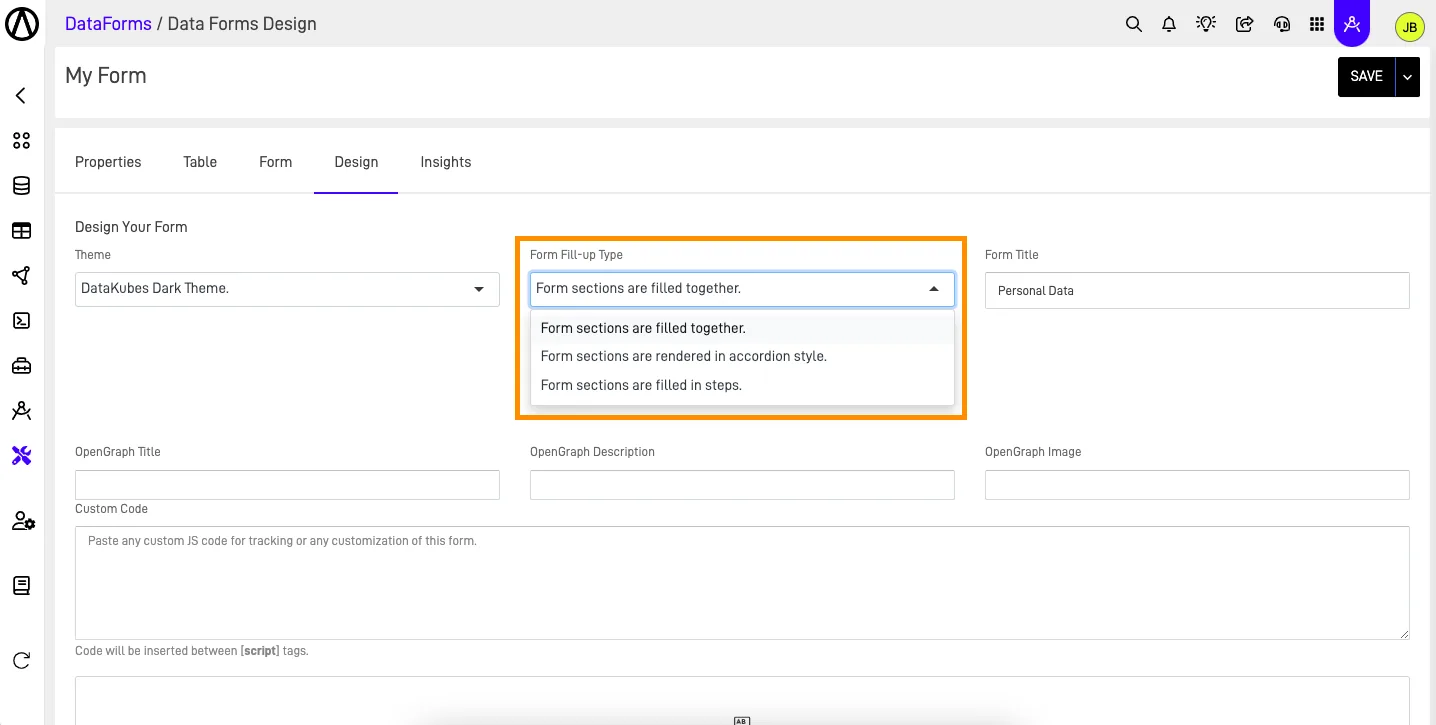
The examples below use a form with two additional sections to illustrate each option. To add sections to your form, follow How to create a Data Form: Add a new section.
Form sections are filled together#
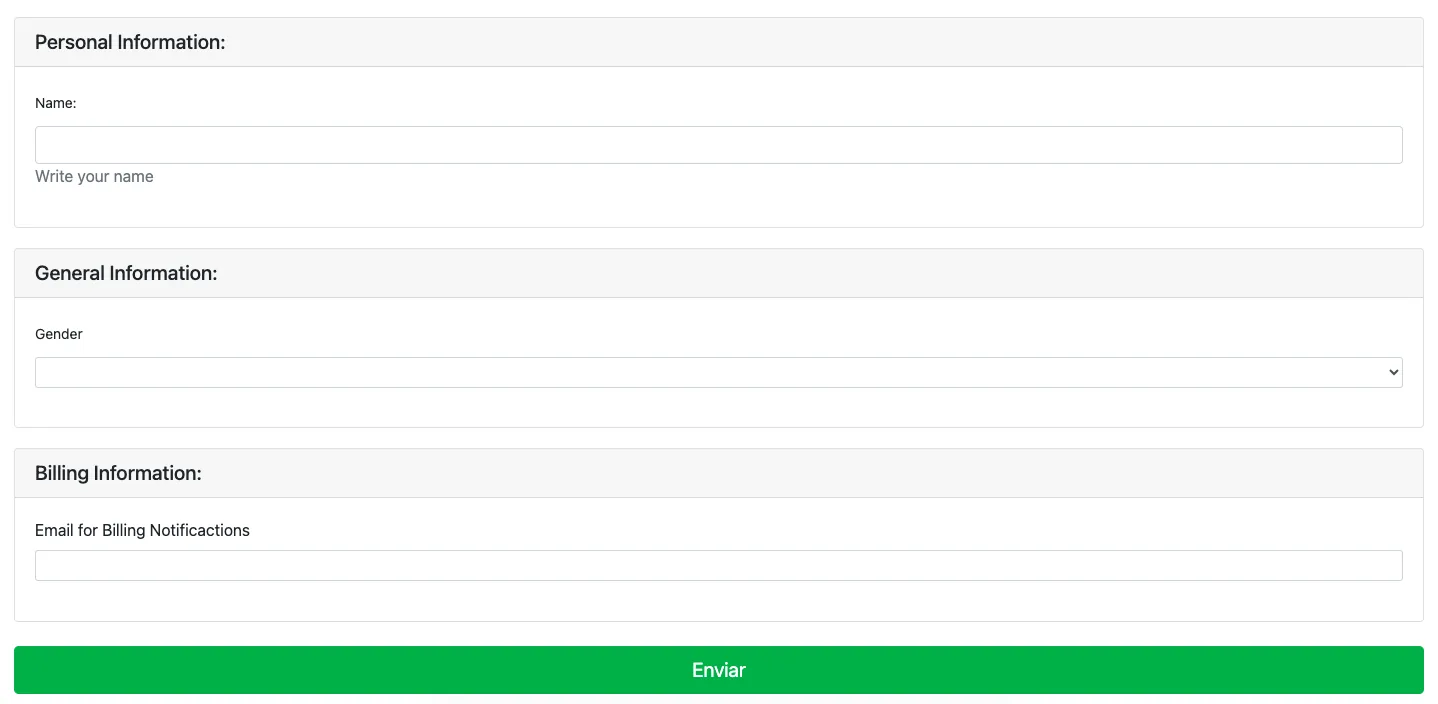
Choose this option to display all sections and fields at once. People can complete the fields in any order.
Form sections are rendered in accordion style#
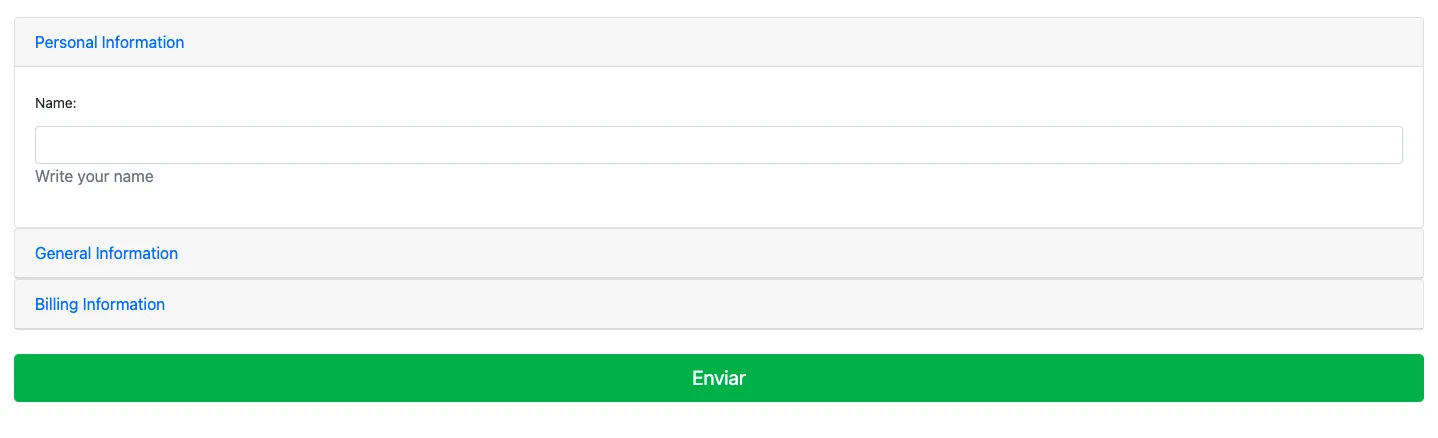
Choose this option to use an accordion (a layout with expandable sections). People can open any section; opening one closes the others so they can focus on one section at a time.
Form sections are filled in steps#
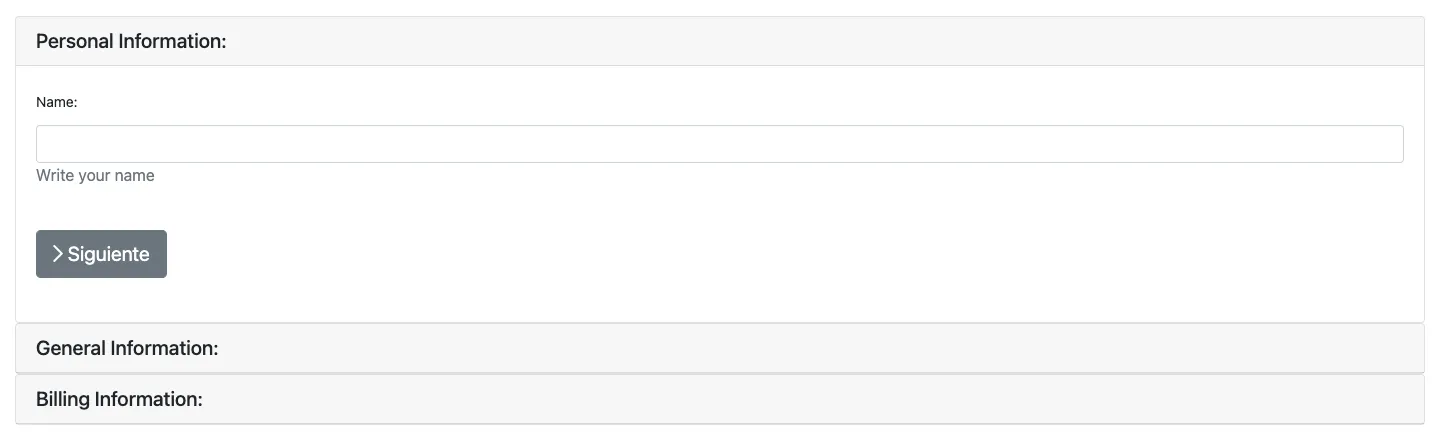
Choose this option to require people to complete sections in order. They must complete all required fields in the current section before proceeding to the next section and cannot skip sections.
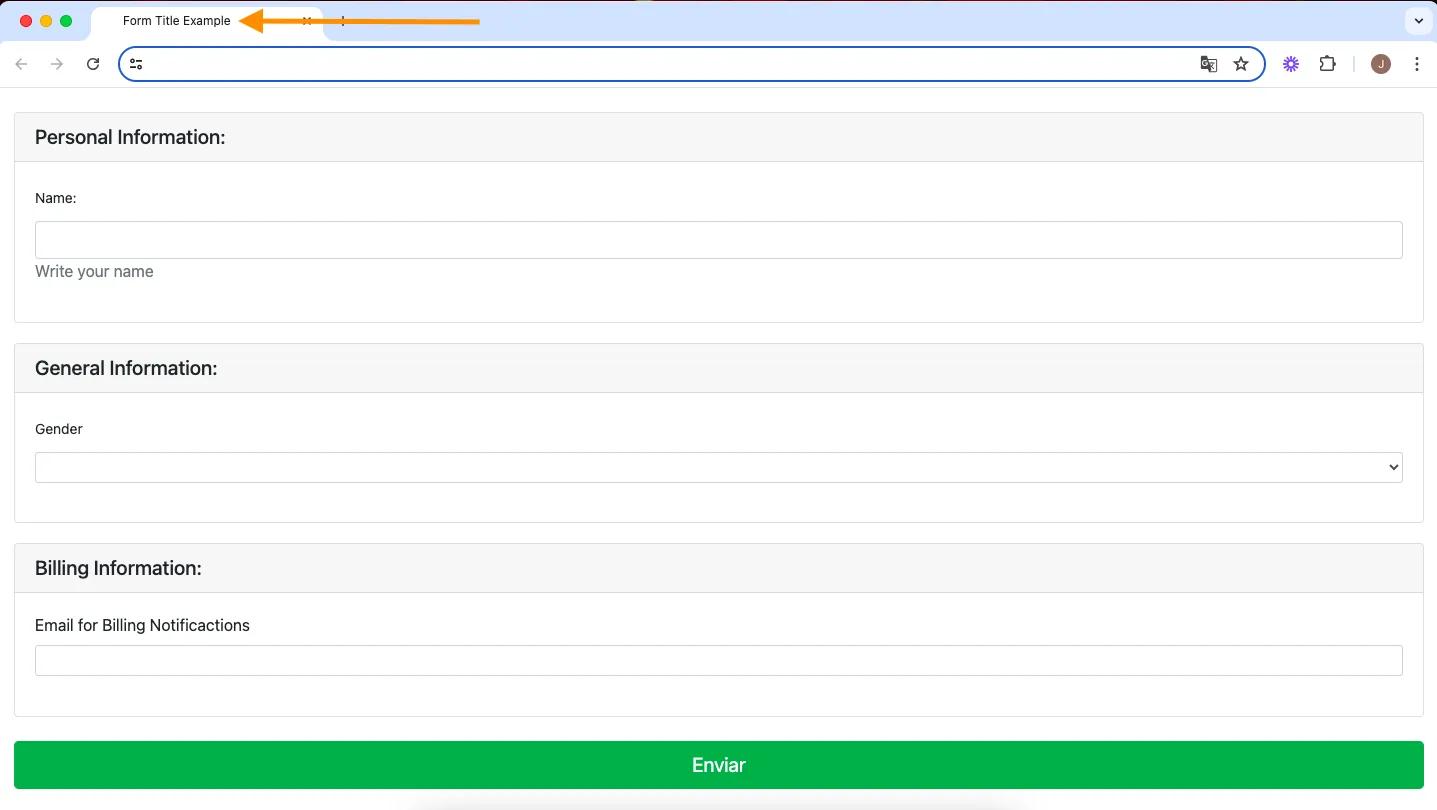
Step 7: Set the form title#
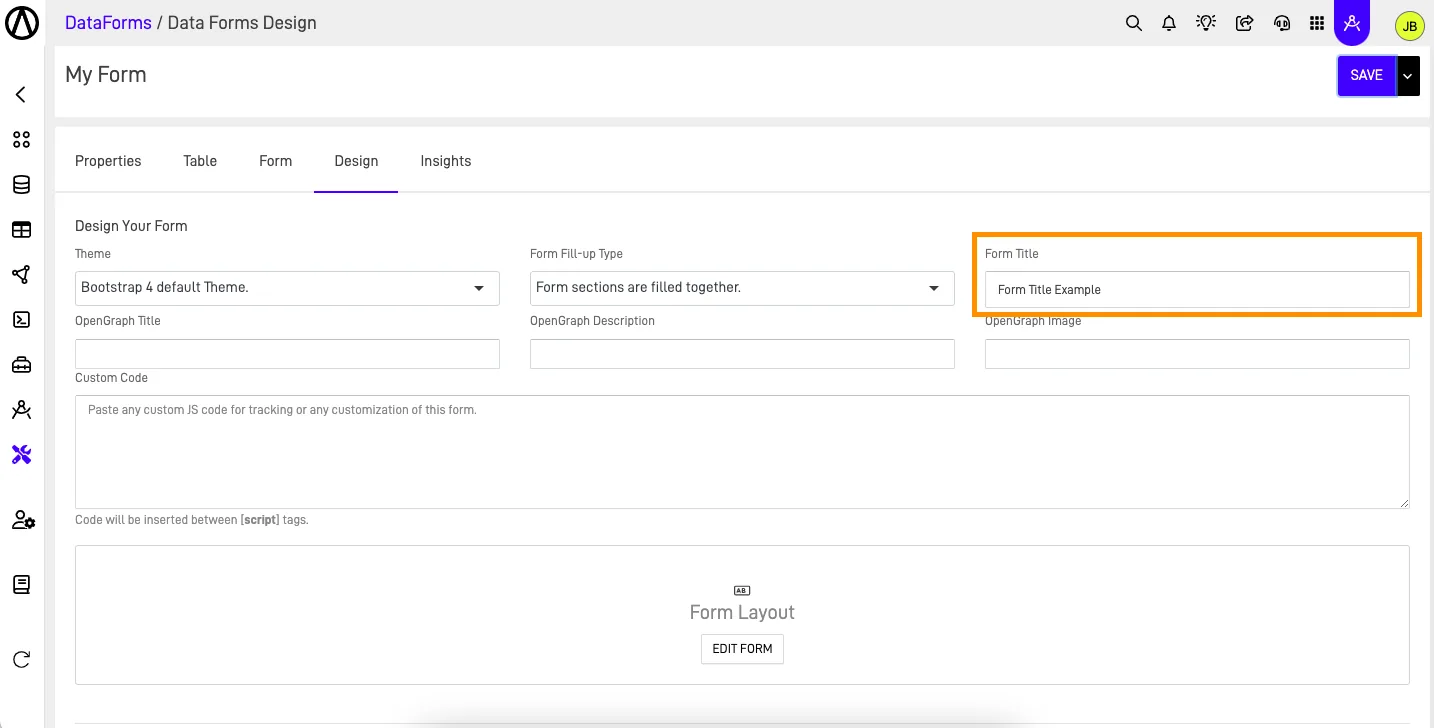
Enter a title in the Form Title field to change the form’s browser tab title. The example below uses "Form Title Example".
Optional: Add OpenGraph information#
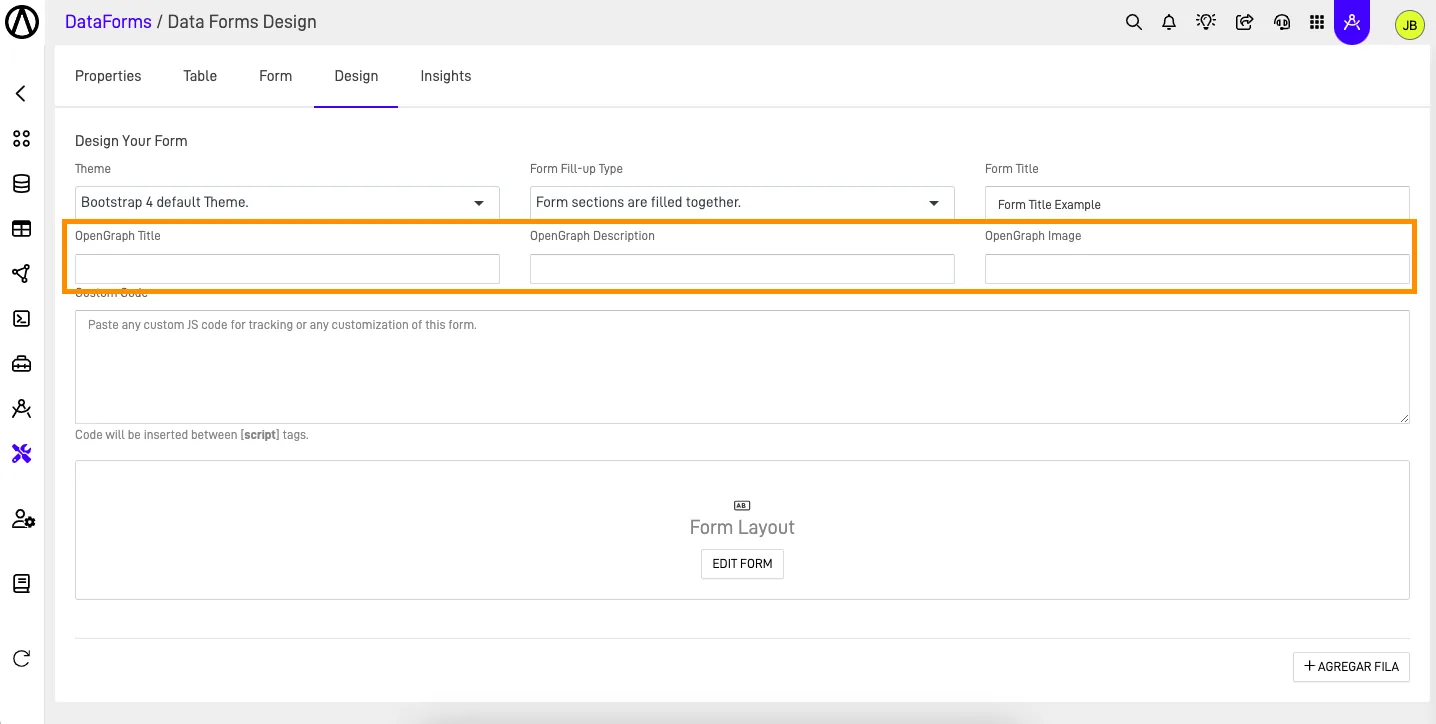
Add an OpenGraph title, description, and image (information that services use to preview a shared link to your form).
Optional: Add custom code#
Add JavaScript in the Custom Code section to customize your form or include tracking code. The form includes this code inside a <script> tag in its HTML.
Optional: Add rows and elements#
The Form Layout area displays the form you created in the Form tab. To change the form itself, open the Form tab or click Edit Form.
To add content alongside the form layout, follow these steps:
- Add a new row in the design screen.
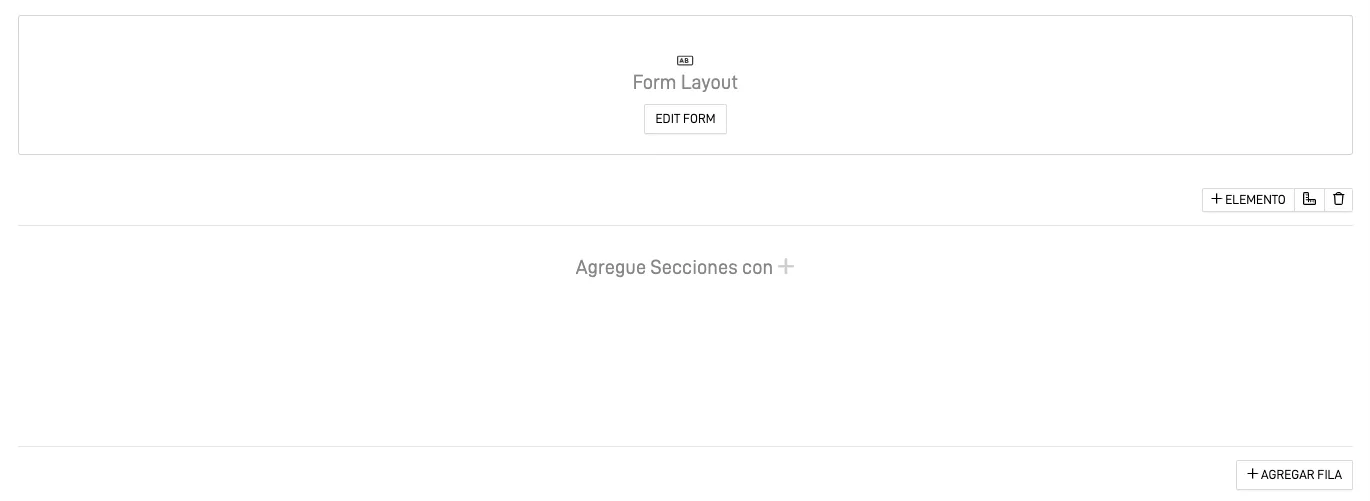
- Add a column to the row and select its size from the available options.
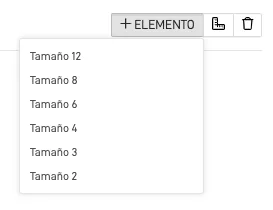
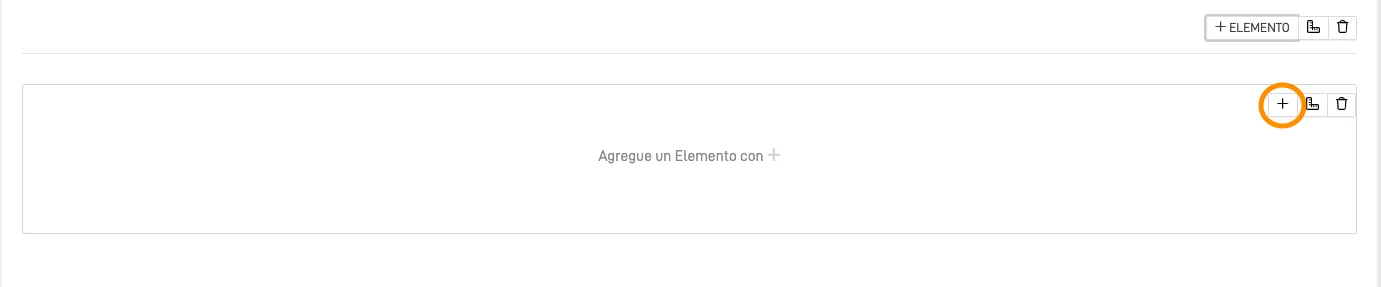
- Click the + button in the column to add an element. This example uses Size 12.
- On the Adjust Element screen (the editor for a column’s content and size), select the element type. You can also change the column size here.
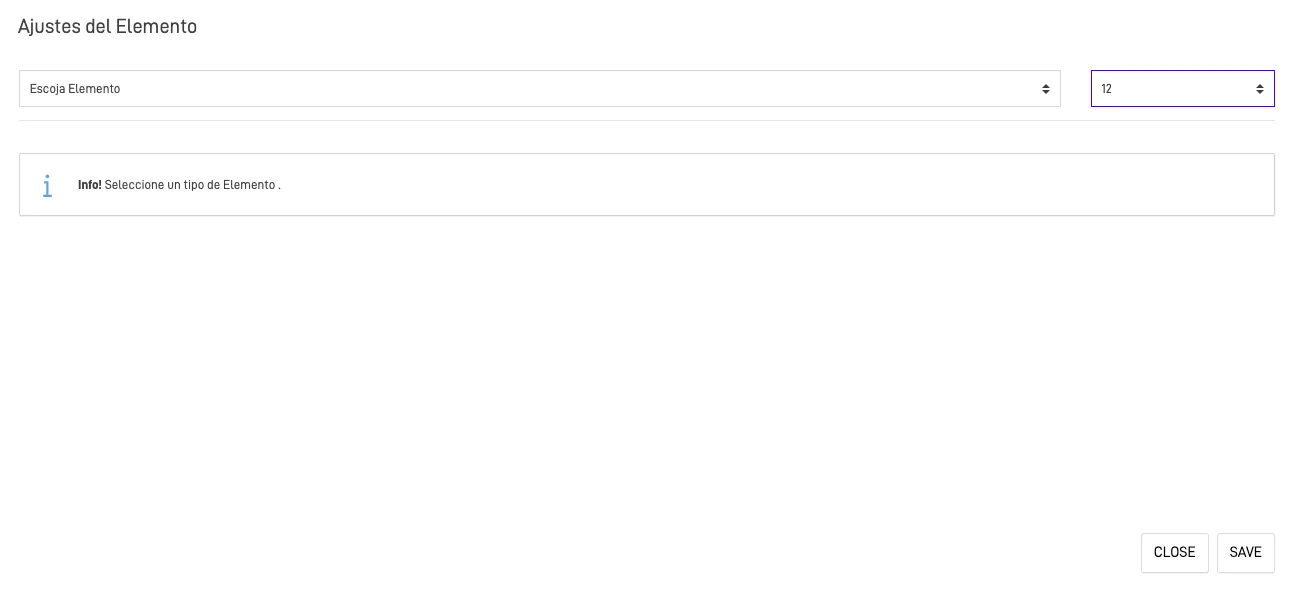
Use the descriptions below to choose an element.
Header#
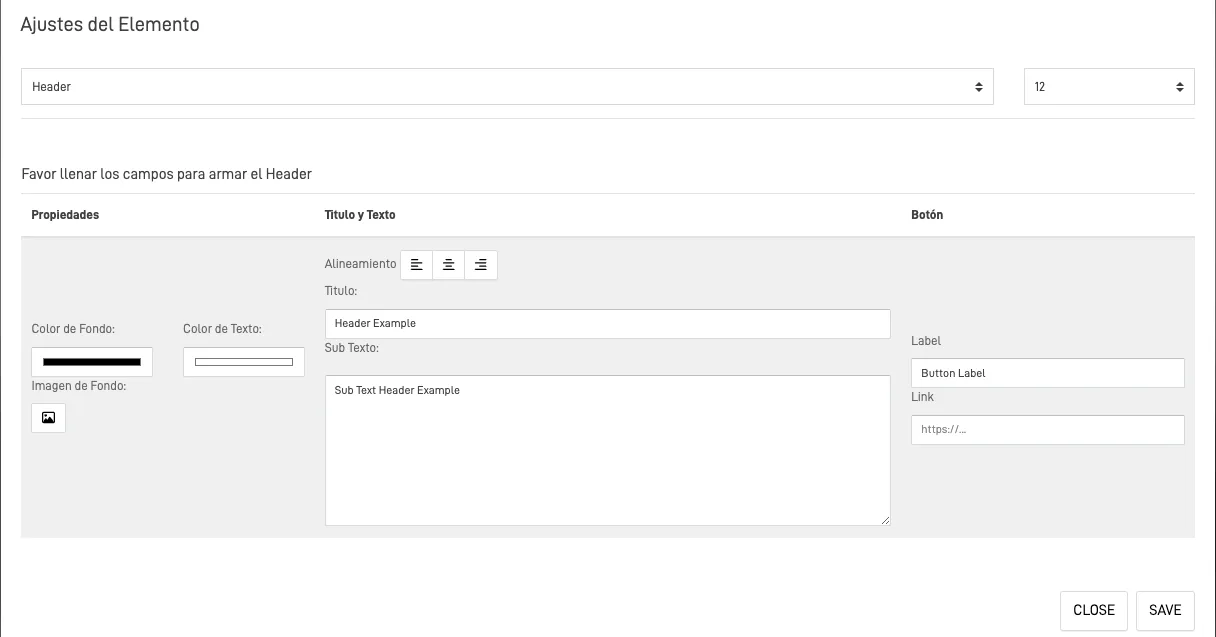
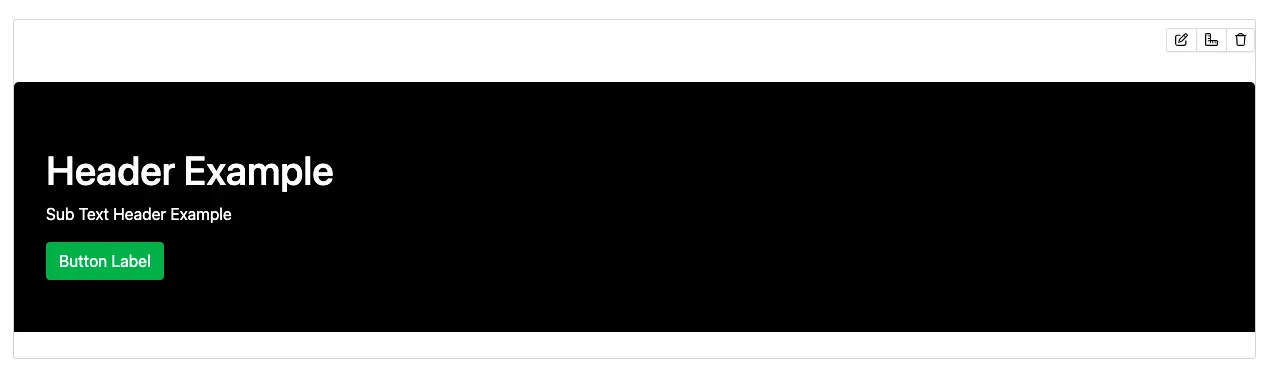
Add a header with a title and supporting text. Include a button by setting its label and destination URL.
Customize the text color and background color, or use an image as the background.
HTML Editor#
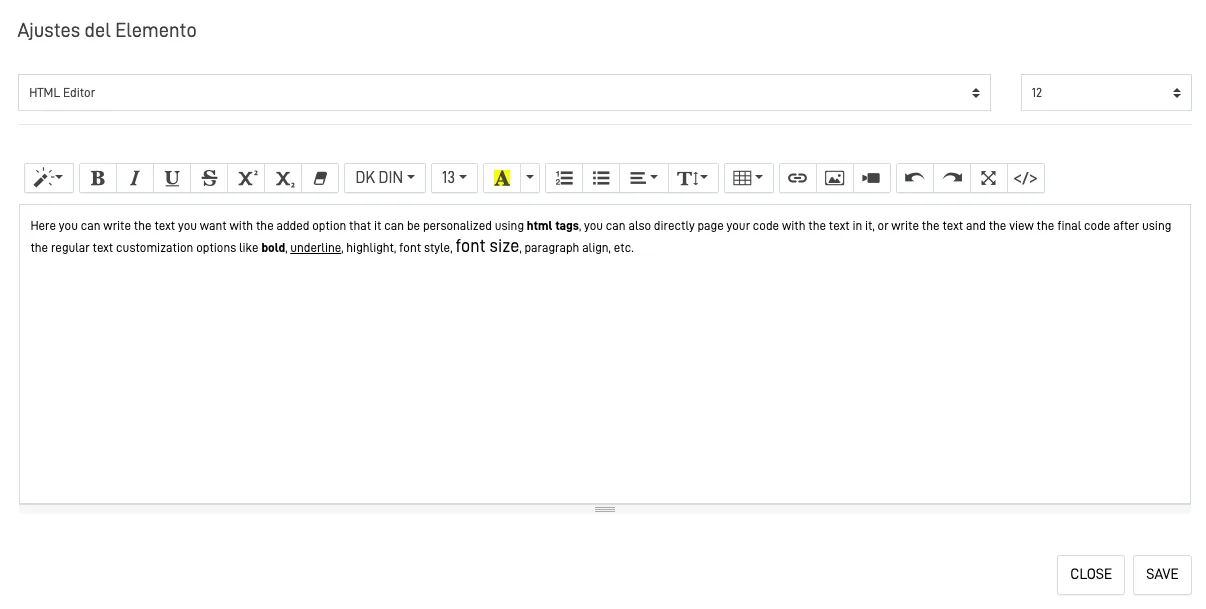
Use the HTML Editor element to add custom text to your form.
Horizontal Line#
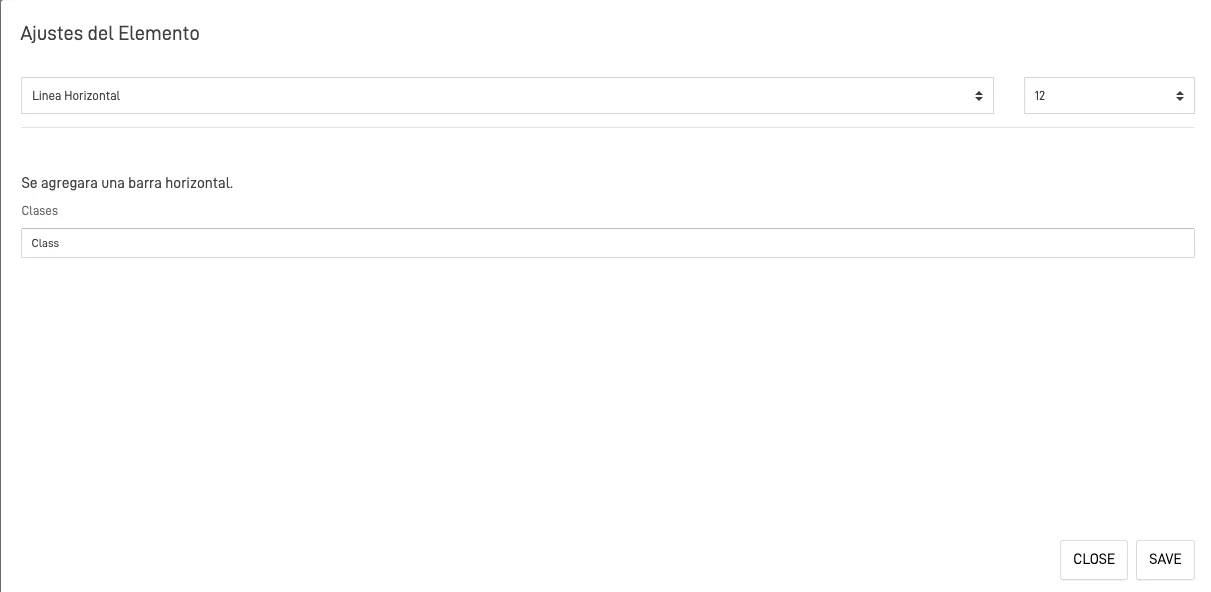
Add a horizontal line to separate content. Optionally, assign a class name (an identifier for targeting the line in your code) to customize its properties with JavaScript.
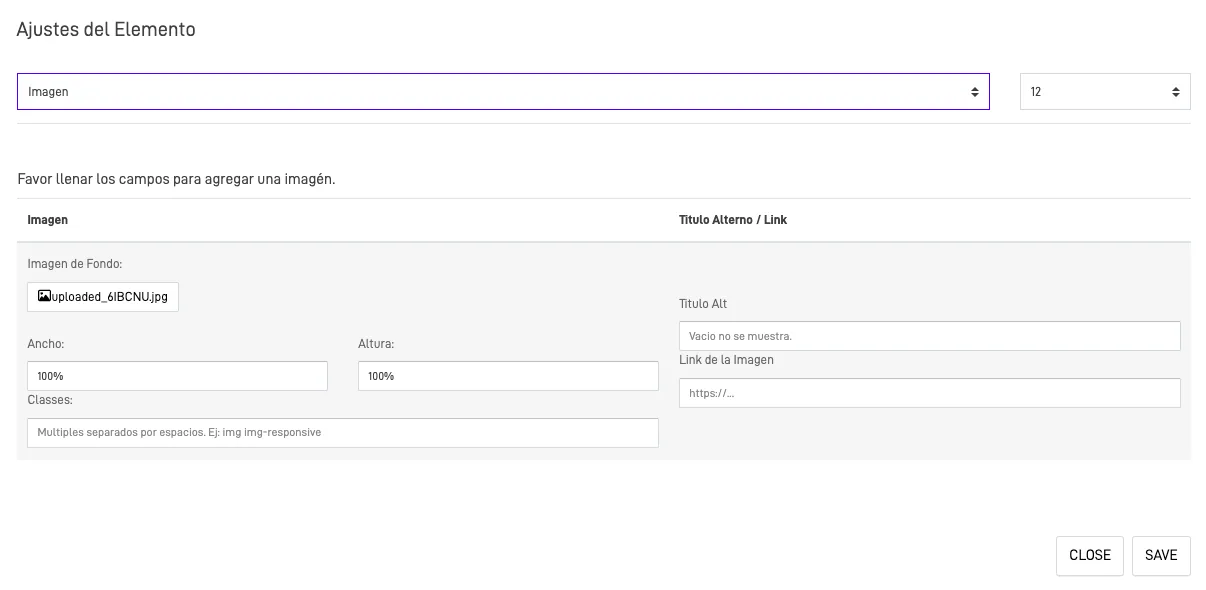
Image#
Add an image by uploading it to your bucket (a file storage container) or entering an image URL. Set the width and height in percentages (%) or pixels (px).
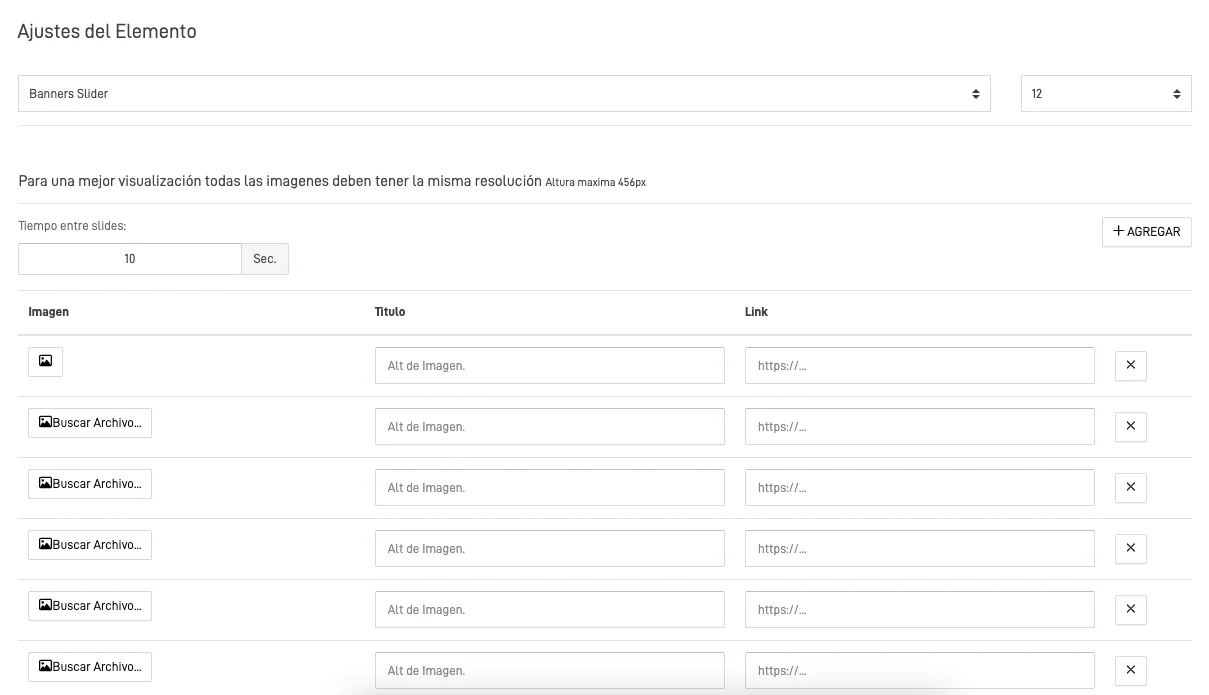
Banners Slider#
Create a rotating display of banners or images. Set the number of images and the time between slides. Use images with the same dimensions for a consistent display.
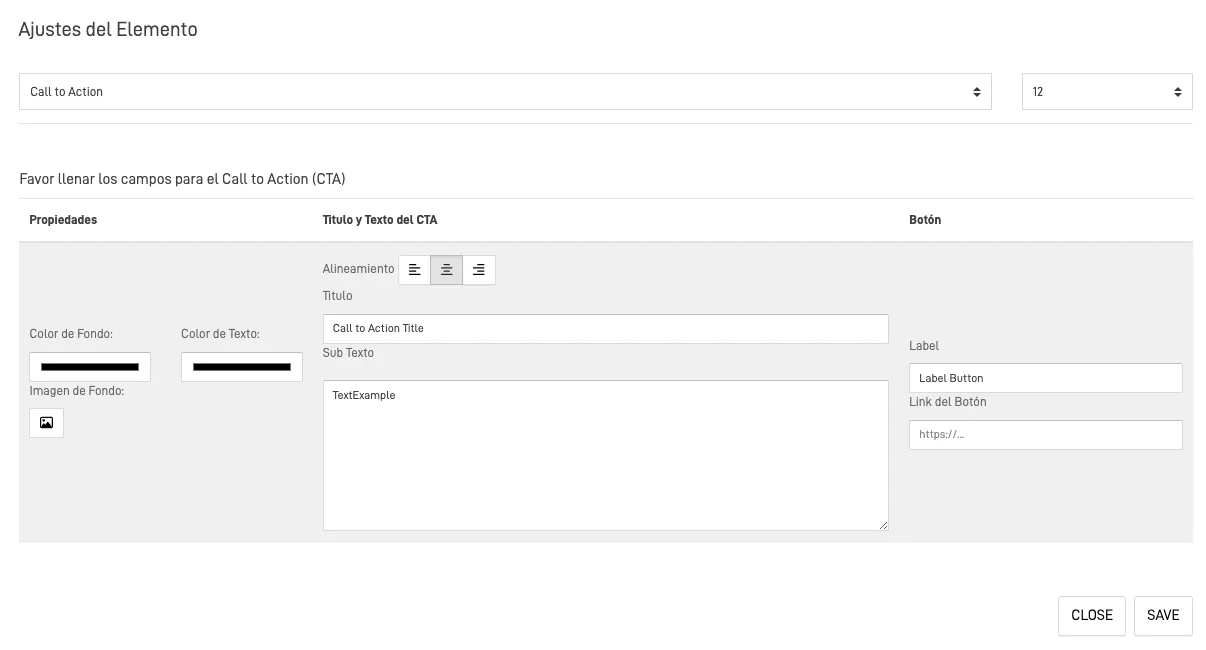
Call to action#
Add a call to action (a button or link that prompts people to take an action). Use a direct label, such as "Sign Up" or "Buy Now".
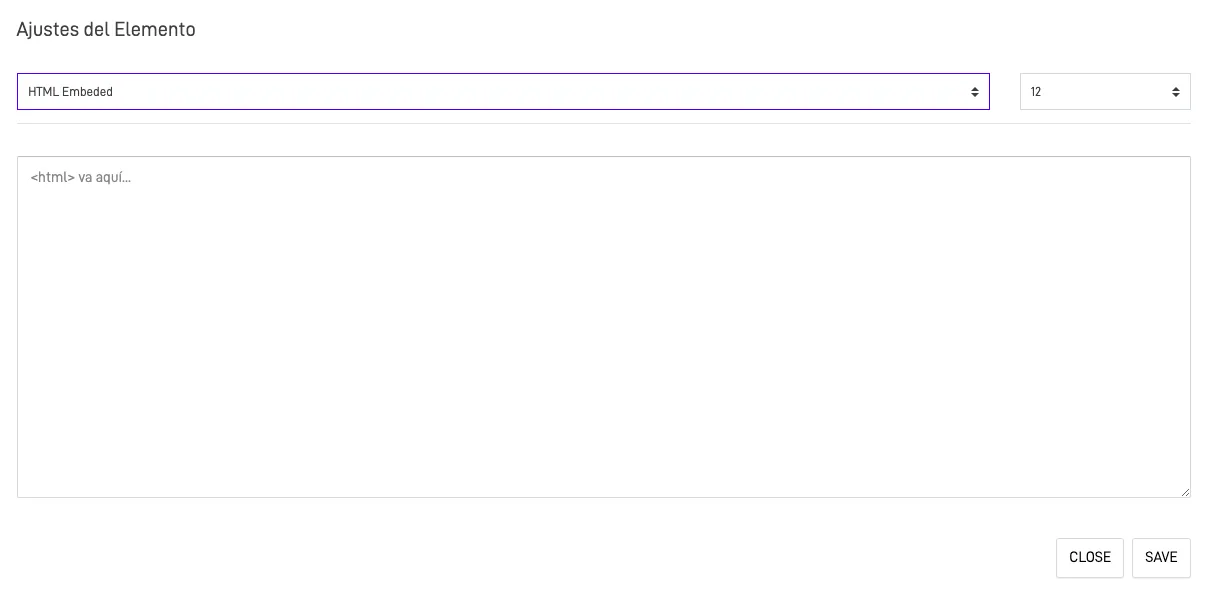
Embedded HTML#
Add embedded HTML (custom markup within the form page) to customize your form’s content and layout.
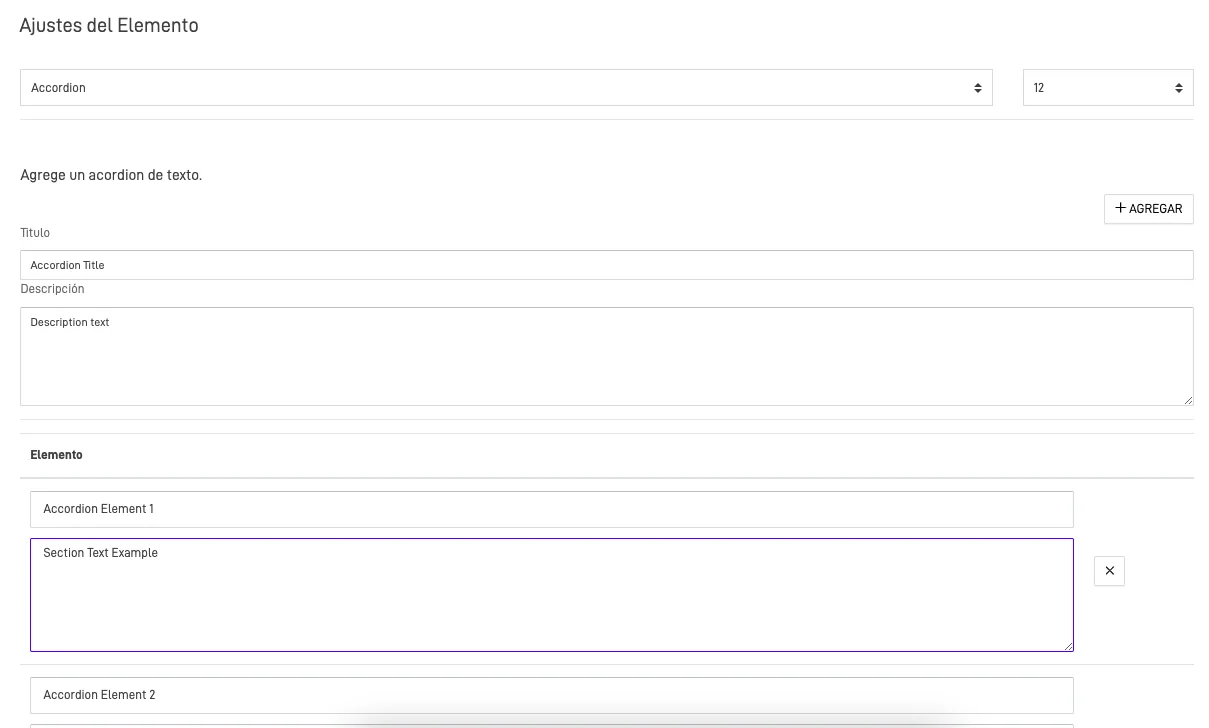
Accordion#
Organize text into expandable sections with the Accordion element. Initially, people see only the section titles. They can expand a section to read its text.
Horizontal Lines#
Use Horizontal Lines to arrange multiple images or text items in rows. Set the number of items to display per row.