Single Sign-On (SSO) @ ARPIA Platform
This guide explains how Single Sign-On (SSO) works within the ARPIA Platform, including supported providers (Google Workspace and Microsoft 365 / Azure Active Directory), how to log in, how to add…
This guide explains how Single Sign-On (SSO) works within the ARPIA Platform, including supported providers (Google Workspace and Microsoft 365 / Azure Active Directory), how to log in, how to add new SSO users, and how to switch existing users from password-based login to SSO.
What is SSO (Single Sign-On)?#
SSO = One login for everything.
With SSO, you log in to ARPIA using your Google or Microsoft account.
✅ Faster access\ ✅ Better security\ ✅ No more password headaches
Important: In order for SSO to work, the ARPIA link must be authorized in your organization's Whitelist.
Ask your IT admin if you're unsure.
Which Accounts Can You Use?#
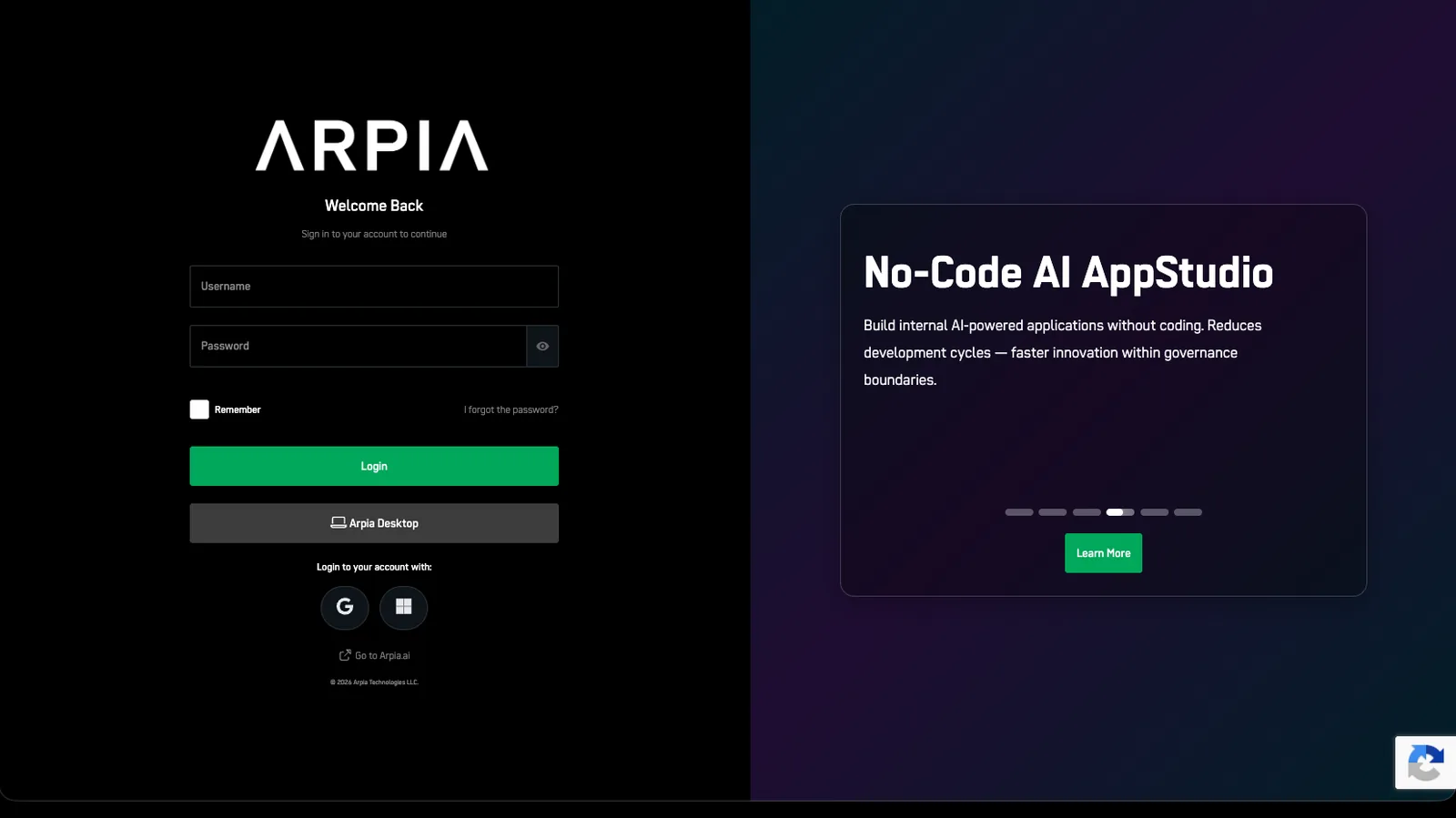
ARPIA works with these account types:
Google Workspace#

Microsoft 365 / Azure Active Directory#

How to Log Into ARPIA with SSO#
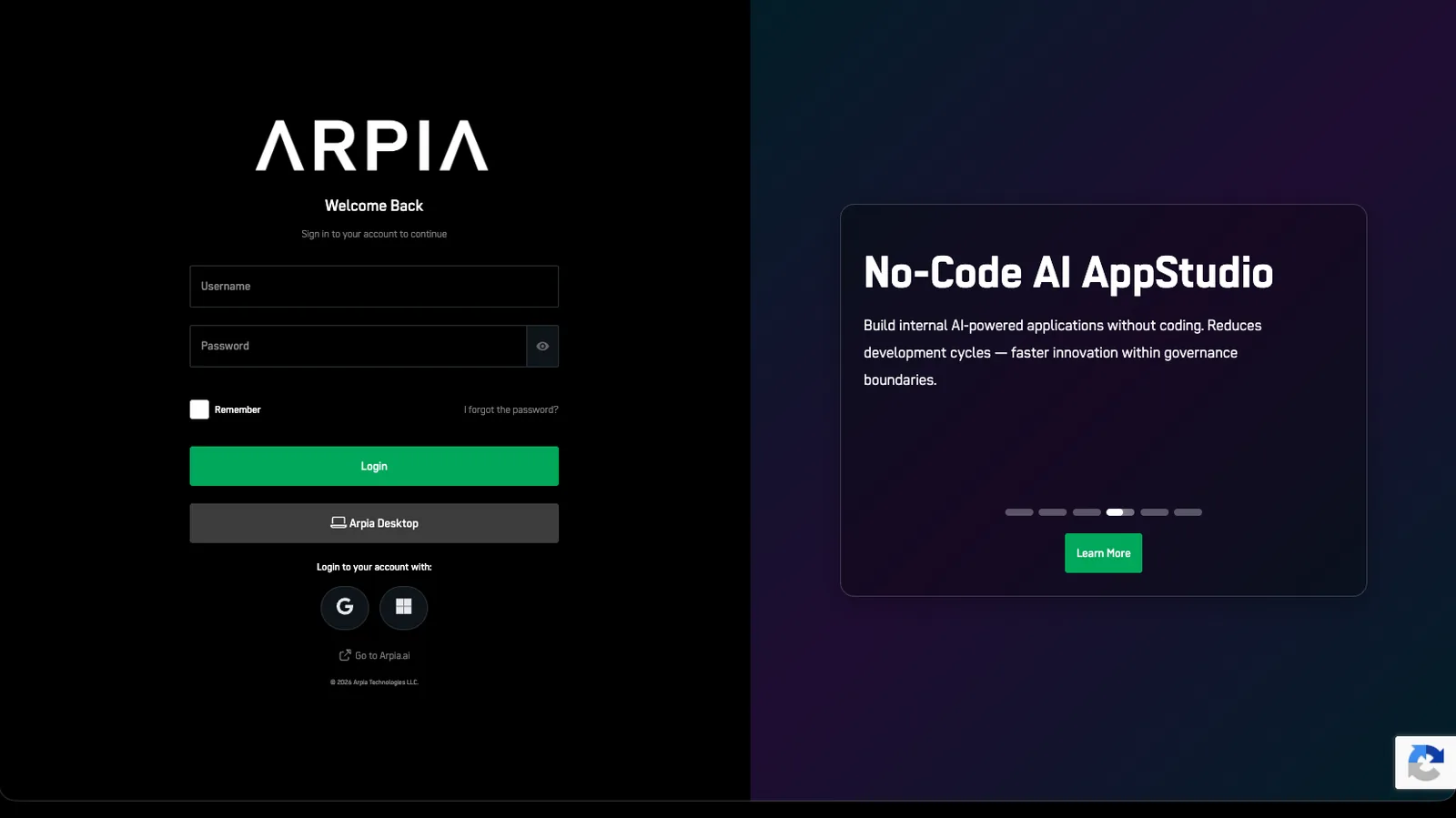
Step 1: Go to the Login Page#
Step 2: Choose Your Login Option#
Click Google or Microsoft
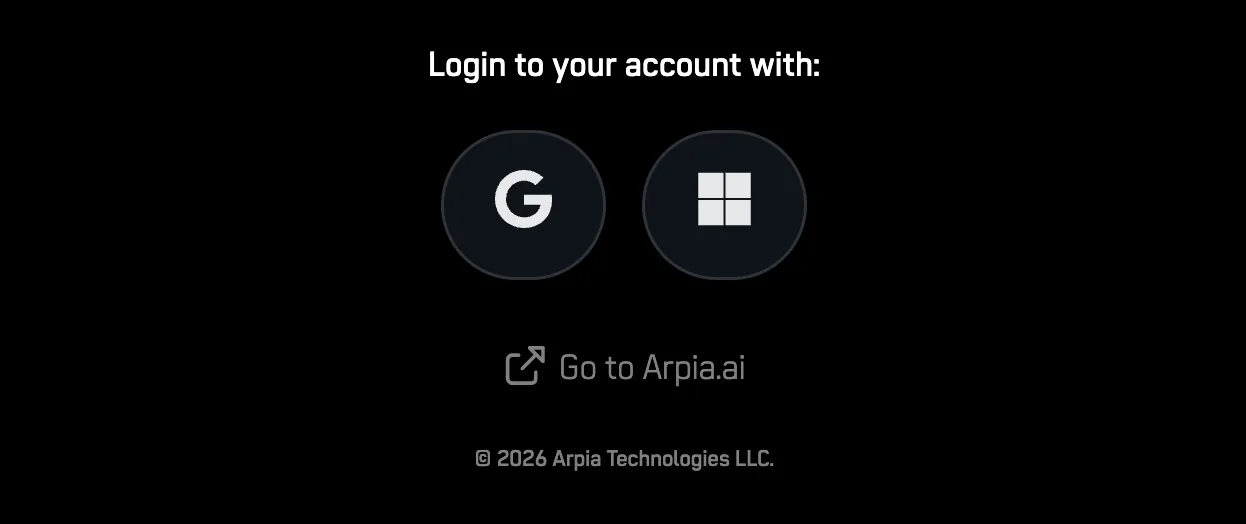
Step 3: Sign In with Your Account#
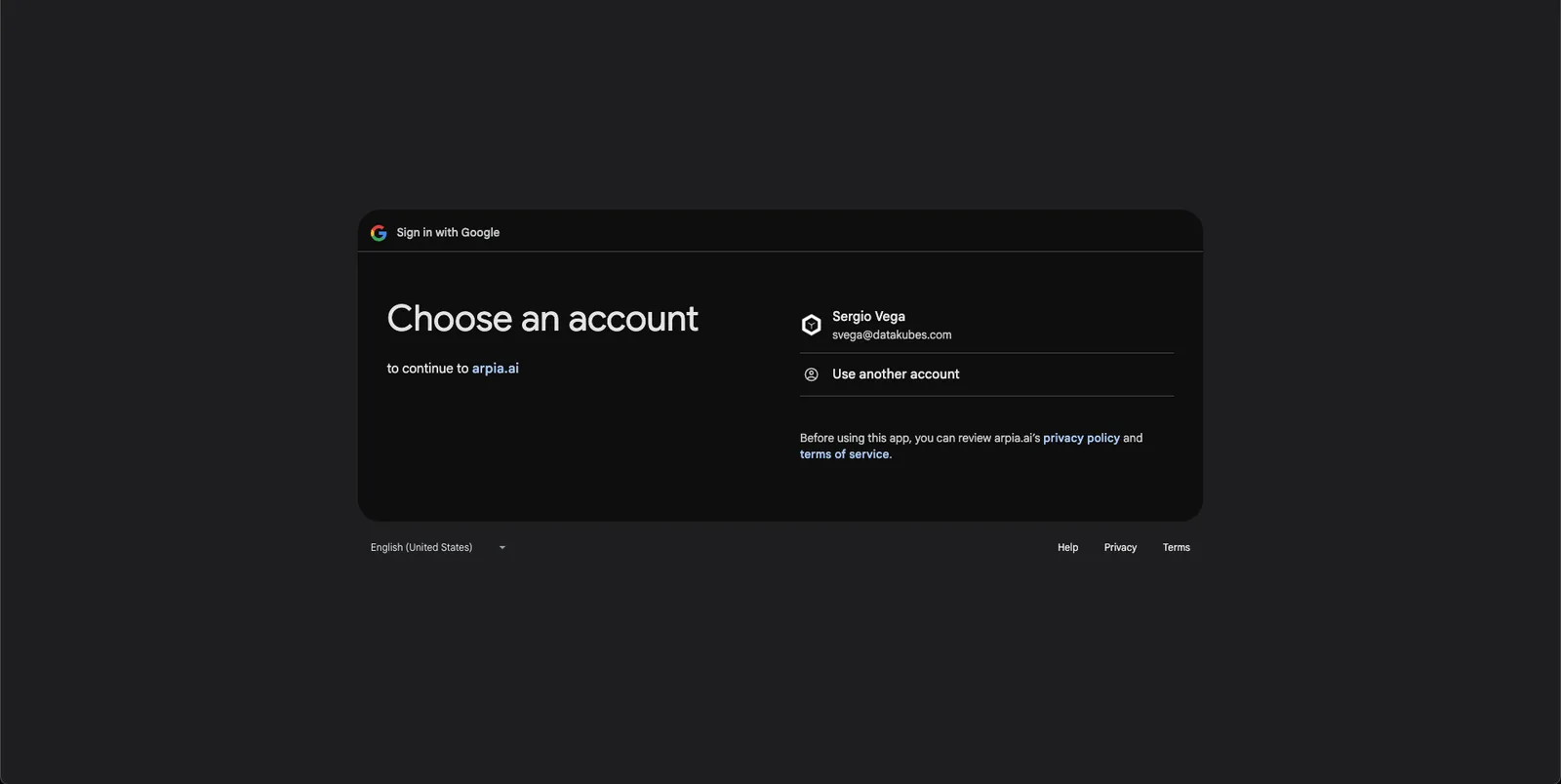
If You Picked Google#
Choose your account:
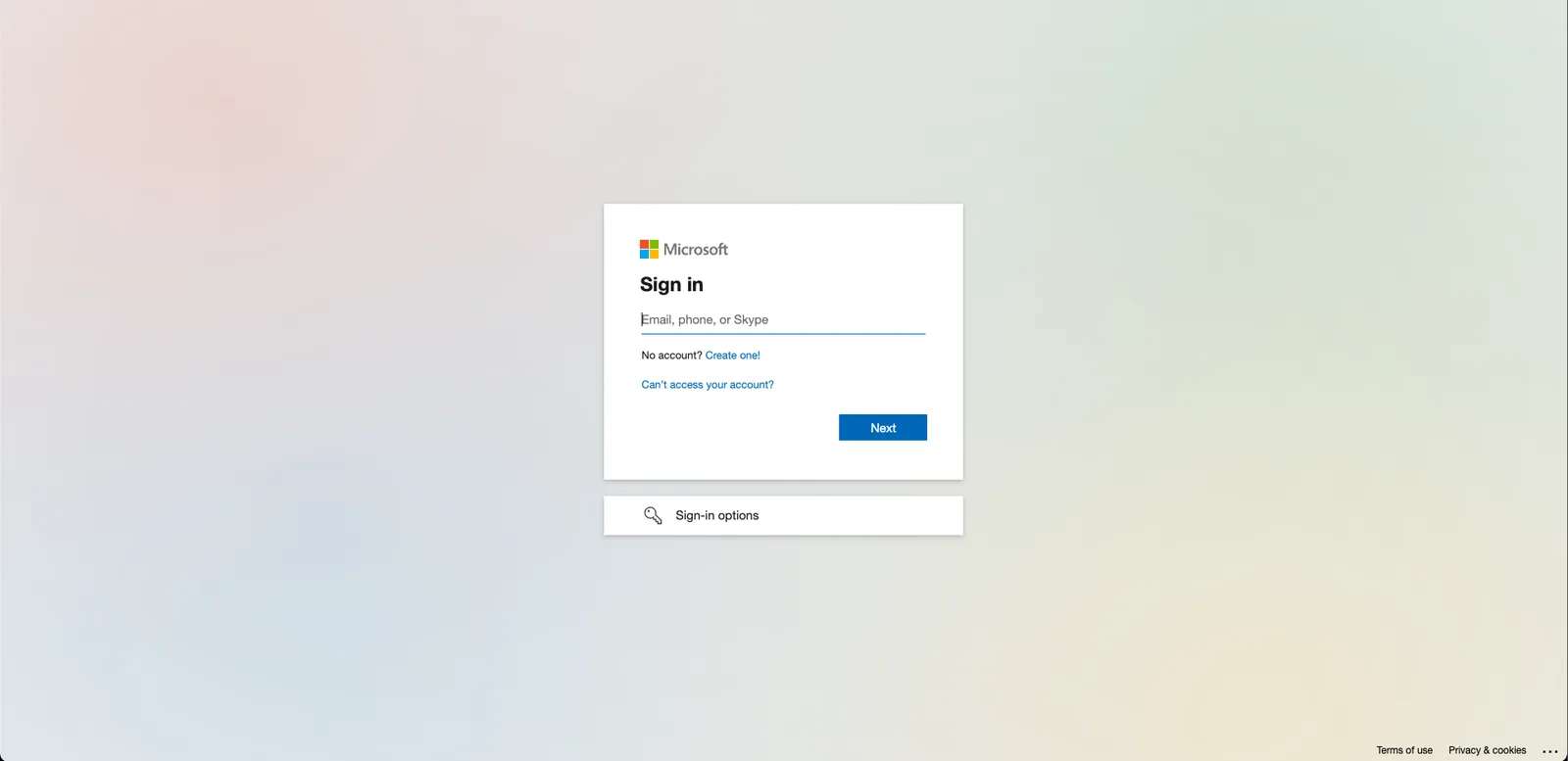
If You Picked Microsoft#
You'll be redirected to sign in:
Step 4: Complete Two-Factor Authentication (2FA)#
All SSO users must complete an additional security step before accessing ARPIA.
- Click "Send Code" to receive a verification code via email
- Enter the code in the provided field
- Click "Validate Code" to complete login
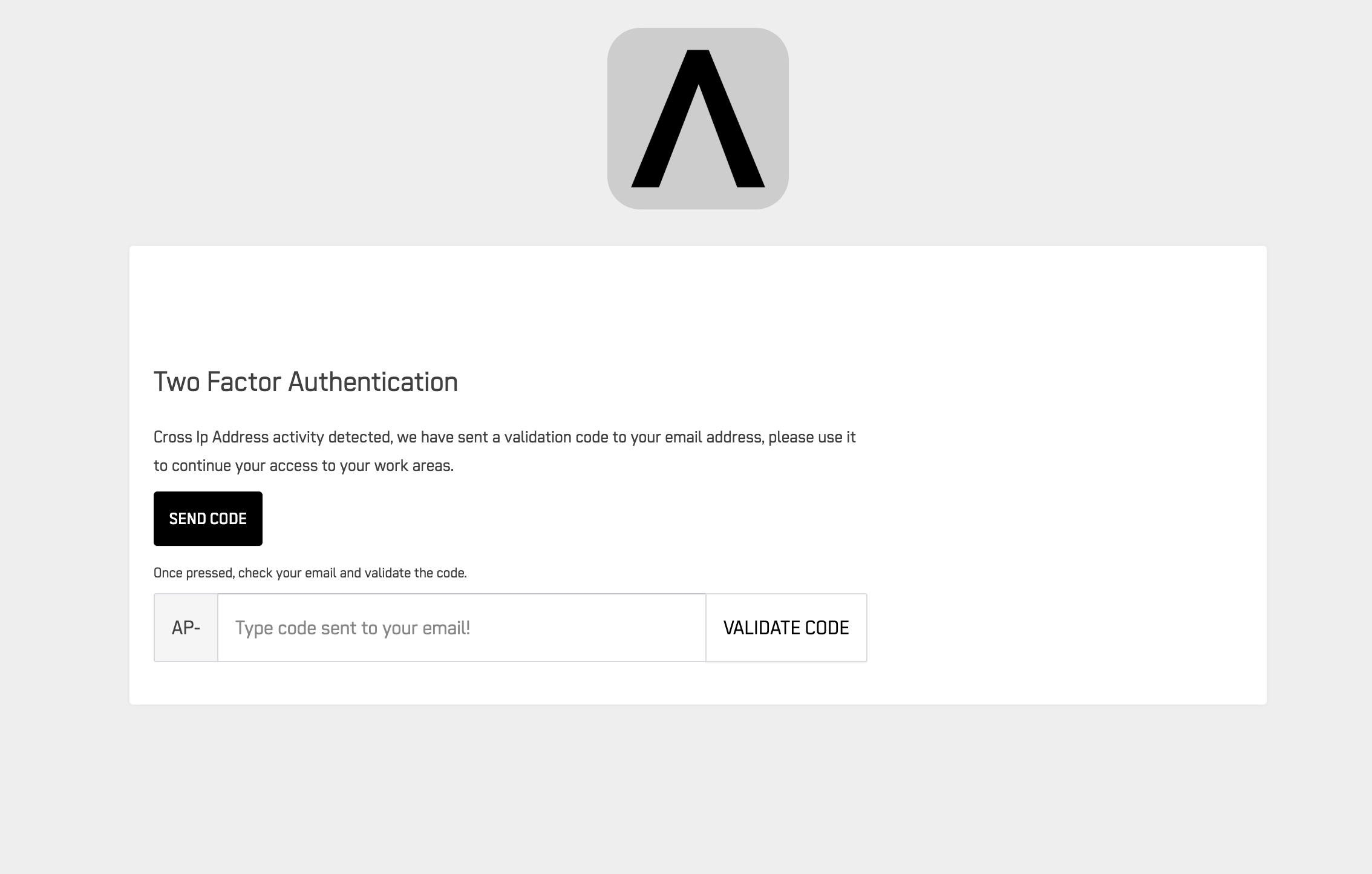
Tip: Codes expire after a few minutes. Request a new one if needed.
🔐 Why: Two-factor authentication protects your account with an extra security layer, ensuring only authorized users can access ARPIA.
✅ That's it! You're logged into ARPIA.
Future Logins#
Just click your SSO provider again — no need to re-enter anything. You'll go through the same quick 2FA verification each time.
How to Add a New SSO User in ARPIA#
To add a new user, follow the steps in 🔗 How to Add a User.
When filling out the form, make sure to select Google SSO or Microsoft SSO as the Login Method — no password will be required.
Note: New SSO users will complete 2FA on their first login to activate their account.
How to Switch an Existing User to SSO#
Important for Admins
If you are switching an existing user to SSO, this must be done from the Workarea where the user was originally created. Editing the user from a different Workarea will not work.
Step 1: Go to Users#
Step 2: Click on the User's Name#
Step 3: Click Edit#
Step 4: Change Login Method#
Select Google SSO or Microsoft SSO
Step 5: Save Changes#
✅ Next time they log in, they'll use SSO and complete 2FA — no password required.
Final Tips for Admins#
- ✅ Use SSO to simplify and secure user access
- ✅ Remind users that 2FA is required for all login methods
- ✅ Assign clear Security Profiles
- ❓ Need help? Reach out to your ARPIA Administrator