Documents in ORIA Reasoner
How to Configure and Use Documents#
The Documents tool allows you to generate structured files (PDFs, presentations, or reports) while ensuring they follow your company’s visual identity through a Brand Kit (colors, fonts, logo, and styling instructions).
What is the Documents Tool and What is a Brand Kit?#
- Documents Tool: ORIA’s document generator that automatically applies professional formatting to text outputs, reports, and presentations in your session.
- Brand Kit: A predefined set of corporate identity elements (logo, colors, typography, and layout rules) that ensures all generated documents align with your company's branding.
How to Enable Documents in a Session#
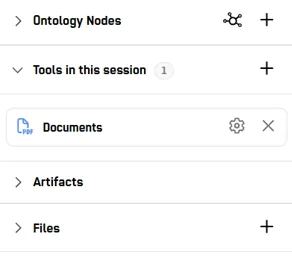
- Access session tools: In the right side panel, go to Tools in this session and click the + button (Add tools).
- Select Artifact Tools: In the pop-up window, click the Artifact Tools tab.
- Enable Documents: Select the Documents card (identified with a PDF document icon) and click Save.
- Open branding settings: In the Tools in this session section of the right side panel, click the gear icon (⚙) next to the Documents tool.
How to Create and Configure a Brand Kit#
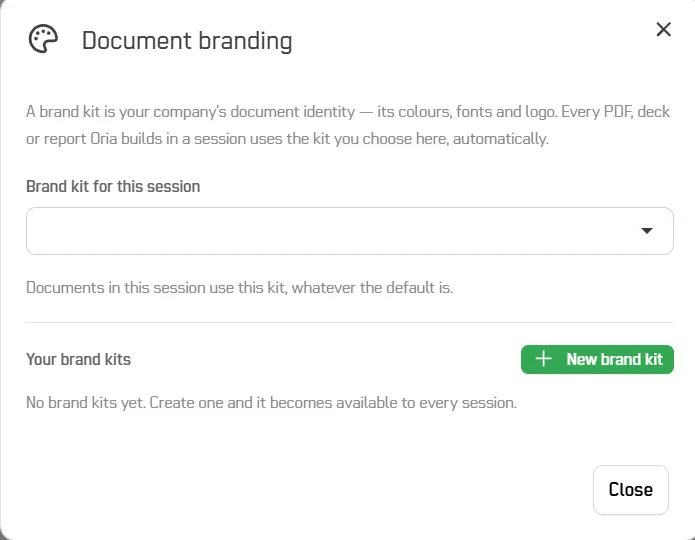
Clicking the gear icon on the Documents tool opens the Document branding window:
- Create a new Kit: Click the green + New brand kit button.
- Fill in the Brand Kit parameters:
-
Name: Internal identifier for your team (e.g., Acme Corp — Corporate).
-
Logo: Click Upload logo to upload a transparent PNG or SVG image.
-
Colours: Set hex color codes for Accent, Text, and Muted.
-
Headline font & Body font: Choose Google Fonts for headings and body text.
-
Notes for Oria (optional): Permanent design/tone rules (e.g., "Logo top-left; always include confidentiality footer").
-
Use as the organization default (optional): Apply as default across the entire organization.
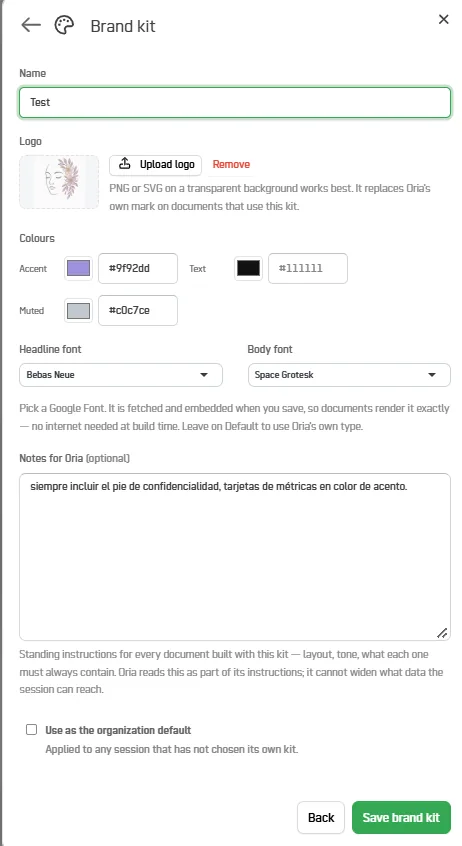
3. Save the Kit: Click Save brand kit to finalize.
Brand Kit Management and Assignment#
Inside the Document branding modal, you can perform the following actions:
-
Assign to current session (Brand kit for this session): Open the top drop-down menu and select the specific kit you want to use for the active session (or choose None — unbranded if you do not want to apply brand styling).
-
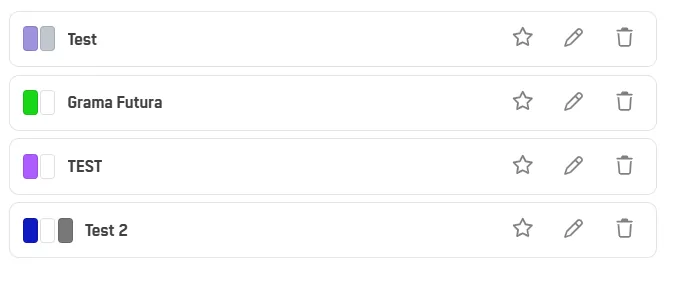
Set as Favorite (⭐): Click the star next to a kit in the Your brand kits list to prioritize it.
-
Edit (✏️): Modify the colors, logo, or layout rules of an existing kit at any time.
-
Delete (🗑️): Click the trash icon to remove a kit. The system will ask for confirmation before permanently deleting it.